

To navigate to the most relevant section, please click the appropriate link below: -

End of Term Message from the School ICT Team
As the end of the busiest term of the year draws to a close, we wanted to take a moment to recognise the sheer amount of work that’s gone on across our teams and in the schools we support. With the start of one of the busiest terms of the year for Schools with the new academic year, the Autumn Census, School Workforce Census, and exam mocks and resits, it really has been full on!
We’re now firmly on the countdown to Christmas, and a well-earned break is finally in sight. We hope you all get the chance to switch off over the Christmas and New Year holidays — it’s been a huge term, and a rest is more than deserved.
From all of us at School ICT we wish all our customers new and old a very Merry Christmas and a Happy New Year.
*Polite reminder that our offices will be closed from 5pm on Christmas Eve until 8am on the 2nd January*
Best Ways to Log Helpdesk Calls
Please be aware that we are receiving an exceptionally high number of calls at the moment particularly as schools are busy wrapping up their School Workforce census, we thank all of our customers for their patience when calling.
Customer contact options: –
- Live chat @ https://my.www.schoolicts.co.uk/
- Customer Portal @ https://my.www.schoolicts.co.uk/
Our customer portals allow you to: –
- Log and track tickets
- Watch webinars
- Search Knowledge base for information
- Latest news
Call: 0345 222 6802 Option 1 for MIS support *please leave voicemail if lines are busy during peak periods
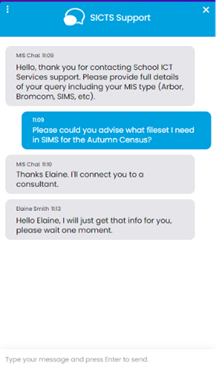
Please remember that you can request support in various different ways, by requesting support via Live chat:
Key Benefits of Our Live Chat:
- Instant Support: Get your questions answered in real-time by our knowledgeable support consultants.
- Expert Assistance: Our live chat is staffed by real people, ready to provide you with personalised support.
- Convenience: Access live assistance directly from our website, without the need for phone calls or emails.
- Efficiency: Resolve issues faster with immediate responses and quick solutions.
To start using Live Chat, simply visit our customer portal, log in and click on the chat icon at the bottom right corner. Our team is ready and eager to assist you with any enquiries or support you may need.
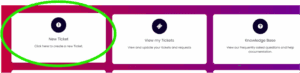
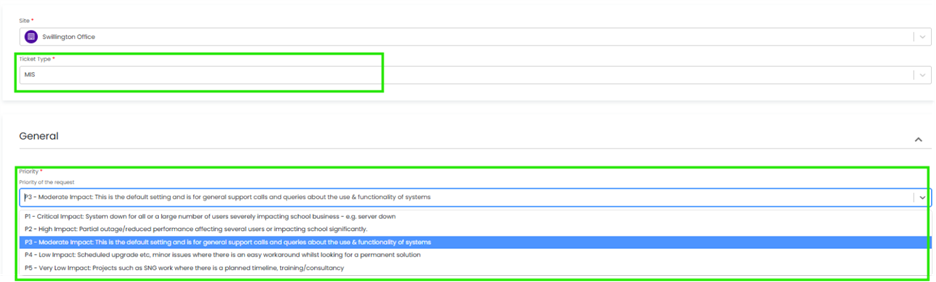
When you log a ticket via the customer portal, select the Ticket type either MIS or Technical to ensure if gets to the right team. The Priority, if you have an urgent ticket, MIS down for example please select either P1/P2 all other tickets default to P3 or even P4 if not urgent.
Once you enter the Subject and Details box, you will see a pop up box with suggested articles in the top right hand corner:
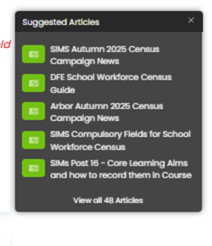
Clicking on the links in this pop-up may help you to resolve your issue without our input, so please also make use of this.
Remember to tell us which MIS and Module but also really importantly if OFSTED are onsite as this helps us prioritise your call through our OFSTED Watch service and also your preferred contact method as we know sometimes an email reply is what you need during your busy period.
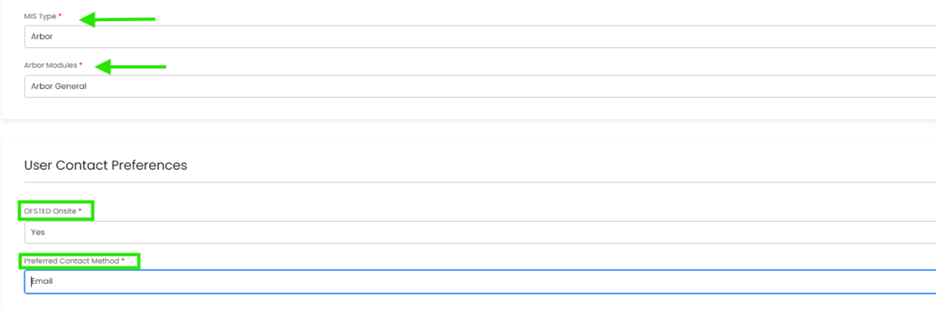
We know you like to speak to us (and we like to speak to you!) but in order to offer the best service to our customers, this is often the quickest way to log a support request at busy times.
And lastly, as always, our experienced team are on hand to take your calls, so please reach out via 0345 222 6802 if the lines are busy and to save your precious time waiting you can leave a voicemail. This method will automatically generate a ticket and this means that the person who can help you best is the person who will call you back. If you do this, PLEASE leave your name, the name of the school, the best number to call back on and a brief description of why you’re ringing, as this means that the best person to help you is the one that will call back.
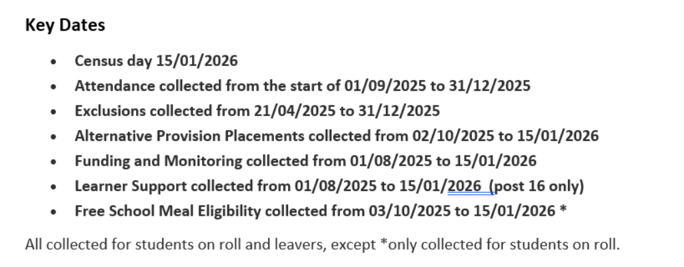
Spring Census: Thursday 15th January 2025
- Census date – Thursday 15 January 2026
- Return date – Wednesday 11 February 2026 (This may be earlier if you submit via your local authority)
Classes at set time
The DfE need details of all classes running at the selected time on spring census day.
If different parts of the school use different timetable structures, then systems should allow the school to return class information for the timetable structure that applies to key stage 1.
For example, where lunch is at midday for pupils following a primary timetable but at 1pm for pupils following a secondary timetable, then the end of morning school should be taken to be midday and not 1pm.
The ‘selected time’ is based on the last digit of a school’s departmental establishment number.
| Last digit of your departmental number | Selected time |
| 0, 1 or 5 | the selected time is one hour before the end of morning school |
| 2, 3 or 6 | the selected time is one hour after the start of afternoon school |
| 4, 7, 8 or 9 | the selected time is one hour after the start of morning school |
Where the selected time is not appropriate to the school timetable – for example, if the selected time is when the whole school or a large proportion of the school is in an assembly with the headteacher, schools can choose an hour or period that reflects a ‘normal’ class situation that applies at the selected time each Thursday of the term.
Do not record unusual situations (such as class amalgamation or school closure) which may have occurred on census day due, for example, to staff training or absence, severe weather conditions or religious observances.
Any group of pupils receiving instruction outside the normal class framework at the selected time, such as pupils in a special educational needs (SEN) unit, are treated as a separate ‘class as taught’ unless this is an atypical or temporary arrangement.
Look out for our Spring Census Campaigns for further information.
Exam Services
While most sectors are winding down for the Christmas break, the Exams Team at School ICT Services are doing quite the opposite – we’re winding up! As mince pies hit the shelves and tinsel starts appearing on monitors, we’re busy gearing towards the January exam series, Cambridge Nationals, and BTECs, not to mention the looming summer entry deadlines just around the corner.
GCSE Maths & English results will be published early January for those in year 12/13 who needed to re-sit in the November series. Hopefully many of our school’s students will be receiving a late gift of good news once they return after the Christmas break!
Speaking of gifts…. If your school or one you know of, is waving goodbye to their Exam Officer at the end of term and haven’t yet recruited a replacement, why not give yourself the best Christmas present possible – less stress! Our Managed Exams Service can step in seamlessly to support your exams administration, whether for a short-term gap or the foreseeable future (just like many other schools already have!)
Want to know how it all works and hear what our partner schools think?
Call us on 0345 222 6802 or email helpdesk@schoolicts.co.uk
We’ll be working hard right up until the last bell of term, fuelled by mince pies and exam timetables, making sure everything’s ready for a smooth start to 2026’s exam season. But for now, we’d like to wish you all a “Wonderful Christmas and a happy and healthy New Year! ”
✨ The Exams Team at School ICT Services – keeping calm and compliant this Christmas! ✨
Data Management Services
Our Data Management service offers an excellent, cost effective, responsive, and efficient Data Management solution delivered remotely by a team of highly experienced school data experts. Their dependable advice and guidance empower schools, academies, and MATs to maximise their investment in their management information system (MIS) team. Whether it’s a long-term solution or short term for sickness cover or maternity please reach out.
- Please click here for further information
Moving to Arbor? - helloData assessment migration service
If you decide to move to Arbor, and are a helloData customer, we can set up your assessments in your new MIS, migrate your data and provide training, all for £95.
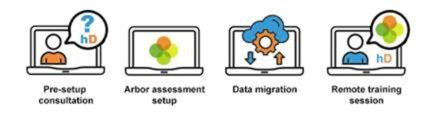
We’ve already helped a large number of schools switch to Arbor this term. The demand for this service is proving to be incredibly high so please let us know when you are moving as soon as possible by emailing admin@hello-data.co.uk.
Note: The new MIS will not setup your assessments or migrate your internal assessment data, only the statutory data is transferred.
If you are not yet using helloData, we can also support you with setting up the assessments in Arbor and assist with the data migration, email admin@hello-data.co.uk to find out more. Visit www.hello-data.co.uk to discover how our reporting tool connects with Arbor so that you can benefit for in depth assessment analysis at a click of a button.
*NEW* Timetable Build Service
Our Complete Timetable Service delivers a fully built, MIS-ready timetable, guiding schools from curriculum planning to final schedule construction. Our Consultant will confirm the curriculum model, address staffing and rooming constraints, and build the timetable around the school’s preferred session structure and staff availability. Although day-to-day rooming, duties and meetings remain the school’s responsibility, the service provides a clear, efficient and professionally produced timetable that reduces workload and supports smooth planning for the academic year.
If this service could support your team or if you’d like further information, please contact us on: 0345 222 6802 or e-mail: info@schoolicts.co.uk
*NEW* Timetable and Curriculum Management Service

Spring Term Online Training Courses
Training courses for the academic year 2025/2026 are now live! We have a comprehensive schedule of online ‘live’ training courses along with Distance Learning courses to help you develop your knowledge and get the most out of your MIS (Management Information System).
Booking is now open please visit https://www.schoolicts.co.uk/online-training/
Data Health Check Service
An MIS health check ensures you’re getting the most out of the investment in your MIS. The benefits of one of our comprehensive health checks include: –
- Raise awareness of functionality and any issues
- Keep you up to date with the latest developments in your MIS
- Housekeeping and tidying exercises
- Report with recommendations to ensure you’re fully maximising your MIS along with any training recommendations
- For on premise MIS a server health check is also included
Our health check service usually takes around half a day. Please contact us to find out more on: helpdesk@schoolicts.co.uk to find out more.
FMS
Changes to SIMS FMS
Your School Finance System Is Evolving — And You’re Already Covered
The next generation of FMS (Financial Management System) is arriving in early 2026 — and it’s built for the cloud. Designed to meet the real-world needs of school finance teams, this modern solution offers smarter workflows, secure access from anywhere, and powerful reporting tools. Best of all, if your school is on the Finance Package, you’re already paying for the hosting element — so there’s no extra cost to get started.
Why This Matters Now
Schools face increasing demands: managing sensitive financial data, working across multiple sites, and supporting staff who may not have formal accountancy training.
The new cloud-native FMS is built to address these challenges head-on:
- Secure, Flexible Access
Staff can access finance systems securely from any location, reducing downtime and enabling remote work.
- Smarter, Simpler Workflows
A modern interface and intuitive design make it easier to complete tasks quickly — even for users without finance backgrounds.
- Powerful Reporting Tools
From cost centres and trial balances to equipment registers and salary projections, the new reporting workspace gives schools deeper insights with less effort.
- Seamless Integration
The system retains all current interfaces and integrates smoothly with your MIS, preserving historical data and simplifying migration.
The Two-Step Journey
To ensure a smooth transition, the move to the new FMS is structured in two steps:
Step 1: FMS Readiness – FMS on site to FMS Connected platform
Schools move to the hosted environment — a secure, future-proof platform that reduces manual updates and ensures consistent system versions. This step is already included in your Finance Package.
Step 2: FMS Adoption – Transition to FMS Next Gen from FMS Connected
In early 2026, schools that have completed Step 1 will be first in line to adopt the new FMS. The transition is designed to be low-disruption, requiring only a simple user mapping exercise.
Schools have the option to become early adopters of FMS Next Gen or, if they wish they can continue using FMS Connected and move over at a more suitable time
Why Act Now?
By moving to the hosted environment today, your school will:
- Be future-ready for the next-gen FMS
- Minimise disruption during the transition
- Benefit from top-level security (Cyber Essentials Plus)
- Free up time for strategic finance work
- Be prioritised for activation in 2026
Step 3: FMS Adoption – Register for the FMS Next Gen Early adopter programme
Be first to experience the Next Generation of FMS
Before its full launch in early 2026, ParentPayGroup are opening an Early Adopter Programme to give selected schools early access to the new system. This is your opportunity to explore FMS before anyone else, share your feedback, and help shape the future of school finance.
Places are limited, so we encourage you to register soon. If selected, they’ll be in touch with next steps and details on how to access the system. Please note, your FMS6 database needs to be hosted within the PPG Connected platform to be able to take part of the early adopter programme.
This is a really exciting milestone, and we’d love for you to be part of it.
Register your interest here FMS is in the cloud – calling all Early Adopters

Click for the latest Arbor updates
Arbor Admin Access
Did you know that we can provide additional Arbor support at no additional cost as part of your existing MIS SLA?
What benefit does Arbor Admin functionality bring to you?
With your permission, School ICT can be granted Admin functionality on your Arbor MIS site. This access allows our experienced support team to quickly diagnose and resolve common issues including refreshing invoices, populating missing payment accounts and accessing audit logs for troubleshooting.
By enabling this functionality, you’ll benefit from faster resolutions without needing to escalate these tasks to Arbor Support—saving your team valuable time and ensuring smoother day-to-day operations.
If you haven’t had the email and feel you should have, please call School ICT on 0845 222 6802 or email helpdesk@schooolicts.co.uk
Spring Census Preparation
Although you won’t be able to access your Census in Arbor until January, you can check some of your data in advance. To do this go to School > Data > Data Quality Dashboard, select Students from the left, then Demographics, and Bulk Update Basic Details. In here, you’ll be able to complete any missing information which will save work later on.
Areas you could start checking:
Address information is entered correctly and includes postcode – School | Data | Data Quality Dashboard | students | contact details | postal addresses
Ensure all pupils have been admitted on Roll – You can check pupil enrolment numbers by going to Students | Enrolments| Statistics and show data by Year group
Ethnicity data source and Ethnicity recorded – School | Data | Data Quality Dashboard | Students | Demographics | Update Basic Details
First Language – School | Data | Data Quality Dashboard | Students | Demographics | Update Basic | Native language
Exclusions – Check all have been recorded. If the exclusion review process is still ongoing for this exclusion, then select Do not return in school census. Student Profile | Behaviour | Permanent Exclusion
Need further help?
Our Helpdesks are open from 08:00 until 17:00 so please do not hesitate to give us a call or log a ticket and we will help with your query.
Summer Exams Basedata
Summer exam basedata should now be available in your Arbor site to allow you to make your entries for the summer exam season. When you enter your candidates, the June 26 season should now be available for you to select. Please contact the helpdesk if you require any assistance with this.
New Intake Season
As long as your new academic year has been created, you can add your new Intake Seasons via Students > All Students > Applicants. This will take you to the Applicants Dashboard which will show all of the Intake Seasons created. Click on the green +Add sign at the top of the dashboard.
In the slide over, add a name for the season and the academic year it’s linked to.
Once the Season has been set up, you can add your Buckets and Intake Groups if you use them.
Snow Days
There are two ways to record school closure to students in Arbor. The method we recommend will depend on whether the closure is planned (such as an election or bank holiday) or not planned (such as a snow day or heatwave).
Please see the guidance here
Important notice about clubs and trips
Even if your school is marked as closed, your clubs, trips and wraparound care will not be automatically cancelled or refunded. The invoices will still be in the Payments area, but you won’t be able to refund them.
We recommend you make any refunds or cancellations for sessions before marking your school as closed. You can see how to do this here:

Click for the latest Bromcom updates
Spring Census
Whilst the census itself may not be ready just yet in bromcom, preparation can be started ahead of this becoming available.
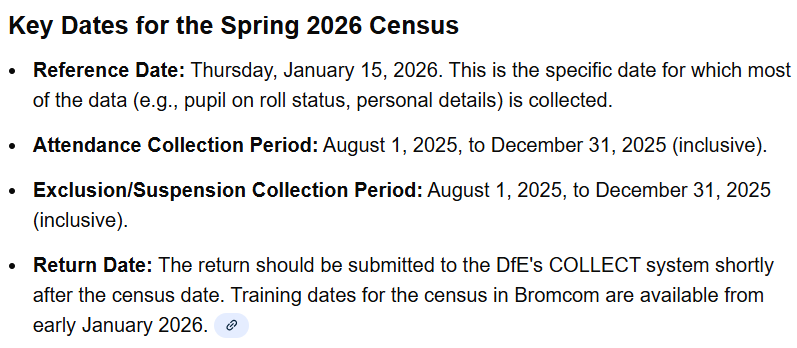
The key dates are listed below, and this can assist in getting started in correcting mistakes in attendance and exclusions.
For example, it is worth exporting a list of suspensions and the E codes in your MIS for the date range below and check these match up. This can be a common query that pops up one each census.
Running the attendance reports/ routines to check for missing or N codes for the relevant date range can also reduce the errors and queries that are generated when creating a new census in January.
Much of the process will be the same as 2025, so it can help to look at this guidance as a starting point and nearer the time, there will be a 2026 guide published. Bromcom Spring 2025 School Census
Missing or incorrect student data can be updated at any time, and there are some useful features on the student list that can assist with identifying and correcting this ahead of the census.
Extra columns can be added onto the screen using the “add / remove additional columns” option – ||| icon shown below
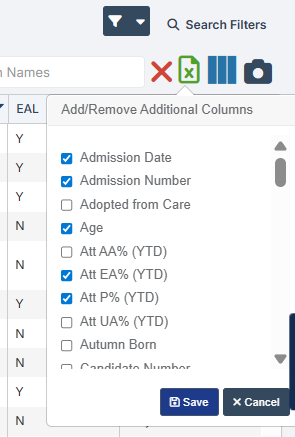
There are useful census fields such as: –
- Service child
- Ethnicity
- First Language
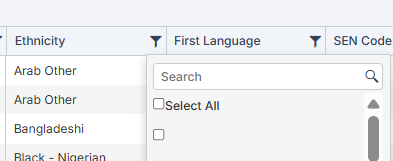
And by using filtering on the column, users can identify any that are blank or incorrect.
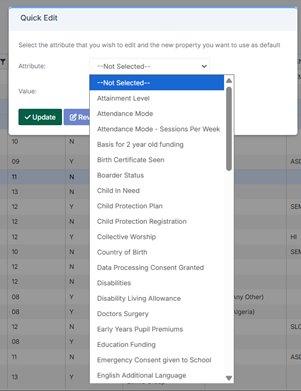
There is also functionality to “quick edit” missing data if required. This is done by selecting the students you wish to change and the actions > quick edit
How to use Quick Edit for Bulk Changes
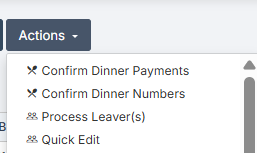
There are several fields that can be edited, so make sure the correct students have been selected! And if in doubt get in touch via the helpdesk before starting the process and we can advise.
Checking and updating data now can reduce the number of errors appearing in January and reduce the workload at that busy time.
News and Updates
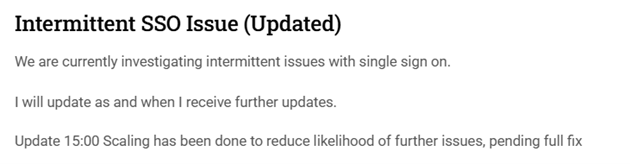
There is currently an intermitted issue with single sign on and Bromcom being investigated. It was recently reported on the community page and details are listed below. If you are experiencing any issues with this, reach out via the helpdesk.
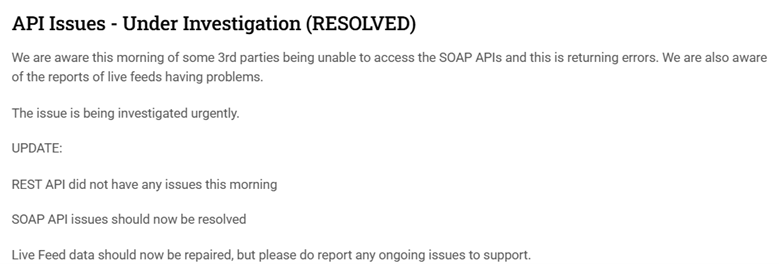
A resolved issue reported recently around API and 3rd parties.
A legacy feature being removed in January
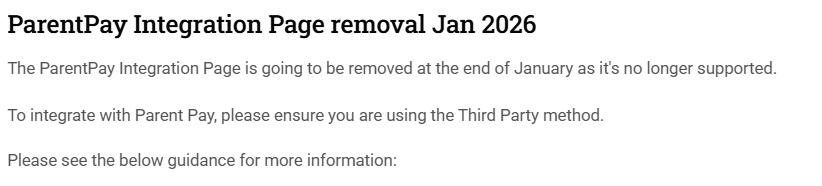
How to Setup ParentPay Integration in Bromcom
How to Manage Third Party Supplier’s API Access Permissions in Bromcom
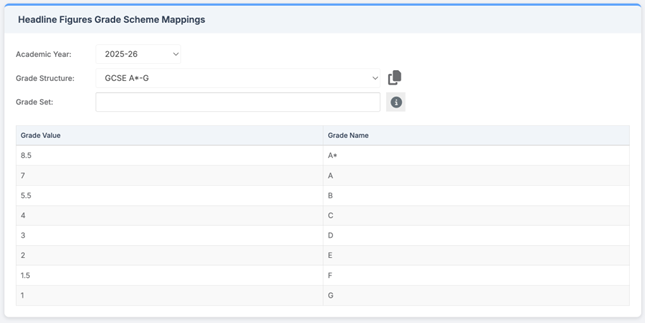
Analysis – Headline Figures Grade Mappings 2025/26
Modules > Analysis > Routines > Headline Figures Grade Mapping
The Headline Figures Grade Scheme Mappings for 2024/25 has been carried forward for 2025/26.
Note: The KS4 Performance Dashboard will be updated with QN codes, points, and discount codes in a future release, which is estimated to be completed by Friday 28th November.
Analysis – Attainment Estimates updated for 2024/25
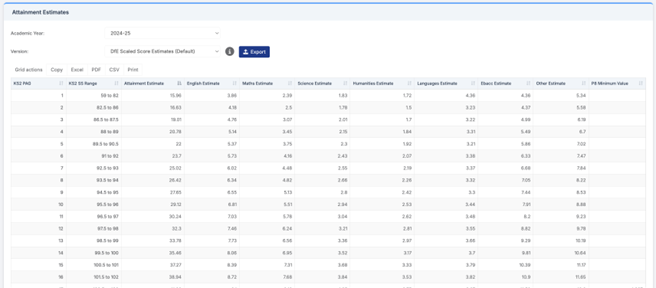
Modules > Analysis > Routines > Attainment Estimates
The Attainment Estimates have been updated for 2024/25 with the latest DfE-released provisional estimates for improved accuracy in performance analysis.
Key Updates
KS4 Attainment Estimates
DfE Scaled Score Estimates
Standard Deviation calculations
Note: The Attainment Estimates for 2025/26 are expected to be released by the DfE at the end of January, and we will publish them once available.
Bromcom AI – Naming Updates for the Bromcom AI Bots
Config > Setup > Bromcom AI Settings
This release includes updates to the Bromcom AI platform to improve clarity, usability, and consistency across the system. These updates are naming updates only, functionality remains unchanged.
What’s New
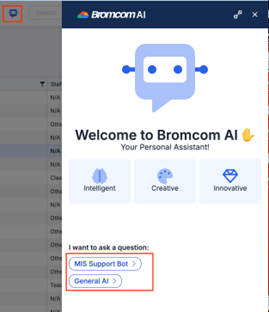
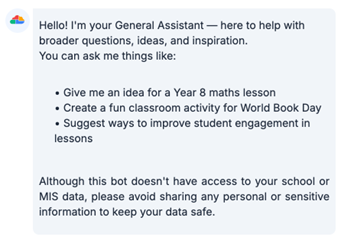
The bot previously named ‘About the MIS’ has been renamed to MIS Support Bot, and the bot previously named ‘Around Public Information’ has been renamed to General AI. The order of the two bots has also been switched.
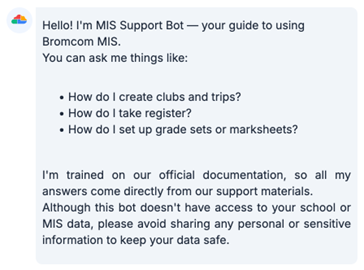
When users open MIS Support Bot, the following message is displayed:
When users open General AI, the following message is displayed:
Config > Setup > Bromcom AI Settings
The relabelling has also been applied on the configuration page:
The option “Enable Bromcom AI to access public information, using OpenAI” has been renamed to Enable General AI to access public information using OpenAI.
The option “Enable Bromcom AI Support Bot” has been renamed to Enable MIS Support Bot.

The above updates are naming updates only, functionality remains unchanged.
Upon login, users will be prompted to review and accept updated Terms and Conditions regarding data retention. Acceptance is required once per user and recorded for future reference.
wTimetable – Curriculum Plan: Swap Sessions in Expanded Blocks
Modules > wTimetable > Curriculum Plan
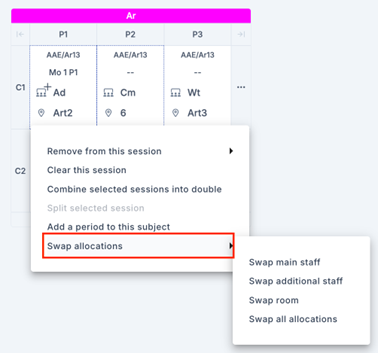
This release introduces the ability to swap allocations (staff and rooms) for individual sessions within the same class on the expanded block view. Previously, users could only swap entire class allocations between classes. Swaps can now be made for sessions belonging to the same subject and class.
When two sessions within the same class are right-clicked and then any of the selected sessions is left-clicked, a new dropdown option Swap allocations is available. This menu includes the following options:
Swap main staff
Swap additional staff
Swap room
Swap all allocations
Validations
Users will see one of the following validation messages, depending on whether the swap is successful or results in a conflict:
Swap is successful – The following message appears:
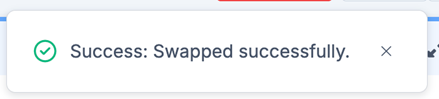
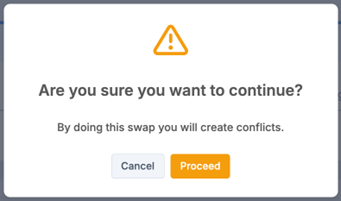
Swap is allowed but it will cause a conflict due to scheduling – A confirmation popup will appear—if users choose to proceed, they will need to review and resolve the clash in the Conflicts area.
Swap is not allowed – One of the following messages will appear:
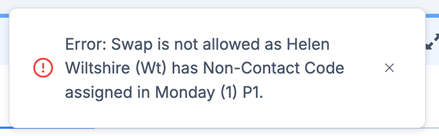
If the swap would move a staff member to a teaching period where they already have a Non-Contact code assigned:
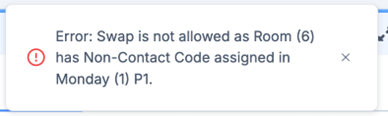
If the swap would move a room to a teaching period where it already has a Non-Contact code assigned:
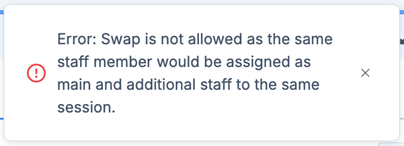
If swapping additional or main staff would result in the same staff member being both an additional and main staff in the same session:

Click for the latest Integris updates
Did You Know - We offer Migration support to our customers moving from one MIS to another system?
Part of our migration service is the offer of 1:1 Migration support meetings where we go through data cleansing tasks and housekeeping advice prior to your migration date. Once you have your new MIS, we can be on hand to answer any questions you have.
For day-to-day support, your school can contact us in the normal way at helpdesk@schoolicts.co.uk or 0345 222 6802 where we will be able to assist with the migration processes or just answer any questions you may have.
If you know you are migrating to a new MIS, please let us know as soon as possible so we can provide this additional support.
Spring Census
Accessing the Return
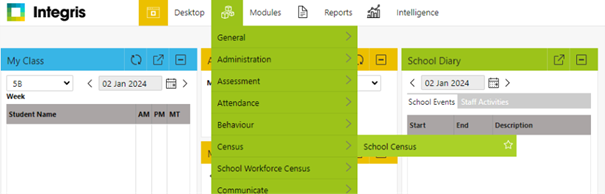
Modules > Census > School Census
School Time
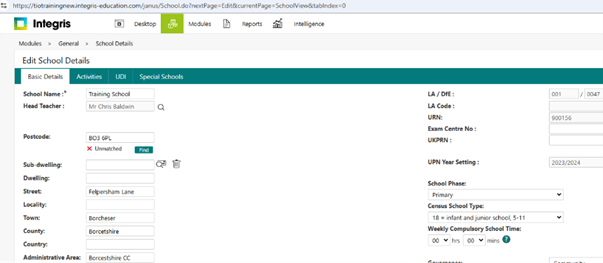
School time is collected as part of the spring census return and collects data on the total compulsory time pupils spend in school, in a typical 5 day week, this setting is found within the General > School Details section of Integris.
This value should be rounded to the nearest 15 minutes, Integris will only allow entry in hours and 15 minute intervals.
The DfE expected range for this value is 25-40 hours.
Infant Class Guidance
Only primary and all-through schools need to send us this information for key stage 1 and reception classes.
The School Admissions (Infant Class Sizes) (England) Regulations 2012 limit the size of an infant class during an ordinary teaching session to 30 pupils per schoolteacher. Infant classes are those in which most children turn 5, 6 or 7 during the course of the school year (reception and key stage 1 classes).
Primary and all-through schools with infant classes are asked to ensure that the selected period is one in which their infant classes are engaged in an ordinary teaching session.
An ordinary teaching session does not include school assembly, or any other school activity usually conducted with large groups of children such as:
- PE or games
- music
- singing
- drama
- watching television
- listening to the radio
Where, at the time of the count, infant class children would be involved in such an activity, the count is deferred to the next ordinary teaching session. This change of selected time is enacted for all classes in the school, not just the infant classes.
Nursey Provision
Due to change in DfE guidance and the Early Years Provision the terminology and recording has now been changed. All eligible pupils will now use an Eligibility Code not 30 hour code to access the provision which consists of 11 digits.
2 Columns have been added to account for these changes in the census: Extended Hours and Expanded Hours.
The 30-hour/eligibility code indicator is an 11-digit integer that is required for pupils who claim extended or expanded funded entitlement hours. This applies to all eligible 9-month-olds to 3-year-olds and those pupils aged 4 in year groups ‘E1’, ‘E2’, ‘N1’ and ‘N2’ only, who are on roll on census day. The code confirms the eligibility of working parents to receive the 15 extended funded entitlement hours, or the 15 expanded funded entitlement hours. This is particularly important as parents may split this entitlement between 2 providers.
The code, once issued, remains fixed and refers to a single parent / child combination – where a parent has two children, each child will have their own code. However, when the school is presented with the code by the parent, the school must confirm the code’s validity with their local authority. Where a child transfers school, the local authority must be informed of the transfer.
The table below can be used to determine what data should be entered for students:
Please Note: The examples below are based on 2-year-olds attending for 15 hours per week and 3/4-year-olds attending for 30 hours per week. If the parents are funding additional hours privately, then this should be recorded in Hours at Setting and not in the Funded Hours
| Student Type | Hours at Setting | Funded Hours | Eligibility Code | Extended Hours | Expanded Hours |
| 9 months to 2 Year Olds Funded (Working Parents) | 15.00 | 0.00 | Yes | Blank | 15.00 |
| 9 months 2 Year Olds Non-Funded | 15.00 | 0.00 | No | Blank | Blank |
| 3/4 Year Olds Funded | 30.00 | 15.00 | Yes | 15.00 | Blank |
| 3/4 Year Old Non-Funded | 30.00 | Blank | No | Blank | Blank |
The 30-hour code can be added/edited via Modules > General > Student Details > Student Record > Additional. Or alternatively, via Modules > Administration > Speed Edit.
Attendance statistics are collected in all three census phases – Spring, Summer and Autumn, providing information about a pupil’s attendance in the term immediately prior to the census.
This may include information for pupils who left school prior to census day. The Census will include attendance data for the date periods below:
| CENSUS | ATTENDANCE DATE RANGE |
| Autumn 2024 | Autumn census, aged 4 to 15 as at 2023-08-31 |
The Integris School Census module extracts relevant data for each pupil on a termly basis using the attendance data recorded within the Attendance module.
Note – Metrics are not collected for any pupils who are boarders. The pupil Boarder indicator is found in Modules > General > Student Details > Enrolment.
The following statistics will be collected in the School Census return:
- Check for Unmarked attendance marks: Any missed sessions can be checked in Reports > Attendance > Attendance Records > Unmarked Registers
- Check Possible sessions – The number of possible sessions during the term, based on there being two sessions for each school day (morning and afternoon). This can be checked in Reports > Attendance > Analysis Reports > Attendance Return.
The attendance return will only accept dates within your academic year as shown in the Modules > General > School Diary for the relevant year. So where the DfE give a defined end date for attendance, the date you need to use may be before this.
- To view overall attendance/ absence as percentage go to Reports> Attendance> Analysis Reports > Attendance return. If applicable, include leavers after the ‘from date’.
- To view students who have Persistent Absence greater than 10% in the date ranges above, go to Reports > Attendance> Analysis reports > Persistent Absence report.
SEN provision is collected for all pupils on roll on the relevant census day. Any SEN Code changes MUST be made before Census day otherwise you will see inconsistencies with the number of students in any table referring to the number of SEN students.
The SEN stage can be added/edited via Modules > General > Student Details > Student Record > SEN tab. Or alternatively, via Modules > Administration > Speed Edit.
To report on students’ SEN stage, go to Reports > Administration > Student Reports > SEN Details.
Data Items Included in this Return
Full details of what is included in each return can be found via DfE spreadsheet.
Recording a Snow Day
Recording attendance data using Speed Entry
Speed Entry is a quick method of assigning an AM/PM attendance code to multiple students for a given time period or a single day. It is particularly useful for entering attendance codes in advance for class trips, holidays, and other types of extended absence.
The only attendance codes that can be changed in this way are / (present), # (planned school closure), * (not yet marked) and N (no reason yet provided for absence). The / code can also not be overwritten by the * code.
Additionally this is the only way to change the # (planned school closure) code once it has been applied to a students attendance record.
- From the Modules menu choose Attendance and then Speed Entry. The Speed Entry screen is displayed.
- Use the Find field and Search button to find and select the students who should all be given the same attendance code.
For each selected student the Name and Class are displayed.
- Use the Day Selection fields to choose the sessions you want to change, as follows:
To change the attendance data for one day, select All Day, AM or PM, and then enter or choose the Date.
To change the attendance data for several days, select Range of Dates and then choose the Start Date and End Date.
Select the Attendance Code which should be given to this group of students .
- Click OK.
- Inspect the Status column to check that the attendance codes were successfully changed:
A green tick means that the attendance code was changed.
A red cross means that the attendance code was not changed.

This can happen for a number of reasons – for example, if a student has a specific resolved attendance code already marked against them (i.e. not any of the ones mentioned above).

Click for the latest ScholarPack updates
Migration Support - Did You Know we offer migration support from one MIS to a new system to our MIS customers?
Did you know that we offer migration support to our MIS SLA customers?
Part of our migration service is the offer of 1:1 Migration support meetings where we go through data cleansing tasks and housekeeping advice prior to your migration date. Once you have your new MIS, we can be on hand to answer any questions you have.
For day-to-day support, your school can contact us in the normal way at helpdesk@schoolicts.co.uk or 0345 222 6802 where we will be able to assist with the migration processes or just answer any questions you may have.
If you know you are migrating to a new MIS, please let us know as soon as possible so we can provide this additional support.
Spring Census
Documentation to Aid with Completing the Return
There is currently no updated guidance from Scholarpack, but please refer to the 2025 guidance on our portal here.
There are no new data items, but information about traineeships has been discontinued from autumn 2025.
Data Items for the Spring Census
School Childcare
This is a manual entry which can be found in Admin > Census > Spring Census > Childcare details.
Schools must provide information on the provision of – or signposting to – childcare together with the nature of the childcare provided / signposted.
The school must provide an answer to whether there is on-site provision (and any related information) and whether the school signposts off-site provision for each of the 4 types of childcare.
Where opening / closing times are required, these are provided using the 24-hour clock format (03:00 = 3 am 15:00 = 3 pm).
If a school does not provide on-site childcare and also does not signpost off-site provision they would need to select for each type of childcare a ‘NO’ for on-site and an ‘N’ for signposting.
See the Childcare section of the DfE Guidance – DfE School Census Data Items
School Time
This is done via the relevant school census page in Admin > Census.
Find School Time in the table and click on the ‘School Time’ button.
The next page will display as shown below: –
Enter a figure and press Save.
Once hours have been entered and saved the page will display as shown below:
Class Information
This return requires details of all classes running at the selected time on spring census day.
If different parts of the school use different timetable structures, then systems should allow the school to return class information for the timetable structure that applies to key stage 1.
The ‘selected time’ is based on the last digit of a school’s departmental establishment number.
Any group of pupils receiving instruction outside the normal class framework at the selected time, such as pupils in a special educational needs (SEN) unit, are treated as a separate ‘class as taught’ unless this is an atypical or temporary arrangement.
Infant class guidance
Only primary and all-through schools need to send us this information for key stage 1 and reception classes.
The School Admissions (Infant Class Sizes) (England) Regulations 2012 limit the size of an infant class during an ordinary teaching session to 30 pupils per schoolteacher. Infant classes are those in which most children turn 5, 6 or 7 during the course of the school year (reception and key stage 1 classes).
Primary and all-through schools with infant classes are asked to ensure that the selected period is one in which their infant classes are engaged in an ordinary teaching session.
An ordinary teaching session does not include school assembly, or any other school activity usually conducted with large groups of children such as: –
- PE or games
- music
- singing
- drama
- watching television
- listening to the radio
Where, at the time of the count, infant class children would be involved in such an activity, the count is deferred to the next ordinary teaching session. This change of selected time is enacted for all classes in the school, not just the infant classes.
To enter select the drop-down arrow on the Classes panel.
To input this data into ScholarPack these go to Admin > Census > Spring Census > Class Details
To add class details, select Add New.
You can then add details of the class, year group, the subject being taught and the number of students (including those who would have been in the class but have been registered as absent).
Where a key stage 1 or a reception class reports a pupil: teacher ratio greater than 30, schools must record in their MIS where this is due to: –
- any pupils within the class recorded as excepted.
- a teacher being on planning and preparation time or learning manager time and the class is being supervised by a teaching assistant.
The calculation is based on the pupil: teacher ratio not pupil: adult ratio therefore, regardless of the number of teaching assistants, if there are no exceptions or teachers on PPA reported, the class will be treated as unlawful in Department for Education (DfE) publications if there are more than 30 pupils to one teacher.
To record this in ScholarPack the exception will be displayed in an orange exception box.
If the students in the class (Pupils in Class + Guest Pupil Numbers) exceeds the ratio 30:1, then for each student over the ratio, an exception must be recorded. An exception can be used more than once.
Example: In the example below there are 32 students in the class for one teacher. Therefore, two exceptions need to be recorded.
Once the correct number of exceptions have been recorded to bring the ratio back to 30:1, you will see it says Exemptions Complete.
Note: Do not record unusual situations (such as class amalgamation or school closure) which may have occurred on census day due, for example, to staff training or absence, severe weather conditions or religious observances.
Class reference name
This records the class name with space for 30 characters.
Number of teachers in the class
The number of teaching staff taking the class. Include all qualified or unqualified teachers – exclude those wholly or mainly providing support to individual pupils.
Number of adult non-teachers in the class
The number of education support-staff present in the class. Include teaching assistants, special educational needs support staff, minority ethnic pupils support staff, and other education support staff. Exclude non-teaching staff wholly or mainly providing support to individual pupils.
Number of teachers on PPA, LMT or NQT time
Only primary and all-through schools need to send us this information for key stage 1 and/ or reception classes.
The number of teachers who are on planning and preparation time (PPA) or learning manager time (LMT) or newly qualified teacher (NQT) time at the selected time.
To record if a teacher is on PPA/LMT then in the classes area add in the “Teachers on PPA/LMT” column the number of teachers from the class on PPA/LMT.
School Dinner Taken
This should be completed on Census day and should confirm all those pupils in Reception, Year 1 and 2 who have taken a universal free school meal.
Top Tip: This area can only be filled in after morning registers have been taken on Census Day itself. This is because the attendance codes are needed to show who is in school to have a meal.
You will be presented with a list of all those students in years Reception to Year 2. The attendance code for each student will be displayed together with any meal choice if using the meals module.
- You can choose to populate the School Lunch taken column with those students who were marked as present for the AM session (/) or late before register closed (L) as having had a UFSM on census day.
- Tick all students who had a school meal on census day and click Save.
- You can bulk enter these using the Pre-Populate button at the bottom of the page, which automatically assigns meals to those with a present code that day, then untick those meals not taken (e.g. home packed lunch).
If the situation at lunchtime was in some way unusual on census day, you will need to complete this section as if it were a different, unaffected day. More information on Unusual Circumstances can be found on the DfE’s site here: Unusual circumstances
Free School Meals Taken
Pupils are recorded as FSM eligible where they meet the FSM eligibility criteria – for these children, this area requires a manual entry of the total number of pupils who had a free school meal at lunchtime on census day.
Pupils who are in receipt of a free school lunch due only to the infant pupil universal entitlement are not recorded as ‘FSM’ and not included in the free school meals taken record.
This can be found in ScholarPack via Admin > Census > Spring Census > Free School Meals.
Note: Pupils who are in receipt of a free school lunch due only to the infant pupil universal entitlement are not recorded as ‘FSM’ and not included in the free school meals taken record.
If you use the meals module on ScholarPack, you can check numbers for UFSM and FSM on various dates in the Admin > Meals > Dinner Numbers by Week report.
Admissions Appeals
Figures on admission appeals are collected in the spring census from schools that were responsible for their own appeals related to applicants having not received a requested offer of a place for the start of the current academic year.
We do not need information about: –
- appeals lodged on or after 1 September in the current academic year.
- in-year appeals (appeals against a refusal to admit a pupil during the course of the current academic year) – just those that relate to entry at the start of the academic year
Recent academy converters (including a conversion of an existing school into a sponsored academy) should complete this module if they converted before spring census day.
You should only include appeals that are the responsibility of the school’s governing body. If a school has contracted another agency, such as their home local authority, to administer their admissions appeals process and the school’s governance code is ‘VA,’ ‘FO’ or ‘CA,’ the school should complete the module. If your school operates arrangements jointly with other schools, your return will include appeals for your school only.
These are required from schools in the spring census, with the phase and governance.
Primary and middle-deemed primary schools should provide information on all their appeals.
All-through schools must provide information on all their admissions appeals that relate to entry into years reception to 6 inclusive.
Infant admission appeals
Only primary and all-through schools need to send us this information.
Collects information about admissions appeals from schools that have infant classes. It is a subset of the primary figure provided.
These are required from schools in the spring census, with the phase and governance.
To enter your figures into ScholarPack go to the Spring Census page and under ‘Spring Census Specific Data’ click on the Admissions / Infant Admissions button.
You will be presented with 5 boxes to manually input figures in: –
School-arranged alternative provision (AP)
You will need to ensure you have recorded information about AP placements where you have sent students from your school to an alternative provider where applicable.
Data is requested for both on and off roll pupils and should include any current AP placements and any previous placements within the census period, where the pupil has already left an AP placement.
To record AP Placements information, please go to the Support Tab on a student profile.
Scroll to the base of the tab and click on the cog next to School-Arranged Alternative Provision, then click on Add New.
The default setting is to record the Provision ID by URN, and the digits are expected to be manually entered.
Alternatively, you can record by UKPRN digits or Setting Type.
- If you select Setting Type, you will be required to enter a Companies House Number as well as a UK Postcode. This is required to provide adequate tracking of unregistered AP settings.
- Under Provision ID a dropdown menu will display for you to choose the appropriate option: –
As well as recording the Date of Entry to the AP, you are also required to enter the Reason for Placement as well as SEN at Entry.
The available options here are: –
- No Special Educational Need
- Education Health and Care Plan
- SEN Support
You are required to enter the Attendance Pattern (whether Part time or Full time with this provider).
If you select Full time, you do not have the option to enter Sessions per week, as it is assumed it will be all sessions from that date. If you select Part time you will be required to enter the Sessions per week.
When the AP ends, you need to enter a Date of leaving, as well as the SEN on Leaving. You may also add notes to this section.
If you wish to edit any current or historic AP, click on the cog next to School Arranged Alternative Provision to open all recorded provisions.
Early years – funded hours, expanded, extended hours, and hours at setting.
DfE guidance is as below: (full guidance can be obtained via https://www.gov.uk/guidance/complete-the-school-census/data-items-2024-to-2025
Summary of what is collected and how to record.
| Data Item | Maximum hours | School Census Summer 25 |
| Hours at Setting | This is the total hours the pupil spends in school each week | Collected for all 9 months up to and including 4 year olds |
| Funded Hours – 2 year old | 15 | Collected for all disadvantaged 2 year olds.
A specified subset of disadvantaged 2-year-olds also becomes eligible from the term following their second birthday. Local authorities will confirm which 2-year-old children meet the eligibility criteria if schools do not know. |
| Funded Hours – 3 & 4 Year olds | 15 | All children become eligible for funded early education from the term following their 3rd birthday, irrespective of background or family circumstances (the 3- and 4-year-old universal entitlement). |
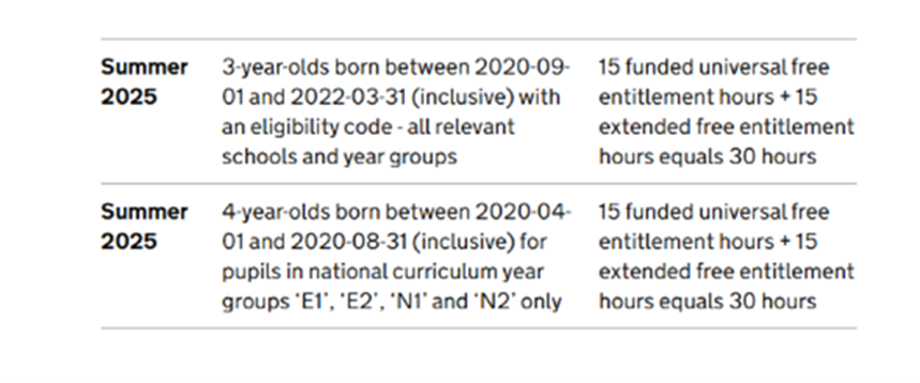
| Extended Hours | 15 | Collected for 3 and 4 year olds with an Eligibility code.
3-year-olds born between 2020-09-01 and 2022-03-31 (inclusive) with an eligibility code – all relevant schools and year groups 4-year-olds born between 2020-04-01 and 2020-08-31 (inclusive) for pupils in national curriculum year groups ‘E1’, ‘E2’, ‘N1’ and ‘N2’ only |
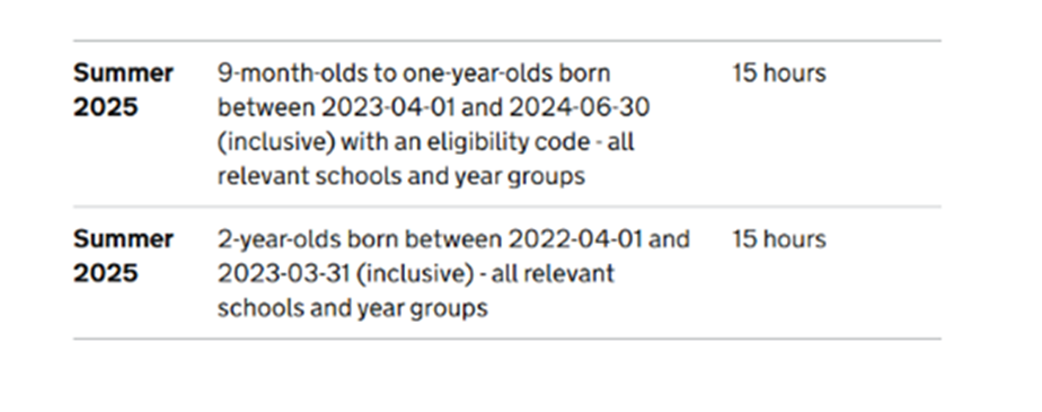
| Expanded Hours | 15 | Collected for 9 months up to and including 2 year olds with Eligibility code.
(In some circumstances, 2-year-olds may be eligible for both the 15-hour entitlement for disadvantaged 2-year-olds and the expanded entitlement but can only take up one of these entitlements. In those circumstances, children should be recorded against the disadvantaged entitlement (funded hours). |
| DAF indicator | N/A | Collected for 9 months up to and including 4 year olds. |
| 2 Year old basis for funding | N/A | Collected for 2 year olds |
| Early Years Pupil Premium Receipt | N/A | Collected for 9 months up to and including 4 year olds |
Funded Expanded hours.
Funded Extended hours.
2 Year Old basis for funding
The basis under which a 2 year old has been funded whilst taking up a place in school will now be collected in each census and is not required for 2 year olds taking up the expanded entitlement hours.
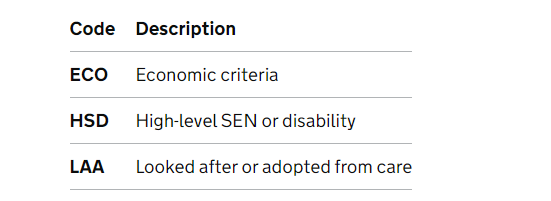
This data is entered in Panel 3 of the census return.
For each individual student, the number of funded hours allowed depends on the student’s age and NC year.
You can see full guidance on what to fill in from the DfE – scroll down to the Hours at setting (used for funding) section here: Census data items
Using the bulk page
Go to Admin > Students > Group Updater.
Select either the current year group or current form group.
In the Student Attribute box, select either (depending on the fields you wish to update):
· Funded Hours
· 2 Year Old Basis for Funding
· 30 Hour Code (Eligibility Code)
· Extended Childcare Hours
· Hours at Setting
· Funded Expanded Entitlement Hours
What needs to go in each field?
You can see full guidance on what to fill in from the DfE – scroll down to the Hours at setting (used for funding) section here: Census data items
Here is a quick summary of what each field is to be used for: –
· Funded hours – Hours in school funded by the universal entitlement (maximum 15).
· Hours at Setting – Total number of hours they spent in education at the school, no matter who funded the hours. To calculate this, add the Funded Hours, Extended Hours or Expanded Hours and any additional hours paid for by the school or parents.
· Extended Childcare Hours – Additional hours taken above and beyond the universal entitlement (maximum 15) for 3 and 4-year-olds with working parents. Do not include expanded hours or hours paid for by the school or parents in this number.
· Funded Expanded Entitlement Hours – Additional hours taken above and beyond the universal entitlement (maximum 15) for 2-year-olds with working parents. Do not include extended hours or hours paid for by the school or parents in this number.
· 30 Hour Code (Eligibility Code) – This 11-digit code entitles children of working parents to an extra 15 hours of childcare. You need to fill in this field if the number in the Extended or Expanded hours fields are greater than 0.
Running your Census in ScholarPack.
Accessing the Return
Standard Data Items
This table lists the standard data items for this school census and provides notes on each section and a blue button in the View/Edit column for each section.
Click each button to check your information before calculating your census return. Each blue button will take you to the area of ScholarPack where you can view or update your information.
For the majority of these standard data items, this can be updated in bulk and the system will take you to the Group Updater.
For full details on all data items, please refer to the DfE School Census Data Items
School – Make sure your phase and school type are correctly specified.
Attendance data – Clicking the ‘Registers’ button will take you to the Manage Register area of ScholarPack (Register > Manage Register). Here you can check your attendance codes. This may include pupils who have left the school prior to census day – to view these students ensure you tick the ‘Show Former Students’ box. Pupils recorded as “Guest’ will not be included in your return. We recommend checking if you have any students recorded as Guest pupils. Please use the following guide – Recording A Child As A Guest Pupil Persistent absenteeism is based on a threshold of 10 percent absence codes.
· Ethnicity – Where the information has not yet been collected then this needs to be recorded as ‘not yet obtained.’ If a student or parent has refused to give the information then ‘refused’ should be recorded and returned.
· Free School Meal Eligibility – Clicking on the ‘FSM Eligibility’ button in the census area will quickly take you to the area of ScholarPack where you can check pupil’s FSM eligibility periods. You can also go via Admin > Students > Manage FSM. Ensure students do not have more than one open period of FSM eligibility.
· Language – You can find the list of DfE Census Codes HERE.
· Service Child – Indicates if a child has a parent or parents who is / are Service personnel.
· Funded Hours – The free entitlement to education hours given to students aged 2, 3 and 4 years old.
· Extended Childcare Hours – Some parents may be eligible to get an additional 15 hrs childcare for their children (giving a total of 30 hrs) and are given an 11 digit code. This is termed Extended Childcare.
· Thirty Hour Code – the 11-digit code that is required for pupils who claim extended childcare hours.
· Hours at Setting = Funded Hours + Extended Hours/Expanded + Hours funded by other sources.
· Top Up Funding – those students on roll on census day for whom a school receives top-up funding from the local authority due to SEN.
· Early Years Pupil Premium (EYPP) – You will be taken to the group updater where you can apply the appropriate EYPP status to students in bulk.
The year group N2 (academic year -1) is displayed by default and you can use the check box to show only those students who have a date of birth between the dates specified by the DfE as being eligible for EYPP. Select from the drop down the reason > select the students to which this reason applies and click update.
· 2-year-old basis for funding – 2-year-old children may meet more than one criterion for funded provision when taking up a place in the school and each relevant criterion is returned in the census. The reason(s) for receipt of 2 Year Old Funding must be recorded and returned. This data item is not required for 3 and 4- year-olds.
· Post Looked After Arrangements – Edit this in the individual Student Profile > Extended, the default is “No”.
· Enrolment Status
· Entry Date
· Part Time
· NC Year Actual – The National Curriculum year group in which the student is taught for most of their time, regardless of their chronological age.
· Type of Class – Primary schools only. For most students it should be set to “Other Class (Not a special class or unit)”. Nursery classes should be set to “Nursery Class (Not a special class or unit)”.
· SEN Provision – Clicking on the ‘SEN’ button will run the SEN report usually found via Reporting > Reports > Support tab. Here you can view your SEN data and check it correct. If you need to add or amend an SEN Provision this can be done via the individual student’s profile in the Support tab (the SENCO user role is needed to access this resource).
· Disability Access Fund Indicator – This is a true / false flag to indicate those pupils on roll for whom the school receives, on census day, top-up funding – either from a local authority or, in the case of a PRU / AP, a local authority or another school. This can be recorded in ScholarPack via the child’s profile within the ‘Extended’ tab, under Support Information.
· Suspensions and Permanent Exclusions – Clicking on the ‘Exclusions’ button will run the Exclusions report usually found via Reporting > Reports > Conduct tab. Information on all types of pupil exclusions is collected for the previous 2 terms. For both permanent and fixed period exclusions, the exclusion start date and exclusion reason(s) are collected. Up to three reasons may be provided, but schools should only select more than one reason where it is appropriate.
· Address
Completing your census
Calculate Your Census Return
Once you have worked your way through all the blue buttons in the tables you can click the Calculate button on the right side of your screen.
This will take you to a validation page where any queries or errors can be viewed.
You must ensure that you have fully entered into your system all data required by the DfE specification.
· Although the data checks are very important, do not assume that successful completion guarantees that all the necessary data is present and that your school census return is correct.
· The absence of any validation errors or queries also does not guarantee a successful return. Data submitted to the department should be authorised by the head of school.
Solve errors and queries.
Click the Error Details button to be taken to our Help Centre where you will find a guidance document on that particular error.
Where possible, the ‘Fix’ query or error button will take you to the area in ScholarPack where you can resolve the issue.
Generate School Summary
Once you have resolved all of your errors on the validation page, you can click on the button labelled ‘ScholarPack Summary’.
This will display all data entered into ScholarPack that is ready to be submitted.
The ScholarPack summary differs from the Official summary by giving you the option to see which students are behind all the figures (via their UPN) in most tables either by using the ‘Show All Data‘ button along the top or the ‘Show Data’ button on individual tables –
If you are looking at a particular census table, you can expand this further to show the student names after clicking either ‘Show All Data’ or ‘Show Data’.
Click the ‘Show/Hide Names‘ button at the top and this add the student names under their UPN for easier viewing.
Please thoroughly check the separate tables with a colleague/headteacher to ensure that you are confident with your data before sending the return.
If you wish to print or save this page, please click on Print in the top of this screen.
When you click Print a pop up box will appear. You can either select the blue print button or ‘Change’ (in the destination section). Clicking ‘Change’ will allow you to choose Save as PDF instead of printing.
Download Your Census Return
Once you have validated your census return and checked your school summary you can select the Download census file button. This will allow you to download your xml file (CTF) with all necessary information.
If you want to check the information in your census file, please use the ScholarPack Summary instead. The Census CTF is meant for COLLECT and will be in code so is not easy to read.
Assigning a Christmas lunch to staff and students
Go to Admin> Meals> Set up Meal Type
· Click on Add New to set up Christmas meal
· Select the year groups you wish to have this meal or set up an additional Christmas Meal for staff to select
· Go to Admin> Meals> Set Meal Availability to assign the meal to the day it is available
· Go to Admin> Meals> Manage Student Lunches and select date the meal is available
· Assign the Christmas meal by ticking in that meal choice against each student who requires it.
Repeat this process in Admin> Meals > Manage Staff Lunches to assign the meal to staff.

Click for the latest SIMS updates
SIMS Next Gen
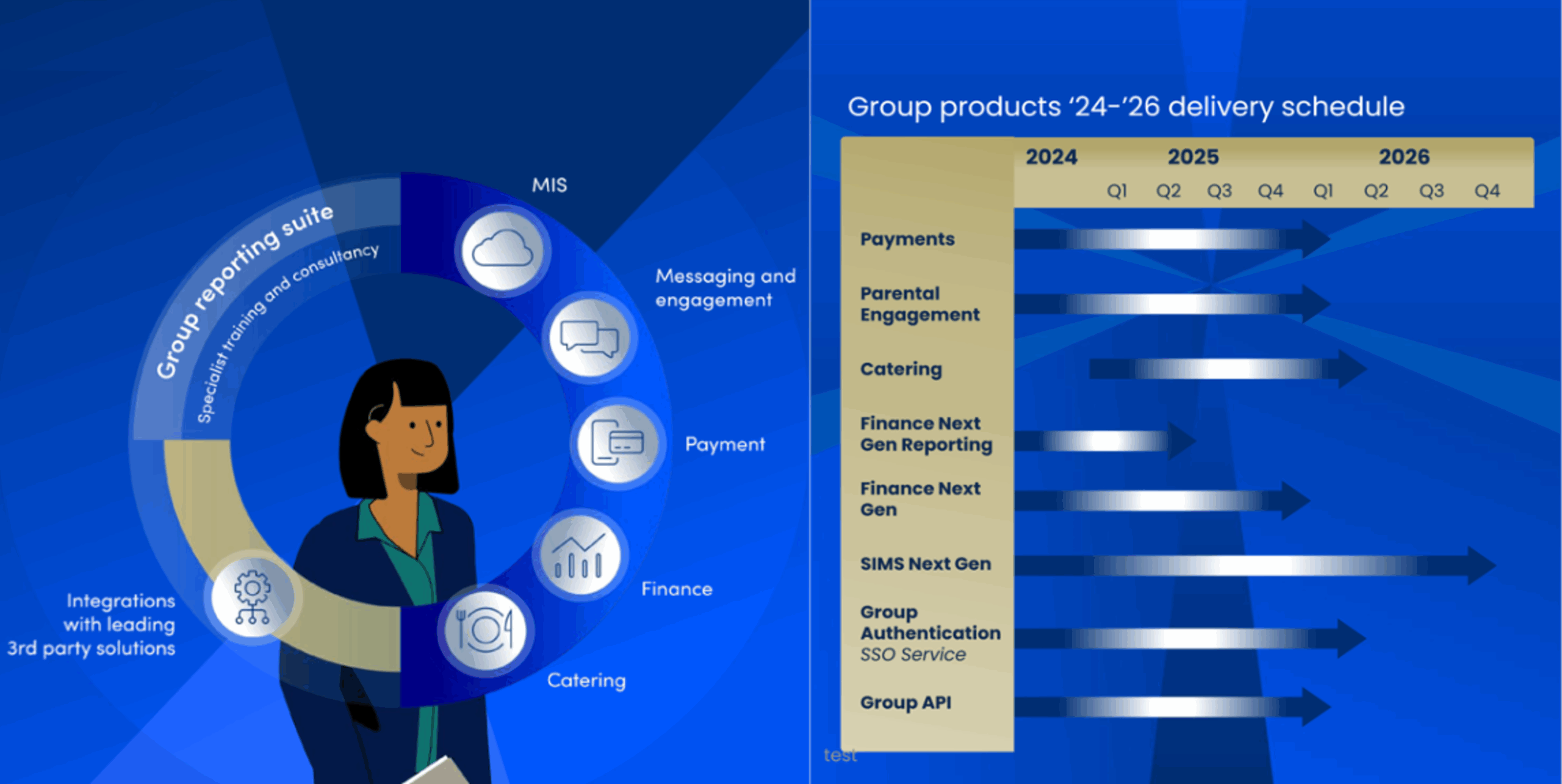
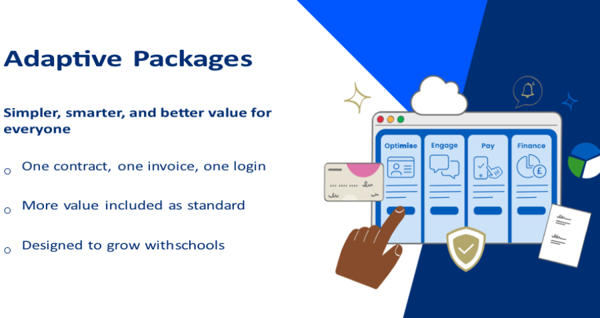
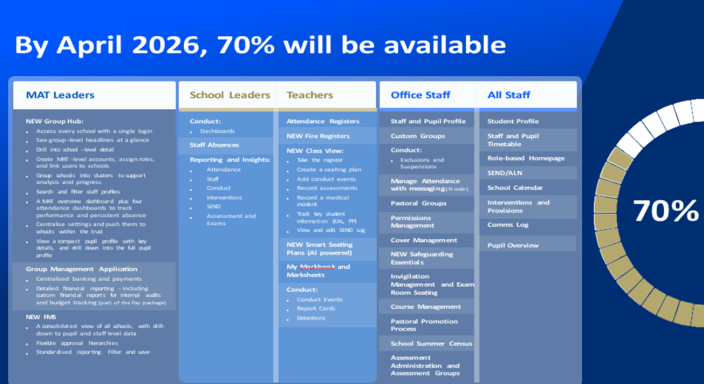
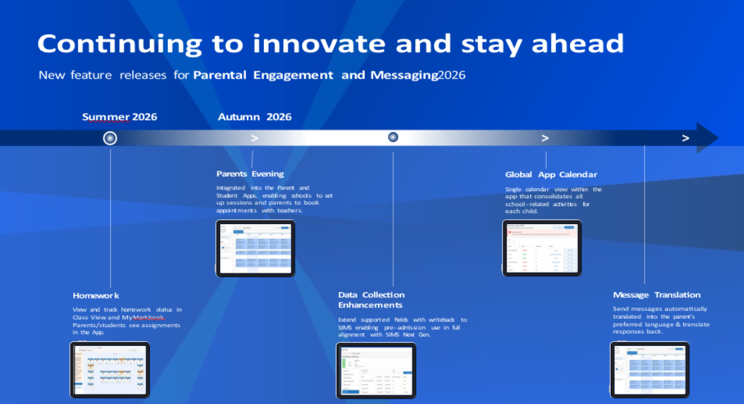
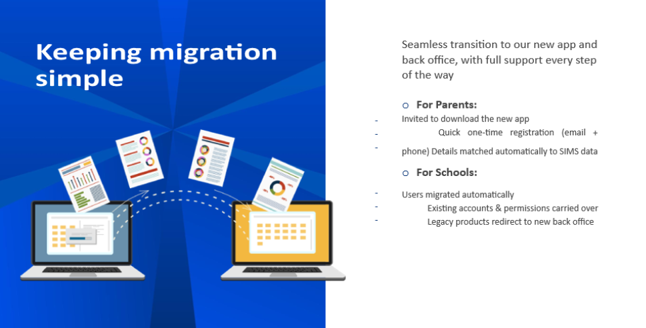
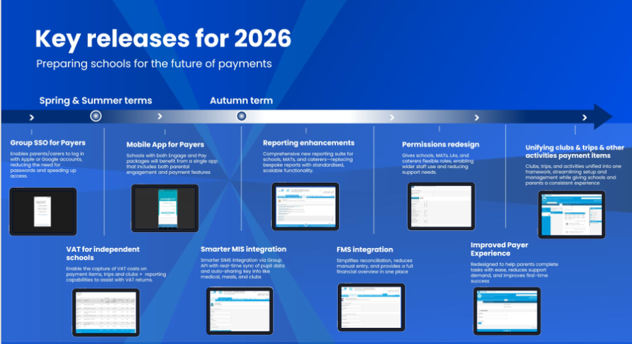
By the end of Spring 2026 every ParentPay group solution will be fully connected. Customers will benefit from one login, one platform through Sigle Sign On seamless integration via Group API Centralised access and reporting across every platform.
Spring Census and SIMS Next Gen
The Spring census will be available to all English schools in January 2026 and will be made available in general release w/c/ 5th January! This is a great opportunity to have a look at how the census will be completed in SIMS Next Gen, ready for the mandatory completion of the summer census in SIMS Next Gen.
SIMS Next Gen for teachers
Teachers should now be able to complete the majority, if not all day-to-day tasks in SIMS Next Gen. From taking daily registers, to recording behaviour and updating marksheets, all this functionality is live now in SIMS Next Gen.
SIMS Class View – Centralising all key functionality in one holistic class overview to support teachers with efficient classroom management
- Teachers can perform key classroom tasks instantly in one place such as taking registers, creating seating plans, access SEND data, add conduct and view vital pupil information such as EAL
- Class View removes the need to purchase additional standalone products or integrate with third parties and migrate data between systems.
- Allows teachers to drive data driven decisions for early intervention
- Assists with Ofsted lesson observations and inspections
SIMS Pupil Profile – Central hub for viewing and editing pupil information
- Each individual pupil record provides instant access to important pupil information such as their medical and school history, meal choices, registration and absences, SEN and Pupil Premium, Parent contact details and more.
- Staff can also access student timetables in real time to view details such as upcoming subjects, lesson codes, room details, teacher etc., helping deal with any safeguarding concerns quickly and efficiently.
SIMS Conduct Management – A simplified approach to managing behaviour effectively
- Record conduct events in seconds – log behaviour for individuals or groups using multi-select. Fully customisable to your school’s policy with smooth workflows for accurate capture.
- Customise to your school policy – define positive and negative event types, set severity levels, and choose how much detail to record.
- Clear behaviour insights – view conduct points on pupil cards and drill deeper with customisable Conduct Dashboards for historical data and trends—no complex reports required.
- Assign consequences with ease – set detentions, report cards or other follow-up actions straight from Class View. Every detail in one place.
If you would like to learn more about SIMS Next Gen, please contact us!
You can also watch the SNG webinar which was recently recorded here
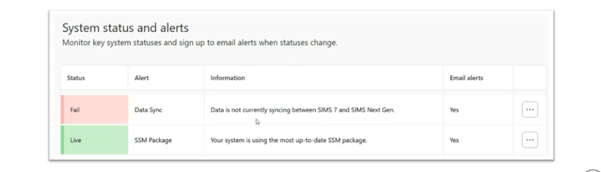
SNG System Status and Alerts
You can also keep up to date with system status and alerts from within the Next Gen admin console to ensure your system is syncing successfully. This component notifies the school if the synchronisation between SIMS 7 and Next Gen has stopped working and confirms that the SIMS Service Manager (SSM) is up to date.
SIMS Spring - Current Fileset
Requirements: You must be using SIMS.net version 7.226 upgrade with the latest fileset in the 3200 series.
The default fileset is 3200. This is the base release file set and is NOT suitable for authorising your census. We will update this page when a new fileset is made available.
Without the latest fileset your Census will NOT be accurate.
Please check our website for the latest news before starting your census and again before authorising it.
NOTE: The Fileset ID is displayed in the browser header when opening via Routines/Statutory Returns. Fileset 3200 is available.
Please check our website for the latest news before starting your census and again before authorising it.
Detailed information can be found via the customer portal Here: SIMS Spring 2026 Census Guidance and Campaign News
PPG E-mail - Important Information for all SIMS customers or anyone considering or moving MIS on or before 1st April 2026
We have a useful help sheet for creating accounts for parents or students to access Options Online. School ICT customers you can access it via this link here
For ESS Options Online User Guides please click here.
We are aware that PPG have reached out to those customers whose current SIMS agreements come to an end 31st March 2026 and have now released their contracting portal. This means that those eligible SIMS customers need to log into and review their contracts via https://contractportal.ppgsl.com/. Schools should have received an email from no-reply-contracts@parentpay.com with their log in details.
School ICT has i8n the past been asked by a number of our customers for support in completing this portal information as, at first glance, the options can look confusing. The portal should be pre-populated with School ICT or turn IT on as your provider of support. If this is not the case, please don’t hesitate to contact us.
If you are considering or have switched MIS on or before your 1st April 2025 contract renewal date, then you should inform PPG, in accordance with your contract with them.
If you would like any help and advice in completing the information, then our colleagues will be happy to join a Microsoft Teams session or remote access session with you to guide you through the process and answer any questions that you may have.
School ICT customers:
Contact: 0345 222 6802 Option 1, helpdesk@schoolicts.co.uk
Portal: https://my.www.schoolicts.co.uk/