

To navigate to the most relevant section, please click the appropriate link below: -

Spring Pupil Census
Key dates
Data Collection date – 16th January 2025.
Census return date – 12th February 2025. (Please check with your Local Authority as return dates may differ).
| Item | Date From | Date to |
| Attendance | 02/09/2024 | 31/12/2024 |
| Suspensions and permanent Exclusions | 01/09/2024 | 31/12/2024 |
| Free School Meals | 04/10/2024 | 16/01/2025 |
| Leavers with attendance | 01/09/2024 | 31/12/2024 |
| FAM | 01/08/2024 | 16/01/2025 |
| Pupils with Alternative Provision | 03/10/2024 | 16/01/2025 |
| Leavers with permanent exclusion and final governor review | 01/04/2024 | 15/01/25 |
| Leavers with suspensions | 01/01/2024 | 31/12/2024 |
| Leavers with funding and monitoring | 01/08/2024 | 16/01/2025 |
| Leavers with alternative provision | 03/10/2024 | 15/01/2025 |
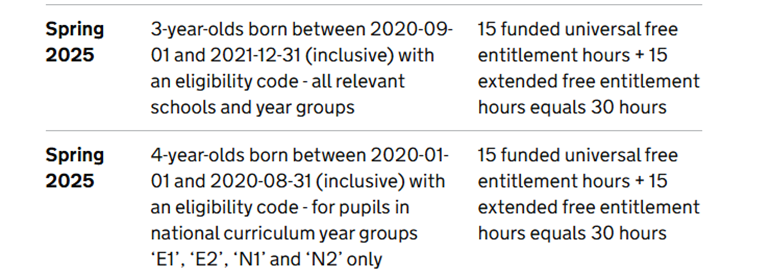
Early years – funded hours, expanded, extended hours, and hours at setting
DfE guidance is as below: (full guidance can be obtained via https://www.gov.uk/guidance/complete-the-school-census/data-items-2024-to-2025
Funded Expanded hours
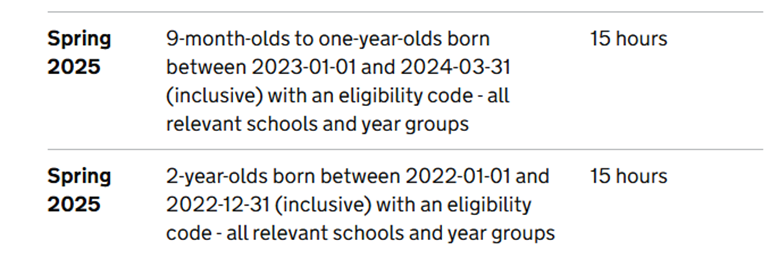
Funded Extended hours
How has the School Census Return Changed since last year?
- The new DfE codes must now be used for any attendance recorded from 19/8/2024.
- Full details can be found via https://assets.publishing.service.gov.uk/media/65f1b048133c22b8eecd38f7/Working_together_to_improve_school_attendance__applies_from_19_August_2024_.pdf
Data Items collected
Please click here for further information. All data items are present within management information systems (MIS) but they may be implemented and named in different ways
Census Service
Did you know we offer a census service where we will conduct the census on your school’s behalf? Please contact helpdesk@schoolicts.co.uk for further information.
Key Dates in the examination cycle, Vocational and Technical Qualifications

For the full version: click here
Changes to Free School Meals and Ever6 FSM
Since 1st April 2018 and until 31st March 2025, all existing and new free school meals claimants have continued to receive free school meals for 6 years or until the end of their current school phase (primary or secondary), regardless of any changes to their eligibility criteria. This is known as Ever6 FSM.
All pupils in receipt of Free School Meals (FSM) are also eligible for Pupil Premium Funding.
From April 2025 Ever6 FSM is coming to an end. This means that:
- Existing claimants who no longer meet the eligibility criteria will continue to receive free school meals until the end of their current school phase (primary or secondary).
- New claimants will only receive Free School Meals while meeting the Eligibility criteria.
- Pupil Premium Funding will mirror this.
Now is the time to ensure that all pupils eligible for Free School Meals have claimed it before 31st March where possible.
Please see the DFE Guidance here
Our New Live Chat Feature!
We are thrilled to announce the launch of our brand-new Live Chat feature, designed to enhance your MIS support experience. This innovative feature provides an additional option for contacting your MIS support team and works alongside our other options of calling, emailing, and logging into the customer portal, ensuring you receive the support you need, when you need it!
This brand-new feature is available now.
Key Benefits of Our Live Chat:
- Instant Support: Get your questions answered in real-time by our knowledgeable support consultants.
- Expert Assistance: Our live chat is staffed by real people, ready to provide you with personalised support.
- Convenience: Access live assistance directly from our website, without the need for phone calls or emails.
- Efficiency: Resolve issues faster with immediate responses and quick solutions.
To start using Live Chat, simply visit our customer portal, log in and click on the chat icon at the bottom right corner. Our team is ready and eager to assist you with any enquiries or support you may need.
Data Management Services
Our Data Management service offers an excellent, cost effective, responsive, and efficient Data Management solution delivered remotely by a team of highly experienced school data experts. Their dependable advice and guidance empower schools, academies, and MATs to maximise their investment in their management information system (MIS) team. Whether it’s a long-term solution or short term for sickness cover or maternity please reach out.
Did you know… we also have a NEW Exams Service and a Timetable Service?
FREE Webinars
In place of our previous webinar weeks, we are running a continued webinar series throughout the year. Please see below for upcoming webinars with links to book: –
What’s the difference between a webinar and training?
- Webinar: Free short session aimed to inform, raise awareness and update you
- Training: Indepth session often ½ day + taking you step by step through an area or process
helloData
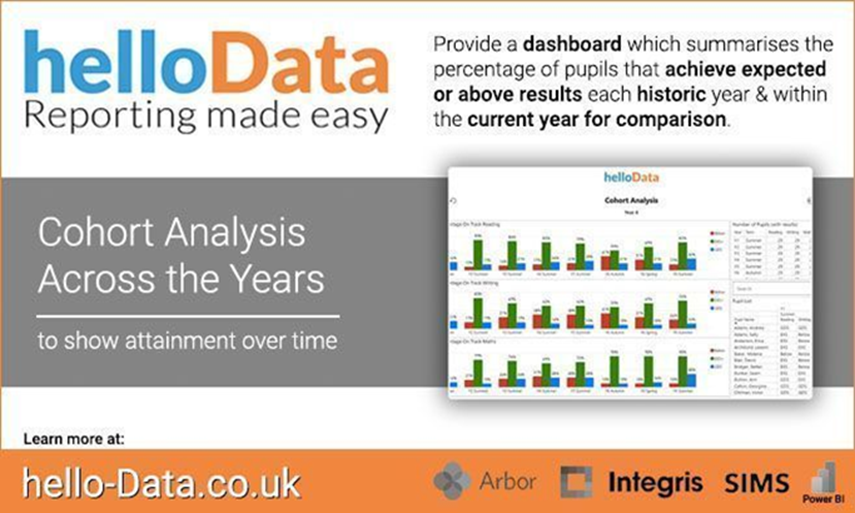
Monitoring attainment over time for one cohort can be incredibly useful for spotting patterns across the years and evidencing the impact of where school or interventions were applied.
However, producing this kind of analysis can be time consuming and tricky to do, given the large amount of data involved.
helloData provides a dashboard which summarises the percentages of pupils that achieved expected or above each year and within the current year.
Attainment and Progress on one page
Whilst this report is based on the attainment achieved, it has the advantage of demonstrating the progress as well because it displays previous years’ data. This makes it excellent for pupil progress meetings.
View the report to suit your requirements
As with many of the other reports there are a variety of options for viewing and filtering the data:
- Quick search for one pupil
- Click on a chart to filter the pupil list
- Change the view to a table of percentages, count of students and even view the pupil names
- Use the pupil group filters to drill into the data
- Filter by class or admission group
- Quickly export tables to Excel
Learn how we can help your school or trust create visual reports at the click of a button here
Book a DEMO or leave us a message click here
Customer Contact Information
School ICT customers:
- Contact: 0345 222 6802 Option 1, helpdesk@schoolicts.co.uk
- Portal: https://my.www.schoolicts.co.uk/
turn IT on customers:
- Contact: 01865 597620 Option 2, mis.support@turniton.co.uk
- Portal: https://portal.turniton.co.uk
Our customer portals allow you to: –
- Log and track tickets
- Watch webinar recordings
- Search the Knowledge base for helpful tips, guides and information
- Keep updated on the latest news

Spring Term Online Training Courses
Training courses for the academic year 2024/2025 are live and available to book!
We have a comprehensive schedule of online ‘live’ SIMS training courses along with a growing number of Arbor and Bromcom courses, plus a range of Distance Learning courses to help you develop your knowledge of SIMS and get the most out of your MIS (Management Information System).
Booking is now open please visit https://www.schoolicts.co.uk/online-training/
Data Health Check Service
An MIS health check ensures you’re getting the most out of the investment in your MIS. The benefits of one of our comprehensive health checks include: –
- Raise awareness of functionality and any issues
- Keep you up to date with the latest developments in your MIS
- Housekeeping and tidying exercises
- Report with recommendations to ensure you’re fully maximising your MIS, along with any training recommendations
- For on premise MIS a server health check is also included
Our health check service usually takes around half a day. Please contact us to find out more on: helpdesk@schoolicts.co.uk to find out more.
FMS
FMS 6 Documentation Centre – Home page
Did you know there is an FMS 6 Documentation Centre where you can access a range of user documentation without having to log into the support portal?
Please click here to access the range of Handbooks, Quick Reference Sheets and Yearbooks available.

Click for the latest Arbor updates
Spring Census Reminder
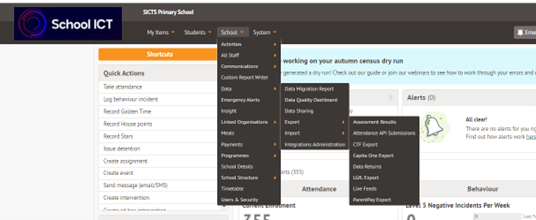
The Dry Run will be available 2 weeks before Census date which is 16th January 2025, which means that you should be able to access the Dry Run from 2nd January 2024. You can do this via School | Data | Export | Data Returns and School Census.
Census Campaign
Each Census we send out a Census campaign filled with useful information and guidance. You can read the guidance via the links below.
School ICT Customers click here
TIO Customers please check here and navigate to Files | MIS | Census
New AI features in Arbor
Arbor have been testing out a number of new AI features over the last 18 months which are designed to save time by speeding up everyday tasks.
What are the new features are Arbor bringing out?
- Draft an email, letter or SMS for you – tell Arbor what you want to write about, choose a tone of voice and a language, and Arbor will suggest a draft in seconds
- Instant student report – Arbor will summarise key data points about your students, and combine them with written comments from you to produce a mini student report
- Suggest a formula – describe what you need to calculate in your Custom Report, and Arbor will create the formula for you and display the results
You will be able to find these features in Comms, Student Profile and Custom Report Writer. Look out for the Arbor AI symbol to use them – there will be many more coming soon!
On the 19th December Arbor switched on Arbor AI as default for all Arbor users. This means every staff member in your schools will be able to see and use these features from this date. However, if your schools decide Arbor AI isn’t right for them, they can choose to opt-out at any time. Please visit the Help Centre to see how to do this.
New features in Arbor this month
Editing trip details
You can now edit trip details until the trip end date/time, previously this linked to the start date and time. This is great if you want to make any last-minute changes to trips!
Settlement summary report
Arbor are working on making payment reconciliation a less manual and time-consuming process. Their new ‘Settlement Summary’ report lets you group payments by Description, Accounting Code, or Customer Account Type so you can easily reconcile weekly payouts according to your school’s needs. Learn more here.
Integration with helloData
Arbor are now partnering with helloData to give you even more ways to visualise and analyse your assessment data! With their new integration, schools can set up their assessments and enter marks in Arbor, then use helloData’s interactive reports to analyse performance and identify your school improvement priorities quickly. Learn more here.
Club overview page
Arbor have simplified the information displayed on the Club Overview page in the Parent Portal to improve usability. For clubs that the student is already registered in, they have removed the Number of Sessions information, and for clubs that the student can register for, they have removed the Membership Options details.
Ofsted details
Ofsted details for all schools can now be found in the MAT MIS. To see this information, go to Institutions | Ofsted inspections.
Consents pushdown
MAT users can now create and distribute consent types for both guardians and students to their schools from the MAT MIS. This can be done in Administration | Pushdowns | consent type.
Wraparound care sessions
A new ‘Day’ column has been added to the slide-over window showing wraparound care club sessions, making it much easier to find different sessions. Within a wraparound care club, go to club participants | select a student | view date in student session timetable.
New Accounting code
An ‘Accounting Code’ column has been added to the money received and payouts overview payment reports. This can be found in: School | Payments | Reconciliation | Card payments | Payout overview.
Behaviour and reporting dashboard
The Behaviour Reporting and Detentions Dashboard pages have been updated to allow users to search, filter, and sort on these tables.
Bank Account Verification
We have had a lot of schools who have recently had to verify their Accounts again. This does happen periodically to ensure that all data is up to date.
Just a reminder of a few things:-
The School Details:
Must be for the school, NOT the Trust or LA, so this is:
- The SCHOOL Name
- The SCHOOL URN (you can find this in School > School details)
- The SCHOOL Telephone Number
- The SCHOOL Postal Address
For the proof of school name and address, the most recent FULL Ofsted Report is recommended, but if you do not have one of these yet, then you can use:
- A Utility Bill in the name of the School (NOT the Trust or LA)
- A Bank-issued document in the name of the school (Bank Statement is ideal), again, NOT the Trust or LA
- A Companies House Document
- A Charity Commission Document
For the School Controller and Verifier details, these must be their personal details (address and documentation). Identity verification is important and is legally required as part of Know Your Customer (KYC) regulations. You can read more about the laws governing Arbors’s identity verification process here.
Arbor and their payment provider (Stripe) are required to collect and verify information of all payment account holders. This is because the regulations in Great Britain require them to collect and maintain this information. This is then submitted to their payment provider to verify authenticity. The information you provide will not be used for any other purposes than identity verification.
So for the School Controllers/Owners Details, these must be:
- Job title
- Legal forename and surname
- Date of birth
- Email address
- Postal address (home address)…..
….and for the Representative Details:
- Job title
- Legal forename and surname
- Date of birth
- Email address
- Telephone number (personal)
- Postal address (home address)
For the Photo ID for the staff concerned:
Make sure that:
- the legal name provided for the representative’s details is the same as on the photo ID
- the address included on the ID matches the user’s address recorded on the staff member’s Arbor profile.
Accepted documents:
- Passport (preferred)
- Driver’s licence
- Other government-issued ID (both the front and back)
This must be:
- A colour image, rotated with the image right-side-up
- Clear picture with no light bouncing off the ID
- JPG or PNG format
- Less than 10MB in size
- Image smaller than 8000px*8000px
Also, do not re-submit ID that has already been submitted as this will create an additional issue.
For more information on the Arbor Help Centre click here.
Top Tips for using Trips in Arbor
** Before getting started using trips you need to ensure that the customer account type of ‘Trips’ is set up correctly in Arbor to ensure that the money collected goes to the correct account.
Check this through school/payments/setup/customer account types. You should see an account for Trips, that accepts card payments, has card payments enabled and is linked to the correct bank account.
To add a new trip: –
- Go to school/activities/trips and click the green add button on the right side.
- Choose whether the trip is a paid for trip or is free.
- Give the trip a name/description (visible to parents in the portal)/location/staff member/dates/pupils eligible/maximum participants and decide whether consent is required and attendance needs to be taken.
- Add an accounting code is this is applicable for your school to reconcile the money (optional).
- Add prices including whether you accept voluntary contributions/whether instalments are permitted/min instalment/auto confirmation min and yes to show the outstanding amount. Different prices can be set for different groups of pupils.
- Make the trip visible to parents on the portal.
- Sign in as guardian on an eligible pupil and see how it looks on the portal.
- If a trip is happening in the next academic year set up a trip for this in this academic year and add notes in the description box of what the actual dates of the trip are.
- Collect all monies from this trip.
- You will then need to create a trip in the new academic for the register and communications only. Alternatively, if the next academic has been created (start date and end date – you don’t need to add in term dates at this point) then Arbor will allow you to have your trip across 2 academic years.
- Call the helpdesk with any queries you have. We will be happy to help!
Snow Days
There are two ways to record school closure to students in Arbor. The method we recommend will depend on whether the closure is planned, (such as an election or bank holiday) or not planned, (such as a snow day or heatwave).
Please see the guidance here
Important notice about clubs and trips
Even if your school is marked as closed, your clubs, trips and wraparound care will not be automatically cancelled or refunded. The invoices will still be in the Payments area, but you won’t be able to refund them.
We recommend you make any refunds or cancellations for sessions before marking your school as closed.
You can see how to do this here:
Arbor Finance
Arbor Finance – Simple Accounting software for schools.
The MIS team are pleased to announce that we are now Arbor Finance accredited!
This prestigious accreditation is a testament to our commitment to excellence and our dedication to providing top-notch financial services. With Arbor Finance’s recognition, we are more equipped than ever to offer you innovative solutions and unparalleled support. Stay tuned for more exciting updates and opportunities as we continue to grow and serve you better!
Arbor Finance – Simple Accounting software for schools!
Arbor Finance offers several key benefits for schools and educational institutions:
- Streamlined Financial Management: Simplifies budgeting, forecasting, and tracking of income and expenditures, making financial operations more efficient.
- Accurate Reporting and Analysis: Provides robust tools for generating detailed financial reports and analysing data, aiding in informed decision-making.
- Integration Capabilities: Can be seamlessly integrated with other school management systems, ensuring smooth data flow and reducing manual data entry.
- User-Friendly Interface: Designed to be intuitive and easy to use, reducing the learning curve for staff.
- Improved Financial Oversight: Enhances transparency and control over financial processes, helping schools manage their finances more effectively1.
These benefits collectively support better financial planning and management, ultimately contributing to the overall efficiency and effectiveness of educational institutions.
Please get in touch, if you’d like to know more by emailing us helpdesk@schoolicts.co.uk.

Click for the latest Bromcom updates
Spring Census Reminder
Spring Census Reminder
Census Campaign
Each Census we send out a Census campaign filled with useful information and guidance. You can read the guidance via the links below.
Spring Census
- Census date – Thursday 16 January 2025
- Return date – Wednesday 12 February 2025
Training
There is still time for Primary Schools to book on the Census Training Course. This course will cover everything required for the Spring Census click here to book.
What's New?
Administration – Student Details: CTF Stage Assessments renamed
Students > Student Details > Assessment
The CTF Stage Assessments panel has been renamed to Key Stage Level of Progression.
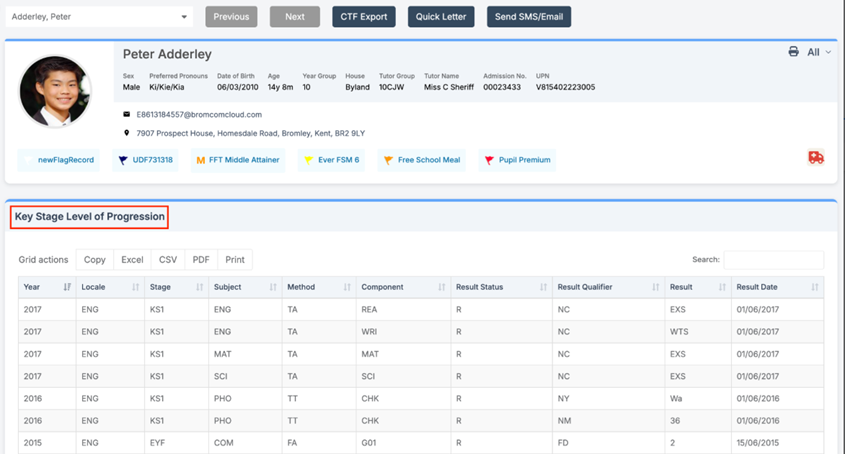
Config > Setup > Roles and Permissions
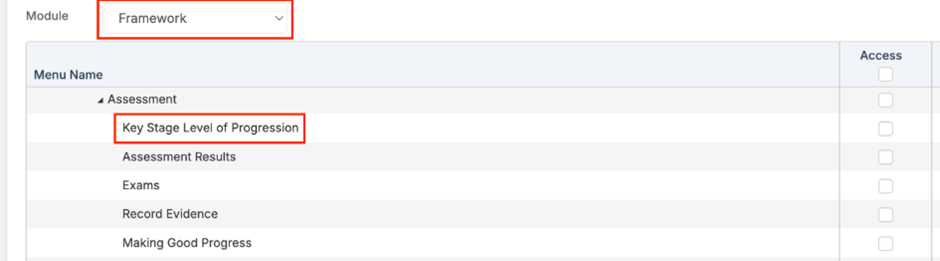
The CTF Stage Assessments permission in Framework > People > Students > New Student Details has been renamed to Key Stage Level of Progression.
Dashboards – New student Medical Dashboard
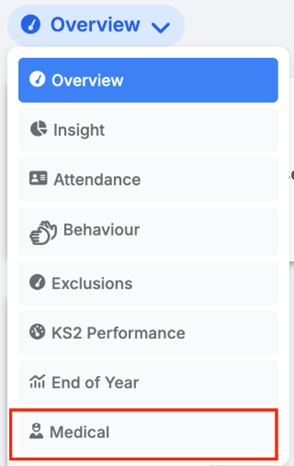
Home > Medical
Users with relevant Medical permissions will now have access to a centralised Medical Dashboard that consolidates all student medical information into one location. This update is designed to enhance the ability of staff to quickly access and manage student medical records.
A new Medical options will appear alongside existing Dashboards in the MIS.
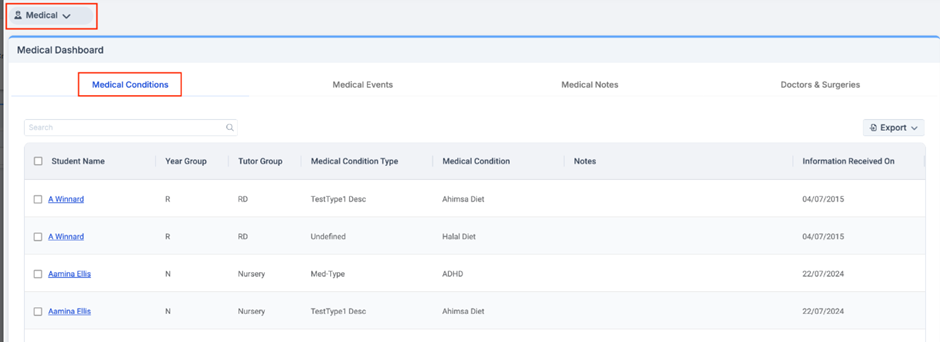
The Medical Dashboard will include information for current students within the academic year as well as pre-admission students. Medical information will be pulled directly from the student’s Health Background on the Student Details page. Clicking on the Student Name opens the Student Details > Profile in a new page. Students with multiple medical conditions will be displayed on a new row for each condition.
Tabs in the Dashboard:
- Medical Conditions: Displays a table with key medical information about each student including Student Name, Year Group, Tutor Group, Medical Condition Type, Medical Condition, Notes, and Information Received On.
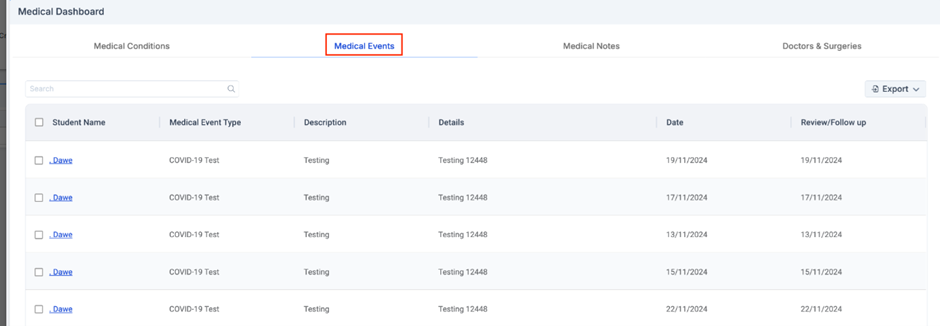
- Medical Events: Tracks and displays Medical Events related to students including Student Name, Medical Event Type, Description, Details, Date, and Review/Follow-up.
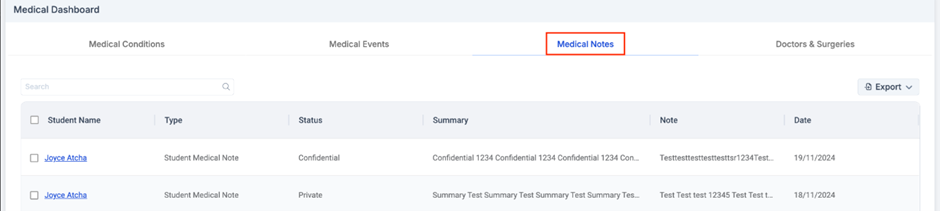
- Medical Notes: Displays notes related to the student’s health including Student Name, Type, Status, Summary, Note, and Date.
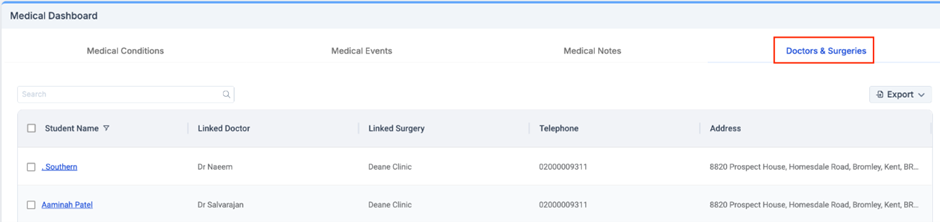
- Doctors & Surgeries: Provides information about the student’s doctors and surgeries including Student Name, Linked Doctor, Linked Surgery, Telephone, and Address.
Functionality:
- Search and Filtering: Users can filter and sort medical data, as well as search the table by any column.
- Export: Users can export medical data in CSV, Excel, and PDF formats for one or more students at a time.
- Tooltip: Hover over content in the table to view the full description.

Config > Setup > Roles And Permissions
The Medical Dashboard option will have to be enabled from the Profile module for the appropriate roles.
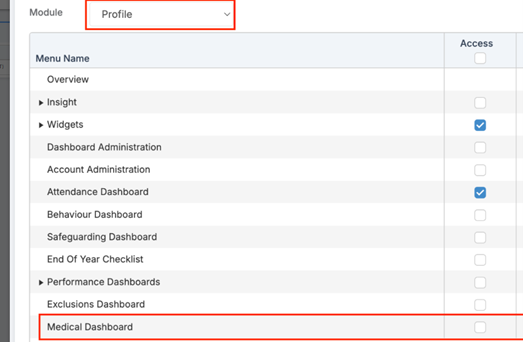
Users with Medical Dashboard permission will only see information in the dashboard if they have also been given access to the following roles and permissions in Framework > Students > New Students > Health Background:
- Medical Conditions / Dietary Needs and Disabilities
- Doctors and Surgeries
- Medical Events
- Medical Notes
How to Send an SMS Message or Email – Bromcom
If you prefer to publish an Announcement via MCAS this can be done via the link below:
Snow Days
We have seen some schools closing due to the adverse weather throughout the country, please find below the options for you to update your MIS to reflect this.
If you are having an official snow closure day, we would recommend using the following:
How to Edit Academic Days
Use this guide to add/edit Staff Only Days, School Holidays and Bank Holidays to your MIS. You can also use this process in the example your school is closed for the day in the event of bad weather.
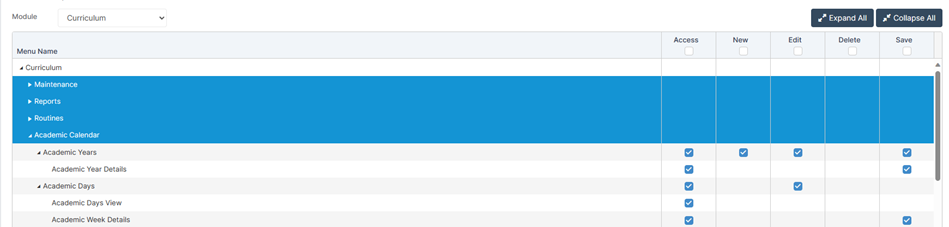
Access: The minimum permissions required to access the Edit Academic page is found in the Curriculum Module>Academic Calendar of Config>Setup>Roles & Permissions.
See also: How to Create a New Academic Calendar and see here for DfE guidance on attendance.
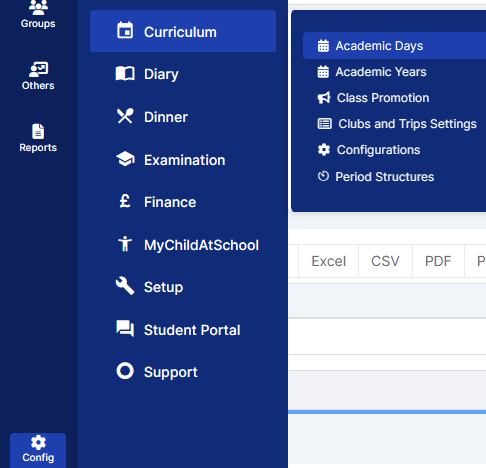
Go to Config>Curriculum>Academic Days
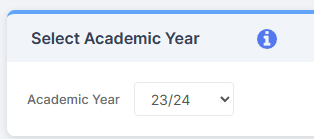
The Academic Year will default to the current Academic Year, if required, you can edit past or future years by selecting them from the drop down.
The first panel is the Key and Display Options panel which explains the details of the current view:
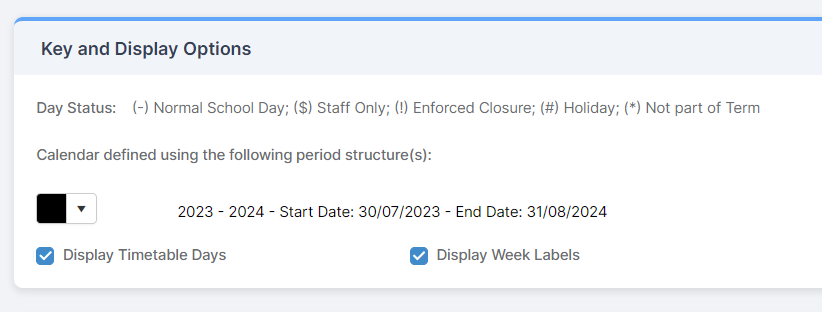
- Day Status – is the Key to the Codes used
- Calendar defined using the following period structure(s)– the Period Structure you are looking at
- Colour Dropdown – the colour assigned for your different Period Structures
- Display Timetable Days – choose to display by the Timetable Days applied for each day of each week
- Display Week Labels – choose to display by the Timetable Week
Click on the far right Pencil icon to edit the required week.

Use the AM and PM drop downs to add the appropriate Codes for each day’s AM/PM as required. Check that the TT Day (Timetabled Day) is present and correct for all academic days, if you need to, you can change this using the drop down.
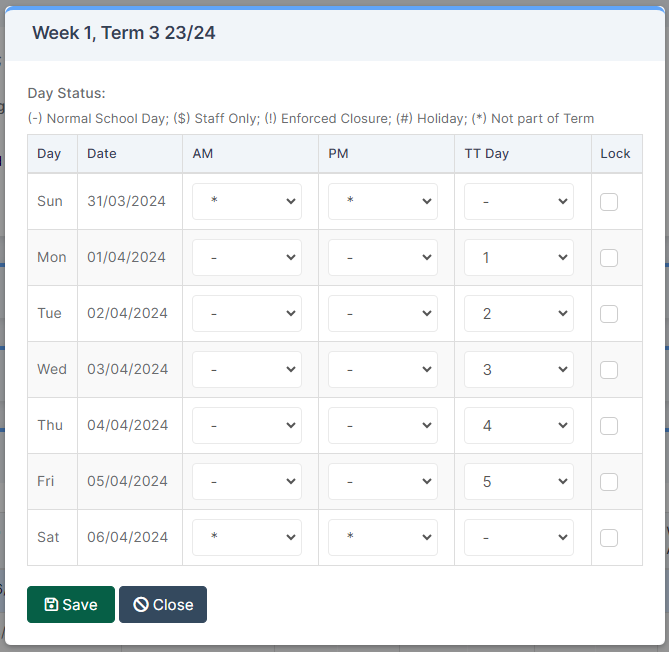
Save when finished for that week and repeat for each week as required.
Reveal or hide the Terms by clicking on blue arrow to the right of each Term heading.

Cascade Timetable on Save is generally used for Timetables with more than a one week cycle.

For example, where a school has amended all days within one week to be a holiday (that week being week one of their timetable cycle) and they want to ensure that they return on week two and all subsequent weeks follow the new sequence. They would edit the returning week, change the Timetable Days to reflect the required week’s Timetable Days (week 2 being days 6-10) and then select Cascade Timetable on Save, followed by the relevant Radio button.
Repeat the process through the Terms if necessary until the desired Academic Days structure has been completed.
If however, you just wish to mark the student’s attendance, but keep the day as an academic day follow option 2 below:
How to Use Bulk Attendance Update
Note: All pages below are subject to having relevant Roles and Permissions.
This process will be used (usually by administrators) if you need to enter Attendance Marks in Bulk, for example, if you’ve recently migrated to Bromcom from another system or if you have certain students who have an Attendance Pattern which is different for the majority of your students.
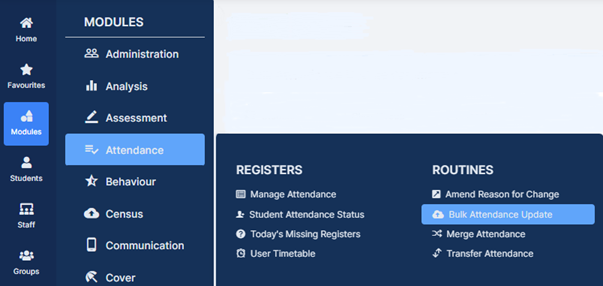
From the left Menu go to Modules > Attendance > Routines > Bulk Attendance Update.
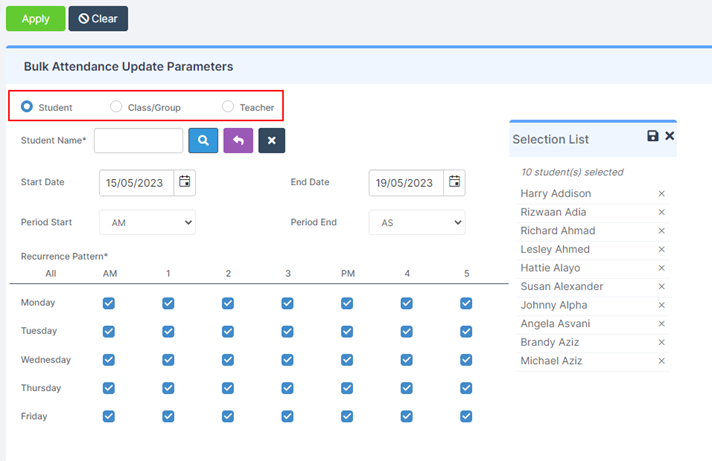
From the options select to update Student, Class/Group or Teacher.
Then select the Student/s, Class/Group/s or Teacher/s to update by either typing the name in the box or using the Search option by clicking on the Magnifying Glass icon. The Selection List will then be displayed.
The table will update and you can select the Days or Periods to be updated by ticking or unticking the boxes.
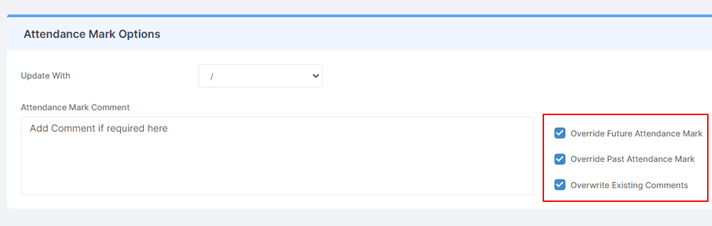
Finally tick the options required from the Override Future Attendance Mark, Override Past Attendance Mark or Overwrite Existing Comments.
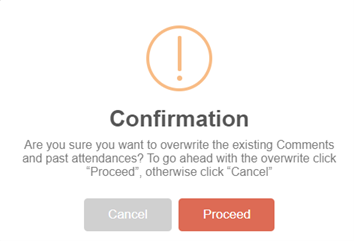
Click the Apply button then Proceed on the Confirmation box.
Once completed you will get a Confirmation Comment.
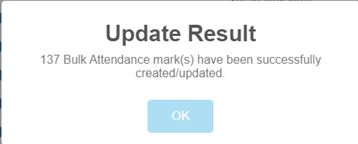
If you are intending or have closed school for the day and wish to communicate this with your parents, please find below the guidance to assist you with sending an SMS or an email: –
How to Send an SMS Message or Email – Bromcom
If you prefer to publish an Announcement via MCAS this can be done via the link below: How to create School Announcements – Bromcom: –
Upcoming Webinars and Training
https://www.schoolicts.co.uk/online-training/
Search for “Bromcom” in the search box, please contact us if you wish to book for Friday 10th January.
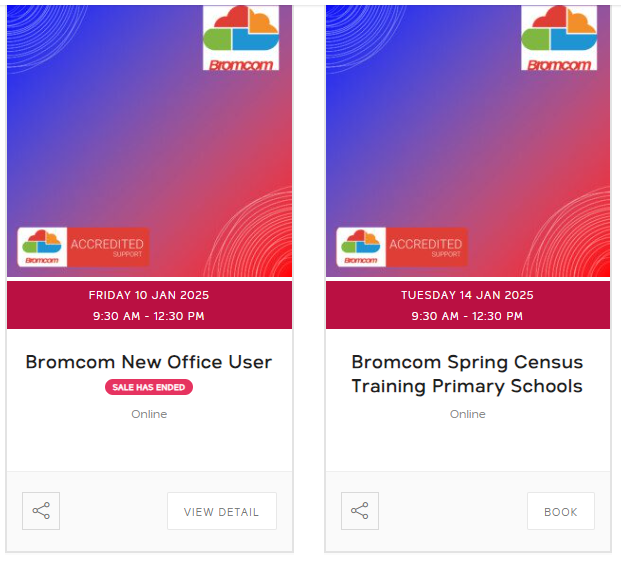
For the full years Bromcom training schedule from School ICT please click Bromcom Training – 2025.

Click for the latest Integris updates
Spring Census Reminder
Each Census we send out a Census campaign filled with useful information and guidance. You can read the guidance via the links below.
School ICT Customers click here
TIO Customers please check here and navigate to Files/MIS/Census
Recording a Snow Day
Integris Recording a Snow Day
Recording attendance data using Speed Entry
Speed Entry is a quick method of assigning an AM/PM attendance code to multiple students for a given time period or a single day. It is particularly useful for entering attendance codes in advance for class trips, holidays, and other types of extended absence.
The only attendance codes that can be changed in this way are / (present), # (planned school closure), * (not yet marked) and N (no reason yet provided for absence). The / code can also not be overwitten by the * code.
Additionally this is the only way to change the # (planned school closure) code once it has been applied to a students attendance record.
- From the Modules menu choose Attendance and then Speed Entry. The Speed Entry screen is displayed.
- Use the Find field and Search button to find and select the students who should all be given the same attendance code.
For each selected student the Name and Class are displayed.
- Use the Day Selection fields to choose the sessions you want to change, as follows:
To change the attendance data for one day, select All Day, AM or PM, and then enter or choose the Date.
To change the attendance data for several days, select Range of Dates and then choose the Start Date and End Date.
Select the Attendance Code which should be given to this group of students .
- Click OK.
- Inspect the Status column to check that the attendance codes were successfully changed:
A green tick means that the attendance code was changed.
A red cross means that the attendance code was not changed.

This can happen for a number of reasons – for example, if a student has a specific resolved attendance code already marked against them (i.e. not any of the ones mentioned above).

Click for the latest ScholarPack updates
Spring Census Reminder
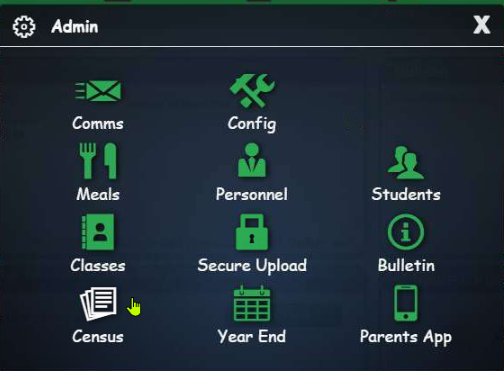
The census module can be found via Admin > Census > Spring Census.
Census Campaign
Each Census we send out a Census Campaign filled with useful information and guidance. You can read the guidance via the links below.
School ICT Customers click here
TIO Customers please check here and navigate to Files/MIS/Census
Recording and reporting on Attendance Penalty Notices
Details on how to record that a student has received a penalty notice (usually from the local council) and how to run a report to see which students are at risk of getting a fine.
Recording a fine
- Go to the Students Profile and click the Attendance tab.
- Click the Cog next to Attendance Penalty Notices
- Click Add New
- Fill in the data
- Click Add New
Report to find students who are at risk of a fine
Go to Reporting > Reports > Attendance > Attendance Penalty Notice Eligibility, set the end date (this will default to todays date) and click Choose.
This report will then show you the students who have 10 or more unauthorised absences within the 10 week period. It’s worth noting this number is the number of sessions (AM and PM) and not the number of days.
How to action a snow day in ScholarPack:
- In ScholarPack go to registers and manage register
- Choose the correct day/date for which the school is/was closed and needs attendance updating for ie Today. In this area at the top of the screen you will see that you can also choose the AM or PM session but that Scholarpack will default to both.
- Do not add a year group or registration form then click choose register. (This will include all students)
- Once viewing the register for the chosen date all pupils will default to being selected in the far right column. If any need de-selecting you can do this here.
- Scroll to the bottom of the page and click the drop down in the chosen code field, choose either Y3/Y4 (depending on circumstances)
- Next, click fill spaces and your chosen code ie Y4 will be added to all pupils selected for both sessions. You will see an overwrite tick box, this should be ticked if you are wanting to overwrite any existing attendance that are already appearing for that day.

Click for the latest SIMS updates
SIMS Consolidated Workstation Patch for Autumn Release
SIMS Consolidated Workstation Patch for Autumn Release
Consolidated Workstation Patch Autumn Release – This should be applied before finalising your Census return
Please find guidance HERE
Spring Census Reminder
The current Fileset is 2902. This is not suitable for authorising the return. Fileset 2903 is currently being produced and is required for submission for the DFE. Please check for further updates before submitting your census.
School ICT Customers please check here for updates
TIO Customers please check here and navigate to Files/MIS/Census
Census Campaign
Each Census we send out a Census campaign filled with useful information and guidance. You can read the guidance via the links below.
School ICT Customers please click here
TIO Customers please check here and navigate to Files/MIS/Census
Snow Days
- If your school needs to be closed due to adverse weather e.g. Snow you will need to create an Exceptional Circumstance
- Focus/Lesson Monitor or Attendance/Exceptional Circumstances/New
- Add the date
- Group Type – select which applies e.g. Whole school or year groups if only partially closed
- Chose the relevant code e.g. Y3 or Y4
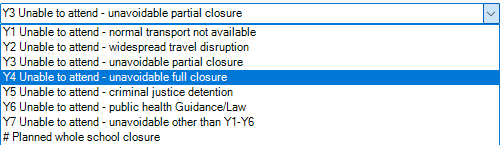
- Add a description e.g. Adverse weather – Snow
- Click apply
- Check the pop-up screen/Information before clicking ‘Yes’
- Click ‘Yes’ to apply the attendance code
Validating Memberships
Improvements have been made to the “validate memberships” routine in version of SIMS (Version 7.220) which may mean that it takes longer than expected to run the first time after the upgrade. See below for details:
SIMS Next Gen Spring Term 2025 Highlights
Some of the new benefits of SIMS Next Gen and for more information, see here: Next Gen Highlights
For Teachers
Smart Seating Plans (AI-powered)
Create a seating plan in less than one minute.
Smart Seating Plans uses AI to create seating arrangements that boost engagement and improve learning outcomes.
This brand-new module reads and applies specific seating notes, such as “Don’t seat Isla next to Mia – they’re easily distracted,” to create seating arrangements that are truly tailored to your classroom. A feature you won’t find elsewhere.
- Select up to three key attributes like behaviour, SEND, or academic ability and decide how groups should be seated – together, apart, or clustered
- Generate optimised seating plans that best support each student’s learning in less than one minute.
For Senior Leaders
Reporting and Analytics
Faster, easier, and more impactful reports for schools.
Building on the success of our MAT reports, we’re excited to deliver nine new Pupil Insights reports designed to help users easily analyse data trends through clear graphs, charts, and high-level summaries. These reports will cover key areas like:
- School Overview
- Demographics
- Attendance Overview
- Persistent Absence
- Attendance Timeline
- Attendance by Codes
- Suspensions and Exclusions
- SEND
- Interventions
In addition, we’re introducing five detailed reports that provide individual pupil-level data in a tabular format, covering Attendance by Category, Attendance by Code, Pupil Premium, SEND, and Key Attributes giving school leaders the tools they need to quickly identify patterns and take informed action to drive school improvement.
Enjoy greater flexibility to customise and extract the insights you need and save time by saving report templates with your preferred filters.
For Teachers and Senior Leaders
Conduct Dashboards
Your all-in-one solution for tracking and managing pupil behaviour.
Conduct Dashboards bring all your behaviour data into one customisable view, making it easier to monitor trends, identify issues, and take action that improves student wellbeing and learning outcomes.
These dashboards give you the actionable insight you need to make informed decisions, support safeguarding, and maximise the value of data recorded in SIMS Next Gen.
- Instantly access an overview of positive and negative behaviour across your school—identify patterns and recurring issues.
- Drill down into specific data, such as behaviour by class, year group, or individual students, to make informed decisions.
- Generate reports quickly for leadership discussions, safeguarding purposes, or parent communications.
For Office Staff
Attendance Management
Simplify and centralise attendance management.
Attendance Management simplifies how you track, manage, and report on pupil attendance. By consolidating all key tasks into one place, it saves time, improves efficiency, and ensures compliance with safeguarding and attendance regulations. Designed with flexibility in mind, schools can tailor attendance rules, apply automated processes for marks, and create sessions based on timetables.
- Quickly search for, add, and edit individual attendance records.
- Track pupil whereabouts in real time.
- Create and manage attendance patterns.
- Streamline statutory returns using automated data collection.
For all School Staff
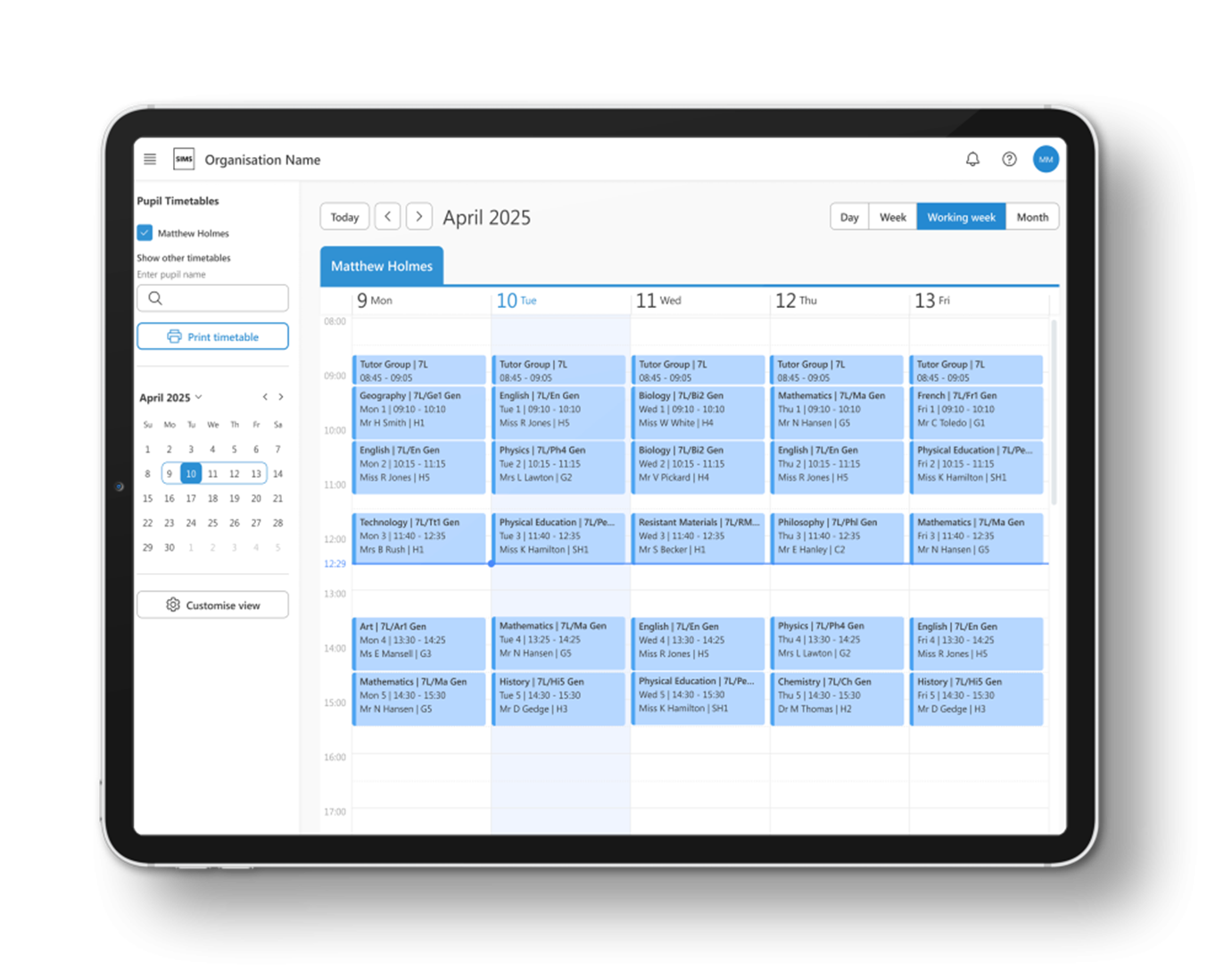
Pupil Timetable
Fast, easy access to pupil timetables.
Say goodbye to the hassle of searching for student timetables. With this brand-new feature in SIMS Next Gen, you can instantly access a student’s ‘now and next’ schedule in real-time, helping you save valuable time—especially in busy or urgent situations.
With Pupil Timetable, you can:
- View a student’s ‘now and next’ schedule at a glance from the Pupil Profile, Class View, or homepage.
- See subject details, lesson code, teacher name, room, and precise start and end times at a glance.
- Help students who’ve misplaced their timetable get back to class without delay.
- Locate students easily to deliver messages, arrange meetings, or address safeguarding concerns with up-to-date information.
Pupil Profile: Homelife
Understanding students beyond the classroom.
Homelife provides a comprehensive view of a student’s personal and home life information, enabling staff to offer tailored support and interventions where needed.
- View linked sibling records to understand family dynamics and provide cohesive support.
- Identify students with caregiving responsibilities to ensure appropriate assistance and understanding.
- Access critical safeguarding information to act quickly and effectively in the best interest of the child.
- Track transportation arrangements to ensure safe and efficient travel for students.
- Monitor post-16 employment details to support career development and transitions.
Pupil Profile: Additional SEND/ALN
Critical SEND/ALN insights, always at your fingertips.
This section of the Pupil Profile ensures that key information about pupils with Special Educational Needs and Disabilities (SEND) or Additional Learning Needs (ALN) is easily accessible and actionable for teachers, SENDCos, ALNCos and school staff.
- View and update additional support areas carried over from SIMS7, ensuring continuity and compliance.
- Access a new SEND/ALN Log, exclusive to SIMS Next Gen, where SENDCos/ALNCos can record detailed, tailored information about a pupil’s needs.
- Use the pinned status feature to highlight the most critical notes for display in other areas of SIMS Next Gen, such as the Class View Pupil Profile, ensuring that teachers have the right information at the right time.
For MAT Leaders
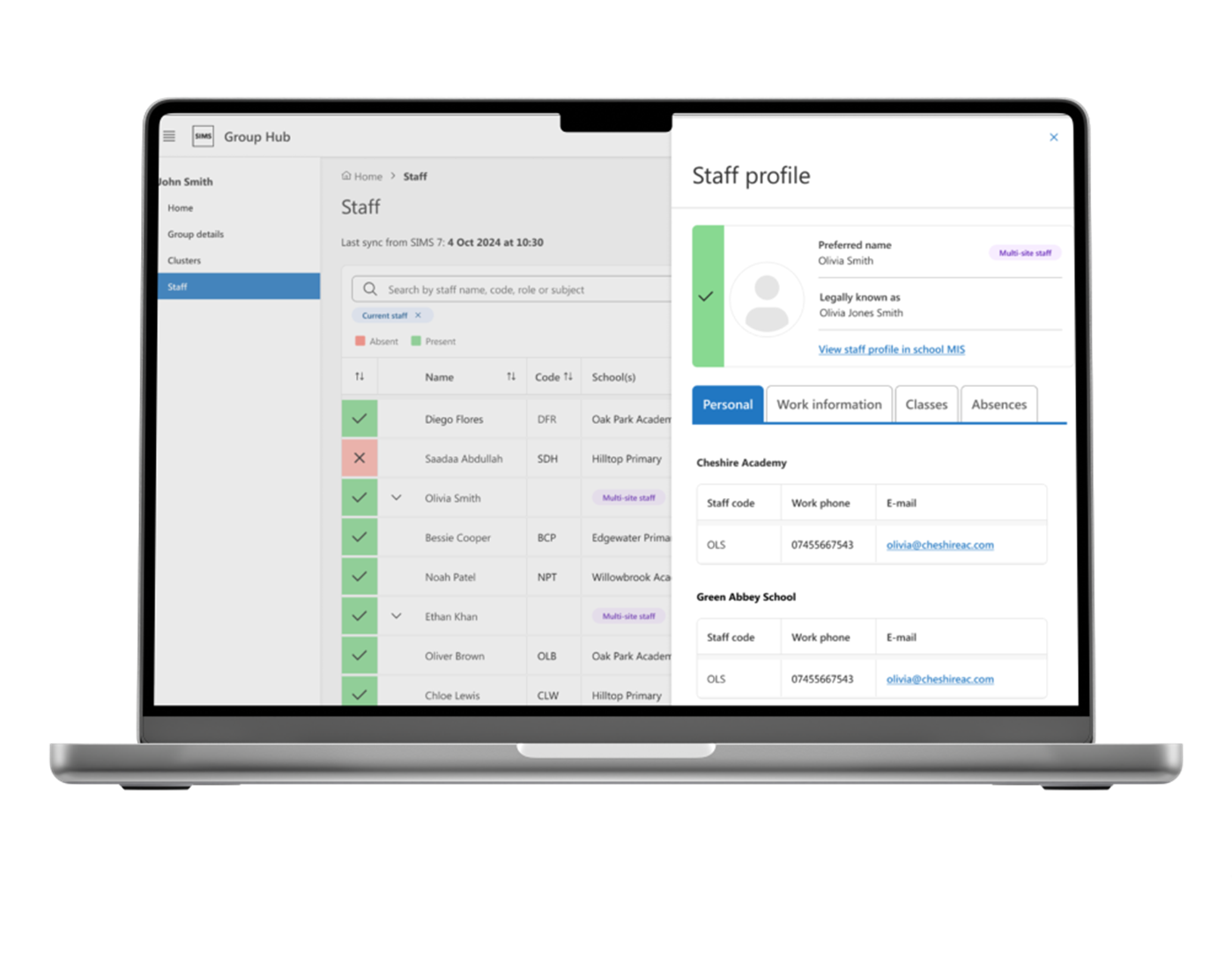
Group Hub MIS: Staff Information
Group Hub MIS provides MAT leaders with a framework for sharing knowledge, experience, and good practices across all schools – ensuring consistency and compliance across the group.
Staff Information is part of the second phase of development for Group Hub MIS, offering a centralised way to manage and view staff records across your MAT.
- Easily search and view all staff records from a central location.
- Access basic information such as personal details, work information, timetable information, and absence records.
- Drill down to individual school MIS for a more detailed view of staff data when needed.
This functionality will continue to evolve, with future enhancements including the ability to create and manage comprehensive MAT-wide staff profiles, offering even greater flexibility and control.
Next Gen
Explore the benefits of this powerful new cloud-based interface!
Next Gen is a continuous multi-year programme of customer driven innovation, designed to add-value to your investment in SIMS.
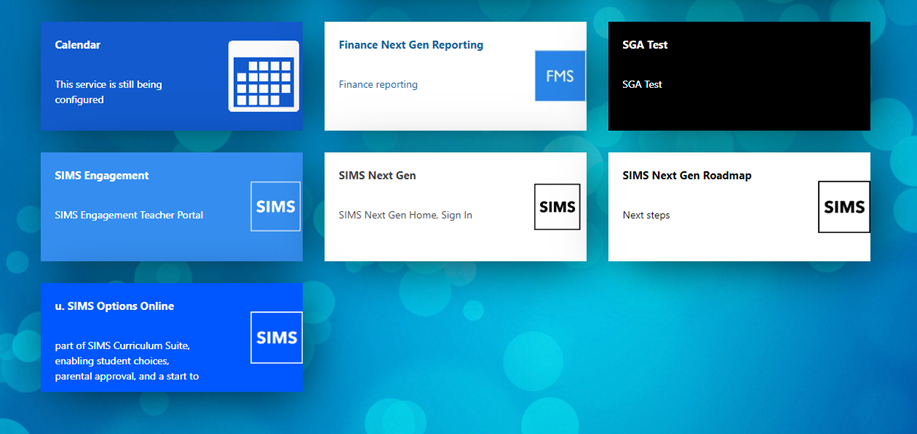
Why use SIMS Next Gen?
SIMS Next Gen is designed to make school management simpler and more accessible from any device. By synchronizing seamlessly with your existing SIMS database, it provides all the features you love in SIMS 7, along with added flexibility. Teachers can take registers remotely, access markbooks, and much more, all while maintaining the core functionality of SIMS 7. For answers to some frequently asked questions please click here: FAQ guide here.
Sign Up at No Additional Cost
Your current SIMS license includes SIMS Next Gen, so there’s no extra cost to get started! Simply log in with your SIMS ID for secure, single sign-on access, and you’re ready to go. If you’re interested in taking advantage of SIMS Next Gen, just respond to this email or reach out to us at helpdesk@schoolicts.co.uk.
Explore New Features and Roadmap Updates
SIMS Next Gen is continually evolving, with regular updates and new features designed to enhance school operations. Upcoming additions include Seating Plans, Fire Registers, and Teachers’ Homepages.
- Stay Updated with the SIMS Next Gen Roadmap: Check out our feature roadmap to see what’s coming next and keep up with our latest enhancements.
- Access Resources Anytime: For support materials, how-to guides, and more, visit our SIMS Next Gen Resource Hub.
Supporting schools with the successful adoption of SIMS Next Gen
In November, ESS added some brand new content into both the enablement and adoption programmes, plus they expanded the enablement stream to capture previously enabled schools who may not have received the adoption toolkit. The new content added are bonus adoption guides which shows teachers and office administrators how SIMS Next Gen can support their typical day, plus a newly added Class View launch email specifically for teachers in technically enabled schools.
And finally, ESS also expanded the adoption programme to include schools on SIMS Connected.
Please find below the links to these emails and content: –
Help your team get the most out of SIMS Next Gen
Introduce your team to SIMS Next Gen
Invite your team to SIMS Next Gen
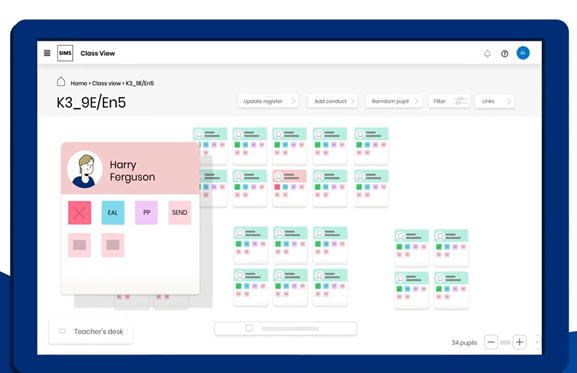
Class View is now available to all schools
Expansion of adoption programme to include schools on SIMS Connected.