

To navigate to the most relevant section, please click the appropriate link below: -

Welcome to the Spring Term
We’d like to wish all our customers a very happy New Year. As we step into 2026, we hope it’s a happy, healthy, and successful year ahead. We’re really looking forward to working with you and supporting you throughout the year.

Customer contact options
- Live chat @ https://my.schoolicts.co.uk/
- Customer Portal @ https://my.schoolicts.co.uk/
Our customer portal allows you to: –
- Log and track tickets
- Watch webinars
- Search Knowledge base for information
- Latest news
Call: 0345 222 6802 Option 1 for MIS support *please leave voicemail where lines are busy during peak periods
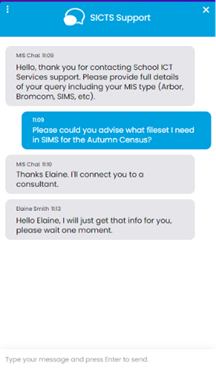
Please remember that you can request support in various different ways, by requesting support via Live chat:
Key Benefits of Our Live Chat:
- Instant Support: Get your questions answered in real-time by our knowledgeable support consultants.
- Expert Assistance: Our live chat is staffed by real people, ready to provide you with personalised support.
- Convenience: Access live assistance directly from our website, without the need for phone calls or emails.
- Efficiency: Resolve issues faster with immediate responses and quick solutions.
To start using Live Chat, simply visit our customer portal, log in and click on the chat icon at the bottom right corner. Our team is ready and eager to assist you with any enquiries or support you may need.
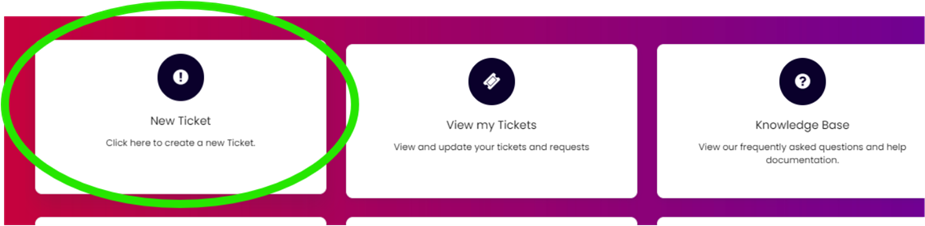
Customers can also log tickets via the customer portal at our customer portal:
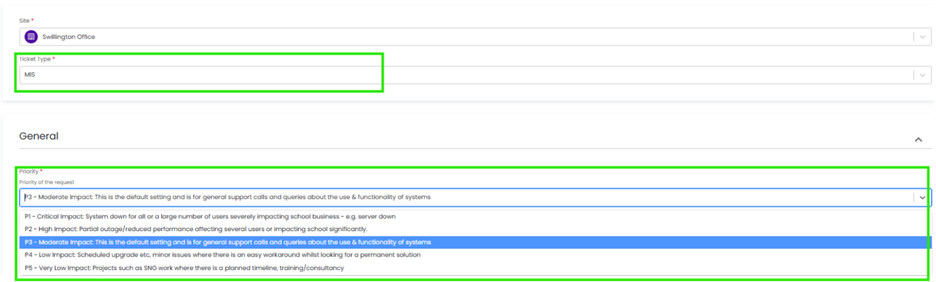
When you log a ticket via the customer portal, select the Ticket type either MIS or Technical to ensure if gets to the right team. The Priority, if you have an urgent ticket, MIS down for example please select either P1/P2 all other tickets default to P3 or even P4 if not urgent.
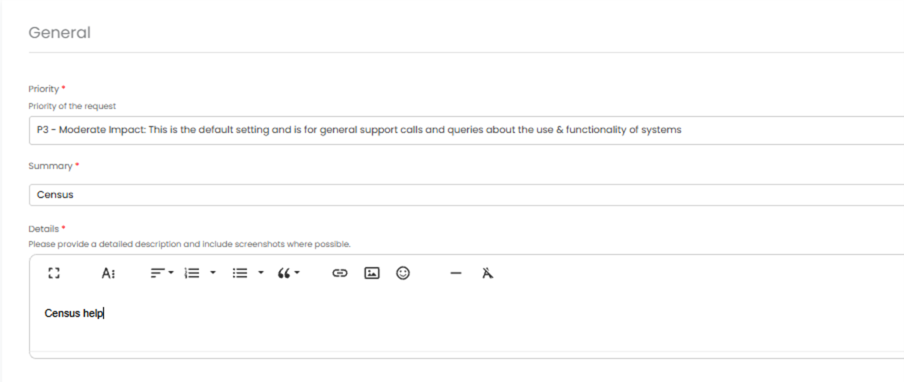
Once you enter the Subject and Details box, you will see a pop up box with suggested articles in the top right hand corner:
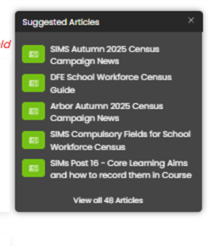
Clicking on the links in this pop-up may help you to resolve your issue without our input, so please also make use of this.
Remember to tell us which MIS and Module but also really importantly if OFSTED are onsite as this helps us prioritise your call through our OFSTED Watch service and also your preferred contact method as we know sometimes an email reply is what you need during your busy period.
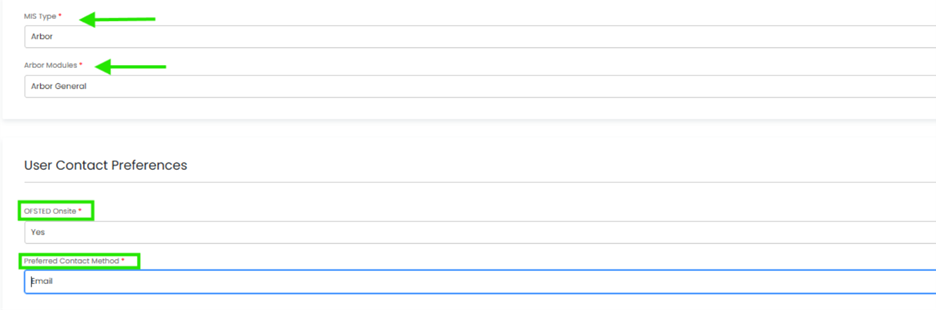
We know you like to speak to us (and we like to speak to you!) but in order to offer the best service to our customers, this is
often the quickest way to log a support request at busy times.
And lastly, as always, our experienced team are on hand to take your calls, so please reach out via 0345 222 6802 if the lines are busy and to save your precious time waiting you can leave a voicemail. This method will automatically generate a ticket and this means that the person who can help you best is the person who will call you back. If you do this, PLEASE leave your name, the name of the school, the best number to call back on and a brief description of why you’re ringing, as this means that the best person to help you is the one that will call back.
Spring Census 2026
*Please note that the DFE updated the times for class size information Friday 9th January 2026. If you added the times prior to this, please amend before creating or submitting your Spring Census*
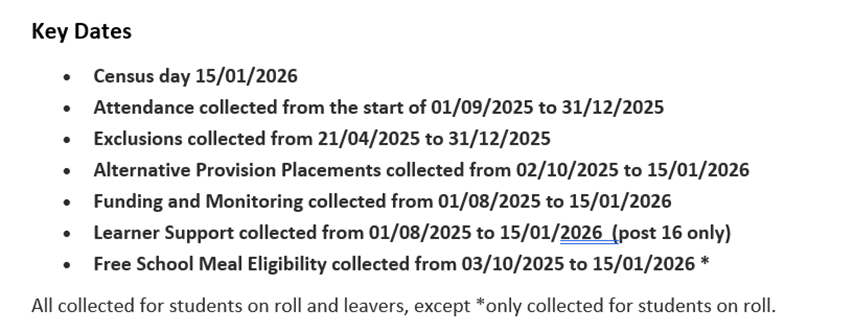
School Census Spring 2026 Key Dates
- Census date 15/01/2026
- Attendance collected from start of Autumn term to 31/12/2025 (not applicable to Nursery schools)
- Exclusions collected from 21/04/2025 to 31/12/2025 (not applicable to Nursery schools)
- Alternative Provision Placements collected from 02/10/2025 to 15/01/2026 (not applicable to Nursery schools)
- Funding and Monitoring collected from 01/08/2025 to 15/01/2026 (not applicable to Nursery schools)
- Learner Support collected from 01/08/2025 to 15/01/2026 (not applicable to Nursery or Primary schools)
- Free School Meal eligibility collected from 03/10/2025 to 15/01/2026.
For further guidance on any of our supported MIS please click the links below:
- SIMS – https://halo.transforming-learning.co.uk/portal/kb?id=883
- Arbor – https://halo.transforming-learning.co.uk/portal/kb?id=849
- Bromcom – https://halo.transforming-learning.co.uk/portal/kb?id=851
- ScholarPack – https://halo.transforming-learning.co.uk/portal/kb?id=852
- Integris – https://halo.transforming-learning.co.uk/portal/kb?id=889
Exams
✨ Exams Update – January: A Calm Start to a Busy Term ✨
January marks a natural change of pace for exams, and the Exams Team at School ICT Services are here to help schools start the year feeling supported, organised and confident.
With the summer exam entry deadline just six weeks away, this term is about careful preparation rather than last-minute pressure. We’re working closely with our schools to organise and support the final round of mock exams for Year 11 and Year 13, while ensuring everything is in place to meet JCQ requirements ahead of the external exam series.
We know that staffing changes, competing priorities and the sheer volume of exam administration can feel overwhelming, particularly if you’re currently without an Exams Officer or operating with reduced capacity. You’re not alone, and support is available.
The Exams Team at School ICT can step in to provide reassurance, continuity and expertise — whether that’s short-term support to cover a gap, or longer-term management of your full exam processes. Our aim is simple: to reduce stress, ensure compliance, and help schools avoid unnecessary costs such as late summer exam entry fees.
If you’d like to understand how our service works, or simply have a conversation about your current position, we’d be very happy to help.
📧 helpdesk@schoolicts.co.uk
📞 0345 222 6802
Here’s to a smooth, well-supported and successful exam season ahead.
✨ The Exams Team at School ICT Services ✨
Data Management Services
Our Data Management service offers an excellent, cost effective, responsive, and efficient Data Management solution delivered remotely by a team of highly experienced school data experts. Their dependable advice and guidance empower schools, academies, and MATs to maximise their investment in their management information system (MIS) team. Whether it’s a long-term solution or short term for sickness cover or maternity please reach out to discuss your needs.
- Please click here for further information.
Data Healthcheck Service
An MIS health check ensures you’re getting the most out of the investment in your MIS. The benefits of one of our comprehensive health checks include: –
- Raise awareness of functionality and any issues
- Keep you up to date with the latest developments in your MIS
- Housekeeping and tidying exercises
- Report with recommendations to ensure you’re fully maximising your MIS along with any training recommendations
- For on premise MIS a server health check is also included
Our health check service usually takes around half a day. Please contact us to find out more on: helpdesk@schoolicts.co.uk to find out more.
FMS - Your School Finance System is Evolving!
Your School Finance System Is Evolving!
The next generation of FMS (Financial Management System) is arriving in early 2026 — and it’s built for the cloud. Designed to meet the real-world needs of school finance teams, this modern solution offers smarter workflows, secure access from anywhere, and powerful reporting tools.
Best of all, if your school is on the Finance Package, you’re already paying for the hosting element — so there’s no extra cost to get started.
Why This Matters Now
Schools face increasing demands: managing sensitive financial data, working across multiple sites, and supporting staff who may not have formal accountancy training. The new cloud-native FMS is built to address these challenges head-on:
- Secure, Flexible Access – Staff can access finance systems securely from any location, reducing downtime and enabling remote work.
- Smarter, Simpler Workflows – A modern interface and intuitive design make it easier to complete tasks quickly — even for users without finance backgrounds.
- Powerful Reporting Tools – From cost centres and trial balances to equipment registers and salary projections, the new reporting workspace gives schools deeper insights with less effort.
- Seamless Integration – The system retains all current interfaces and integrates smoothly with your MIS, preserving historical data and simplifying migration.
The Two-Step Journey
To ensure a smooth transition, the move to the new FMS is structured in two steps:
Step 1: FMS Readiness – FMS on site to FMS Connected platform
Schools move to the hosted environment — a secure, future-proof platform that reduces manual updates and ensures consistent system versions. This step is already included in your Finance Package.
Step 2: FMS Adoption – Transition to FMS Next Gen from FMS Connected
In early 2026, schools that have completed Step 1 will be first in line to adopt the new FMS. The transition is designed to be low-disruption, requiring only a simple user mapping exercise. Schools have the option to become early adopters of FMS Next Gen or, if they wish they can continue using FMS Connected and move over at a more suitable time.
Why Act Now?
By moving to the hosted environment today, your school will:
- Be future-ready for the next-gen FMS
- Minimise disruption during the transition
- Benefit from top-level security (Cyber Essentials Plus)
- Free up time for strategic finance work
- Be prioritised for activation in 2026
You may have already received correspondence from PPG but if you wish to discuss this proposed move please contact the helpdesk for more information.
Moving to Arbor? - helloData Assessment Migration Service
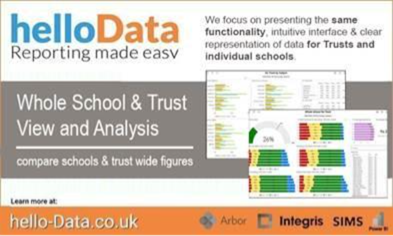
Moving to Arbor? – helloData assessment migration service
If you decide to move to Arbor, and are a helloData customer, we can set up your assessments in your new MIS, migrate your data and provide training, all for £95.
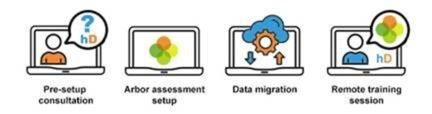
We’ve already helped a large number of schools switch to Arbor this term. The demand for this service is proving to be incredibly high so please let us know when you are moving as soon as possible by emailing admin@hello-data.co.uk.
Note: The new MIS will not setup your assessments or migrate your internal assessment data, only the statutory data is transferred.
If you are not yet using helloData, we can also support you with setting up the assessments in Arbor and assist with the data migration, email admin@hello-data.co.uk to find out more. Visit www.hello-data.co.uk to discover how our reporting tool connects with Arbor so that you can benefit for in depth assessment analysis at a click of a button.
Microsoft Innovative Educator Expert - turn IT on training
Microsoft Innovative Educator Expert 2026
turn IT on have limited FREE spaces available for their next cohort of MIEE
📅👏🏻 Starting Tuesday 20th January 3:30 pm – 5:00 pm
This is an exceptional opportunity for educators who aspire to become digital leads, pursue a professional qualification, or advance into leadership roles within their schools. The course offers practical guidance and professional resources to help teachers and leaders achieve their MIEE accreditation.
BOOK YOUR SPACE FOR NEXT WEEK!! The course provides hands-on advice and professional materials to help teachers and SLT achieve their accreditation.
To participate in the full course book for our Microsoft Innovative Educator Expert Launch session on the 20th January.

Spring Term Online Training Courses
We have a comprehensive schedule of online ‘live’ training courses along with Distance Learning courses to help you develop your knowledge and get the most out of your MIS (Management Information System).
To view the courses available and book places please visit https://www.schoolicts.co.uk/online-training/
Data Health Check Service
An MIS health check ensures you’re getting the most out of the investment in your MIS. The benefits of one of our comprehensive health checks include: –
- Raise awareness of functionality and any issues
- Keep you up to date with the latest developments in your MIS
- Housekeeping and tidying exercises
- Report with recommendations to ensure you’re fully maximising your MIS along with any training recommendations
- For on premise MIS a server health check is also included
Our health check service usually takes around half a day. Please contact us to find out more on: helpdesk@schoolicts.co.uk to find out more.
FMS
Changes to SIMS FMS
Your School Finance System Is Evolving — And You’re Already Covered
The next generation of FMS (Financial Management System) is arriving in early 2026 — and it’s built for the cloud. Designed to meet the real-world needs of school finance teams, this modern solution offers smarter workflows, secure access from anywhere, and powerful reporting tools. Best of all, if your school is on the Finance Package, you’re already paying for the hosting element — so there’s no extra cost to get started.
Why This Matters Now
Schools face increasing demands: managing sensitive financial data, working across multiple sites, and supporting staff who may not have formal accountancy training.
The new cloud-native FMS is built to address these challenges head-on:
- Secure, Flexible Access
Staff can access finance systems securely from any location, reducing downtime and enabling remote work.
- Smarter, Simpler Workflows
A modern interface and intuitive design make it easier to complete tasks quickly — even for users without finance backgrounds.
- Powerful Reporting Tools
From cost centres and trial balances to equipment registers and salary projections, the new reporting workspace gives schools deeper insights with less effort.
- Seamless Integration
The system retains all current interfaces and integrates smoothly with your MIS, preserving historical data and simplifying migration.
The Two-Step Journey
To ensure a smooth transition, the move to the new FMS is structured in two steps:
Step 1: FMS Readiness – FMS on site to FMS Connected platform
Schools move to the hosted environment — a secure, future-proof platform that reduces manual updates and ensures consistent system versions. This step is already included in your Finance Package.
Step 2: FMS Adoption – Transition to FMS Next Gen from FMS Connected
In early 2026, schools that have completed Step 1 will be first in line to adopt the new FMS. The transition is designed to be low-disruption, requiring only a simple user mapping exercise.
Schools have the option to become early adopters of FMS Next Gen or, if they wish they can continue using FMS Connected and move over at a more suitable time
Why Act Now?
By moving to the hosted environment today, your school will:
- Be future-ready for the next-gen FMS
- Minimise disruption during the transition
- Benefit from top-level security (Cyber Essentials Plus)
- Free up time for strategic finance work
- Be prioritised for activation in 2026
Step 3: FMS Adoption – Register for the FMS Next Gen Early adopter programme
Be first to experience the Next Generation of FMS
Before its full launch in early 2026, ParentPayGroup are opening an Early Adopter Programme to give selected schools early access to the new system. This is your opportunity to explore FMS before anyone else, share your feedback, and help shape the future of school finance.
Places are limited, so we encourage you to register soon. If selected, they’ll be in touch with next steps and details on how to access the system. Please note, your FMS6 database needs to be hosted within the PPG Connected platform to be able to take part of the early adopter programme.
This is a really exciting milestone, and we’d love for you to be part of it.
Register your interest here FMS is in the cloud – calling all Early Adopters

Click for the latest Arbor updates
Spring Census Reminder
The Dry Run will be available 2 weeks before Census date which is 15th January 2026, which means that you should be able to access the Dry Run from 1st January 2026. You can do this via School | Data | Export | Data Returns and School Census.
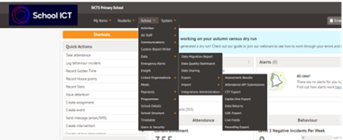
Key dates for the census: –
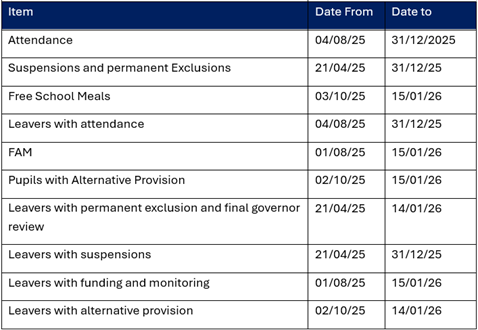
Class Activity
This return requires details of all classes running at the selected time on spring census day.
If different parts of the school use different timetable structures, then systems should allow the school to return class information for the timetable structure that applies to key stage 1.
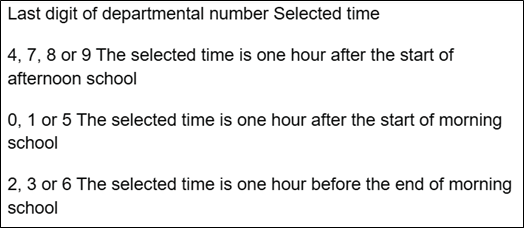
The ‘selected time’ is based on the last digit of a school’s departmental establishment number.
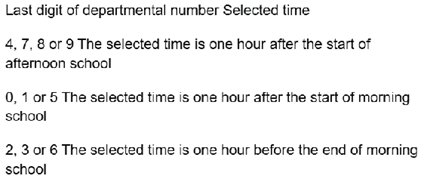
School Time
Schools should provide the total compulsory time pupils spend in school in a typical 5 day week. The number of hours must be recorded to the nearest 15 minutes (that is, where a school is open for 32 and a half hours, for example, this is recorded as 32.30.
This includes the total time each day from the official start of the compulsory school day (the start of morning registration) to the end of the compulsory school day (official home time).
This figure will be inclusive of breaks, as these form part of the total compulsory school day, but it will not include optional activities either before or after school. The data entered should be representative for pupils aged 5 to 16 in the school.
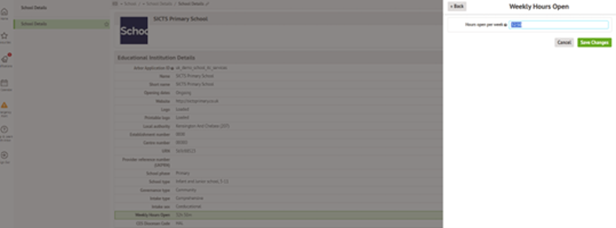
Go to School > School Details and click into the Weekly Hours Open field to fill in the number of hours students are expected to be in school.
Childcare
In the Spring Census, your school is required to provide information on the number and type of childcare places your school provides. You must input this information into your site, even if you don’t offer this type of childcare or any childcare.
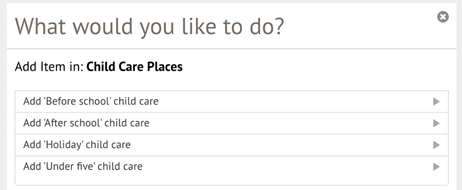
There are four types of childcare that you have to provide information on:
- B – Before school
- A – After school
- H – Holiday provision
- U – Nursery for ages 0-4 (for more than 9 hours/day, not a provision that is only available during school hours or where children can only attend for a morning or afternoon session).
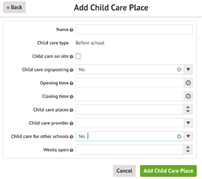
1. Go to School > School Details.
2. For each type of childcare, you must add the type to the Child Care Places section by clicking +Add.

3. Select the childcare type.
We don’t provide this type of childcare
If you do not offer this type of childcare, set the Childcare signposting and Childcare for other schools fields to No, leaving the others blank.
Early Years
Expanded hours
Expanded hours has been amended to allow up to 30 hours to be claimed following the policy change from September 2025.
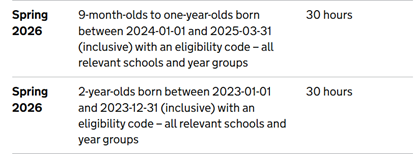
Please Note: in some circumstances, 2-year-olds may be eligible for both the 15-hour entitlement for disadvantaged 2-year-olds and the expanded entitlement. In those circumstances, parents must use the disadvantaged entitlement first, then the working parent entitlement (up to a maximum of 30 hours) in total.
Detailed guidance can be accessed via Complete the school census – Data items 2025 to 2026 – Guidance – GOV.UK
Extended Hours
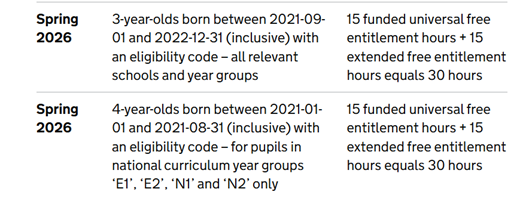
Extended funded entitlement hours are collected for 3- and 4-year-old children with working parents who are in education provision (that is, following the learning and development requirements of the early years foundation stage) at the school and on roll on census day.
As with the funded entitlement hours, extended funded entitlement hours become available – where the parent has an eligibility code – from the term following a child’s 3rd birthday until they reach compulsory school age (the term following their 5th birthday).
No extended or expanded hours
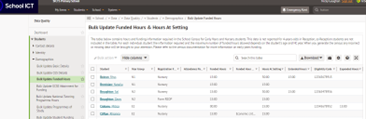
For students that are not entitled to extended or expanded hours paid for by the government, do not enter anything into the Extended hours or Expanded hours fields. Arbor is unable to distinguish between a number entered in the Extended hours field (e.g. 15:00) and zero (e.g. 00:00).
Hours paid for by the child’s parents or the school should only contribute to the Hours at setting total.
Here is an example of a student only attending school for the 15 hours of funded Universal Entitlement.
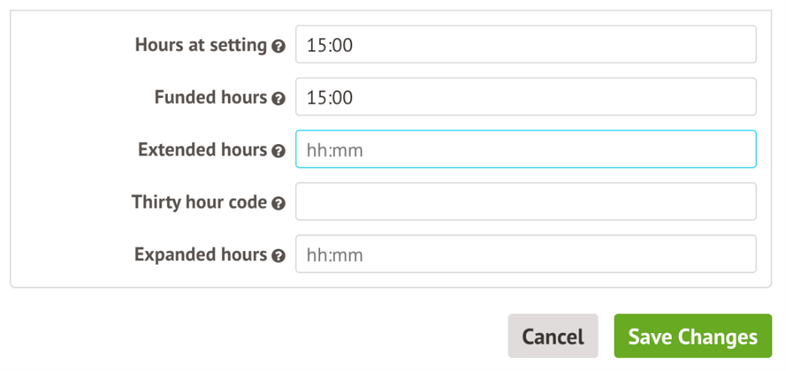
What needs to go in each field?
You can see full guidance on what to fill in from the DfE – scroll down to the Hours at setting (used for funding) section here: Census data items
Here is a quick summary of what each field is to be used for:
- Funded hours – Hours in school funded by the universal entitlement (maximum 15).
- Hours at setting – Total number of hours they spent in education at the school, no matter who funded the hours. To calculate this, add the Funded Hours, Extended Hours or Expanded Hours and any additional hours paid for by the school or parents.
- Extended hours – Additional hours taken above and beyond the universal entitlement (maximum 15) for 3 and 4-year-olds with working parents. Do not include expanded hours or hours paid for by the school or parents in this number.
- Expanded hours – Additional hours taken above and beyond the universal entitlement (maximum 30) for 9-months to 2-year-olds with working parents. Do not include extended hours or hours paid for by the school or parents in this number.
- Eligibility Code by the DfE. This 11-digit code entitles children of working parents to an extra 15 hours of childcare funding. You need to fill in this field if the number in the Extended or Expanded hours fields are greater than 0.
Can we use decimals?
In the DfE’s Data items guidance, they refer to hours in a decimal format, to 2 decimal places. For example:
- 10 and a half hours, this is recorded as 10.50.
- 10 hours and 20 minutes, this is recorded as 10.33.
In Arbor, this is recorded as hours and minutes rather than decimal. So, for example:
- 10 and a half hours, this is recorded as 10:30
- 10 hours and 20 minutes, this is recorded as 10:20
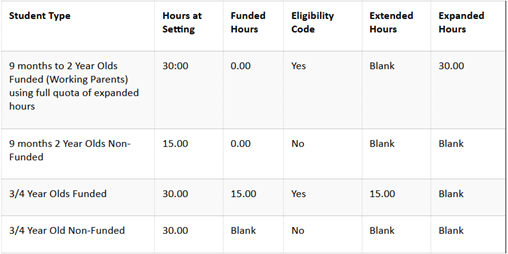
The table below can be used to determine what data should be entered for students:
Please Note: The examples below are based on 2-year-olds attending for 30 hours per week and 3/4-year-olds attending for 30 hours per week. If the parents are funding additional hours privately, then this should be recorded in Hours at Setting and not in the Funded Hours
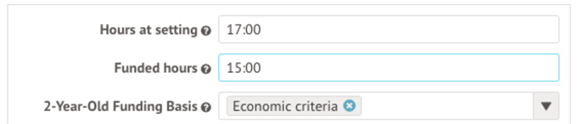
2 Year Old basis for funding
The basis under which a 2 year old has been funded whilst taking up a place in school will now be collected in each census and is not required for 2 year olds taking up the expanded entitlement hours.
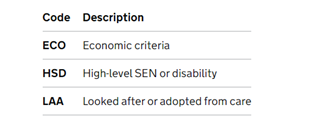
If a student is 2 and has funded hours, you’ll need to add a funding basis. Click the student’s name to add a funding basis, as this cannot be updated in bulk. The options are:
- Economic criteria
- High-level SEN or disability – If this option is selected, you should record a SEN status of E (Education, Health and Care Plan): SEN Statuses. Please note that if the student is still undergoing assessment, you will need to contact the DfE for further guidance.
- Looked after or adopted from care
Census Campaign
Each census we send out a census campaign filled with useful information and guidance. You can read the guidance here.
Snow Days
There are two ways to record school closure to students in Arbor. The method we recommend will depend on whether the closure is planned (such as an election or bank holiday) or not planned (such as a snow day or heatwave).
Please see the guidance here
Important notice about clubs and trips
Even if your school is marked as closed, your clubs, trips and wraparound care will not be automatically cancelled or refunded. The invoices will still be in the Payments area, but you won’t be able to refund them.
We recommend you make any refunds or cancellations for sessions before marking your school as closed. You can see how to do this here:
Top Tips for using Trips in Arbor
Before getting started using trips you need to ensure that the customer account type of ‘Trips’ is set up correctly in Arbor to ensure that the money collected goes to the correct account. Check this through school/payments/setup/customer account types. You should see an account for Trips, that accepts card payments, has card payments enabled and is linked to the correct bank account.
To add a new trip go to school/activities/trips and click the green add button on the right side.
Choose whether the trip is a paid for trip or is free.
Give the trip a name/description (visible to parents in the portal)/location/staff member/dates/pupils eligible/maximum participants and decide whether consent is required and attendance needs to be taken.
Add an accounting code is this is applicable for your school to reconcile the money (optional)
Add prices including whether you accept voluntary contributions/whether instalments are permitted/min instalment/auto confirmation min and yes to show the outstanding amount. Different prices can be set for different groups of pupils.
Make the trip visible to parents on the portal
Sign in as guardian on an eligible pupil and see how it looks on the portal
If a trip is happening in the next academic year set up a trip for this in this academic year and add notes in the description box of what the actual dates of the trip are. Collect all monies from this trip.
Call the helpdesk with any queries you have. We will be happy to help!
Bank Account Verification
We have had a lot of schools who have recently had to verify their Accounts again. This does happen periodically to ensure that all data is up to date.
Just a reminder of a few things:-
The School Details:
Must be for the school, NOT the Trust or LA, so this is:
- The SCHOOL Name
- The SCHOOL URN (you can find this in School > School details)
- The SCHOOL Telephone Number
- The SCHOOL Postal Address
For the proof of school name and address, the most recent FULL Ofsted Report is recommended, but if you do not have one of these yet, then you can use:
- A Utility Bill in the name of the School (NOT the Trust or LA)
- A Bank-issued document in the name of the school (Bank Statement is ideal), again, NOT the Trust or LA
- A Companies House Document
- A Charity Commission Document
For the School Controller and Verifier details, these must be their personal details (address and documentation). Identity verification is important and is legally required as part of Know Your Customer (KYC) regulations. You can read more about the laws governing Arbor’s identity verification process here.
Arbor and their payment provider (Stripe) are required to collect and verify information of all payment account holders. This is because the regulations in Great Britain require them to collect and maintain this information. This is then submitted to their payment provider to verify authenticity. The information you provide will not be used for any other purposes than identity verification.
So for the School Controllers/Owners Details, these must be:
● Job title
● Legal forename and surname
● Date of birth
● Email address
● Postal address (home address)…..
….and for the Representative Details:
● Job title
● Legal forename and surname
● Date of birth
● Email address
● Telephone number (personal)
● Postal address (home address)
For the Photo ID for the staff concerned:
Make sure that:
● the legal name provided for the representative’s details is the same as on the photo ID
● the address included on the ID matches the user’s address recorded on the staff member’s Arbor profile.
Accepted documents:
- Passport (preferred)
- Driver’s licence
- Other government-issued ID (both the front and back).
This must be:
- A colour image, rotated with the image right-side-up
- Clear picture with no light bouncing off the ID
- JPG or PNG format
- Less than 10MB in size
- Image smaller than 8000px*8000px
Also, do not re-submit ID that has already been submitted as this will create an additional issue.

Click for the latest Bromcom updates
Census Dates
Detailed guidance can be found via the census campaign on the customer portal here
| Census Date 15/01/26 | ||
| Item | Date From | Date to |
| Attendance | 04/08/25 | 31/12/2025 |
| Suspensions and permanent Exclusions | 21/04/25 | 31/12/25 |
| Free School Meals | 03/10/25 | 15/01/26 |
| Leavers with attendance | 04/08/25 | 31/12/25 |
| FAM | 01/08/25 | 15/01/26 |
| Pupils with Alternative Provision | 02/10/25 | 15/01/26 |
| Leavers with permanent exclusion and final governor review | 21/04/25 | 14/01/26 |
| Leavers with suspensions | 21/04/25 | 31/12/25 |
| Leavers with funding and monitoring | 01/08/25 | 15/01/26 |
| Leavers with alternative provision | 02/10/25 | 14/01/26 |
Accessing the Return
Modules > Census > School
Class Information
The Spring 2026 Census collects details of all classes running at the Selected Time on Spring Census day. The Selected Time is based on the last digit of a school’s departmental establishment number.
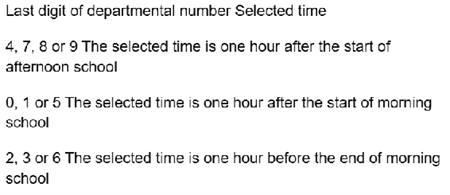
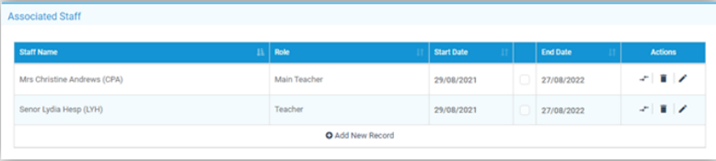
Therefore, it is important to ensure that your Curriculum is accurately entered within the Curriculum module. This is for Secondary/All Through Schools. Staff should be correctly Associated to the classes that they are responsible for taking on the timetable, this should include support Staff as well as teaching Staff where possible. The Census process will provide you with the opportunity to adjust this data before you validate the file so you will still be able to adjust the information before submittal. Staff association with classes should be checked from the Groups > Teaching Class > View Group Details > Associated Staff option. The Associated Staff panel will show you which Staff members are associated with the class in general and the Associated Timetables panel will provide you with the specific information of who is responsible for the class on any particular period in the week.
Early Years
DfE guidance is as below: (full guidance can be obtained via Complete the school census – Data items 2025 to 2026 – Guidance – GOV.UK
Summary of what is collected and how to record
| Data Item | Maximum hours | School Census Autumn 25 |
| Hours at Setting | This is the total hours the pupil spends in school each week | Collected for all 9 months up to and including 4 year olds |
| Funded Hours – 2 year old | 15 | Collected for all disadvantaged 2 year olds
A specified subset of disadvantaged 2-year-olds also becomes eligible from the term following their second birthday. Local authorities will confirm which 2-year-old children meet the eligibility criteria, if schools do not know. |
| Funded Hours – 3 & 4 Year olds | 15 | All children become eligible for funded early education from the term following their 3rd birthday, irrespective of background or family circumstances (the 3- and 4-year-old universal entitlement). |
| Extended Hours | 15 | Collected for 3 and 4 year olds with an Eligibility code
3-year-olds born between 2020-09-01 and 2022-03-31 (inclusive) with an eligibility code – all relevant schools and year groups 4-year-olds born between 2020-04-01 and 2020-08-31 (inclusive) for pupils in national curriculum year groups ‘E1’, ‘E2’, ‘N1’ and ‘N2’ only |
| Expanded Hours | 30 | Collected for 9 months up to and including 2 year olds with Eligibility code.
(In some circumstances, 2-year-olds may be eligible for both the 15-hour entitlement for disadvantaged 2-year-olds and the expanded entitlement but can only take up one of these entitlements. In those circumstances, children should be recorded against the disadvantaged entitlement (funded hours). |
| DAF indicator | N/A | Collected for 9 months up to and including 4 year olds. |
| 2 Year old basis for funding | N/A | Collected for 2 year olds |
| Early Years Pupil Premium Receipt | N/A | Collected for 9 months up to and including 4 year olds |
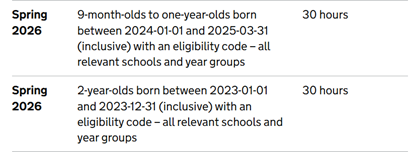
Funded Expanded hours
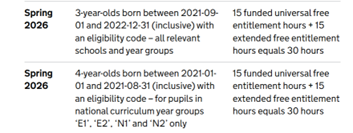
Funded Extended hours
2 Year Old basis for funding
The basis under which a 2 year old has been funded whilst taking up a place in school will now be collected in each census and is not required for 2 year olds taking up the expanded entitlement hours.
This data is entered in Panel 3 of the census return.
Using the Update Funded Hours button you can apply the Funded Hours and Hours at Setting to the relevant Age group. Once you have selected the hours for the particular age click on the Save button. You will now need to repeat this process for the remaining age groups. Once completed Funded Hours and Hours at Setting will be populated with information against each of the Students. If required individual Students hours can be edited by clicking on the individual cell and overtyping with a new value.
SEN
Pupil SEN Type code has been updated to include Down Syndrome.
This Census will also collect whether a pupil is a member of an SEN Unit or Resourced Provision:
Detailed guidance can be found https://www.gov.uk/guidance/complete-the-school-census/data-items#pupil-sen-provision
Schools and academies must only use this indicator where the resourced provision and SEN unit has been formally recognised as such by the local authority where the school is located. The school’s Get Information About Schools (GIAS) record should indicate if the school has resourced provision places.
Primary School Dinner Taken
This should be completed on Census day and should confirm all those pupils in Reception, Year 1 and 2 who have taken a universal free school meal.
If you are using the Dinner module, then the Lunch Taken column in the Pupil School Lunch panel may already be populated with information indicating those Students who took (or are expected to take) school lunch on the date of Census.
Please ensure you confirm the dinner numbers on census day before running the Census, so this information gets picked up correctly. See How to Confirm and Save Dinner Numbers.
Simply enter a tick against all the Students who are going to be taking (or have taken) school lunch on Census day. It may be quicker for you to bulk tick all the Students using the tick box option on the Lunch Taken column header, then deselect Students that did not take lunch.
This information will also be used to derive the Universal Free School Meal information.
Clicking the Reset to MIS button will restore the information in this panel to the condition it is in within the MIS data before any user adjustments were undertaken.
Snow Days
During the winter months, there is a chance snow and bad weather can cause a school closure. Below are some resources and information to assist if this is required.
If the whole school is closing the day can be marked as “enforced closure” within config > curriculum > academic days
This guide explains how to make changes, with the process also summarised below https://halo.transforming-learning.co.uk/article?id=1071
If you are adding a closure for the current term, the screen will open the correct panel, but each term can be expanded and closed if needed.
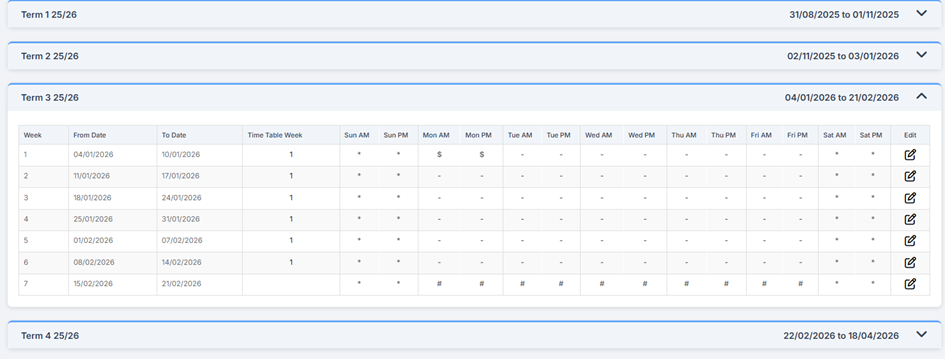
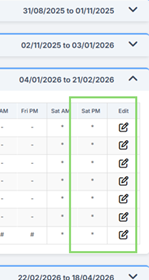
Any of the weeks can be edited by clicking on the edit icon
From here different types on “days” can be marked, such as enforced closure (!) Staff only days ($) or holidays (*)
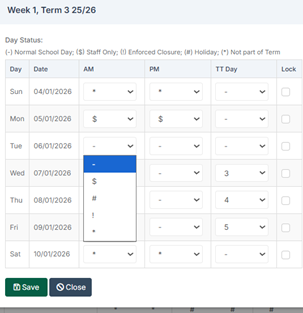
- For a snow day, add the “!” In AM and/ or PM for the required day(s)
- Once complete, click Save
There are some other resources that may come in useful, such as how to send an SMS to parents – How to Send an SMS Message or Email – Bromcom
If you need to only close to certain e.g. year groups, you can use the bulk attendance screen (Modules > attendance > Bulk attendance update)- full guidance hereto add marks to students in bulk.
News and Updates
Options –
There have been some updates to this area which are listed below
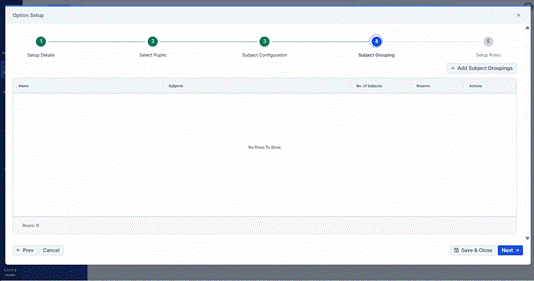
Options – Simplified Subject Grouping & Import Guidance Enhancements
Modules > Options > Options Setup
This release removes the need to categorise Subject Group Types as Fixed or Flexible when creating a new setup.
In Step 4 of the Create New Setup popup, users will now click the + Add Subject Grouping button to open the new Create Subject Groupings popup. Here, users can:
Enter a Subject Grouping Name
Select the Subjects
Indicate whether a Reserve should be set
These steps work as before, but users no longer need to choose between Fixed or Flexible for the Subject Group.
Additional improvements include:
A Search field in the Subject area
A total count of selected Subjects
After saving, users can still edit or delete subject groupings via the Actions column. For all new setups, the Type column has been removed.
Note: For existing setups that include Fixed Subject Group Types, the Type column will continue to be displayed to preserve the current configuration and behaviour. Similarly, if a setup containing fixed subject groups is copied, those fixed groups will also be retained in the new setup.
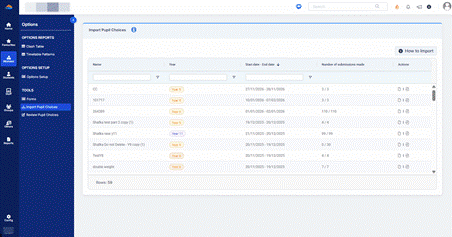
Modules > Options > Import Pupil Choices
The guidance on how to import pupil choices has been updated to remove all references to Subject Group Types. Click the relabelled button How to Import and you will see that additionally, users no longer need to click Next to view the second page – all instructions now appear on a single scrollable page.
Note: Users can still import a file that contains an x in a subject column; this functionality remains supported and has not been removed.
MCAS – Enhancements to User Accounts
Modules > MyChildAtSchool > User Accounts
This release introduces updates to both Students User Accounts and Contacts User Accounts to improve visibility and management of MCAS accounts. New columns, clearer labels, and additional actions make it easier to view active contacts, linked students, and contact priorities, as well as send password resets and activation emails more efficiently.
Key Updates:
Students User Accounts
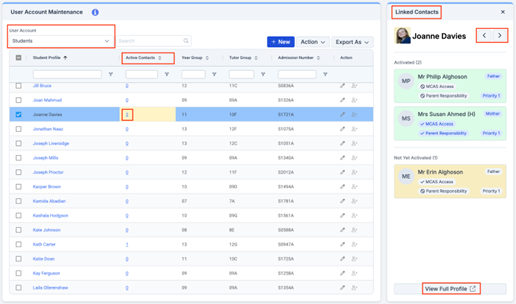
- New Active Contacts Column
A new Active Contacts column displays the number of contacts with an active MCAS account linked to that student. The count is clickable, opening the Linked Contacts side panel. This panel displays all contacts with an MCAS account linked to the student – which are either ‘Activated’ or ‘Not Yet Activated’ (includes disabled accounts) – along with the following details:
Contact Name
Relationship
‘MCAS Access’ badge
‘Parental Responsibility’ badge
Priority
Users can use the arrows to navigate to the next student and view their associated linked contacts.
Selecting View Full Profile opens the Student Details page in a new tab.
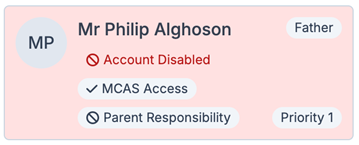
Note: If an account is disabled, it will be displayed on a red tile.
- New Actions
Two new email options have been introduced to the Action dropdown.
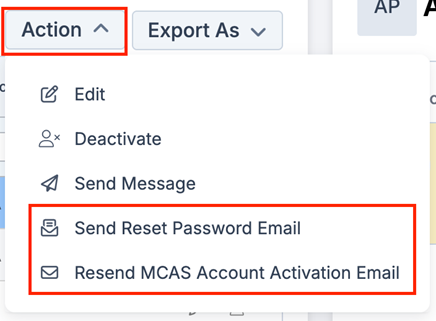
Send Reset Password Email
First, the new Send Reset Password Email sends a reset password email to a student’s contacts, who have an active MCAS account (green tile). Users will see the following popup:
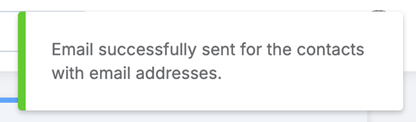
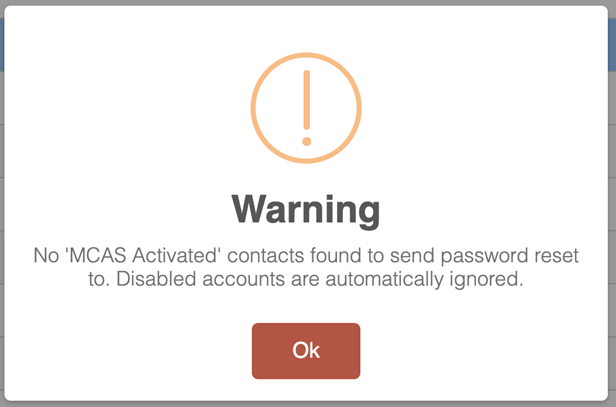
If the process is unsuccessful for all contacts (i.e. no contacts have an active MCAS account), users are shown the following warning message: Disabled accounts are excluded.
Resend MCAS Account Activation Email
Second, the new Resend MCAS Account Activation Email sends an account activation email to a student’s contacts who have an inactive MCAS account (yellow tile) and a valid email address. Users will see the following popup:
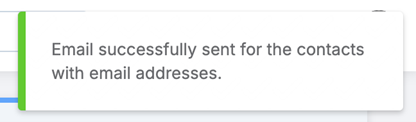
If contacts are found with an invalid email address, users will see the following warning message:
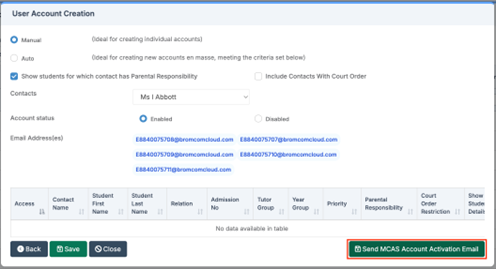
Note: This action is the same as clicking Send MCAS Account Activation Email in User Account Creation.
Contacts User Accounts
- Relabelling
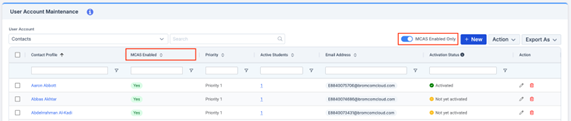
MCAS Enabled: The ‘Status’ column has been relabelled to MCAS Enabled and will display Yes or No.
MCAS Enabled Only: The ‘Active Only’ toggle has been relabelled to MCAS Enabled Only. It continues to default to On, showing only contacts with MCAS Enabled = Yes, as per current functionality.
- New Active Students Column
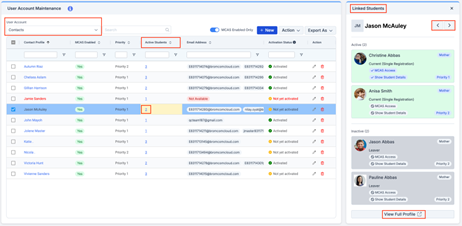
A new Active Students column displays the count of active students linked to that contact. The count is clickable, opening the Linked Students side panel. This panel displays all students linked to the contact – both active (on roll) and inactive (leaver) – along with the following details:
Student Name
Relationship
Enrolment Status
‘MCAS Access’ badge
‘Show Student Details’ badge
Priority
Users can use the arrows to navigate to the next contact and view their associated linked students.
Selecting View Full Profile opens the Contact Details popup on the Others > Contacts page in a new tab.
- New Priority Column
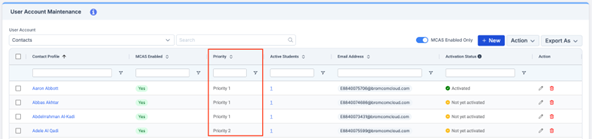
A new Priority column displays the priority assigned to the contact. The value shown reflects the highest priority across all linked active students. If no active students are linked, the highest priority from inactive students (leavers) will be displayed instead. The email will only be sent if all selected contacts have a valid email address.
- New Action
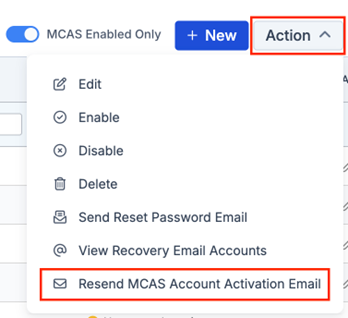
The new Resend MCAS Account Activation Email can also be utilised in Contacts. The email will send if only contacts with an email have been selected.
Under Consideration
Based on feedback received during the internal and external demonstrations, the following enhancements are being reviewed:
Introduce a different tile colour (instead of green) for contacts who do not have MCAS Access for an active linked student.
Filter email actions to exclude contacts who do not have MCAS Access for a linked student.
Include pre-admission students in the Linked Students panel.
Add a Show Student Details badge to the Linked Contacts panel.
Add the corresponding Student Name to the Resend MCAS Account Activation Email warning popup.
Provide a timestamp for email actions on a contact.

Click for the latest Integris updates
Did you know that we offer migration support to our MIS SLA customers?
Part of our migration service is the offer of 1:1 Migration support meetings where we go through data cleansing tasks and housekeeping advice prior to your migration date. Once you have your new MIS, we can be on hand to answer any questions you have.
For day-to-day support, your school can contact us in the normal way at helpdesk@schoolicts.co.uk or 0345 222 6802 where we will be able to assist with the migration processes or just answer any questions you may have.
If you know you are migrating to a new MIS, please let us know as soon as possible so we can provide this additional support.
Spring Census
Census Dates
How has the School Census Return Changed since last year?
| Census Date 15/01/26 | ||
| Item | Date From | Date to |
| Attendance | 04/08/25 | 31/12/2025 |
| Suspensions and permanent Exclusions | 21/04/25 | 31/12/25 |
| Free School Meals | 03/10/25 | 15/01/26 |
| Leavers with attendance | 04/08/25 | 31/12/25 |
| FAM | 01/08/25 | 15/01/26 |
| Pupils with Alternative Provision | 02/10/25 | 15/01/26 |
| Leavers with permanent exclusion and final governor review | 21/04/25 | 14/01/26 |
| Leavers with suspensions | 21/04/25 | 31/12/25 |
| Leavers with funding and monitoring | 01/08/25 | 15/01/26 |
| Leavers with alternative provision | 02/10/25 | 14/01/26 |
Accessing the Return
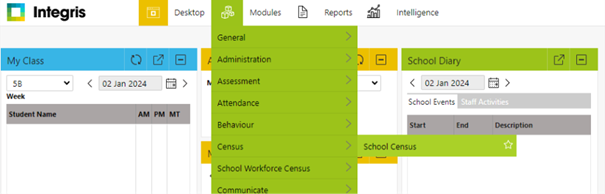
Modules > Census > School Census
School Time
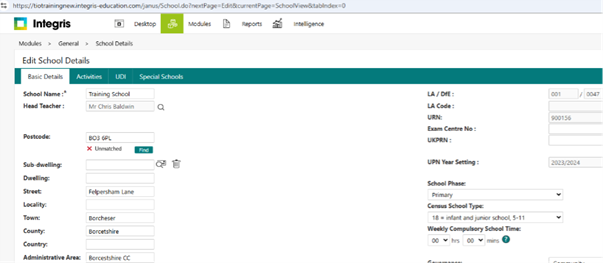
School time is collected as part of the spring census return and collects data on the total compulsory time pupils spend in school, in a typical 5 day week, this setting is found within the General > School Details section of Integris.
This value should be rounded to the nearest 15 minutes, Integris will only allow entry in hours and 15 minute intervals.
The DfE expected range for this value is 25-40 hours.
Childcare
In the Spring Census, your school is required to provide information on the number and type of childcare places your school provides. You must input this information into your site, even if you don’t offer this type of childcare or any childcare.
There are four types of childcare that you have to provide information on:
- B – Before school
- A – After school
- H – Holiday provision
- U – Nursery for ages 0-4 (for more than 9 hours/day, not a provision that is only available during school hours or where children can only attend for a morning or afternoon session).
Early Years
Expanded hours
Expanded hours has been amended to allow up to 30 hours to be claimed following the policy change from September 2025.Note, in some circumstances, 2-year-olds may be eligible for both the 15-hour entitlement for disadvantaged 2-year-olds and the expanded entitlement. In those circumstances, parents must use the disadvantaged entitlement first, then the working parent entitlement (up to a maximum of 30 hours) in total.
Detailed guidance can be accessed via Complete the school census – Data items 2025 to 2026 – Guidance – GOV.UK
Extended Hours
Extended funded entitlement hours are collected for 3- and 4-year-old children with working parents who are in education provision (that is, following the learning and development requirements of the early years foundation stage) at the school and on roll on census day.
As with the funded entitlement hours, extended funded entitlement hours become available – where the parent has an eligibility code – from the term following a child’s 3rd birthday until they reach compulsory school age (the term following their 5th birthday).
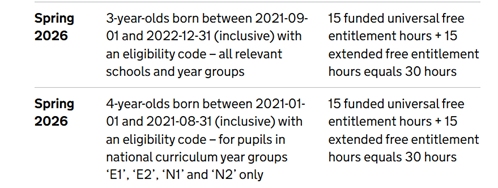
The table below can be used to determine what data should be entered for students:
Please Note: The examples below are based on 2-year-olds attending for 30 hours per week and 3/4-year-olds attending for 30 hours per week. If the parents are funding additional hours privately, then this should be recorded in Hours at Setting and not in the Funded Hours
| Student Type | Hours at Setting | Funded Hours | Eligibility Code | Extended Hours | Expanded Hours |
| 9 months to 2 Year Olds Funded (Working Parents) using full quota of expanded hours | 30:00 | 0.00 | Yes | Blank | 30.00 |
| 9 months 2 Year Olds Non-Funded | 15.00 | 0.00 | No | Blank | Blank |
| 3/4 Year Olds Funded | 30.00 | 15.00 | Yes | 15.00 | Blank |
| 3/4 Year Old Non-Funded | 30.00 | Blank | No | Blank | Blank |
 ACTIONS
The 30-hour code can be added/edited via Modules > General > Student Details > Student Record > Additional. Or alternatively, via Modules > Administration > Speed Edit.
2 Year Old basis for funding
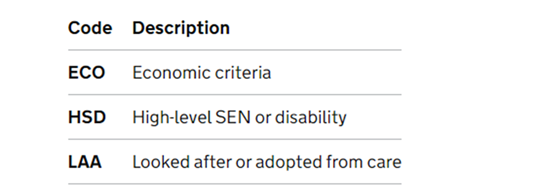
The basis under which a 2 year old has been funded whilst taking up a place in school will now be collected in each census and is not required for 2 year olds taking up the expanded entitlement hours.
Class Activity
This return requires details of all classes running at the selected time on spring census day.
If different parts of the school use different timetable structures, then systems should allow the school to return class information for the timetable structure that applies to key stage 1.
The ‘selected time’ is based on the last digit of a school’s departmental establishment number.
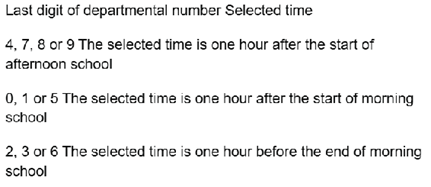
Any group of pupils receiving instruction outside the normal class framework at the selected time, such as pupils in a special educational needs (SEN) unit, are treated as a separate ‘class as taught’ unless this is an atypical or temporary arrangement.
Infant class guidance
Only primary and all-through schools need to send us this information for key stage 1 and reception classes. The School Admissions(Infant Class Sizes)(England)regulations 2012 limit the size of an infant class during an ordinary teaching session to 30 pupils per schoolteacher. Infant classes are those in which most children turn 5, 6 or 7 during the course of the school year (reception and key stage 1 classes).
Primary and all-through schools with infant classes are asked to ensure that the selected period is one in which their infant classes are engaged in an ordinary teaching session.
An ordinary teaching session does not include school assembly, or any other school activity usually conducted with large groups of children such as:
- PE or games
- music
- singing
- drama
- watching television
- listening to the radio
Where, at the time of the count, infant class children would be involved in such an activity, the count is deferred to the next ordinary teaching session. This change of selected time is enacted for all classes in the school, not just the infant classes.
Nursey Provision
Due to change in DfE guidance and the Early Years Provision the terminology and recording has now been changed. All eligible pupils will now use an Eligibility Code not 30 hour code to access the provision which consists of 11 digits.
2 Columns have been added to account for these changes in the census: Extended Hours and Expanded Hours.
The 30-hour/eligibility code indicator is an 11-digit integer that is required for pupils who claim extended or expanded funded entitlement hours. This applies to all eligible 9-month-olds to 3-year-olds and those pupils aged 4 in year groups ‘E1’, ‘E2’, ‘N1’ and ‘N2’ only, who are on roll on census day. The code confirms the eligibility of working parents to receive the 15 extended funded entitlement hours, or the 15 expanded funded entitlement hours. This is particularly important as parents may split this entitlement between 2 providers.
The code, once issued, remains fixed and refers to a single parent / child combination – where a parent has two children, each child will have their own code. However, when the school is presented with the code by the parent, the school must confirm the code’s validity with their local authority. Where a child transfers school, the local authority must be informed of the transfer.
The table below can be used to determine what data should be entered for students:
Please Note: The examples below are based on 2-year-olds attending for 15 hours per week and 3/4-year-olds attending for 30 hours per week. If the parents are funding additional hours privately, then this should be recorded in Hours at Setting and not in the Funded Hours
| Student Type | Hours at Setting | Funded Hours | Eligibility Code | Extended Hours | Expanded Hours |
| 9 months to 2 Year Olds Funded (Working Parents) | 15.00 | 0.00 | Yes | Blank | 15.00 |
| 9 months 2 Year Olds Non-Funded | 15.00 | 0.00 | No | Blank | Blank |
| 3/4 Year Olds Funded | 30.00 | 15.00 | Yes | 15.00 | Blank |
| 3/4 Year Old Non-Funded | 30.00 | Blank | No | Blank | Blank |
The 30-hour code can be added/edited via Modules > General > Student Details > Student Record > Additional. Or alternatively, via Modules > Administration > Speed Edit.
Data Items Included in this Return
Full details of what is included in each return can be found via DfE spreadsheet.

Click for the latest ScholarPack updates
Migration Support - Did you know that we offer migration support to our MIS SLA customers?
Part of our migration service is the offer of 1:1 Migration support meetings where we go through data cleansing tasks and housekeeping advice prior to your migration date. Once you have your new MIS, we can be on hand to answer any questions you have.
For day-to-day support, your school can contact us in the normal way at helpdesk@schoolicts.co.uk or 0345 222 6802 where we will be able to assist with the migration processes or just answer any questions you may have.
If you know you are migrating to a new MIS, please let us know as soon as possible so we can provide this additional support.
Spring Census
Documentation to Aid with Completing the Return
There is currently no updated guidance from Scholarpack, but please refer to the 2025 guidance on our portal here.
Please note this will be the last Census in ScholarPack
Data Items for the Spring Census
The following key dates apply for collection in this return
Census Date 15/01/26
| Item | Date From | Date to |
| Attendance | 04/08/25 | 31/12/2025 |
| Suspensions and permanent Exclusions | 21/04/25 | 31/12/25 |
| Free School Meals | 03/10/25 | 15/01/26 |
| Leavers with attendance | 04/08/25 | 31/12/25 |
| FAM | 01/08/25 | 15/01/26 |
| Pupils with Alternative Provision | 02/10/25 | 15/01/26 |
| Leavers with permanent exclusion and final governor review | 21/04/25 | 14/01/26 |
| Leavers with suspensions | 21/04/25 | 31/12/25 |
| Leavers with funding and monitoring | 01/08/25 | 15/01/26 |
| Leavers with alternative provision | 02/10/25 | 14/01/26 |
School Childcare
This is a manual entry which can be found in Admin > Census > Spring Census > Childcare details.
Schools must provide information on the provision of – or signposting to – childcare together with the nature of the childcare provided / signposted.
The school must provide an answer to whether there is on-site provision (and any related information) and whether the school signposts off-site provision for each of the 4 types of childcare.
Where opening / closing times are required, these are provided using the 24-hour clock format (03:00 = 3 am 15:00 = 3 pm)
If a school does not provide on-site childcare and also does not signpost off-site provision they would need to select for each type of childcare a ‘NO’ for on-site and an ‘N’ for signposting.
See the Childcare section of the DfE Guidance – DfE School Census Data Items
School Time
This is done via the relevant school census page in Admin > Census.
Find School Time in the table and click on the ‘School Time’ button.
Enter a figure and press Save.
Once hours have been entered and saved the page will display as shown below:
Class Information
This return requires details of all classes running at the selected time on spring census day.
If different parts of the school use different timetable structures, then systems should allow the school to return class information for the timetable structure that applies to key stage 1.
The ‘selected time’ is based on the last digit of a school’s departmental establishment number.
Any group of pupils receiving instruction outside the normal class framework at the selected time, such as pupils in a special educational needs (SEN) unit, are treated as a separate ‘class as taught’ unless this is an atypical or temporary arrangement.
Infant class guidance
Only primary and all-through schools need to send us this information for key stage 1 and reception classes.
The School Admissions (Infant Class Sizes) (England) Regulations 2012 limit the size of an infant class during an ordinary teaching session to 30 pupils per schoolteacher. Infant classes are those in which most children turn 5, 6 or 7 during the course of the school year (reception and key stage 1 classes).
Primary and all-through schools with infant classes are asked to ensure that the selected period is one in which their infant classes are engaged in an ordinary teaching session.
An ordinary teaching session does not include school assembly, or any other school activity usually conducted with large groups of children such as:
- PE or games
- music
- singing
- drama
- watching television
- listening to the radio
Where, at the time of the count, infant class children would be involved in such an activity, the count is deferred to the next ordinary teaching session. This change of selected time is enacted for all classes in the school, not just the infant classes.
To enter select the drop-down arrow on the Classes panel.
To input this data into ScholarPack these go to Admin > Census > Spring Census > Class Details
To add class details, select Add New.
You can then add details of the class, year group, the subject being taught and the number of students (including those who would have been in the class but have been registered as absent).
Where a key stage 1 or a reception class reports a pupil: teacher ratio greater than 30, schools must record in their MIS where this is due to:
- any pupils within the class recorded as excepted.
- a teacher being on planning and preparation time or learning manager time and the class is being supervised by a teaching assistant.
The calculation is based on the pupil: teacher ratio not pupil: adult ratio therefore, regardless of the number of teaching assistants, if there are no exceptions or teachers on PPA reported, the class will be treated as unlawful in Department for Education (DfE) publications if there are more than 30 pupils to one teacher.
To record this in ScholarPack the exception will be displayed in an orange exception box.
If the students in the class (Pupils in Class + Guest Pupil Numbers) exceeds the ratio 30:1, then for each student over the ratio, an exception must be recorded. An exception can be used more than once.
Example: In the example below there are 32 students in the class for one teacher. Therefore, two exceptions need to be recorded.
Once the correct number of exceptions have been recorded to bring the ratio back to 30:1, you will see it says Exemptions Complete.
Note: Do not record unusual situations (such as class amalgamation or school closure) which may have occurred on census day due, for example, to staff training or absence, severe weather conditions or religious observances.
Class reference name
This records the class name with space for 30 characters.
Number of teachers in the class
The number of teaching staff taking the class. Include all qualified or unqualified teachers – exclude those wholly or mainly providing support to individual pupils.
Number of adult non-teachers in the class
The number of education support-staff present in the class. Include teaching assistants, special educational needs support staff, minority ethnic pupils support staff, and other education support staff. Exclude non-teaching staff wholly or mainly providing support to individual pupils.
Number of teachers on PPA, LMT or NQT time
Only primary and all-through schools need to send us this information for key stage 1 and/ or reception classes.
The number of teachers who are on planning and preparation time (PPA) or learning manager time (LMT) or newly qualified teacher (NQT) time at the selected time.
To record if a teacher is on PPA/LMT then in the classes area add in the “Teachers on PPA/LMT” column the number of teachers from the class on PPA/LMT
School Dinner Taken
This should be completed on Census day and should confirm all those pupils in Reception, Year 1 and 2 who have taken a universal free school meal.
Top Tip: This area can only be filled in after morning registers have been taken on Census Day itself. This is because the attendance codes are needed to show who is in school to have a meal.
You will be presented with a list of all those students in years Reception to Year 2. The attendance code for each student will be displayed together with any meal choice if using the meals module.
- You can choose to populate the School Lunch taken column with those students who were marked as present for the AM session (/) or late before register closed (L) as having had a UFSM on census day.
- Tick all students who had a school meal on census day and click Save.
- You can bulk enter these using the Pre-Populate button at the bottom of the page, which automatically assigns meals to those with a present code that day, then untick those meals not taken (e.g. home packed lunch).
If the situation at lunchtime was in some way unusual on census day, you will need to complete this section as if it were a different, unaffected day. More information on Unusual Circumstances can be found on the DfE’s site here: Unusual circumstances
Free School Meals Taken
Pupils are recorded as FSM eligible where they meet the FSM eligibility criteria – for these children, this area requires a manual entry of the total number of pupils who had a free school meal at lunchtime on census day.
Pupils who are in receipt of a free school lunch due only to the infant pupil universal entitlement are not recorded as ‘FSM’ and not included in the free school meals taken record.
This can be found in ScholarPack via Admin > Census > Spring Census > Free School Meals.
Note: Pupils who are in receipt of a free school lunch due only to the infant pupil universal entitlement are not recorded as ‘FSM’ and not included in the free school meals taken record.
If you use the meals module on ScholarPack, you can check numbers for UFSM and FSM on various dates in the Admin > Meals > Dinner Numbers by Week report.
Admissions Appeals
Figures on admission appeals are collected in the spring census from schools that were responsible for their own appeals related to applicants having not received a requested offer of a place for the start of the current academic year.
We do not need information about:
- appeals lodged on or after 1 September in the current academic year.
- in-year appeals (appeals against a refusal to admit a pupil during the course of the current academic year) – just those that relate to entry at the start of the academic year
Recent academy converters (including a conversion of an existing school into a sponsored academy) should complete this module if they converted before spring census day.
You should only include appeals that are the responsibility of the school’s governing body. If a school has contracted another agency, such as their home local authority, to administer their admissions appeals process and the school’s governance code is ‘VA,’ ‘FO’ or ‘CA,’ the school should complete the module. If your school operates arrangements jointly with other schools, your return will include appeals for your school only.
These are required from schools in the spring census, with the phase and governance.
Primary and middle-deemed primary schools should provide information on all their appeals.
All-through schools must provide information on all their admissions appeals that relate to entry into years reception to 6 inclusive.
Infant admission appeals
Only primary and all-through schools need to send us this information.
Collects information about admissions appeals from schools that have infant classes. It is a subset of the primary figure provided.
These are required from schools in the spring census, with the phase and governance.
To enter your figures into ScholarPack go to the Spring Census page and under ‘Spring Census Specific Data’ click on the Admissions / Infant Admissions button.
You will be presented with 5 boxes to manually input figures in –
School-arranged alternative provision (AP)
You will need to ensure you have recorded information about AP placements where you have sent students from your school to an alternative provider where applicable.
Data is requested for both on and off roll pupils and should include any current AP placements and any previous placements within the census period, where the pupil has already left an AP placement.
To record AP Placements information, please go to the Support Tab on a student profile.
Scroll to the base of the tab and click on the cog next to School-Arranged Alternative Provision, then click on Add New.
The default setting is to record the Provision ID by URN, and the digits are expected to be manually entered.
Alternatively, you can record by UKPRN digits or Setting Type.
- If you select Setting Type, you will be required to enter a Companies House Number as well as a UK Postcode. This is required to provide adequate tracking of unregistered AP settings.
- Under Provision ID a dropdown menu will display for you to choose the appropriate option:
As well as recording the Date of Entry to the AP, you are also required to enter the Reason for Placement as well as SEN at Entry.
The available options here are:
- No Special Educational Need
- Education Health and Care Plan
- SEN Support
You are required to enter the Attendance Pattern (whether Part time or Full time with this provider).
If you select Full time, you do not have the option to enter Sessions per week, as it is assumed it will be all sessions from that date. If you select Part time you will be required to enter the Sessions per week.
When the AP ends, you need to enter a Date of leaving, as well as the SEN on Leaving. You may also add notes to this section.
If you wish to edit any current or historic AP, click on the cog next to School Arranged Alternative Provision to open all recorded provisions.
Early years – funded hours, expanded, extended hours, and hours at setting.
DfE guidance is as below: (full guidance can be obtained via https://www.gov.uk/guidance/complete-the-school-census/data-items-2024-to-2025
Summary of what is collected and how to record.
| Data Item | Maximum hours | School Census Summer 25 |
| Hours at Setting | This is the total hours the pupil spends in school each week | Collected for all 9 months up to and including 4 year olds |
| Funded Hours – 2 year old | 15 | Collected for all disadvantaged 2 year olds.
A specified subset of disadvantaged 2-year-olds also becomes eligible from the term following their second birthday. Local authorities will confirm which 2-year-old children meet the eligibility criteria if schools do not know. |
| Funded Hours – 3 & 4 Year olds | 15 | All children become eligible for funded early education from the term following their 3rd birthday, irrespective of background or family circumstances (the 3- and 4-year-old universal entitlement). |
| Extended Hours | 15 | Collected for 3 and 4 year olds with an Eligibility code.
3-year-olds born between 2020-09-01 and 2022-03-31 (inclusive) with an eligibility code – all relevant schools and year groups 4-year-olds born between 2020-04-01 and 2020-08-31 (inclusive) for pupils in national curriculum year groups ‘E1’, ‘E2’, ‘N1’ and ‘N2’ only |
| Expanded Hours | 30 | Collected for 9 months up to and including 2 year olds with Eligibility code. |
| DAF indicator | N/A | Collected for 9 months up to and including 4 year olds. |
| 2 Year old basis for funding | N/A | Collected for 2 year olds |
| Early Years Pupil Premium Receipt | N/A | Collected for 9 months up to and including 4 year olds |
Funded Expanded Hours
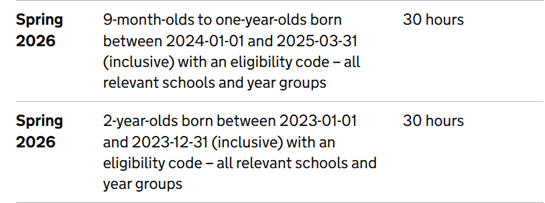
Funded Extended Hours
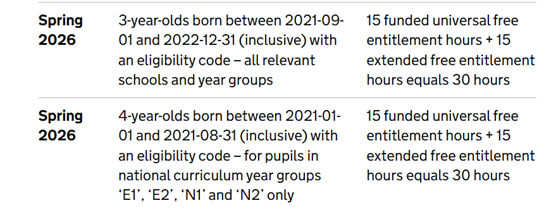
2 Year Old basis for funding
The basis under which a 2 year old has been funded whilst taking up a place in school will now be collected in each census and is not required for 2 year olds taking up the expanded entitlement hours.
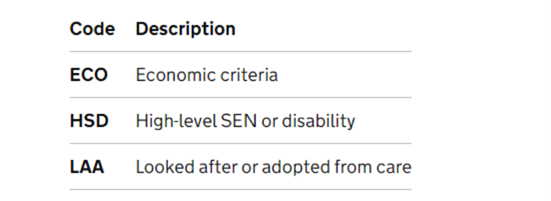
This data is entered in Panel 3 of the census return.
For each individual student, the number of funded hours allowed depends on the student’s age and NC year.
You can see full guidance on what to fill in from the DfE – scroll down to the Hours at setting (used for funding) section here: Census data items
Using the bulk page
Go to Admin > Students > Group Updater.
Select either the current year group or current form group.
In the Student Attribute box, select either (depending on the fields you wish to update):
- Funded Hours
- 2 Year Old Basis for Funding
- 30 Hour Code (Eligibility Code)
- Extended Childcare Hours
- Hours at Setting
- Funded Expanded Entitlement Hours
What needs to go in each field?
You can see full guidance on what to fill in from the DfE – scroll down to the Hours at setting (used for funding) section here: Census data items
Here is a quick summary of what each field is to be used for:
- Funded hours – Hours in school funded by the universal entitlement (maximum 15).
- Hours at Setting – Total number of hours they spent in education at the school, no matter who funded the hours. To calculate this, add the Funded Hours, Extended Hours or Expanded Hours and any additional hours paid for by the school or parents.
- Extended Childcare Hours – Additional hours taken above and beyond the universal entitlement (maximum 15) for 3 and 4-year-olds with working parents. Do not include expanded hours or hours paid for by the school or parents in this number.
- Funded Expanded Entitlement Hours – Additional hours taken above and beyond the universal entitlement (maximum 15) for 2-year-olds with working parents. Do not include extended hours or hours paid for by the school or parents in this number.
- 30 Hour Code (Eligibility Code) – This 11-digit code entitles children of working parents to an extra 15 hours of childcare. You need to fill in this field if the number in the Extended or Expanded hours fields are greater than 0.

Click for the latest SIMS updates
Census
Census
Schools are also being advised that the Spring Census 2026 will be the last Census to be completed in SIMS7. The Summer 2026 census will be completed in SIMS Next Gen.
Please do reach out if you need further assistance. Further guidance can be found on the census campaign here
Current Fileset
Requirements: You must be using SIMS.net version7.226 upgrade with the latest fileset in the 3200 series.
The current fileset is 3201. We will update this page when a new fileset is made available.
Without the latest fileset your Census will NOT be accurate.
NOTE: The Fileset ID is displayed in the browser header when opening via Routines/Statutory Returns.
Please check our website for the latest news before starting your census and again before authorising it.
Please see the related article at the bottom of this page for further details and guidance for importing the fileset.
No changes this term other than Key Dates.
Known Issues
No known Issues at this stage. We will update this area if issues arise.
How has the School Census Return Changed since last year?
No changes this term other than Key Dates.
School Time
Check this has been recorded via Focus/School/School Details in Panel 1
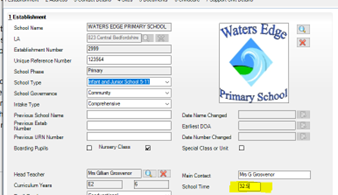
Schools should provide the total compulsory time pupils spend in school in a typical 5 day week. The number of hours must be recorded to 2 decimal places to the nearest 15 minutes (that is, where a school is open for 32 and a half hours, for example, this is recorded as 32.50, with 32 and three-quarter hours being 32.75).
This includes the total time each day from the official start of the compulsory school day (the start of morning registration) to the end of the compulsory school day (official home time).
This figure will be inclusive of breaks, as these form part of the total compulsory school day, but it will not include optional activities either before or after school. The data entered should be representative for pupils aged 5 to 16 in the school.
Class Information
This return requires details of all classes running at the selected time on spring census day.
If different parts of the school use different timetable structures, then systems should allow the school to return class information for the timetable structure that applies to key stage 1.
The ‘selected time’ is based on the last digit of a school’s departmental establishment number.
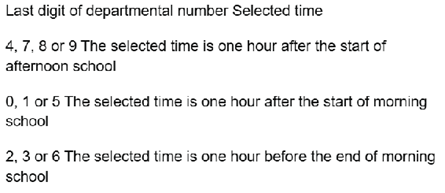
Infant class guidance
- Only primary and all-through schools need to send us this information for key stage 1 and reception classes.
- The School Admissions (Infant Class Sizes) (England) Regulations 2012 limit the size of an infant class during an ordinary teaching session to 30 pupils per schoolteacher. Infant classes are those in which most children turn 5, 6 or 7 during the course of the school year (reception and key stage 1 classes).
- Primary and all-through schools with infant classes are asked to ensure that the selected period is one in which their infant classes are engaged in an ordinary teaching session.
- An ordinary teaching session does not include school assembly, or any other school activity usually conducted with large groups of children such as:
- PE or games
- music
- singing
- drama
- watching television
- listening to the radio
- Where, at the time of the count, infant class children would be involved in such an activity, the count is deferred to the next ordinary teaching session. This change of selected time is enacted for all classes in the school, not just the infant classes.
To enter select the drop down arrow on the Classes panel.
- Where a key stage 1 or a reception class reports a pupil:teacher ratio greater than 30, schools must record in their MIS where this is due to:
- y pupils within the class recorded as excepted.
- a teacher being on planning and preparation time or learning manager time and the class is being supervised by a teaching assistant.
- The calculation is based on the pupil:teacher ratio not pupil:adult ratio therefore, regardless of the number of teaching assistants, if there are no exceptions or teachers on PPA reported, the class will be treated as unlawful in Department for Education (DfE) publications if there are more than 30 pupils to one teacher.
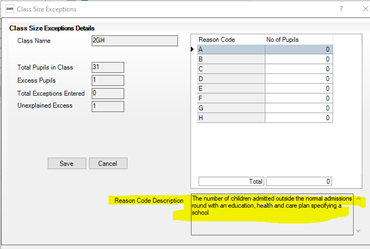
To record this in SIMS the class will be highlighted in yellow.
Select the Class Size Exception box and enter the reason for the Exception by adding the number of pupils against the appropriate code. The code description will be detailed in the Reason Code Description box.
Class reference name
- This records the class name with space for 30 characters.
Number of teachers in the class
- The number of teaching staff taking the class. Include all qualified or unqualified teachers – exclude those wholly or mainly providing support to individual pupils.
Number of adult non-teachers in the class
- The number of education support-staff present in the class. Include teaching assistants, special educational needs support staff, minority ethnic pupils support staff, and other education support staff. Exclude non-teaching staff wholly or mainly providing support to individual pupils.
Number of teachers on PPA, LMT or NQT time
- Only primary and all-through schools need to send us this information for key stage 1 and/ or reception classes.
- The number of teachers who are on planning and preparation time (PPA) or learning manager time (LMT) or newly qualified teacher (NQT) time at the selected time.
Early Years
- Expanded hours has been amended to allow up to 30 hours to be claimed, following the policy change from September 2025.
Full details can be found via https://assets.publishing.service.gov.uk/media/65f1b048133c22b8eecd38f7/Working_together_to_improve_school_attendance__applies_from_19_August_2024_.pdf
Early years – funded hours, expanded, extended hours, and hours at setting
DfE guidance is as below: (full guidance can be obtained via Complete the School Census
Summary of what is collected and how to record
| Data Item | Maximum hours | School Census Autumn 25 |
| Hours at Setting | This is the total hours the pupil spends in school each week | Collected for all 9 months up to and including 4 year olds |
| Funded Hours – 2 year olds | 15 | Collected for all disadvantaged 2 year olds A specified subset of disadvantaged 2-year-olds also becomes eligible from the term following their second birthday. Local authorities will confirm which 2-year-old children meet the eligibility criteria, if schools do not know. |
| Funded Hours – 3 & 4 Year olds | 15 | All children become eligible for funded early education from the term following their 3rd birthday, irrespective of background or family circumstances (the 3- and 4-year-old universal entitlement). |
| Extended Hours | 15 | Collected for 3 and 4 year olds with an Eligibility code |
| Expanded Hours | 30 | Collected for 9 months up to and including 2 year olds with Eligibility code.
(In some circumstances, 2-year-olds may be eligible for both the 15-hour entitlement for disadvantaged 2-year-olds and the expanded entitlement but can only take up one of these entitlements. In those circumstances, children should be recorded against the disadvantaged entitlement (funded hours). |
| DAF indicator | N/A | Collected for 9 months up to and including 4 year olds. |
| 2 Year old basis for funding | N/A | Collected for 2 year olds |
| Early Years Pupil Premium Receipt | N/A | Collected for 9 months up to and including 4 year olds |
Funded Expanded hours
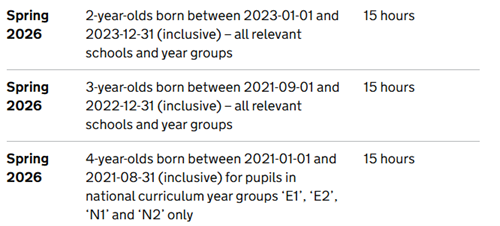
Funded Extended hours
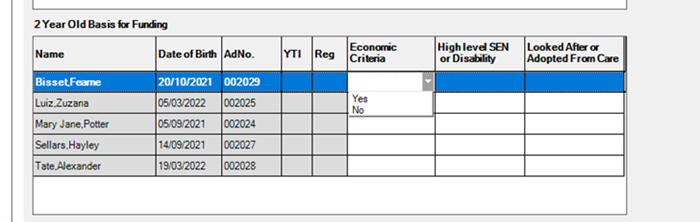
2 Year Old basis for funding
The basis under which a 2 year old has been funded whilst taking up a place in school will now be collected in each census and is not required for 2 year olds taking up the expanded entitlement hours.
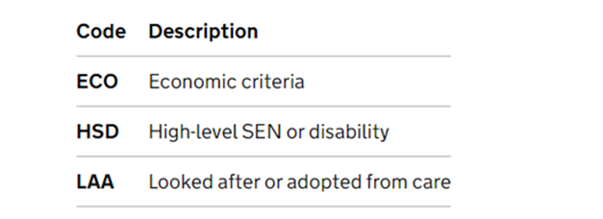
This data is entered in Panel 3 of the census return.
SIMS Next Gen
Important Census:
The Spring census will be available on general release w/c 5th January, this is another key milestone for SNG! This is a great opportunity to experience the census prior to the summer census only being available in SIMS Next Gen. As this is a new feature we are recommending this is completed in SIMS 7 and you take a look at how this works in Next Gen to familiarise yourselves.
Landing page
Upon first load, all the sections get auto populated with the data and errors and the status is set as Draft. This overview page gives the summary status of the Census.
User can view the data in the sections, refresh any section and export data from the section. You can use the Notes section to make a note of progress, tasks to be done etc. relevant to Census
In the Draft stage, Returns manager can review all the data, refresh sections to reflect changes done in SIMS, export data, view errors and queries in each section
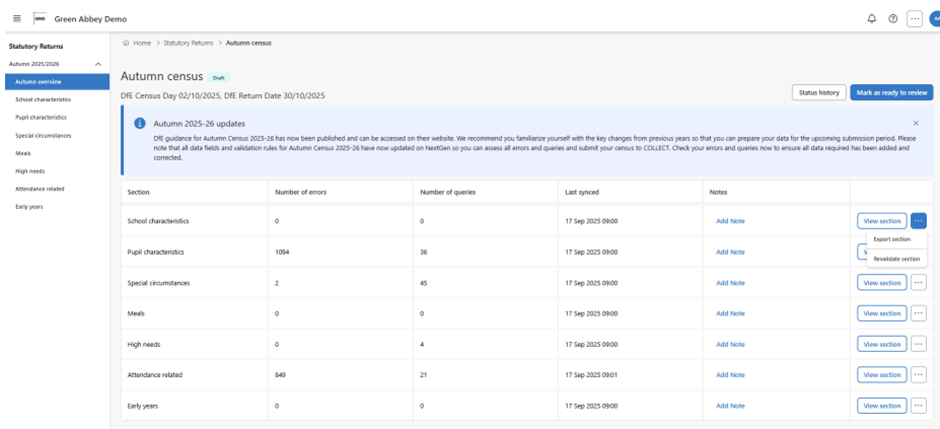
School characteristics section
This section has one sub sections which shows the School details and any errors related to school details
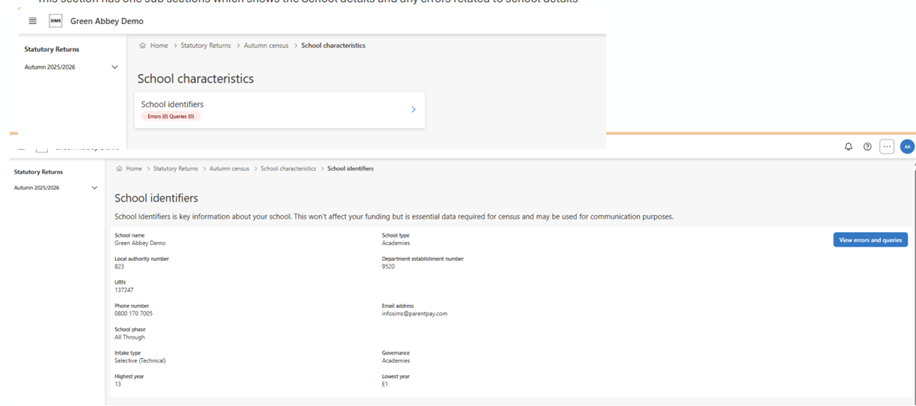
Pupil characteristics section
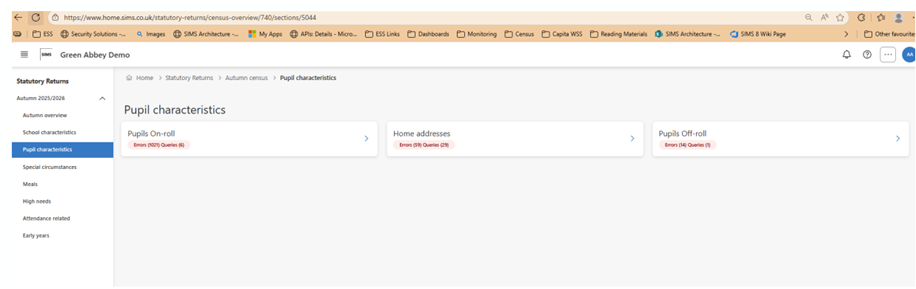
Under each sub section, the total number of errors and queries are displayed
Pupil on roll sub section
This section shows all the Pupils who are on roll at the school on the Census date
Clicking on View Errors next to pupil name shows all the errors related to that pupil in this section
Errors are highlighted with a red background.
Warnings are highlighted with an orange background
You can scroll and view additional data about the pupil by holding down the mouse and moving left.
View all errors and queries will show all the pupil related errors grouped by error type
Group errors and queries will display errors/queries that apply to a cohort of pupils rather than individual pupils
Where mandatory data is missing, it will be indicated by the button
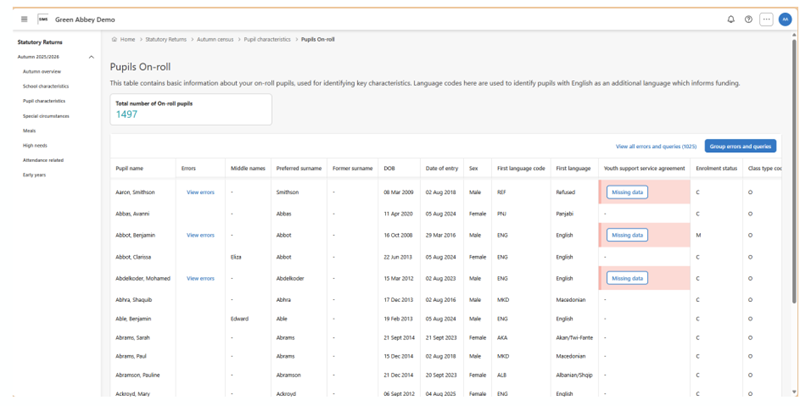
Special circumstances section
This section has four sub sections. Free School meal eligibility, Service Children, Post looked after arrangements and Funding and Monitoring sections. The same pattern applies to all the sections and sub sections.
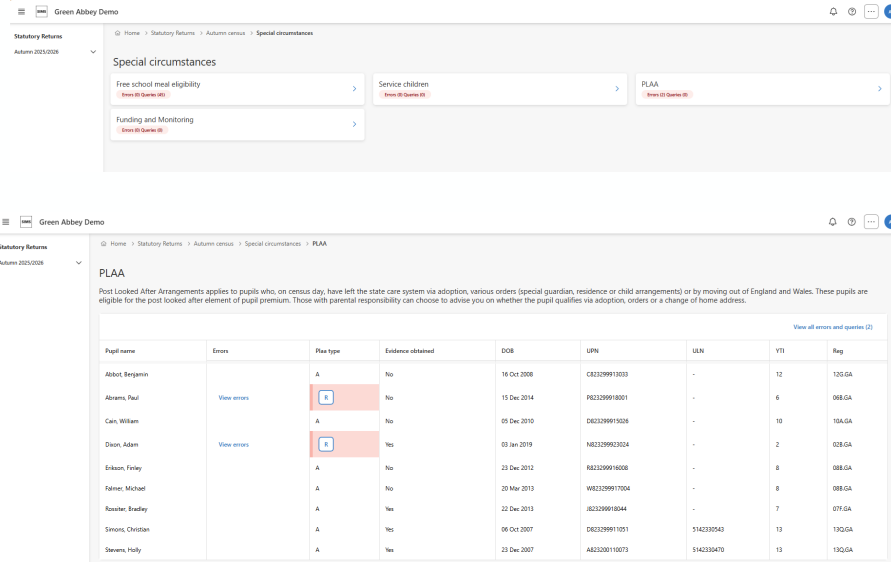
Meals taken section
This section allows users to record the Meals taken on the Census day
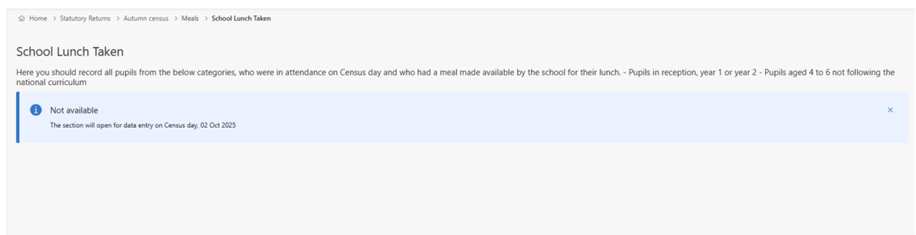
This section will be enabled on the Census day and will be populated with all the Pupils taking school lunch on the Census da
Ready for Review stage
Once all the data has been reviewed, errors are resolved, data refreshed and ready for review, returns manager can take a snapshot of the data by moving the status of Census to “Ready for Review”. All data will be refreshed as shown below and further changes will be prevented
Summary report
Summary report option will be available once the Census has been moved from Draft stage. If any changes need to be made, the status can be moved back to draft. Alternatively, upon approval from Head teacher, the Census can be Authorised at this stage
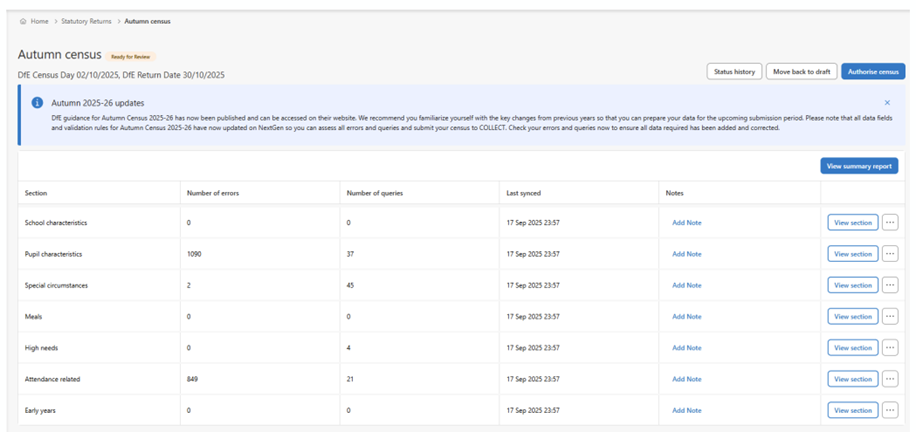
Authorise Census
Only Census that is in “Ready for Review” stage can be authorised
Once authorised, it exports the Summary report and the XML file in a package which schools can file and upload the XML on to COLLECT website or send it to their Local authority or SSU for checking. If any changes needs to be done, the status can be moved back to Draft and process run again
Census video channel can be found here – Census Video Channel │ SIMS Next Gen
Single Central record
All safeguarding checks in one place – Easily manage and evidence every compliance requirement for staff, governors, contractors, and volunteers from a single screen.
Real -time visibility and control – Colour -coded statuses and filters help identify missing or expiring checks instantly, reducing audit risk.
Flexible and customisable – Each user can tailor the view, select which checks to display, and export or print complete records in one click.
Covers everyone linked to the school – Supports both staff and non -staff roles, ensuring no individual connected to the school is left outside safeguarding oversight.
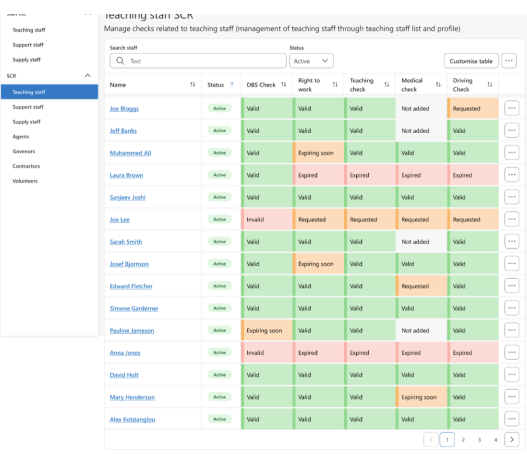
Developed for teachers
SIMS Next Gen enables teachers to complete key classroom tasks quickly and efficiently. Anytime, anywhere, and on any device.
Available modules include:
- Attendance Registers
- Fire Registers
- Seating Plans
- My Markbook
- Online Marksheets
- Role-based homepage
- Conduct
Developed for leaders and administrators
SIMS Next Gen provides clear visibility and actionable insight into school, class, group, or individual performance. Key pupil and staff information is pulled together in one central place.
Available modules include:
- Staff Profile
- Pupil Profile
- Custom Groups
- Exclusions and Suspensions
- Staff Timetables Calendar
- Role-based homepage
Conduct is now live in SIMS Next Gen
The full conduct management suite is now live in SIMS Next Gen which means teachers can now manage everything from taking registers and updating seating plans to logging conduct events and viewing key pupil information — all from one place.
Key features include:
- Record conduct events in seconds – log behaviour for individuals or groups using multi-select. Fully customisable to your school’s policy with smooth workflows for accurate capture.
- Customise to your school policy – define positive and negative event types, set severity levels, and choose how much detail to record.
- Clear behaviour insights – view conduct points on pupil cards and drill deeper with customisable Conduct Dashboards for historical data and trends—no complex reports required.
- Assign consequences with ease – set detentions, report cards or other follow-up actions straight from Class View. Every detail in one place.
- Conduct events: summary table
The summary table displays all the conduct events that have been added to the system. This focuses on the event, not the pupils involved and the search will allow the user to easily retrieve a saved record. Users can also add new events from this page.
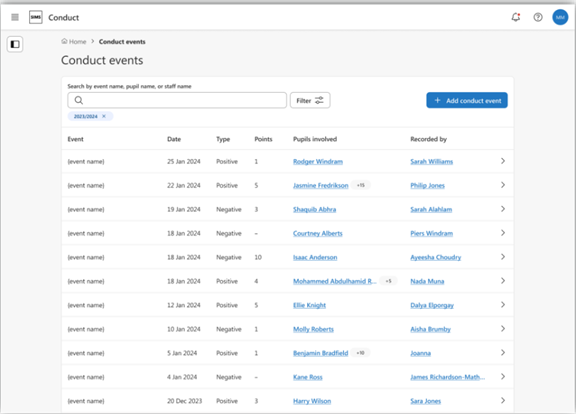
- Conduct events and report cards on Class View
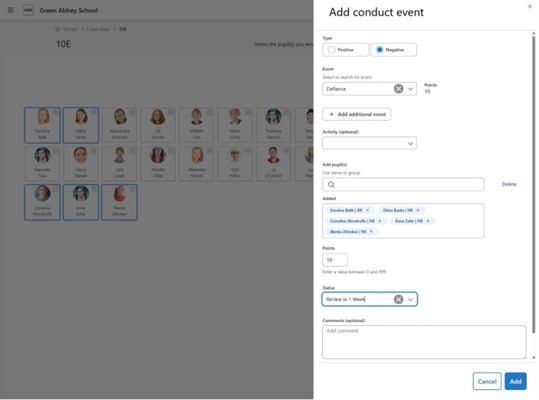
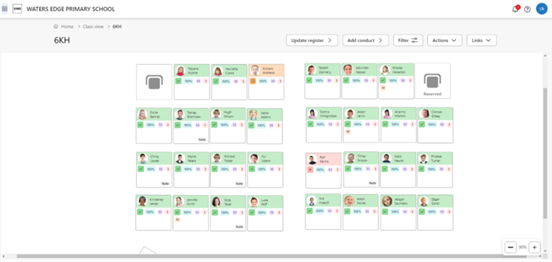
Report Cards
Accessed from the Main Menu | Conduct | Report Cards, this overview shows the user the current report cards and some of the main important details. User can open a report card’s details or add a new report card, you can also search for report cards by the pupil’s name. If choosing to use the filter option, the user can pick the report card type, status or the date range of the report card start date
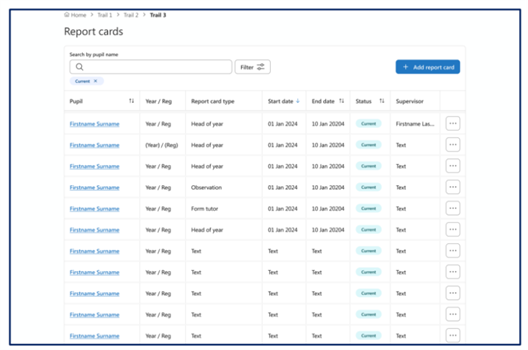
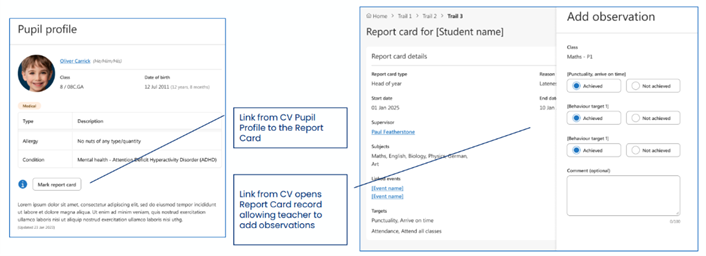
Detentions
Accessed from the conduct menu in SIMS Next Gen, the user will see, by default, the detentions taking place in the next 7 days that are being supervised by themselves. If the user needs to see detentions being supervised by other teachers, then editing the filters is simple and quick to do. From the list of detentions, the user can add pupils to a detention, view, edit or delete a detention
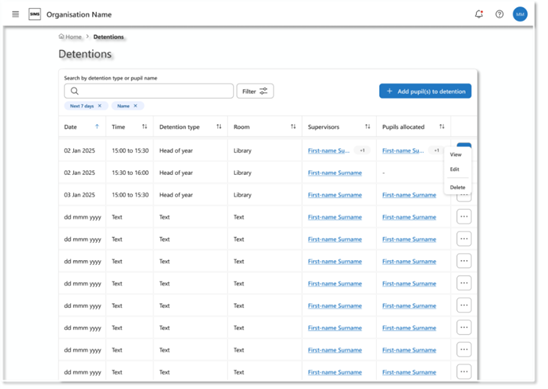
Conduct Dashboard: Accessed from the conduct menu in SIMS Next Gen. The dashboard has been designed for teachers and middle leaders and is meant for regular or daily use to oversee and evaluate student behaviour incidents. It is primarily an operational report to help users closely monitor individuals within a group.
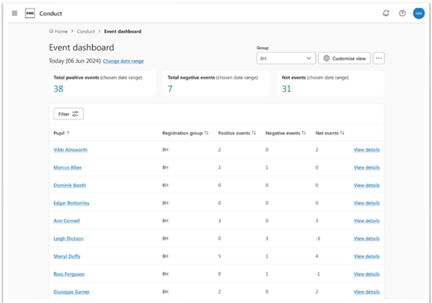
To view the SIMS Next Gen video channel on conduct, please click here
Please let us know if you haven’t started using SIMS Next Gen and would like some assistance onboarding.
SIMS Next Gen Whitelisting
SIMS Next Gen requires access to various endpoints in order to successfully exchange data. This Knowledge Base article lists the current known URLs that may need to be accessed and therefore may need to be whitelisted through a school/site Firewall, Proxy or ISP.
The SIMS Next Gen config wizard will need the following URLs whitelisted to connect:
- Core URL: https://simsid-orgsel.sims.co.uk
- simsid_verifyurl = ‘https://simsid-live-rapapi.azurewebsites.net/api/v1/Onboarding/ValidateClient‘
- simsid_onboardingUrl = ‘https://simsid-live-rapapi.azurewebsites.net/api/v1/Onboarding‘
- simsid_selfregistrationUrl = ‘https://simsid-live-rapapi.azurewebsites.net/api/v1/Admin‘
- simsid_RetrieveUsersUrl = ‘https://simsid-live-rapapi.azurewebsites.net/api/v1/onboarding/ValidateOrganisation‘
Other SIMS Next Gen URLs to be whitelisted are:
- Staff.sims.co.uk
- Teacher.sims.co.uk
- Learners.sims.co.uk
- Customgroup.sims.co.uk
- sas.sims.co.uk
- class.sims.co.uk
- cnd.sims.co.uk
- staff.sims.co.uk/absences
- school.sims.co.uk/staff-timetable
- https://live-mfe.teacher.sims.co.uk
- https://simsdatatransfer-live-relay.servicebus.windows.net/
- https://sts.sims.co.uk
- https://data-transfer.sims.co.uk
- https://simslabs.blob.core.windows.net/datatransfer
- https://live-ssm-blb.sims.co.uk
- https://data-transfer-ng.sims.co.uk
- blob.core.windows.net
- lon23prdstrz12a.store.core.windows.net
- lon24prdstr09a.store.core.windows.net
- blob.core.windows.net
- https://s9uksouth.blob.core.windows.net
- https://s9ukwest.blob.core.windows.net
- https://s9northeurope.blob.core.windows.net
- https://s9westeurope.blob.core.windows.net