

To navigate to the most relevant section, please click the appropriate link below: -

Exam Reminder
Reminder: Deadline for summer exam entries is 21st February 2025.
Late fees apply from 22nd February – please check each Exam board for their deadline dates for withdrawals and amendments as these may vary.
Disadvantaged Ofsted
The term ‘disadvantaged pupils’ is used to mean: pupils with special educational needs and/or disabilities (SEND); pupils who meet the definition of children in need of help and protection; pupils receiving statutory local authority support from a social worker; and pupils who otherwise meet the criteria.
Click here for the School Inspection handbook further guidance on Ofsted.
Enhancements to the School ICT Customer Portal
We are committed to continuously enhancing your experience with our customer portal. To make logging tickets smoother and more efficient, we have introduced a few updates:
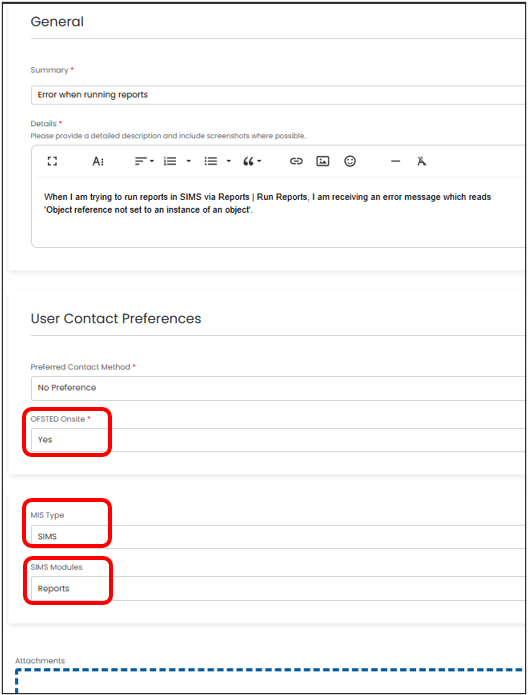
- New Fields for Better Ticket Allocation: You’ll now be asked to complete the MIS Type and MIS Module This will help us allocate your ticket to the most suitable consultant more efficiently.
- Priority for Ofsted Visits: We have added a new ‘Ofsted in school’ If your school is undergoing an Ofsted inspection, please indicate this so we can prioritise your ticket accordingly.
Tips for Logging a Ticket
To ensure we can resolve your issue promptly, please provide as much detail as possible when logging a ticket. Here are some tips:
- Provide the exact wording of any error or fault messages you encounter.
- Explain what you are trying to achieve or create.
- Add any relevant screenshots to support the information you have provided; this gives us a clear picture of the issue.
Providing detailed information will help us address your query quickly and get you back on track.
How To Log a Ticket
To log a ticket, go to our website MIS Support For Schools | School ICT and click on Customer Portal at the top right of the screen.
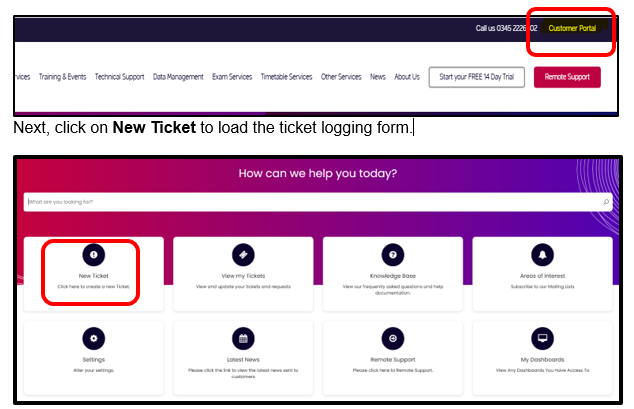
If you have any problems accessing the customer portal, please call the help desk on 0345 222 6802 or email helpdesk@schoolicts.co.uk and we will be happy to assist you.
Data Management Services
Our Data Management service offers an excellent, cost effective, responsive, and efficient Data Management solution delivered remotely by a team of highly experienced school data experts.
Their dependable advice and guidance empowers schools, academies, and MATs to maximise their investment in their management information system (MIS) team. Whether it’s a long-term solution or short term for sickness cover or maternity please reach out.
Please click here for further information.
*NEW* Exam Service
Did you know School ICT offers a range of Exam consultancy and project services to match the unique requirements of our customers?
Please click here for further information.
FREE Webinars
In place of our previous webinar weeks, we are running a continued webinar series throughout the year. Please see below for upcoming webinars with links to book: –
What’s the difference between a webinar and training?
- Webinar: Free short session aimed to inform, raise awareness and update you
- Training: In-depth session often ½ day + taking you step by step through an area or process
Customer Contact Information
School ICT Customers:
- Contact: 0345 222 6802 Option 1, helpdesk@schoolicts.co.uk
- Portal: https://my.www.schoolicts.co.uk/
turn IT on Customers:
- Contact: 01865 597620 Option 2, mis.support@turniton.co.uk
- Portal: https://portal.turniton.co.uk
Our Customer Portals allow you to: –
- Log and track tickets
- Watch webinar recordings
- Search the Knowledge base for helpful tips, guides and information
- Keep updated on the latest news
helloData
Trend Analysis
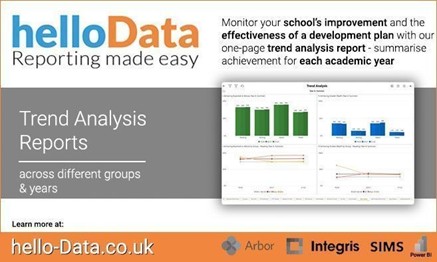
For trusts, school leaders and subject coordinators, monitoring school improvement and the effectiveness of a development plan can be difficult to do as it can take time to see the improvements filter through.
helloData provides a one-page trend analysis to summarise the percentage achieving expected and above for each academic year e.g. Y6 for 17/18, 18/19 and 22/23.
Choose to view the charts your way
- Select the academic yearsto include
- Choose the yeargroup
- Select the required term
- Decide on the subject
- Select which groupsto view e.g. PP, SEN
- Include the national data
The page can also be changed to show the visuals as data tables instead and as always these can be exported to Excel.
Learn how we can help your school or trust create visual reports at the click of a button here.
Book a DEMO or leave us a message here.
“Learn how we can help your school or trust create visual reports at the click of a button here.”

New for 2025 - Bitesize Courses
ARBOR and SIMS BITESIZE TRAINING.
Tailored training to suit your needs, designed to give you maximum impact in minimal time.
Check out our brochure for further information and call us on 0345 2226802 or e-mail: info@schoolicts.co.uk to find out more or book a place.
**LIMITED INTRODUCTORY OFFER** Buy 3 courses, get the 4th free!
Online Training Courses
Training courses for the academic year 2024/2025 are now live! We have a comprehensive schedule of online ‘live’ SIMS training courses along with Distance Learning courses to help you develop your knowledge of SIMS and get the most out of your MIS (Management Information System).
Booking is now open please visit https://www.schoolicts.co.uk/online-training/
Data Health Check Services
An MIS health check ensures you’re getting the most out of the investment in your MIS. The benefits of one of our comprehensive health checks include: –
- Raise awareness of functionality and any issues
- Keep you up to date with the latest developments in your MIS
- Housekeeping and tidying exercises
- Report with recommendations to ensure you’re fully maximising your MIS along with any training recommendations
- For on premise MIS a server health check is also included
Our health check service usually takes around half a day. Please contact us to find out more on: helpdesk@schoolicts.co.uk to find out more.
FMS Year End
As the end of Financial Year End grows closer, it is essential to carry out procedures to ensure the smooth transition of accounts from the current year into the new Financial Year. This will involve the processing of orders, invoices, income, petty cash, cancel/clear commitments on old outstanding orders, reduce/stop ordering from Feb half term.
Please also check any End of Year procedure deadlines that may be set by your Local Authority or Trust/Senior Management Team.
For further information please click here to download the FMS Year End Guidance (KB0035768) from the ESS website.

Click for the latest Arbor updates
Exams
Just a reminder that the exam entry deadline for the Summer 2025 season is 21st February 2025.
Here are some things you could do to prepare:
- Add students to Exams via Students/Examinations/Candidates/Internal Candidates
- Add your qualifications to Students/Examinations/Qualification Offering – don’t forget, you need both the award and the learning unit, and use the bottom panel to link them to courses
- Make your entries via Students/Examinations/Entries/Entries by Student Group – don’t forget to make entries for the learning unit too, otherwise you won’t be able to seat any exams
- Get your teachers/Heads of department to check the examination entry lists -Students/Examinations/Entries/Download Statement of Entry (by Subject or by Course) Classes and Courses must be linked to the Qualification
- Create a submission file via Students/Examinations/EDI Exports/Entries
- Download and send the submission file to the relevant exam board via A2C
- Once entries are added a School Timetable can be printed to start planning rooms and invigilators for the summer season via Students/Examinations/Scheduling/School Timetable
- Rooms and seats can start to be allocated and assigned
Do call us if you need assistance with any of the above.
Good luck with the forthcoming exam season!
Exam Fees and Cost Reporting
Please see below for the latest information on Exam Fees and Cost Reporting
Arbor import exam fees information alongside the basedata so you can report on these directly in your MIS.
For more details on basedata, see our guidance here: How does Examination Basedata work in Arbor?
Seeing and editing amounts
EDI exams
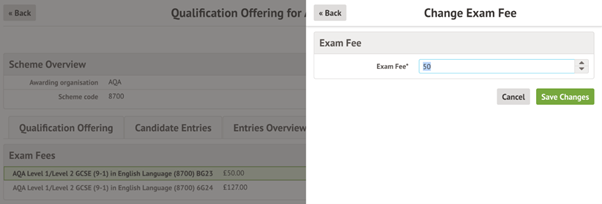
Go to School > Examinations > Qualification Offering and select the award. Click the Qualification Offering button in the slide over.
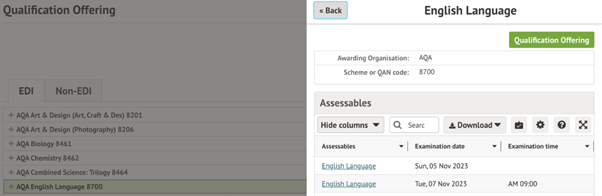
Click into the Exam Fees tab.
You’ll see one line per series. Click on the fees to update them.
Non-EDI exams
As Non-EDI exams are not set up with basedata, you need to define the fees. Go to School > Examinations > Non-EDI and select the award.
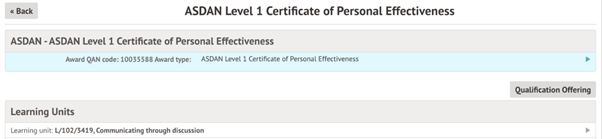
Scroll down to the Exam Fees section and click on the fee to update if needed.
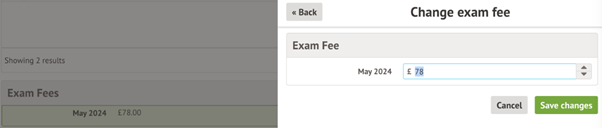
When you add new Candidate Entries, a new row will be added to the Exam Fees section so you can define the fee.

Reporting on fees
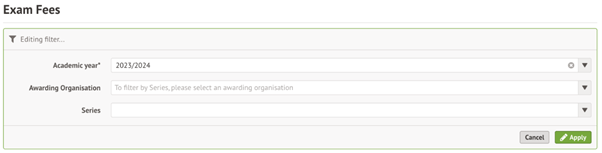
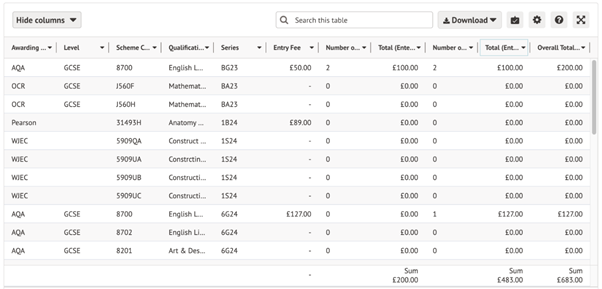
To report on the fees, go to Students > Examinations > Entries > Exam Fees.
Use the filters to select the academic year, awarding organisation and series if needed.
You’ll see each award as a separate row in the report, including award and series details, fee, number of entries for internal and external candidates and a total cost.
You can see an overall sum in the bottom right.
FAQ
Where does the fee information come from?
Fee information comes from the O basedata file – we automatically bring this into Arbor so you can set up exams. For more details on basedata, see our guidance here: How does Examination Basedata work in Arbor?
Can we reset the amount back to what’s in the basedata?
It isn’t possible to reset the amount, so you’ll need to amend the amount. If you are unsure what the amount is, please contact the Awarding Organisation.
Does this page work with payments?
This feature does not include collecting or paying costs for Exam Fees, integrations with payment gateways or financial institutions.
Why is the fee missing?
Some basedata may not include the fee information. If this field is blank and you are unsure what the amount is, please contact the Awarding Organisation.
Disadvantaged Ofsted
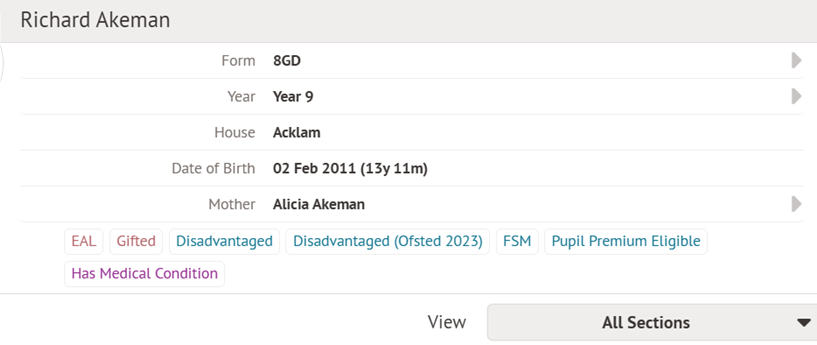
Disadvantaged Ofsted is a new derived indicator created by the DfE for students with the following criteria:
- Pupils with special educational needs and/or disabilities (SEND)
- Pupils who meet the definition of children in need of help and protection
- Pupils receiving statutory local authority support from a social worker; and pupils who otherwise meet the criteria used for deciding the school’s pupil premium funding (this includes pupils claiming free school meals at any point in the last six years)
- Looked after children (children in local authority care) and/or children who left care through adoption or another formal routeThe Disadvantaged Ofsted indicator can be seen at the top of a student’s profile, and you can also click the All Sections button and select Derived Background Indicators for more information.
New features in Arbor this month
- The first phase of the new Local Authority (LA) MIS has been deployed! This is a new product designed to support LA Education Service teams by providing real-time access to attendance and behaviour data across Arbor schools.
- Alphanumeric ordering has been added to the Overview and All Measures areas for School Assessment Measures.
- Guardians using the Arbor Parent App can now use the basket feature that was previously exclusive to the Arbor Parent Portal.
- Students using the Arbor Student App can now download attachments from the app and mark assignments as completed via the app.
- Arbor have updated the Browse Institutions page on the MAT MIS to display as a list view by default. More table columns have also been added including URN, Establishment Number, UKPRN, Capacity and more to give MATs quicker access to the details they need for their schools.
- Following JCQ updates, new Access Arrangements have been added to Arbor. These include Access to a Mobile Phone for Medical Purposes, Listening to Music/White Noise, Remote Invigilation Through Technology, Overnight Supervision for Timetable Variations, and Non-Electronic Headphones and Timers.
- Gender fields have been added to Course/Class reports in the Custom Report Writer. The new fields – Count of Female Students and Count of Male Students – allows users to get a quick count of students in individual courses/classes.
- Students who are linked to the sender/recipient of any communication will show when clicking on a communication and will load a slide-over window showing the relationship. For example, if a guardian emails in, it now only takes one click to see their linked students. This can be seen in School / Communications / School Mailbox and clicking on any message.
Arbor Student App
Are you using the Arbor Student App?
The Student App is a simple and convenient way for students to access day-to-day school information, understand their progress, and receive in-app messages from their school.
Before you switch on the Student App, you will need to carry out some data checking. Go to School | Data | Data Quality | Dashboard to access your Data Quality Dashboard. Scroll down to Current & Future Students and ensure that they have email addresses. The email address can be of any type (e.g. personal, work, etc.) but it must be set as their default email. You should also check for duplicate student profiles by looking at suspected duplicates to avoid potential logging-in issues.
What is included in the Arbor Student App?
Biometric (fingerprint and face ID) login
Student calendar showing:
- Lessons
- Detentions
- School events
- Internal exclusions
- Club sessions
- Trip sessions
- Intervention sessions
- Invigilation Sessions (Exams and In House Exams)
Assignments
Students can tap on lessons in their calendar to see their assignments. When they tap onto an assignment, they can download attachments uploaded by their teacher, and mark assignments as completed.
In-App Messages
Students can see in-app messages sent by the school, this is a great feature for sending notices and reminders of important events. Please note currently, there is no functionality for students to reply to these messages.
Activating the Student App
The Student Portal must be switched on to allow access to the Student App. By default, your school site does not have the Student App activated. To activate the app, you will need to:
Go to Students | Parent Portal Settings
Click on the Student App tab
Scroll to Users & Security
Click the Allow student login field
Change the setting to allow students to log in.
You can also select specific year groups to access the App, or leave the field blank to enable the App for all students.
Sending login details to students
Students are not automatically notified when you switch on the Student Portal or Student App, so you will need to let them know by sending them their login details. If you are not using the Student Portal yet, you will need to send your students their Student Portal login before you can log into the Student App.
How to send students their Student App login
You will need to create a new template email to send to your students by following the steps below:
Go to School | Communications | Templates & Layouts | Templates
Click on the email tab and click +Add
Select Add email template
Input your preferred text and click Create template.
Example email template:
Below is an example for you to copy and paste into your email template, with the fields contained in [ ] denoting merge fields which can be found in the toolbar above the text box:
Hi [Recipient First Name],
[School Name] is now using the Arbor Student App, and we’ve set up an account for you. You can download the Arbor Student
App from the Apple App Store or the Google Play Store.
To log in to the Student App, simply use your Student Portal login details.
If a student needs to reset their password, you can also use the following:
If you don’t have a password or need to reset it, go to login.arbor.sc and click ‘Forgotten Password?’ and follow the instructions.
If you have questions, please contact [School Name].
All the best,
[School Name / Staff Name]
Sending your login details email to students
Now that you have your email template, you can send it out by following these steps:
Go to School | Communications | Email | New Mail Merge Email
In the templates drop-down, select your new template
Fill out the rest of the fields accordingly and send the email to your selected students.
How do students download the Arbor Student App?
The app is listed on the Apple App Store and Google Play Store.
Promoting the Student App at your school
To help you promote the Arbor Student App to your students, Arbor have created a poster that you can print out or share digitally with your students. The QR code on the poster directs students to either the Apple App Store or the Google Play Store, depending on the device. You can download the poster here.
Arbor Finance
Important Update
Do you currently, use RM Unify to act single sign on for logging into Arbor Finance?
Arbor are working on a similar solution where user ID’s are kept within the finance software and not RM Unify itself.
Arbor will be migrating users from Unify to Arbor Finance. Arbor Finance logins will be stored within the actual software and will require a school domain email.
They will log in using their work email address, the same as MIS logins.
The migration process will be quick and will take place before April, to prevent disruption to the Year end.
Please keep an eye out for Arbor webinars about this as the communication is going directly to schools.
Please see the recording link below for more information: –

Click for the latest Bromcom updates
Bromcom Census Update - 27/01/2025
Patch to resolve errors 2475, 2490, and 2531, which were incorrectly appearing in your census return has been applied.
Please Re-Run and Save & Validate your census return. Any errors that appear after this will be related to your data.
For example, if you are using a non-valid DfE code mapped to an invalid DfE export code (i.e., none of the valid codes listed below), you will encounter errors.
Valid DfE Codes:
/,\ , B, C, C1, C2, D, E, G, I, J1, K, L, M, N, O, P, Q, R, S, T, U, V, W, X, Y1, Y2, Y3, Y4, Y5, Y6, Y7
For instance, if you have used an H code and it is mapped to H (which is no longer a valid DfE code), you will need to either update those attendance marks to a valid code or amend the export mark to a valid code.
Similarly, if you have used a three-digit sub-code (e.g., CAT) as the default mark, you will also receive errors. In this case, you will need to change the default sub-code to a valid DfE mark.
Exams
Just a reminder that the exam entry deadline for the Summer 2025 season is 21st February 2025.
Here are some things you could do to prepare:
- Create a summer season which includes the months of May/June/July
- Import your candidates into the season
- Import your basedata then refresh every time exam boards issue updated basedata
- Create exam sheets via Modules/Examination/Manage Exam Sheets and make entries via Modules/Examination/Exam Sheet List
- Get your teachers/Heads of department to check the examination entry lists (Reports/Examination/Exam Entries by Class – don’t forget to tick Include Date and Signature)
- Create a submission file via Modules/Examination/Manage Submissions and send via A2C
- Print a preliminary timetable to start planning rooms and invigilators for the summer season via Reports/Examination/Basedata Outline Timetable
Do call us if you need assistance with any of the above.
Good luck with the forthcoming exam season!
P16 Register Write Back
As Bromcom plan improvements for Quarter 2, they would like to gather additional insights on your needs and expectations for the Post-16 Attendance Lesson and the ability to have separate register parameters.
Please take a few moments to answer the open-ended questions below. Your responses will help us better understand your requirements and develop a system that aligns with your expectations.
Ad-hoc Reports Update
As you may be aware, Bromcom had previously delayed the ‘switch-off’ of Ad Hoc reports after listening to customer feedback about both the readiness of Quick Reports as a replacement, and the continuity of Ad Hoc Reports as a relied upon product among the userbase.
Based on further consultation, and in line with best practice, from January 2025, they will begin ‘sunsetting’ Ad Hoc Reports. This consists of a gradual withdrawal of support and issue resolution, instead of simply retiring it immediately.
The current timeline for this is below. Please note that this plan is subject to change, and we will aim to keep you informed of any amendments to it.
From January 2025
Support-only
- Customers can log cases and seek support for any issues
- Bromcom will provide support but will no longer develop any new features or functionality (statutory or otherwise) against Ad Hoc Reports, nor fix bugs/defects in it.
- Bromcom will refer users encountering bugs to use Quick Reports instead.
- Any additional requests for new features or functionality will be developed within Quick Reports (subject to approval).
From April 2025
Usage-only
- Customers can continue to use Ad Hoc Reports
- In addition to no longer fixing bugs/defects in Ad Hoc Reports, customers will no longer be able to log cases, seek support for issues or assistance on it.
- Any requests for Support will be referred to the use of Quick Reports.
September 2026
Sunsetting / Retirement
While Ad Hoc Reporting may persist within Bromcom, there will be no guarantees from this point that the software will be available or usable. As the timelines involved are extended, this part of the product lifecycle is hardest to predict and is therefore the most at risk of change. However, we anticipate that, from this point, there will be no further use of Ad Hoc Reports and therefore the product can be safely retired and removed from the MIS.
What's New
Vision – A new version of the Vision Analytics Pack is available from the Power BI app store
Log into your Power BI Account to update the App to v.1049.
The following updates have been made:
- Attendance – The issue where selecting the Leavers option as the Enrolment Type on the Overview page prevented the student cohort from appearing in the Attendance report has been resolved. This includes drill-through as well.
Upcoming fixes in Version 1050
- Academic Year filter will be added in all the applicable reports in the next release.
- When the Baseline is chosen as term in Primary Tracker, ARE % does not represent expected values. This fix is work in progress.
- Update to Attendance report filters to filter by – All students, Statutory Age, and Age-weighted as per MIS.
Display a new section to analyse Leavers in MAT Performance Overview report
MCAS - Parent App: Ability to purchase a Zero Value product
MyChildAtSchool Parent App > Store
Parents can now select Zero Value products on the Parent App > Store screen, just as they can on the MCAS web. When a parent purchases only a Zero Value product, the “Checkout” button will be replaced with a Confirm button, and no payment will be processed.
When a Zero Value product is added to the basket alongside other products with values, the existing process will apply, and users will still see the Checkout button. Payment will be taken for the products with values.
MyChildAtSchool Parent App > My Child > Settings
The Zero Value product order will appear on the Order History screen, either individually or as part of a purchase that includes value products. Only zero value product orders will show as Paid- Zero mirrors web.
School ICT Upcoming Webinars and Training
https://www.schoolicts.co.uk/online-training/
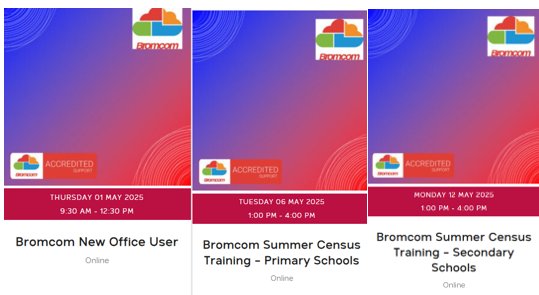
Each course has a book option and links are added to the below images
https://www.schoolicts.co.uk/latest-events/
Search for Bromcom using the ‘Upcoming Online Courses’.

Click for the latest Integris updates
Important Update
Currently, most Integris users log into the MIS via RM Unify, this is a product owned by RM which acts as the Single sign on tool and stores user details etc.
From April, this will be disbanded as the agreement between Arbor and RM will cease. Arbor will be migrating users to a new user login interface which will be from within the Integris Software itself. Users will sign into RM integris directly.
The migration will be done in phases over the next few months. Arbor will be communicating to all schools and also placing prompts within the software.
Users will require a unique school domain email address to log in and they will have 3 attempts to push back migration before it is enforced.
Some schools may have purchased RM Unify direct as it has many other functions and tools, please check with RM Unify if you use it for other functions to clarify what remains unchanged as part of this migration.

Click for the latest ScholarPack updates
Recording and Reporting on Attendance Penalty Notices
Recording a Fine
Go to the Students Profile and click on the Attendance Tab
- Click the Cog next to the Attendance Penalty Notices

- Click Add New
- Fill in the data
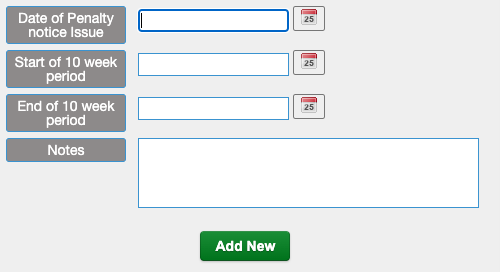
- Click Add New
Report to find students who are at risk of a fine
- Go to Reporting>Reports>Attendance>Attendance Penalty Notice Eligibility, set the end data (this will default to today’s date) and click Choose
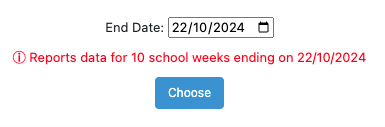
This report will then show you the students who have 10 or more unauthorised absences within the 10-week period. It’s worth noting that this number is the number of sessions (AM and PM) and not the number of days.

Click for the latest SIMS updates
Exams
Just a reminder that the exam entry deadline for the Summer 2025 season is 21st February 2025.
Here are some things you could do to prepare:
- Create a summer season which includes the months of May/June/July
- Import your candidates into the season
- Visit the websites of the exam boards you use and download the latest basedata for the summer season
- Import your basedata then refresh every time exam boards issue updated basedata – there is an instruction video on our Customer Portal here about refreshing basedata
- Create entry marksheets via Focus/Marksheet Setup – Award and make your entries via Focus/Marksheet – Data Entry
- Get your Teachers/Heads of Department to check the examination entry lists (Reports/Entries/Examination Entry Lists – don’t forget to tick Include Signature box and Include Null List)
- Create a submission file via Focus/Submissions/Add
- Send the submission file to the relevant exam board via A2C
- Print a skeleton timetable via Reports/Basedata/Skeleton Timetable to start planning rooms and invigilators for the summer season
Do call us if you need assistance with any of the above.
Good luck with the forthcoming exam season!
For further guidance on submitting exam entries for June please see sections 2,3, and 6 (section 2) from the Preparing Examinations Organiser for an Exam Season Handbook which can be downloaded from the ESS website here
Unauthorised Attendance Alerts Reminder
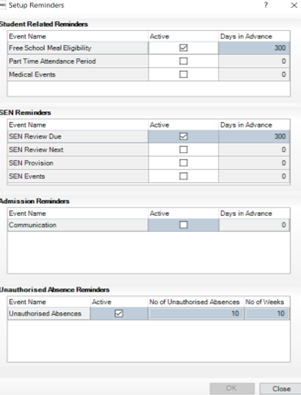
This feature was introduced to help schools track and monitor pupils unauthorised absences in line with the new regulations set by the DFE for issuing penalty notices. When set up it triggers an alert to identify when a pupil has hit 10 unauthorised absences over a 10 school week period. Please see the KB00056441 for more information.
- Go to Focus/Alerts/Set up Reminders
- Go to Unauthorised Absence Reminders panel
- Make sure there is a tick in the Active box
- Ensure that the No of Unauthorised Absences and Number of Weeks is set to 10
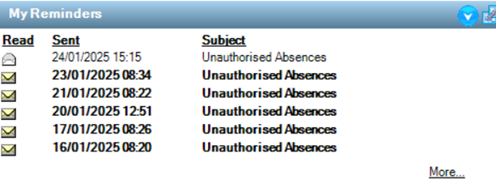
- You will receive notification on your Home Page in the My Reminders Panel when pupils reach the criteria
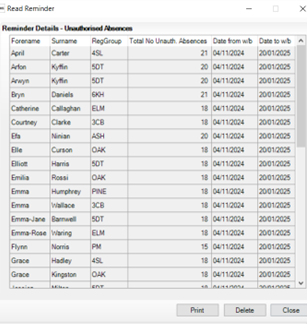
- Click on the link to view the pupils
SIMS Technical Roadmap
Please click here to view the latest SIMS7 Technical Road Map Jan 2025.
Solus3 Alerts
Did you know you/your IT can set alerts when certain SOLUS3 events occur?
Managing Email Settings
The ALERTS page enables Deployment Managers to set up SOLUS3 to send emails when certain SOLUS3 events occur. Such events are configurable in the Alert Settings tab.
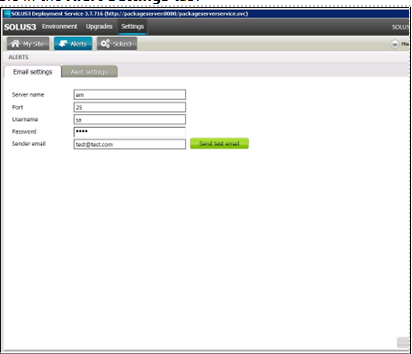
- Select Settings | Alerts to display the ALERTS
- Select the Email settings
- In the Server name field, enter the name of the SMTP server that will send out alert emails.
- In the Port field, enter port number of the SMTP server that will send out alert emails. The port number defaults to 25.
- In the Username field, enter the username for the account that will be sending the alert notifications.
- In the Password field, enter password for the account that will be sending the alert notifications.
- In the Sender email field, enter the full email address for the account that will send alert notifications.
- Click the Send test email button to test your configuration. Failure generates the error message – Failed to send test email to test@test.com. Success does not generate a message.
- Click the Save button to store your changes.
Managing Alert Settings
After entering the server and user details in the Email Settings tab, select which events should trigger an alert email. The subject line for each alert email will contain important information, such as the event type and the time of the event. Additional information, such as contact names and addresses, can be added to the email body. An Update task will trigger an email after an update has been authorised to the school and a Distributed Deployment Plan will trigger an email when a deployment has completed.
- Select Settings | Alerts to display the ALERTS
- Select the Alert settings tab to display a list of available alerts.
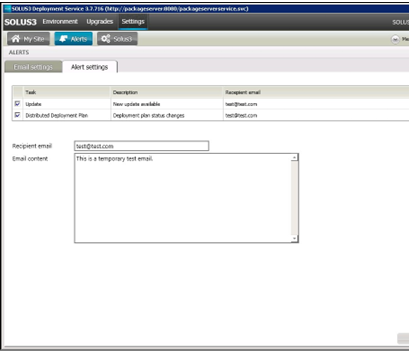
- To activate an alert, select its check box. To de-activate an alert, deselect it.
- To edit the Recipient email or the email content, highlight the required task in the table.
- Edit the Recipient email
- Edit the email content.
- Click the Save The message Distributed Deployment Plan alert successfully saved is displayed briefly.
SIMS Next Gen
Are you using SIMS Next Gen? Did you know all of these features are already available in SIMS Next Gen for you to use?
Class View
Class View streamlines classroom management by bringing key pupil information and essential tasks together in one place, helping you save time and eliminate unnecessary admin.
- Create seating plans to support collaboration and minimise distractions.
- Record and monitor positive and negative behaviour events to support student wellbeing.
- Track key student information like EAL, Pupil Premium, and SEND to deliver personalised teaching strategies.
- Record assessments to identify areas for improvement and plan interventions.
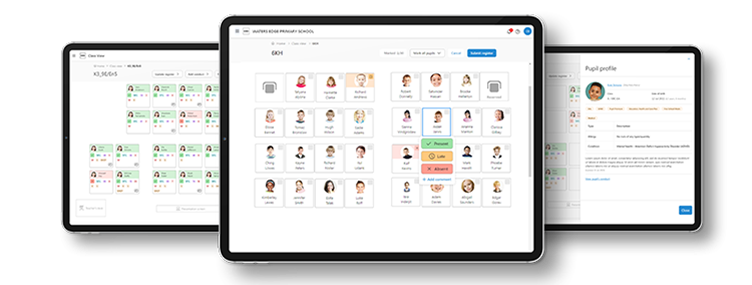
Seating Plans
Plan, organise, and edit seating arrangements. Design flexible, reusable room layouts and strategically arrange students based on abilities, personalities, and relationships to enhance learning outcomes.
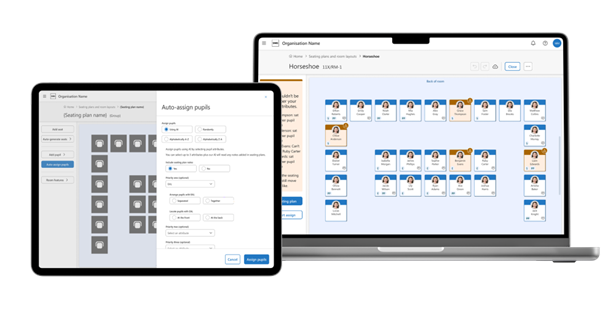
Coming this term: AI integration will make seating plans even smarter by reading notes like “Don’t seat Isla next to Mia due to distraction” and generating optimal seating arrangements that set students up for success.
Fire Registers
Access real-time evacuation lists on your tablet or mobile device, with instant updates for late arrivals and early departures. This solution eliminates wasted paper and uncertainty, giving you complete confidence that every student is accounted for during emergencies.
Attendance Registers
Take attendance quickly and easily, anytime, anywhere. Add comments and track ‘minutes late’ in the same window, saving time and keeping records accurate.
Conduct Management
We’ve redesigned Conduct Management from scratch to make it more flexible and user-friendly. Easily record positive and negative behaviour in class, spot trends early, and step in to support student wellbeing when it matters most.
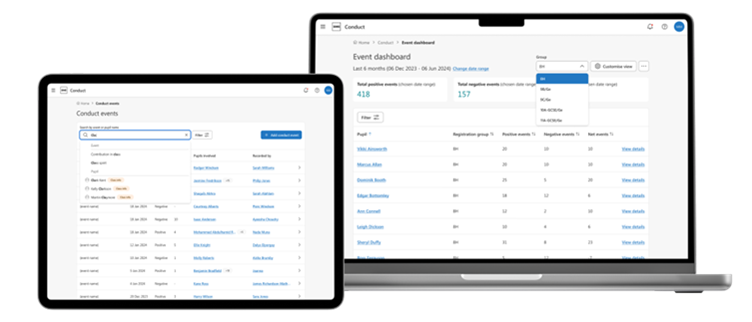
Coming this term: Conduct Dashboards will provide actionable insights into behaviour, helping you make data-driven decisions, and maximise the value of behaviour data recorded in SIMS Next Gen.
My Markbook and Online Marksheets
My Markbook puts you in charge of your assessments, allowing you to create and manage them directly in SIMS Next Gen with just a few clicks—no setup or support from a Data Manager needed. Easily capture continuous assessments like homework and coursework, add notes, and filter pupils to monitor the progress of key groups such as SEND and Pupil Premium students.
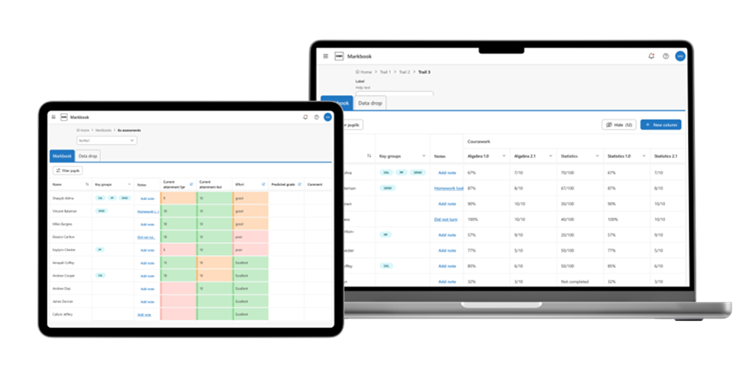
Alongside My Markbook you’ll also be able to access all of the assessments that have been set-up in SIMS 7 and record the results. This means that you have all of the information you need in one place to review pupil progress and provide evidence for assessment reports.
Custom Groups
Easily identify and manage the groups you supervise with advanced search, filter, and bulk editing capabilities.
Staff Timetables Calendar
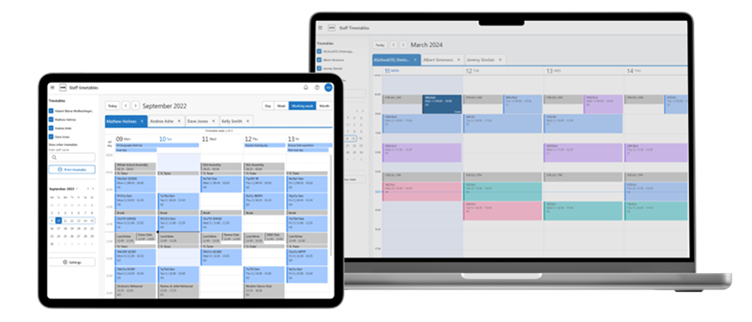
Access your timetable and other staff schedules in one easy-to-use view. Personalise your timetable with colour-coded lessons to stay organised and on track.
Statutory SEND/ALN: January 2025
Within SNG, there is now the ability to record the SEN/ALN Provision, the SEN/ALN Need and if a pupil has time in a SEN/ALN Unit or a Resourced Provision. All of this data is read from SIMS7 and any updates in SIMS Next Gen are also written back. This is to make sure the two systems maintain parity for statutory reporting purposes.
This screen shows SEND, but for schools in Wales, this will say ALN.
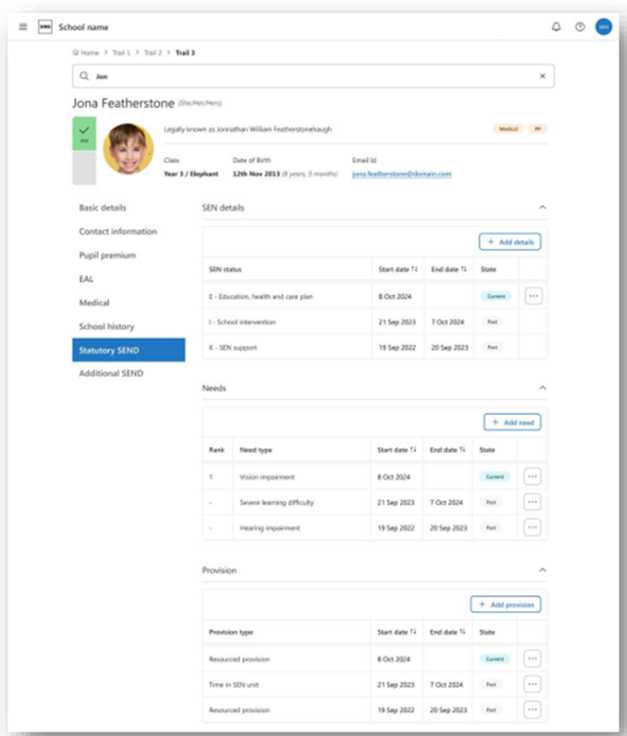
There is also the ability to add and edit the additional support areas from SIMS7.
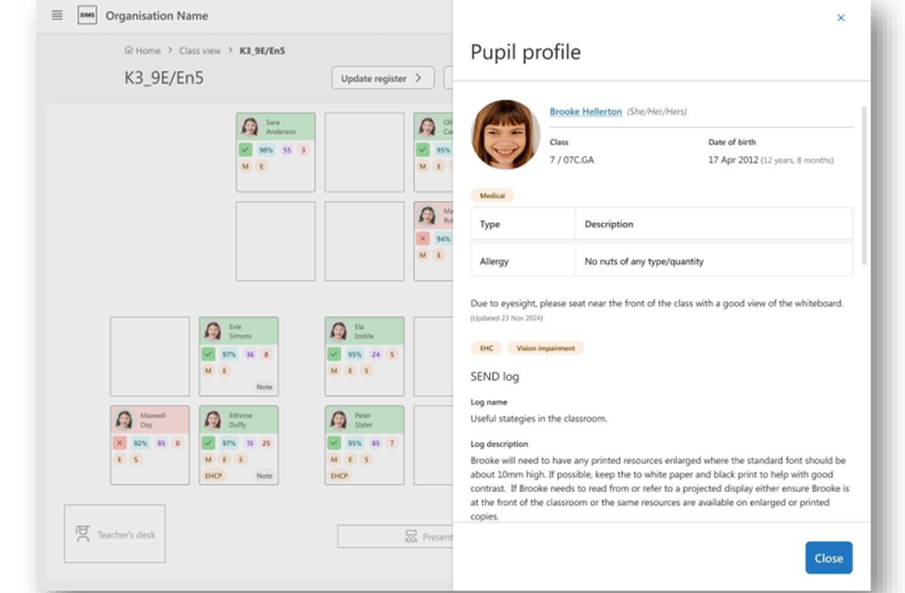
With SNG there is a new section for the additional SEND/ALN information. This is in SNG only and allows the SENDCo to add many different items to the pupil’s profile. The pinned status allows the SENDCo to determine what note should be shown, in full in other areas of SNG, i.e. the Class View pupil profile.
Pupil profile: from Class view
This is the pupil profile side panel that users will see when they click on a pupil’s card in class view. In this pupil profile, you can display additional SEND/ALN information that exists in the main pupil profile. The main aim of this being that the teacher will see right away anything of importance in relation to SEND/ALN as indicated by the SENDCo. If the teacher wishes to see more SEND/ALN information, then there will be a link to the additional SEND/ALN area in the main pupil profile.
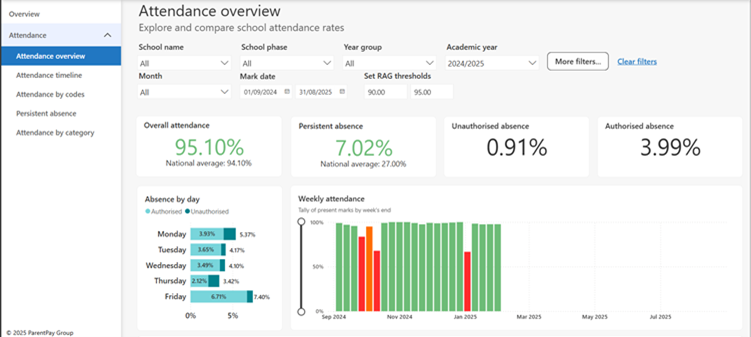
Currently Available to Early Adaptors of SNG - Attendance Analysis Reporting
Attendance analysis reporting
Attendance overview – use the drop-down menus to select different year groups for example to drill down into different attendance information
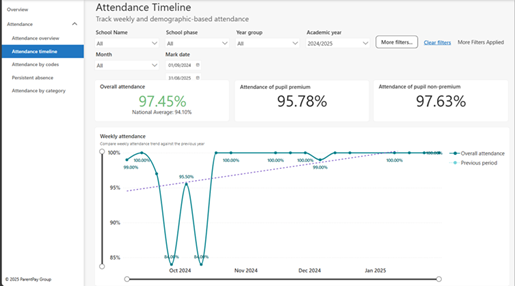
Attendance timeline: can look at attendance of different demographic information e.g. enrolment status, SEND, PP, ethnicity
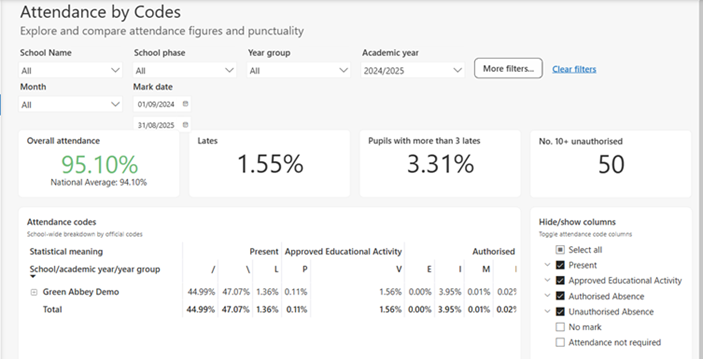
Attendance codes: filter attendance based on a variety of different attendance codes
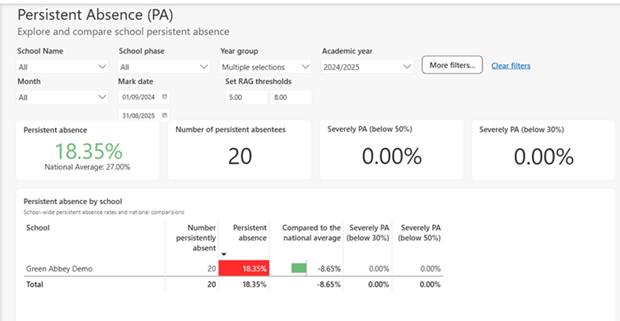
Persistent absence: drill down into different demographics to see persistent absentees within your school.
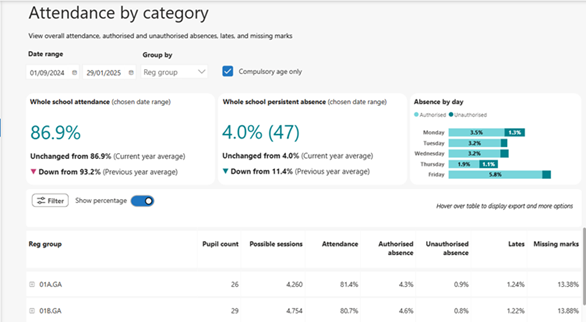
Attendance by category: view overall attendance, authorised and unauthorised attendance, late and missing marks.
If you are not yet using SIMS Next Gen, please get in contact and we will be happy to go through setting up your SIMS system if needed, help with onboarding staff and discuss any of these features!