


Welcome to the Autumn Term
Welcome back to a new academic year from everyone at School ICT. We hope that you had a great summer and had the opportunity to enjoy the amazing weather.
We have been delighted with the integration of Connect Up Support Services into School ICT since April and we hope that our customers have experienced a seamless service over this period of transition for our businesses. The company continues to grow and add resource into our service delivery teams to ensure that we provide the most efficient and highest quality of service to our customers. Five additional team members have joined the School ICT family over the last two months as we strive to ensure that our customers are making the most effective use of their data on IT systems that they can rely upon.
After a successful pilot program, the Autumn term will see the official launch of our new Virtual Data Management (VDM) service, providing schools with the option to outsource any aspect of their Data Management responsibilities. We have found this service particularly attractive to schools that are struggling to recruit Data Managers or require more targeted assistance at certain times of the year e.g. census, reporting or timetable creation.
Our MIS Data Analyst, John Madden, has spent the summer perfecting our portfolio of Microsoft Power BI reporting templates that are now available under our Power Genie brand to support schools in improving their understanding of SEN, staff absence and general performance. More details at https://schoolgenies.co.uk/power-genie/.
The School ICT webinar week will be back in November providing all of our customers with access to a range of free webinars delivered to help you improve the use of data and IT at your school. The full agenda to follow in due course.
We wish all of our customers and partners a successful academic year and thank you for continuing to place your trusted custom with School ICT.
Steven Hutton
Managing Director
Exciting new features in the Customer Portal
It is now possible for us to give all customer main contact(s) top level access, to all tickets raised for their school or trust, so that you can see what is happening across your site.
Please contact helpdesk@schoolicts.co.uk to enquire about setting this up. *Please note we may require Headteacher or Business Manager authorisation to give access to all tickets*
Did you know? We have a new feature on the Customer Portal – check out our new Video library section here.
*Please note all our video library content uses YouTube.
Training and Webinars
Training courses for the 2022/2023 academic year are now live!
We have a comprehensive range of courses to help you develop your knowledge of SIMS or Arbor and get the most out of your MIS (Management Information System).
Booking is now open. Please visit https://www.schoolicts.co.uk/online-training/
Courses for September are as follows: –
SIMS Courses: -
- 13/09/22 Managing Student classes and Timetables
- 14/09/22 New Office User Secondary
- 15/09/22 Cover
- 16/09/22 Administrators Guide to Maintaining the timetable
- 20/09/22 Course Manager
- 21 & 22/9/22 Assessment Essential Skills
- 23/09/22 Secondary Autumn Census (does not include Post 16)
- 27/09/22 Primary Autumn Census AM & PM
- 28/09/22 Post 16 Census
Arbor Courses: -
*NEW FOR 2022/2023*
- 20/09/22 Parental Engagement and Communications
- 28/09/22 Autumn census – Primary/Secondary exc Post 16
- 12/10/22 Staff and basic analysis
- 14/10/22 Arbor attendance
Webinars
We will be running our popular Best Practice in MIS webinar week later this term, webinar sessions will soon be available to book!
In addition to our webinar week, we are also running three webinars to support you with the Autumn Census which can be booked using the below links: –
Arbor Post 16 – Friday 29th September 9am – 10am
Primary Autumn Census – Tuesday 4th October 11am – 11.30am
Secondary Autumn Census – Wednesday 5th October 10.30am – 11.30am

SIMS Upgrade
Form to complete
We are currently working on streamlining our SIMS Upgrade processes to make it easier for our schools and to help minimise issues occurring after the upgrade has been run.
With this in mind, we have put together a short form which we would like to be completed, which will ensure we are able to update the relevant people at the time of any upgrade and that the process is suitable for each school where possible.
Would you like to help shape the next generation of SIMS?
If this is something you’d like to get involved with, please use the sign-up link below to register your interest with ESS:
SIMS Assessment Marksheets Housekeeping
At the beginning of the Academic Year you may need to delete old marksheets which are no longer required, and create marksheets for new groups e.g. academic classes or registration groups.
Please find guidance on the Assessment Marksheets – Deleting/Creating helpsheet (HS0171) – covering how to delete marksheets individually or in bulk, and how to create them for your new groups here: –
SIMS Admissions and Year End Information
We have created a helpsheet with a summary and checklist of the many routines which need carrying out in September – this is available on the customer portal: –
https://my.www.schoolicts.co.uk/portal/kb?id=482
In addition, we have also put together a useful list of some of the more common issues occurring when schools return in September, along with steps to troubleshoot which can be found here: –
SOLUS Agent Install Issue
Following investigation, ESS has determined that an issue can occur with the installation of new SOLUS3 agents. The issue occurs where the 14th June 2022 Microsoft security update has been applied inconsistently across an environment, (e.g. the update has been applied to the server but not to workstations or vice versa), resulting in a mismatch in security policy between the devices.
This issue should be resolved by ensuring that all devices, including the SOLUS server and all workstations, have had the 14th June 2022 Microsoft security updates applied. These updates are available as part of Microsoft update KB5004442.
Once the update has been applied to both workstations and server, you will need to carry out a reboot of both the server and workstations. Following this, you should then be able to push out the SOLUS agent to the workstations as normal.
Reception Baseline CTF
We have created a helpsheet and video to assist with generating the CTF to upload.
HS0168 Reception Baseline Assessment helpsheet and a short video to demonstrate the process are both available on the Customer Portal, via the following link: – https://my.www.schoolicts.co.uk/portal/kb?id=513
SIMS In The Classroom - A more sustainable option
A reminder for schools that use paper registers: –
SIMS in the classroom allows teachers to take registers, which speeds up the registration process and ensures attendance follow-up is processed efficiently, with the added benefit of saving paper and improving sustainability.
For further guidance on this please see the following helpsheet: – https://my.www.schoolicts.co.uk/portal/kb?id=208
SIMS Post 16 Census
To help you prepare for the Post 16 Census, we have created a step-by-step Course Manager check list which is available to download from the Customer Portal.
We recommend that all schools check all courses, for both the current and the previous academic year, before running the Census.
Autumn Census: P16 Top Tips Power Point is available to download from My Portal.
Important Reminder: Do not run the programme of study report until all leavers who are taken off roll retrospectively have been made to leave via the leavers routine. This caused unexpected errors last year as the students who were made to leave retrospectively were still counted in the POS, even though they had never attended P16 provision. We would also recommend not generating the POS until all courses have been checked.
The baseline example document available via the DfE secure Document Exchange will detail the average hours your school returned in the 2020-21 Census return.

New feature - Emergency Alerts
Emergency Alerts allows your staff to send a notification or e-mail to staff who are on call. For full details on how to use this please see below: –
September troubleshooting guide
Below we have created a collection of useful tips and links to Arbor help centre articles which we hope you will find useful: –
Logging in and access
Make sure all your staff have access to the system:
- If your password has expired over summer, you can reset this yourself by clicking the Forgot your password? link on your login page. If you are still experiencing issues, work through these troubleshooting tips with your office team.
- Staff being asked for a date of birth or being logged into the wrong account? Check for duplicate email addresses
- Make sure teachers can access their registers from their calendar so they can all take attendance. There are three steps to check if they are having trouble.
- If you want to give more staff access to registers. There are a few different ways to manage access: Giving permission for other staff or teaching assistants to take attendance registers
- My Classroom – You can use layouts from past years as these are linked to the room, but you will need to set up seating plans each year as there will be different students in your classes. You can see how to do this here.
Need to change your timetable?
As you welcome students back, you might need to make some changes to your timetable over the next few weeks. Here are Arbor’s top articles:
- Staggered starts – If you have students who don’t start right away take a look at this article: Staggered Start Dates
- Editing your timetable – If you need to make changes to your timetable, we recommend making edits in Arbor from the Timetable Slots page as this is usually much quicker than importing a new timetable. To make edits to your timetables, such as editing rooms and staff, or deleting unneeded slots, take a look at this article: Editing timetable slots and lesson times
- Timetable periods can be used to help align your attendance marks into set groups. If you want to use this feature again, you will need to set them up by following the instructions in this article.
- Adding new lessons – To add new timetable slots just go to School > Programmes > Courses and click the lesson, and follow these instructions: How to set up Course, Class, Registration and Lesson registers
- Adding more rooms – If you need to move students to new rooms to keep them distanced, you can see how to set up a new room in this article, and move classes into a new room in this article.
Student enrolments and registers
Here’s how to make sure all your students are in the right registers:
- Add new students – If new students join you who were not added as part of the Applicants process, you can see how to add them then enrol them into registers: Adding a new student
- Enrolling in bulk – If you have lots of students you need to add to registers, see your options here: Enrol students into lesson registers in bulk
- Moving students to the right classes – Check your students are enrolled in the right registers and move them if needed: Moving students between classes or registration forms
- No registers If you were expecting to have registers today but don’t, you won’t be able to take attendance, follow these instructions: Why don’t we have registers today?
- Students missing from your registers. You’ll need to check their enrolment using this article.
- Don’t have any meal registers or students in your meal registers? Check out this article to help resolve this.
- Duplicate students or enrolled applicants who are no longer joining may need to be removed. See this article to find out what you’ll need to do.
Assessments
Copying over Assessments
If you used Arbor Assessments last year, you’ll need to copy over your setup to next year. Take a look here for how to copy over your assessments.
Data Collection Policies are linked to the Assessment policy. Because you need to select the assessments to create or copy over each year, you also need to define your Data Collection Policies each year if you use them at your school. You can see how to add Data Collections here.
If you’ve copied over your assessments but teachers can’t access them or the boxes are greyed out, follow these instructions: Why can’t the teacher mark the assessment?
New to Arbor Assessments
If you didn’t use assessments last year, you can set them up for next year to start learning from your data with simple, visual analysis screens.
- Primaries – See Arbor’s ready-to-go assessment approaches for reading, writing and maths assessments. Use Arbor’s handy quiz to pick the approach that’s right for you, and save time on setup with Arbor’s step-by-step guidance.
- Secondaries – take a look at Arbor’s Introduction to Arbor Assessments for a feel of what Arbor offer, then use our easy-to-follow setup templates for English Literature and Language, and Double/Triple Science here, or more basic setups here.
If you’re looking to manage your assessments in a bespoke way, our expert consultants can work with you to help you tailor Arbor to suit your approach – contact our helpdesk for further details.
Behaviour
If you’ll be using Behaviour in Arbor from September, you’ll need to copy over your setup to next year. Using behaviour for the first time? Take a look here for how to:
- set up your behaviour policies for the first time if this is your first year using Arbor
- schedule your detention and internal exclusion sessions if you used behaviour in Arbor last year
If you can’t select detention or internal exclusion sessions to add students to, this means they haven’t been scheduled for next year – you’ll need to set them up following these instructions:
Communications
Make sure the right people can send email, SMS and in-app messages to the right people:
- Make sure you’ve completed the New School Year setup process to be able to choose the group in the To field for classes, registration forms, year groups, houses or custom groups.
- Sending communications -To send different communications, as themselves, the school or others, staff will need to be a Permitted Sender of the communication type they want to send. They will also need to have the right permissions. Check these settings here.
- Wrong signature at the bottom of emails sent – This is set from the staff contract, so check contract names on staff profiles to ensure the right job title appears in your searches and in communication signatures: Wrong job title or role in search and email
- In-app messages – Have guardians download the Arbor App and enable push notifications, or log in to Parent Portal to be able to receive in-app messages
Parent Portal and Arbor App
If you use the Parent Portal and Arbor App, guardians may have trouble logging in for the first time. Please advise parents not to contact Arbor directly, as Arbor won’t be able to make changes to their data.
- Logging in– If you need to send login details to guardians you can follow these instructions.
- Why can’t parents log in?– Follow these steps to get guardians logged in if they’re having trouble: Troubleshooting login issues for parents
- See what a guardian sees – troubleshoot issues and check your setup by Logging in as a guardian.
- Guardians may have issues if they have a profile set up for multiple children. See how this works here: Child at more than one school using Arbor
- Can’t access a child – Make sure the guardians are linked to all their children to be able to switch between them on the Parent Portal or Arbor App: Linking siblings to each other and linking a guardian to a child
API and 3rd party connections
If your data hasn’t updated in your 3rd party application, follow Arbor’s Top tips for managing your APIs
Please contact the 3rd party first if you are having issues. If you have checked with the third party but still need to contact us about your app, please do so via email. Include screenshots and as much information as possible.
New tables across the MIS
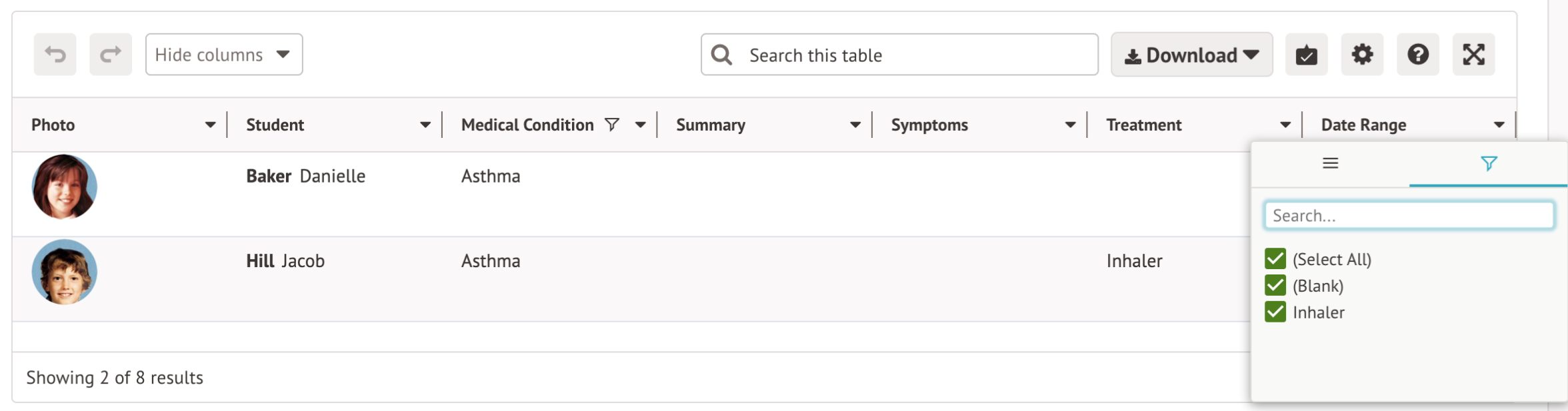
Arbor’s new feature Tables arrived just before the summer holidays, giving Arbor users a powerful and easy-to-use spreadsheet, with intuitive features such as quick search, full-screen mode, column filtering and resizing. Tables can be found: –
- The Students table on the Lesson Dashboard
- The Formative Assessment Markbook
- The Attendance > Statistics and Bulk Edit Marks Advanced pages (the Standard page will have the new tables)
- Tables where you can add additional rows, such as Trip and Club prices, Grade Set creation in Exams, Assessments, Assignments and Observations, and Import pages such as in the New School Year Setup.
Listening to customer feedback improvements have been made you’ll now see these improvements:
- In the filter panel, you can now see an option for (Blanks), where Arbor showed nothing before.
- The table footer takes into account filtering and pagination and will show the number of rows selected when using bulk actions.
- The table header won’t get squashed on small screens.
- The summary row values align with the rest of the column.
- You’ll get a pop-up if you try to leave the page with unresolved input errors.
Arbor Post 16 Census
Autumn Census: P16 Top Tips webinar on Friday 23rd September 2022: Book your place here: https://www.schoolicts.co.uk/events/post16-arborwebinar
There is a step-by-step programme of study checklist available to download from My Portal. We recommend that all schools check all courses for both the current and the previous academic year before running the census.
The baseline example document available via the DfE secure Document Exchange will detail the average hours your school returned in the 2020-21 Census return.

Great starter videos for any colleagues new to ScholarPack
For any colleagues new to Scholarpack this term, there are some great starter videos that can be found by searching ‘ScholarPack YouTube channel’
These include:
- Dashboard and Home (9 mins)
- Register (14 mins)
- Pupil profile ( 11 mins)
- Student admin (5 mins)
- Reporting (8 mins)
- Staff profiles (5 mins)
Remember that new students can be added in one of the following ways:
Manually via Admin/Students/add students manually
By CTF/ATF via Admin/Students/full ATF/CTF Importer
By CSV file via admin/students/admissions and import csv
New staff members can be added to Scholarpack easily:
Go to Admin/Personnel/Staff
Click the add new button to begin creating a new staff profile. Only basic details are needed to create and save the profile. These are first name, surname, DOB and gender. Click insert to add the staff member to ScholarPack. Alternatively select ‘next’ and fill in the relevant details if known.
Any staff leavers can easily be removed from ScholarPack:
Staff members who have left should be deleted from ScholarPack but instead should be made inactive. To do this go to Admin/Personnel/staff. Select the staff member from the drop down and click the cog next to the staff members name (above their photo). At the bottom of their record click on the toggle next to Active and change this to ‘No’ and click submit.
Do not click on delete as the staff member should remain on the system but just deactivated.
Staff members who have left should also have their login deleted so that they can no longer access the system. To do this go to:
Admin/personnel/Staff and select the staff member – click change password roles next to where the photo shows. In this area click ‘delete SP logon’.
I have completed Year End but some students aren’t in the correct forms:
Go to Admin/students/group updater
Change the year and form to the current year and form the students are assigned to by changing the student attribute to either Current Year Group or Current Form Group depending on what needs to be amended.
I can’t log in to Scholarpack
If you have forgotten your password over the holidays speak to an administrator at your school to reset your password. Usernames are case sensitive. Also check on the log in page that your school’s name shows at the bottom underneath the login boxes.

Are you in need of either temporary or permanent staff for key times of the academic year?
Working alongside School ICT, School ICT Resourcing place both permanent and temporary specialist support staff into schools.
Our candidates are available from a days placement through to a whole school year. All candidates have completed the safer school recruitment process, and have enhanced DBS clearance.
Due to retire? If yourself or any colleagues are retiring soon, but would consider working on a temporary or ad-hoc basis, please contact Helen who would love the opportunity to speak with you about the potential of adding you to our candidate list.
For further information please call: 0113 372 0039 or visit: www.schoolictresourcing.co.uk