

To navigate to the most relevant section, please click the appropriate link below: -

Exciting News: Introducing Our New Live Chat Feature!
We are thrilled to announce the launch of our brand-new Live Chat feature, designed to enhance your MIS support experience. This innovative feature provides an additional option for contacting your MIS support team and works alongside our other options of calling, emailing, and logging into the customer portal, ensuring you receive the support you need, when you need it!
This brand-new feature will be available from 6th January 2025.
Key Benefits of Our Live Chat:
- Instant Support: Get your questions answered in real-time by our knowledgeable support consultants.
- Expert Assistance: Our live chat is staffed by real people, ready to provide you with personalised support.
- Convenience: Access live assistance directly from our website, without the need for phone calls or emails.
- Efficiency: Resolve issues faster with immediate responses and quick solutions.
To start using Live Chat, simply visit our customer portal, log in and click on the chat icon at the bottom right corner. Our team is ready and eager to assist you with any enquiries or support you may need.
Vacancies
Due to continued growth an exciting opportunity has arisen for a suitably qualified, highly motivated, and experienced School Data Manager to join our Virtual Data Manager Team.
Please click the link below for further information:
https://schoolictservicesltd.livevacancies.co.uk/#/job/details/19?target=frame
Spring Census: Thursday 16th January 2025
|
Spring Census Date: Thursday 16th January 2025 |
Date From | Date to |
| Attendance |
02/09/24 |
31/12/24 |
| Suspensions and permanent Exclusions |
01/04/24 |
31/12/24 |
| Free School Meals |
04/10/24 |
16/01/25 |
| Leavers with attendance |
01/09/24 |
31/12/24 |
| FAM |
01/08/24 |
16/01/25 |
| Pupils with Alternative Provision |
03/10/24 |
16/01/25 |
| Leavers with permanent exclusion and final governor review |
01/04/24 |
15/01/25 |
| Leavers with suspensions |
01/01/24 |
31/12/24 |
| Leavers with funding and monitoring |
01/08/24 |
16/01/25 |
| Leavers with alternative provision | 03/10/24 |
15/01/25 |
Class Information
This is only collected in the Spring Census
We need details of all classes running at the selected time on spring census day.
If different parts of the school use different timetable structures, then systems should allow the school to return class information for the timetable structure that applies to key stage 1.
For example, where lunch is at midday for pupils following a primary timetable but at 1pm for pupils following a secondary timetable, then the end of morning school should be taken to be midday and not 1pm.
The ‘selected time’ is based on the last digit of a school’s departmental establishment number.
Where the selected time is not appropriate to the school timetable – for example, if the selected time is when the whole school or a large proportion of the school is in an assembly with the headteacher, schools can choose an hour or period that reflects a ‘normal’ class situation that applies at the selected time each Thursday of the term.
Do not record unusual situations (such as class amalgamation or school closure) which may have occurred on census day due, for example, to staff training or absence, severe weather conditions or religious observances. See the section on unusual circumstances for more information.
Any group of pupils receiving instruction outside the normal class framework at the selected time, such as pupils in a special educational needs (SEN) unit, are treated as a separate ‘class as taught’ unless this is an atypical or temporary arrangement.
Infant Class Guidance
Only Primary and all-through schools need to send us this information for key stage 1 and reception classes
The School Admissions (Infant Class Sizes) (England) Regulations 2012 limit the size of an infant class during ordinary teaching sessions to 30 pupils per class per schoolteacher. Infant classes are those in which most children turn 5,6 or 7 during the course of the school year (reception and key stage 1 classes).
Primary and all-through schools with infant classes are asked to ensure that the selected period is one which their infant classes are engaged in an ordinary teaching session.
An ordinary teaching session does not include school assembly, or any other school activity conducted with large groups of children such as
- PE or games
- Music
- Singing
- Drama
- Watching television
- Listening to the radio
Where, at the time of the count, infant classes children would be involved in such activity, the count is deferred to the next ordinary teaching session. This change of selected time is enacted for all classes in the school, not just the infant classes.
Where a key stage 1 or reception class reports a pupil:teacher ratio greater than 30, schools must record in their MIS where this is due to
- Any pupils within the class recorded as expected
- A teacher being on planning and preparation time or learning manager time and the class is being supervised by a teaching assistant.
The calculation is based on the pupil:teacher ratio not the pupuil:adult ratio therefore, regardless of the number of teaching assistants, if there are no exceptions or teacher on PPA reported, the class will be treated as unlawful in the DFE publications if there are more than 30 pupils to one teacher.
Free School Meals
This data is only collected in the Spring Census – The total number of children who are ‘free school meal eligible’ who had one on the day. If the situation at lunchtime was in some way unusual on census day, use the figures for the next normal day. See unusual circumstances for more information.
Pupils are free school meals eligible if they both:
- Meet the eligibility criteria
- Make a claim
Do not Count
- Pupils who get a free lunch only die to the universal infant free school meal entitlement
- Meals provided at the beginning or end of day.
For a child attending alternative provision in the form of home tuition who is registered pupil of a school, refer to the free school meal guidance
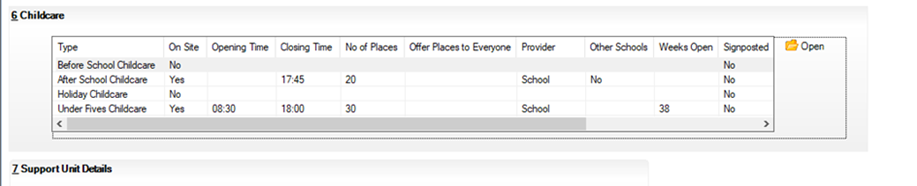
School Childcare
You must return 4 records for types of childcare- on for each of the following categories:
- Before school
- After school
- Holiday
- Under 5’s
For each record you must provide and answer to indicate whether the school:
- Provides childcare on site
- Signposts people to other childcare
- Does both of these
For more detailed guidance please click here to see all data items collected.
Fileset
The current fileset for the spring census is 2901 this is not suitable for authorising the return please check for update before submitting.
Submitting your Census to Collect
For guidance on submitting your census to Collect please click here
To sign into Collect please click here
FREE Webinars
We are running a continued webinar series throughout the year (which is replacing our webinar weeks). Please click here to see the upcoming webinars, and to book places.
What’s the difference between a webinar and training?
- Webinar: Free short session aimed to inform, raise awareness and update you
- Training: Indepth session often ½ day + taking you step by step through an area or process.
Data Management Services
Our Data Management service offers an excellent, cost effective, responsive, and efficient Data Management solution delivered remotely by a team of highly experienced school data experts.
Their dependable advice and guidance empowers Schools, Academies, and MATs to maximise their investment in their management information system (MIS) team. Whether it’s a long-term solution or short term for sickness cover or maternity please reach out.
Visualise your School or Trust’s MIS data with helloData analytics
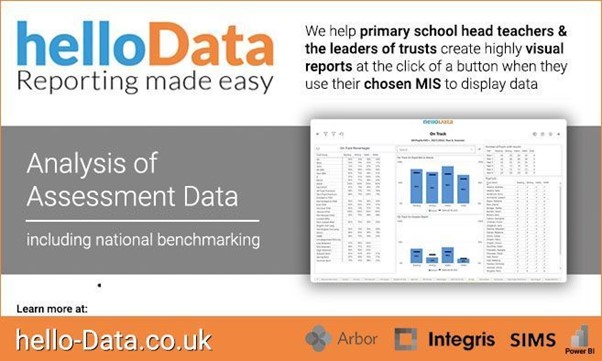
helloData’s primary aim is to visualise key assessment data as succinctly as possible. We provide dashboards for whole school (and Trust) summaries, presented on a single page.
Whole School Attainment & Progress
View all year groups on one page, features include:
- Core subject summary Y1 to Y6
- Foundation subjects report for the whole school
- Individual pupil data on the same screen
- On track for Reading, Writing and Maths combined
- Disadvantaged, SEN and Ethnicity summary dashboards
- Expected progress report
Features for School Trusts:
- Choose which schools are compared side-by-side
- Whole Trust and ‘all selected’ schools figures are provided
- Option to include national benchmark data
- Flexibility to choose to view pupil level data
- Access to the school view, with pupil level data as the multi view
- Filter and switch between schools or even amalgamate data
Additional Whole School/Trust summaries:
- Whole School Contextual Data
- Whole School Attendance Summary
- Analytics for Trusts
Same data, functionality and similar visuals
hellodata focuses on presenting the same functionality, intuitive interface and clear representation of data for Trusts and individual schools. This enables school leaders to easily interact and respond to questions from the Trust due the familiarity with how the data is displayed. Gone are the days of producing different reports for different audiences.
Confidence in the data is of utmost importance; helloData uses the same data as the school version – discrepancies do not occur between the Trust view and the school view.
We’d love to hear from you, Leave us a Message or Book a Live Demo here.
ESS E-mail - Important Information for all SIMS customers or anyone considering or moving MIS on or before 1st April 2025
We are aware that ESS have now released their contracting portal that all SIMS customers need to log into and review their contracts via https://contractportal.ppgsl.com/. Schools should have received an email from contracts@parentpay.com with their log in details. School ICT has already been asked by a number of our customers for support in completing this portal information as, at first glance, the options can look confusing. The portal should be pre-populated with School ICT or turn IT on as your provider of support. If this is not the case, please don’t hesitate to contact us.
If you are considering or have switched MIS on or before your 1st April 2025 contract renewal date, then you should inform ESS, in accordance with your contract with them.
If you would like any help and advice in completing the information, then our colleagues will be happy to join a Microsoft Teams session or remote access session with you to guide you through the process and answer any questions that you may have.
Customer Contact Information
School ICT customers:
- Contact: 0345 222 6802 Option 1, helpdesk@schoolicts.co.uk
- Portal: https://my.www.schoolicts.co.uk/
turn IT on customers:
- Contact: 01865 597620 Option 2, mis.support@turniton.co.uk
- Portal: https://portal.turniton.co.uk
Our customer portals allow you to: –
- Log and track tickets
- Watch webinar recordings
- Search the Knowledge base for helpful tips, guides and information
- Keep updated on the latest news

Spring Term Online Training Courses
Training courses for the academic year 2024/2025 are now live!
We have a comprehensive schedule of online ‘live’ SIMS training courses and a growing schedule of Arbor and Bromcom courses, along with Distance Learning courses, to help you develop your knowledge and get the most out of your MIS (Management Information System).
Booking is now open please visit https://www.schoolicts.co.uk/online-training/
The full course schedules can be found here: SIMS Training – Spring Term 2025, Bromcom Training – 2025, Arbor Training – 2025.
Polite reminder – Census courses book up quickly, so if this is a course you’re wanting to attend, please book as soon as you’re able to to secure your place and avoid disappointment. We do put on additional courses if we have enough demand, but this isn’t always possible.
Don’t see the course you need? Please don’t hesitate to reach out and we can offer bespoke training and Consultancy services. Give us a call on: 0345 2226802 or e-mail: helpdesk@schoolicts.co.uk.
Data Health Check Service
An MIS health check ensures you’re getting the most out of the investment in your MIS and benefitting from all that your MIS can do for you.
This service is available for MATs as well as individual schools.
The benefits of one of our comprehensive health checks include: –
- Raise awareness of functionality and any issues
- Provide a system audit
- Keep you up to date with the latest developments in your MIS
- Housekeeping and tidying exercises
- Report with recommendations to ensure you’re fully maximising your MIS along with any training recommendations
- For on premise MIS, a server health check is also included
Our health check service usually takes around half a day. Please contact us on: helpdesk@schoolicts.co.uk to find out more.
FMS
Financial Year End
As the end of Financial Year End grows closer, it is essential to carry out procedures to ensure the smooth transition of accounts from the current year into the new Financial Year. This will involve the processing of orders, invoices, income, petty cash, etc.
It may be prudent to start reviewing your Purchase Orders and Invoices, clearing Commitments and contacting suppliers for invoices and outstanding supplies. Please also check any End of Year procedure deadlines that may be set by your Local Authority or Trust/Senior Management Team.
If you’re new to Year End, or would like a refresher we have two courses available that cover this:
- Friday 24th Jan 2025 and Monday 3rd March (both 9:30am – 12:30pm), details via this link: https://www.schoolicts.co.uk/events/fms-year-end/

Click for the latest Arbor updates
Spring Census Preparation
Although you won’t be able to access your Census in Arbor until January, you can check some of your data in advance. To do this go to School > Data > Data Quality Dashboard, select Students from the left, then Demographics, and Bulk Update Basic Details. In here, you’ll be able to complete any missing information which will save work later on.
Areas you could start checking:
- Address information is entered correctly and includes postcode – School | Data | Data Quality Dashboard | students | contact details | postal addresses
- Ensure all pupils have been admitted on Roll – You can check pupil enrolment numbers by going to Students | Enrolments| Statistics and show data by Year group
- Ethnicity data source and Ethnicity recorded – School | Data | Data Quality Dashboard | Students | Demographics | Update Basic Details
- First Language – School | Data | Data Quality Dashboard | Students | Demographics | Update Basic | Native language
- Exclusions – Check all have been recorded. If the exclusion review process is still ongoing for this exclusion, then select Do not return in school census. Student Profile |Behaviour | Permanent Exclusion
Need further help?
Our Helpdesks are open from 08:00 until 17:00 so please do not hesitate to give us a call or log a ticket and we will help with your query:
|
New Features in Arbor this month
Settlement summary report
The new ‘Settlement Summary’ report lets you group payments by Description, Accounting Code, or Customer Account Type so you can easily reconcile weekly payouts according to your school’s needs. Learn more here.
Tes Timetable (Edval) integration improvements
Improvements have been made to your timetable importing process. You no longer need to end all timetable slots and re-import your entire timetable for small changes. Learn more here.
New integration with helloData
With Arbor’s new integration with helloData, schools can set up their assessments and enter marks in Arbor, then use helloData’s interactive reports to analyse performance and identify your school improvement priorities quickly. Learn more here.
Also new:
- A new Attendance Summary dataset has been added to their BI Connector, giving you a student-level summary of year-to-date roll call attendance
- The ‘Money Received Report’ now includes a ‘Paid Amount’ column, giving finance teams better visibility over parent payments
- You can now edit cover arrangements and covering staff members, instead of having to cancel and rearrange cover
- To match external exams, you can now disapply access arrangements for in-house exams
- You can now display targets in data collection marksheets so teachers can incorporate them into their judgements
What’s live in Arbor Labs
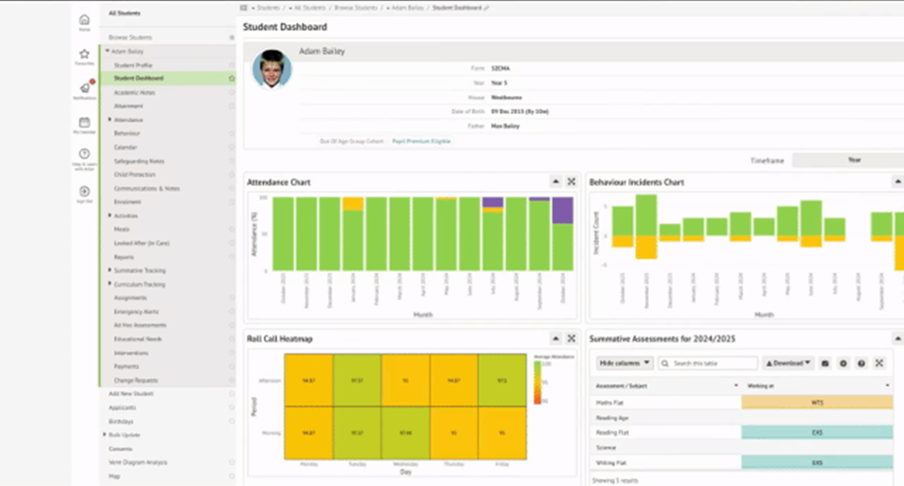
Student Dashboard – The dashboard lets pastoral leads make connections between students’ attendance, behaviour, assessment and enrichment data at a glance.
- Venn Diagram Analysis
- Ask Arbor Cover Suggestions
- BI Viewer
- Ask Arbor Custom Report Writer
- Ask Arbor Absence Notes
- Ask Arbor Intervention Setup
Head to the Arbor Labs page in your MIS to learn more and start experimenting!
Assessment
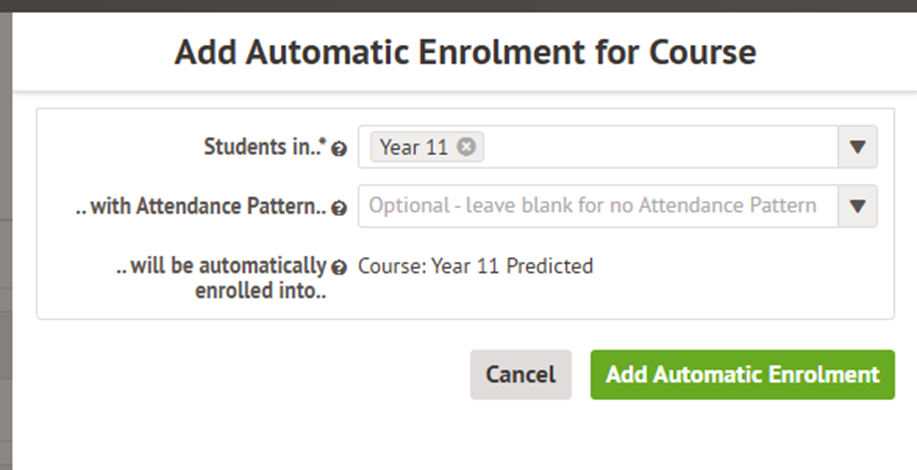
To create a broadsheet type marksheet in Arbor, you need to create a new course. Go to School > Programmes > Courses and select +add and name your new course accordingly. Then go to the enrolled students area and click +add and select ‘Setup Automatic Group Enrolment’ and add Year 11 as shown below:
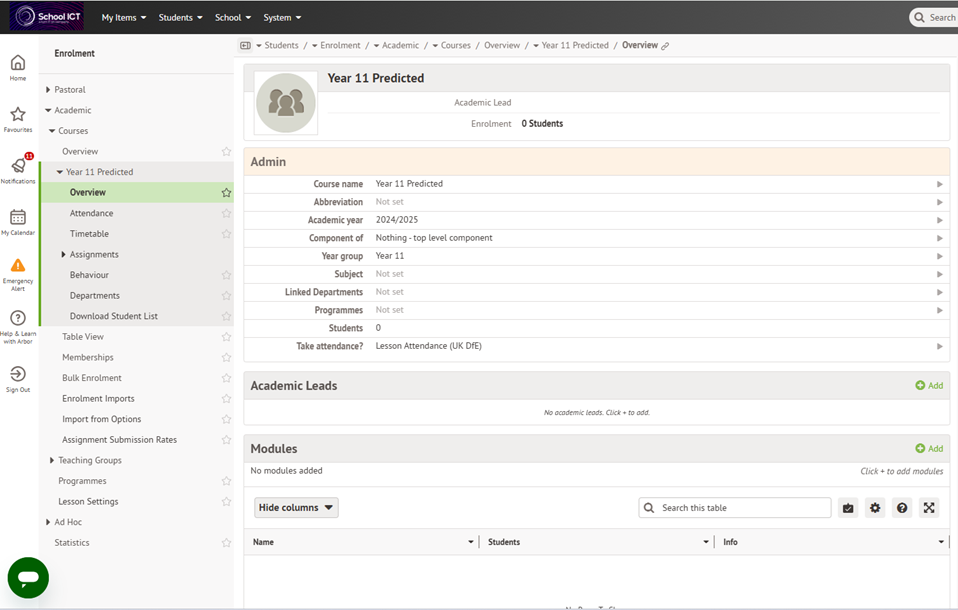
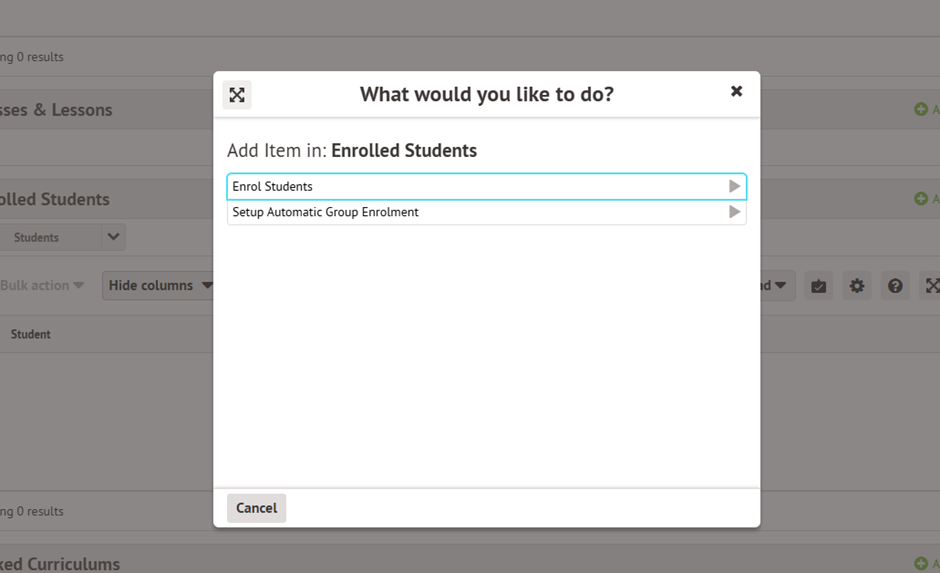
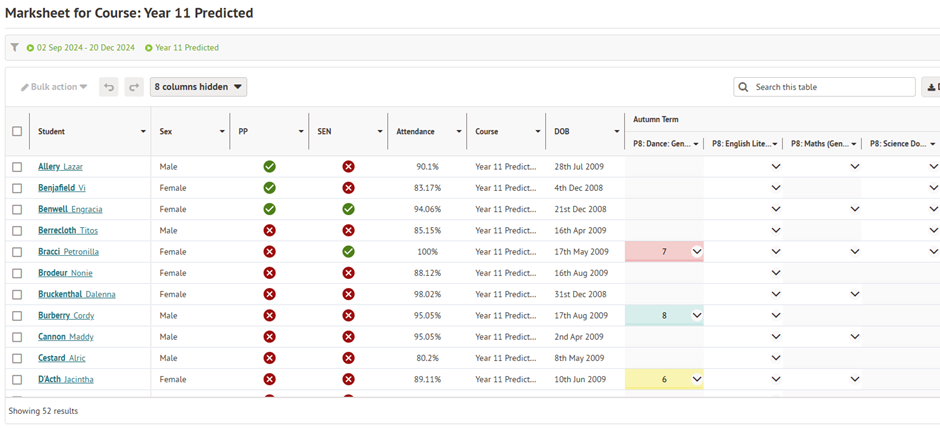
Next, you need to go into Students > Assessments > Annual Policy and into all of the assessments that you want to see on your bulk marksheet. Add the new course you have created to linked courses. Then go back into School > Programmes > Courses > select your new course and then select > Assessment and you will see all of your assessments in one big marksheet that is editable.
NEW Arbor Student App
The newly released Arbor Student App is available for iOS and Android and can be used by primary and secondary school students once access to the app has been allowed by the school. On the App, students can access their calendars, in-app messages as well as other important information to help with daily life at school. For more information, please see here.
Summer Exams Basedata
Summer exam basedata should now be available in your Arbor site to allow you to make your entries for the summer exam season. When you enter your candidates, the June 25 season should now be available for you to select.
Please contact the appropriate helpdesk if you require any assistance with this: –
- Helpdesk@schoolicts.co.uk 0345 222 6802
- Mis.support@turniton.co.uk 01865 597620
New Intake Season
As long as your new academic year has been created, you can add your new Intake Seasons via Students > All Students > Applicants. This will take you to the Applicants Dashboard which will show all of the Intake Seasons created. Click on the green +Add sign at the top of the dashboard.
In the slide over, add a name for the season and the academic year it’s linked to.
Once the Season has been set up, you can add your Buckets and Intake Groups if you use them.
Snow Days
There are two ways to record school closure to students in Arbor. The method we recommend will depend on whether the closure is planned (such as an election or bank holiday) or not planned (such as a snow day or heatwave).
Please see the guidance here.
Important notice about clubs and trips
Even if your school is marked as closed, your clubs, trips and wraparound care will not be automatically cancelled or refunded. The invoices will still be in the Payments area, but you won’t be able to refund them.
We recommend you make any refunds or cancellations for sessions before marking your school as closed. You can see how to do this here:

Click for the latest Bromcom updates
School Census
The January census is just around the corner, below are some key dates.
Spring Census
- Census date – Thursday 16th January 2025
- Return date – Wednesday 12th February 2025
The Bromcom MIS will be updated nearer the time to have the 2025 Spring census available to be generated.
Introduction into this Census webinar: – Click Here
Everything required for the spring census for Primaries course: – Click Here
Everything required for the Spring census for Secondaries course: – Click Here
Bromcom Performance - 21/11/2024 - Update
A small group of customers connected to one of Bromcom’s instances may have experienced slower-than-usual page load times on this date.
The Cloud team are actively investigating this to identify the cause. Their monitoring indicates that page load times have returned to normal with some small intermittent peaks.
If you encounter any additional issues, do let us know.
Snow Days
We are seeing some schools closing due to the adverse weather throughout the country, please find below the options for you to update your MIS to reflect this.
If you are having an official snow closure day, we would recommend using the following: https://docs.bromcom.com/knowledge-base/how-to-edit-academic-days/
If however, you just wish to mark the student’s attendance, but keep the day as an academic day follow option 2 below: https://docs.bromcom.com/knowledge-base/how-to-use-bulk-attendance-update/
If you are intending or have closed school for the day and wish to communicate this with your parents, please find below the guidance to assist you with sending an SMS or an email. How to Send an SMS Message or Email – Bromcom
How to Send an SMS Message or Email – Bromcom
If you prefer to publish an Announcement via MCAS this can be done via the link below: How to create School Announcements – Bromcom
Upcoming Webinars and Training from School ICT
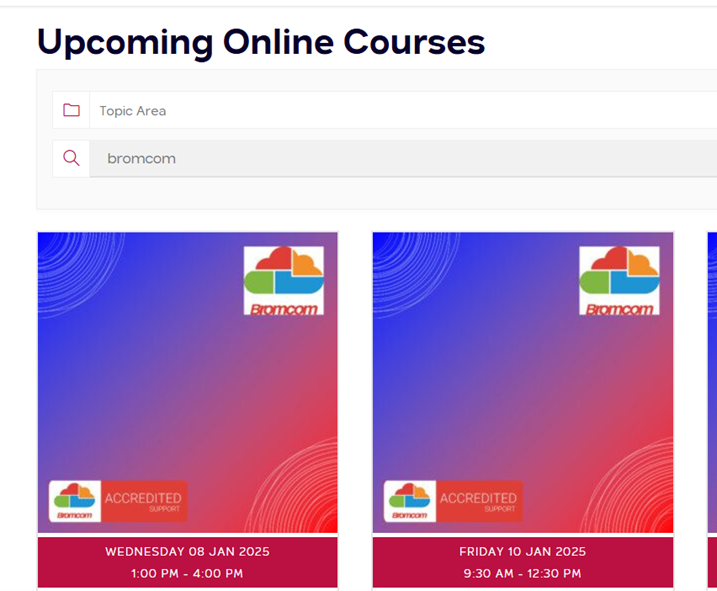
To view the range of courses available visit: https://www.schoolicts.co.uk/online-training or you can view the full training schedule Bromcom Training – 2025
When on the training website page, type Bromcom in the search box: –
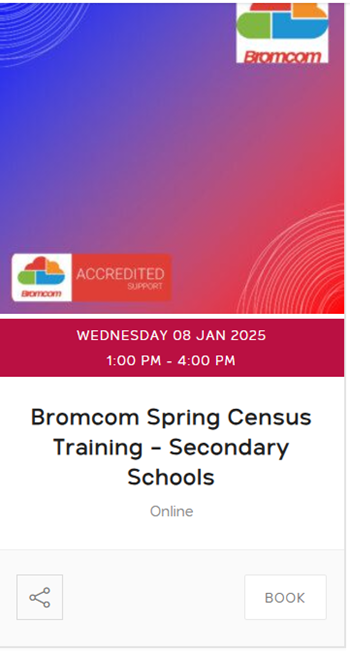
Each course has a book option: –
For Webinars please visit: https://www.schoolicts.co.uk/latest-events/
This shows all events but there isn’t a search option for this page.
Coming Soon...
Here is what is planned in the next release.
A brief list of some of the expected enhancements/updates
This list highlights the features currently in development during the ongoing sprint. These items are planned for release, with a provisional release date of Friday 15th November 2024.
Last updated 22nd October 2024.
Administration
- Student profile: Contacts section – show parents preferred communication language.
- Student List: Removal Ground dropdown value update.
- Config Characteristics: Wraparound Childcare Data Items update Spring 2025.
Analysis
- Key Stage Cohort Definitions: Disadvantaged Definition Enhancement to KS4 and KS5 Cohort Definition.
Behaviour
- Ability to Bulk Delete up to 50 (from 10) Behaviour Event Records.
Census
- Update Suspension/Exclusion with new guidance for notification to cancel an exclusion.
- Update Leadership pay range minimum and leadership pay range maximum.
- Autumn 2024 – Update Exclusions process pending Appeal Outcome.
- Update Basedata URLs for Summer Series 2025 – Exams.
Dashboards
- Attendance Dashboard – Ethnicity and Search Improvements.
- Attendance Dashboard – New dropdown value will be added to display the National Data separately for the Previous
- Teacher Dashboard – seating plan copy functionality.
Diary
- Equipment Booking Requests – Automated Email Confirmations for Equipment Bookings.
- Room Booking Requests – Automated Email Confirmations for Room Bookings.
Finance
- Corrections to the Balance Sheet.
- Default Payment Source for Set Finance System (with or without a Bank Account) Otherwise hide Central Bank Option.
- Introduce Central option for Online Payments (No Bank Account).
Existing Finance Report – Cash Flow Summary – Add Budget Scenario Fil
Teacher App New UI
The Teacher App has been updated with a new UI that will provide teachers with an improved user experience. Please note, that we are implementing a phased release of the new UI and rolling it out incrementally to our users.
Important: Teachers will need to update to the latest version of the app unless they have auto-updates enabled for all apps on their device settings.
The Teacher App has a new look and feel, and users will only see a few minor updates to the functionality.
- Click here to access the Quick Guide with How To guides for the most used features.
- Alternatively, go to the Help Centre to see the full How To
Note: Access to the modules in the guides will be dependent on the user permission and school configurations.
What’s new?
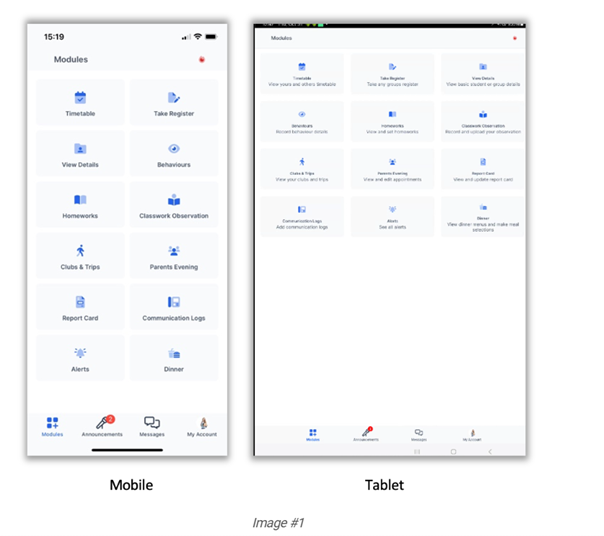
- The Teacher App features a new central dashboard – Modules, which replaces the previous Home page.
- Teachers can quickly take the Fire Drill register directly from the new Modules screen by clicking on the newly added Fire Drill icon.
- Several options in the Modules screen have been enhanced to provide an improved user experience.
MyChildAtSchool Parent App
- Attendance will be displayed according to the configuration set in Config > MyChildAtSchool > Attendance
- Detentions will be displayed according to the configuration set in Config > MyChildAtSchool > Behaviour
- When users click on the Detention session in the Timetable, they will be taken to the Detention Details
Config > MyChildAtSchool > Timetable
The Timetable module will be shown in the Parent App when the “Enable Timetable Module” option is selected. AM and PM sessions will be displayed when their respective options are ticked, along with individual periods.
Config > MyChildAtSchool > Attendance
Attendance will be shown in the Timetable module when the “Enable Attendance Module” option is selected. AM and PM attendance will be displayed when their respective options are ticked, along with individual periods.
Note: Colour coding of the attendance record is configured in Config > MyChildAtSchool > Attendance and the Attendance Code Type Settings panel.
Config > MyChildAtSchool > Behaviour
Detentions will be shown in the Timetable module when the “Enable Detention Module” option is selected. Note: Detentions will be hidden for any year groups that have been selected in the Hide Detentions for YearGroups field.

Click for the latest Integris updates
Spring Census
Accessing the Return
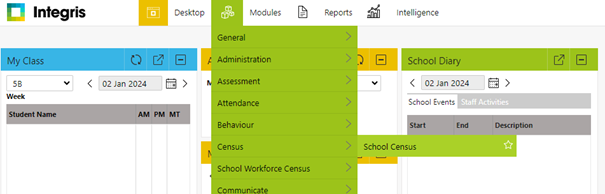
Modules > Census > School Census
School Time
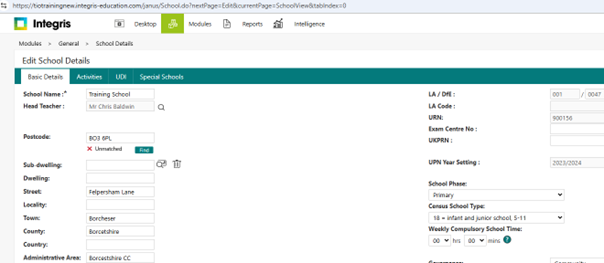
School time is collected as part of the spring census return and collects data on the total compulsory time pupils spend in school, in a typical 5 day week, this setting is found within the General > School Details section of Integris.
This value should be rounded to the nearest 15 minutes, Integris will only allow entry in hours and 15 minute intervals.
The DfE expected range for this value is 25-40 hours.
Infant class guidance
Only primary and all-through schools need to send us this information for key stage 1 and reception classes.
The School Admissions (Infant Class Sizes) (England) Regulations 2012 limit the size of an infant class during an ordinary teaching session to 30 pupils per schoolteacher. Infant classes are those in which most children turn 5, 6 or 7 during the course of the school year (reception and key stage 1 classes).
Primary and all-through schools with infant classes are asked to ensure that the selected period is one in which their infant classes are engaged in an ordinary teaching session.
An ordinary teaching session does not include school assembly, or any other school activity usually conducted with large groups of children such as:
- PE or games
- music
- singing
- drama
- watching television
- listening to the radio
Where, at the time of the count, infant class children would be involved in such an activity, the count is deferred to the next ordinary teaching session. This change of selected time is enacted for all classes in the school, not just the infant classes.
Nursey Provision
Due to change in DfE guidance and the Early Years Provision the terminology and recording has now been changed. All eligible pupils will now use an Eligibility Code not 30 hour code to access the provision which consists of 11 digits.
2 Columns have been added to account for these changes in the census: Extended Hours and Expanded Hours.
The 30-hour/eligibility code indicator is an 11-digit integer that is required for pupils who claim extended or expanded funded entitlement hours. This applies to all eligible 9-month-olds to 3-year-olds and those pupils aged 4 in year groups ‘E1’, ‘E2’, ‘N1’ and ‘N2’ only, who are on roll on census day. The code confirms the eligibility of working parents to receive the 15 extended funded entitlement hours, or the 15 expanded funded entitlement hours. This is particularly important as parents may split this entitlement between 2 providers.
The code, once issued, remains fixed and refers to a single parent / child combination – where a parent has two children, each child will have their own code. However, when the school is presented with the code by the parent, the school must confirm the code’s validity with their local authority. Where a child transfers school, the local authority must be informed of the transfer.
The table below can be used to determine what data should be entered for students:
Please Note: The examples below are based on 2-year-olds attending for 15 hours per week and 3/4-year-olds attending for 30 hours per week. If the parents are funding additional hours privately, then this should be recorded in Hours at Setting and not in the Funded Hours
| Student Type | Hours at Setting | Funded Hours | Eligibility Code | Extended Hours | Expanded Hours |
| 9 months to 2 Year Olds Funded (Working Parents) | 15.00 | 0.00 | Yes | Blank | 15.00 |
| 9 months 2 Year Olds Non-Funded | 15.00 | 0.00 | No | Blank | Blank |
| 3/4 Year Olds Funded | 30.00 | 15.00 | Yes | 15.00 | Blank |
| 3/4 Year Old Non-Funded | 30.00 | Blank | No | Blank | Blank |
The 30-hour code can be added/edited via Modules > General > Student Details > Student Record > Additional. Or alternatively, via Modules > Administration > Speed Edit.
Attendance statistics are collected in all three census phases – Spring, Summer and Autumn, providing information about a pupil’s attendance in the term immediately prior to the census.
This may include information for pupils who left school prior to census day. The Census will include attendance data for the date periods below:
| CENSUS | ATTENDANCE DATE RANGE |
| Autumn 2024 | Autumn census, aged 4 to 15 as at 2023-08-31 |
The Integris School Census module extracts relevant data for each pupil on a termly basis using the attendance data recorded within the Attendance module.
Note – Metrics are not collected for any pupils who are boarders. The pupil Boarder indicator is found in Modules > General > Student Details > Enrollment.
The following statistics will be collected in the School Census return:
- Check for Unmarked attendance marks: Any missed sessions can be checked in Reports> Attendance > Attendance Records > Unmarked Registers
- Check Possible sessions – The number of possible sessions during the term, based on there being two sessions for each school day (morning and afternoon). This can be checked in Reports > Attendance > Analysis Reports > Attendance Return.
The attendance return will only accept dates within your academic year as shown in the Modules > General > School Diary for the relevant year. So where the DfE give a defined end date for attendance, the date you need to use may be before this.
- To view overall attendance/ absence as percentage go to Reports> Attendance> Analysis Reports> Attendance return. If applicable, include leavers after the ‘from date’.
- To view students who have Persistent Absence greater than 10% in the date ranges above, go to Reports > Attendance> Analysis reports > Persistent Absence report.
The list of permitted absence codes for England can be found here.
SEN provision is collected for all pupils on roll on the relevant census day. Any SEN Code changes MUST be made before Census day otherwise you will see inconsistencies with the number of students in any table referring to the number of SEN students.
The SEN stage can be added/edited via Modules > General > Student Details > Student Record > SEN tab. Or alternatively, via Modules > Administration > Speed Edit.
To report on students’ SEN stage, go to Reports > Administration > Student Reports > SEN Details.
Known Issues
Please see the below link to all known issues with the return.
https://help.integris-education.com/common-and-known-errors-and-queries
Documentation to Aid with Completing the Return
We have uploaded our guidance notes to our customer portal. TIO Customers please see the link below to access all the latest information.
Data Items Included in this Return
Full details of what is included in each return can be found via DfE spreadsheet.
Integris Product Changes - September 2024
New Student Form – print name line added
To assist schools in identifying the parent/carer name who signed the New Student Form, a Print Name line has been added underneath the signature line. This should help schools identify which parent/carer has signed the form and therefore given/withdrawn permission for consents.
Correction to default attendance code for part-time pupils of compulsory school age
The new release contains a fix for an error relating to the attendance code C2 which is used for pupils who are given a temporary part-time attendance pattern only in cases where the pupil is already of compulsory school age and entitled to full-time education. In very exceptional circumstances, where it is in a pupil’s best interests, there may be a need for a temporary part-time timetable to meet their individual needs. Since the introduction of the new attendance codes, Integris has been incorrectly outputting C in the register when setting a part-time timetable. This was an error and should be code C2. This release corrects the error going forward and the correct code of C2 will be applied.
Note however, any entries that you have added since the start of the Autumn term will need to be updated manually: If you have any pupils who are of compulsory school age and you have set a part-time timetable for them since September 2024, please update their attendance code from C to C2.
If you would like further information about the definition and use of codes C and C2 please refer to the DfE documentation: Working together to improve school attendance
Language Parameter List
In Parameters, the Language list is a defined list by the DfE and forms part of the Common Basic Dataset (CBDS) for exchanging data. To prevent the list from being amended, we have removed the option to edit, add and delete items. It remains possible to print the list, to set one as the default, make active and toggle locked.
Banner to alert a school to an overdue invoice
In the June 2024 release functionality was added which added a banner to schools where there was an overdue debt on their account which needed their immediate attention. This was initially only for schools who received both support and billing directly from Integris. This has now been extended to also include schools which receive support from Support Partners BUT are invoiced directly from Integris at SESL – School Educational Software Ltd.
If you are alerted by a banner at the top of Integris such as below please look to resolve any overdue debt on your account. However if you have any queries about this matter please contact customerfinances@integris-education.com
Recording a Snow Day
Integris Recording a Snow Day
Recording attendance data using Speed Entry
Speed Entry is a quick method of assigning an AM/PM attendance code to multiple students for a given time period or a single day. It is particularly useful for entering attendance codes in advance for class trips, holidays, and other types of extended absence.
The only attendance codes that can be changed in this way are / (present), # (planned school closure), * (not yet marked) and N (no reason yet provided for absence). The / code can also not be overwitten by the * code.
Additionally this is the only way to change the # (planned school closure) code once it has been applied to a students attendance record.
- From the Modules menu choose Attendance and then Speed Entry. The Speed Entry screen is displayed.
- Use the Find field and Search button to find and select the students who should all be given the same attendance code.
For each selected student the Name and Class are displayed.
- Use the Day Selection fields to choose the sessions you want to change, as follows:
To change the attendance data for one day, select All Day, AM or PM, and then enter or choose the Date.
To change the attendance data for several days, select Range of Dates and then choose the Start Date and End Date.
Select the Attendance Code which should be given to this group of students .
- Click OK.
- Inspect the Status column to check that the attendance codes were successfully changed:
A green tick means that the attendance code was changed.
A red cross means that the attendance code was not changed.

This can happen for a number of reasons – for example, if a student has a specific resolved attendance code already marked against them (i.e. not any of the ones mentioned above).

Click for the latest ScholarPack updates
Spring Census
Please find below, information to support you with completing the return: –
We have uploaded the latest Scholarpack guidance to our customer portals. You can also access their full census guidance and book onto the ScholarPack training webinars here
Data Items For The Spring Census
School Childcare
This is a manual entry which can be found in Admin > Census > Spring Census > Childcare details.
Schools must provide information on the provision of – or signposting to – childcare together with the nature of the childcare provided / signposted.
The school must provide an answer to whether there is on-site provision (and any related information) and whether the school signposts off-site provision for each of the 4 types of childcare.
Where opening / closing times are required, these are provided using the 24-hour clock format (03:00 = 3 am 15:00 = 3 pm)
If a school does not provide on-site childcare and also does not signpost off-site provision they would need to select for each type of childcare a ‘NO’ for on-site and an ‘N’ for signposting.
See the Childcare section of the DfE Guidance – DfE School Census Data Items
School Time
This is done via the relevant school census page in Admin > Census.
Find School Time in the table and click on the ‘School Time’ button.
The next page will display as shown below –
Enter a figure and press Save.
Once hours have been entered and saved the page will display as shown below:
Class Information
This return requires details of all classes running at the selected time on spring census day.
If different parts of the school use different timetable structures, then systems should allow the school to return class information for the timetable structure that applies to key stage 1.
The ‘selected time’ is based on the last digit of a school’s departmental establishment number.
Any group of pupils receiving instruction outside the normal class framework at the selected time, such as pupils in a special educational needs (SEN) unit, are treated as a separate ‘class as taught’ unless this is an atypical or temporary arrangement.
Infant class guidance
Only primary and all-through schools need to send us this information for key stage 1 and reception classes.
The School Admissions (Infant Class Sizes) (England) Regulations 2012 limit the size of an infant class during an ordinary teaching session to 30 pupils per schoolteacher. Infant classes are those in which most children turn 5, 6 or 7 during the course of the school year (reception and key stage 1 classes).
Primary and all-through schools with infant classes are asked to ensure that the selected period is one in which their infant classes are engaged in an ordinary teaching session.
An ordinary teaching session does not include school assembly, any other school activity usually conducted with large groups of children such as:
- PE or games
- music
- singing
- drama
- watching television
- listening to the radio
Where, at the time of the count, infant class children would be involved in such an activity, the count is deferred to the next ordinary teaching session. This change of selected time is enacted for all classes in the school, not just the infant classes.
To enter select the drop down arrow on the Classes panel.
To input this data into ScholarPack these go to Admin > Census > Spring Census > Class Details
To add class details, select Add New.
You can then add details of the class, year group, the subject being taught and the number of students (including those who would have been in the class but have been registered as absent).
Where a key stage 1 or a reception class reports a pupil:teacher ratio greater than 30, schools must record in their MIS where this is due to:
- any pupils within the class recorded as excepted.
- a teacher being on planning and preparation time or learning manager time and the class is being supervised by a teaching assistant.
The calculation is based on the pupil:teacher ratio not pupil:adult ratio therefore, regardless of the number of teaching assistants, if there are no exceptions or teachers on PPA reported, the class will be treated as unlawful in Department for Education (DfE) publications if there are more than 30 pupils to one teacher.
To record this in ScholarPack the exception will be displayed in an orange exception box.
If the students in the class (Pupils in Class + Guest Pupil Numbers) exceeds the ratio 30:1, then for each student over the ratio, an exception must be recorded. An exception can be used more than once.
Example: In the example below there are 32 students in the class for one teacher. Therefore, two exceptions need to be recorded.
Once the correct number of exceptions have been recorded to bring the ratio back to 30:1, you will see it says Exemptions Complete.
Note: Do not record unusual situations (such as class amalgamation or school closure) which may have occurred on census day due, for example, to staff training or absence, severe weather conditions or religious observances.
Class reference name
This records the class name with space for 30 characters.
Number of teachers in the class
The number of teaching staff taking the class. Include all qualified or unqualified teachers – exclude those wholly or mainly providing support to individual pupils.
Number of adult non-teachers in the class
The number of education support-staff present in the class. Include teaching assistants, special educational needs support staff, minority ethnic pupils support staff, and other education support staff. Exclude non-teaching staff wholly or mainly providing support to individual pupils.
Number of teachers on PPA, LMT or NQT time
Only primary and all-through schools need to send us this information for key stage 1 and/ or reception classes.
The number of teachers who are on planning and preparation time (PPA) or learning manager time (LMT) or newly qualified teacher (NQT) time at the selected time.
To record if a teacher is on PPA/LMT then in the classes area add in the “Teachers on PPA/LMT” column the number of teachers from the class on PPA/LMT
School Dinner Taken
This should be completed on Census day and should confirm all those pupils in Reception, Year 1 and 2 who have taken a universal free school meal.
Top Tip: This area can only be filled in after morning registers have been taken on Census Day itself. This is because the attendance codes are needed to show who is in school to have a meal.
You will be presented with a list of all those students in years Reception to Year 2. The attendance code for each student will be displayed together with any meal choice if using the meals module.
- You can choose to populate the School Lunch taken column with those students who were marked as present for the AM session (/) or late before register closed (L) as having had a UFSM on census day.
- Tick all students who had a school meal on census day and click Save.
- You can bulk enter these using the Pre-Populate button at the bottom of the page, which automatically assigns meals to those with a present code that day, then untick those meals not taken (e.g. home packed lunch).
If the situation at lunchtime was in some way unusual on census day, you will need to complete this section as if it were a different, unaffected day. More information on Unusual Circumstances can be found on the DfE’s site here: Unusual circumstances
Free School Meals Taken
Pupils are recorded as FSM eligible where they meet the FSM eligibility criteria – for these children, this area requires a manual entry of the total number of pupils who had a free school meal at lunchtime on census day.
Pupils who are in receipt of a free school lunch due only to the infant pupil universal entitlement are not recorded as ‘FSM’ and not included in the free school meals taken record.
This can be found in ScholarPack via Admin > Census > Spring Census > Free School Meals.
Note: Pupils who are in receipt of a free school lunch due only to the infant pupil universal entitlement are not recorded as ‘FSM’ and not included in the free school meals taken record.
If you use the meals module on ScholarPack, you can check numbers for UFSM and FSM on various dates in the Admin > Meals > Dinner Numbers by Week report.
Admissions Appeals
Figures on admission appeals are collected in the spring census from schools that were responsible for their own appeals related to applicants having not received a requested offer of a place for the start of the current academic year.
We do not need information about:
- appeals lodged on or after 1 September in the current academic year.
- in-year appeals (appeals against a refusal to admit a pupil during the course of the current academic year) – just those that relate to entry at the start of the academic year
Recent academy converters (including a conversion of an existing school into a sponsored academy) should complete this module if they converted before spring census day.
You should only include appeals that are the responsibility of the school’s governing body. If a school has contracted another agency, such as their home local authority, to administer their admissions appeals process and the school’s governance code is ‘VA,’ ‘FO’ or ‘CA,’ the school should complete the module. If your school operates arrangements jointly with other schools, your return will include appeals for your school only.
These are required from schools in the spring census, with the phase and governance.
Primary and middle-deemed primary schools should provide information on all their appeals.
All-through schools must provide information on all their admissions appeals that relate to entry into years reception to 6 inclusive.
Infant admission appeals
Only primary and all-through schools need to send us this information.
Collects information about admissions appeals from schools that have infant classes. It is a subset of the primary figure provided.
These are required from schools in the spring census, with the phase and governance.
To enter your figures into ScholarPack go to the Spring Census page and under ‘Spring Census Specific Data’ click on the Admissions / Infant Admissions button.
You will be presented with 5 boxes to manually input figures in –
School-arranged alternative provision (AP)
You will need to ensure you have recorded information about AP placements where you have sent students from your school to an alternative provider where applicable.
Data is requested for both on and off roll pupils and should include any current AP placements and any previous placements within the census period, where the pupil has already left an AP placement.
To record AP Placements information, please go to the Support Tab on a student profile.
Scroll to the base of the tab and click on the cog next to School-Arranged Alternative Provision, then click on Add New.
The default setting is to record the Provision ID by URN, and the digits are expected to be manually entered.
Alternatively, you can record by UKPRN digits or Setting Type.
- If you select Setting Type, you will be required to enter a Companies House Number as well as a UK Postcode. This is required to provide adequate tracking of unregistered AP settings.
- Under Provision ID a dropdown menu will display for you to choose the appropriate option:
As well as recording the Date of Entry to the AP, you are also required to enter the Reason for Placement as well as SEN at Entry.
The available options here are:
- No Special Educational Need
- Education Health and Care Plan
- SEN Support
You are required to enter the Attendance Pattern (whether Part time or Full time with this provider).
If you select Full time, you do not have the option to enter Sessions per week, as it is assumed it will be all sessions from that date. If you select Part time you will be required to enter the Sessions per week.
When the AP ends, you need to enter a Date of leaving, as well as the SEN on Leaving. You may also add notes to this section.
If you wish to edit any current or historic AP, click on the cog next to School Arranged Alternative Provision to open all recorded provisions.
Early years – funded hours, expanded, extended hours, and hours at setting.
DfE guidance is as below: (full guidance can be obtained via https://www.gov.uk/guidance/complete-the-school-census/data-items-2024-to-2025
Funded Expanded hours.
Funded Extended hours.
2 Year Old basis for funding
The basis under which a 2 year old has been funded whilst taking up a place in school will now be collected in each census and is not required for 2 year olds taking up the expanded entitlement hours.
This data is entered in Panel 3 of the census return.
For each individual student, the number of funded hours allowed depends on the student’s age and NC year.
You can see full guidance on what to fill in from the DfE – scroll down to the Hours at setting (used for funding) section here: Census data items
Using the bulk page
Go to Admin > Students > Group Updater.
Select either the current year group or current form group.
In the Student Attribute box, select either (depending on the fields you wish to update):
- Funded Hours
- 2 Year Old Basis for Funding
- 30 Hour Code (Eligibility Code)
- Extended Childcare Hours
- Hours at Setting
- Funded Expanded Entitlement Hours
Enter a number value in the box (e.g. 15), then either:
- click Check All to select all students for the value to apply to
- individually select certain students using the tick box
Click on Update Students at the bottom of the page to assign the changes.
On the student profile
Go to the Extended tab of the student’s profile, under the School Information header.
What needs to go in each field?
You can see full guidance on what to fill in from the DfE – scroll down to the Hours at setting (used for funding) section here: Census data items
Here is a quick summary of what each field is to be used for:
- Funded hours – Hours in school funded by the universal entitlement (maximum 15).
- Hours at Setting – Total number of hours they spent in education at the school, no matter who funded the hours. To calculate this, add the Funded Hours, Extended Hours or Expanded Hours and any additional hours paid for by the school or parents.
- Extended Childcare Hours – Additional hours taken above and beyond the universal entitlement (maximum 15) for 3 and 4-year-olds with working parents. Do not include expanded hours or hours paid for by the school or parents in this number.
- Funded Expanded Entitlement Hours – Additional hours taken above and beyond the universal entitlement (maximum 15) for 2-year-olds with working parents. Do not include extended hours or hours paid for by the school or parents in this number.
- 30 Hour Code (Eligibility Code) – This 11-digit code entitles children of working parents to an extra 15 hours of childcare. You need to fill in this field if the number in the Extended or Expanded hours fields are greater than 0.
Running your Census in ScholarPack.
Accessing the Return
Standard Data Items
This table lists the standard data items for this school census and provides notes on each section and a blue button in the View/Edit column for each section.
Click each button to check your information before calculating your census return. Each blue button will take you to the area of ScholarPack where you can view or update your information.
For the majority of these standard data items, this can be updated in bulk and the system will take you to the Group Updater.
For full details on all data items, please refer to the DfE School Census Data Items
School – Make sure your phase and school type are correctly specified.
Attendance data – Clicking the ‘Registers’ button will take you to the Manage Register area of ScholarPack (Register > Manage Register). Here you can check your attendance codes. This may include pupils who have left the school prior to census day – to view these students ensure you tick the ‘Show Former Students’ box. Pupils recorded as “Guest’ will not be included in your return. We recommend checking if you have any students recorded as Guest pupils. Please use the following guide – Recording A Child As A Guest Pupil Persistent absenteeism is based on a threshold of 10 percent absence codes. See ScholarPack guidance – Registration Codes
- Ethnicity – Where the information has not yet been collected then this needs to be recorded as ‘not yet obtained.’ If a student or parent has refused to give the information then ‘refused’ should be recorded and returned.
- Free School Meal Eligibility – Clicking on the ‘FSM Eligibility’ button in the census area will quickly take you to the area of ScholarPack where you can check pupil’s FSM eligibility periods. You can also go via Admin > Students > Manage FSM. Ensure students do not have more than one open period of FSM eligibility. In addition, see Universal Infant Free School Meals (UIFSM)
- Language – You can find the list of DfE Census Codes HERE.
- Service Child – Indicates if a child has a parent or parents who is / are Service personnel.
- Funded Hours – The free entitlement to education hours given to students aged 2, 3 and 4 years old.
- Extended Childcare Hours – Some parents may be eligible to get an additional 15 hrs childcare for their children (giving a total of 30 hrs) and are given an 11 digit code. This is termed Extended Childcare.
- Thirty Hour Code – the 11-digit code that is required for pupils who claim extended childcare hours.
- Hours at Setting = Funded Hours + Extended Hours/Expanded + Hours funded by other sources.
- Top Up Funding – those students on roll on census day for whom a school receives top-up funding from the local authority due to SEN.
- Early Years Pupil Premium (EYPP) – You will be taken to the group updater where you can apply the appropriate EYPP status to students in bulk.
The year group N2 (academic year -1) is displayed by default and you can use the check box to show only those students who have a date of birth between the dates specified by the DfE as being eligible for EYPP.
Select from the drop down the reason > select the students to which this reason applies and click update. - 2-year-old basis for funding – 2-year-old children may meet more than one criterion for funded provision when taking up a place in the school and each relevant criterion is returned in the census. The reason(s) for receipt of 2 Year Old Funding must be recorded and returned. This data item is not required for 3 and 4- year-olds.
- Post Looked After Arrangements – Edit this in the individual Student Profile > Extended, the default is “No”. Please refer to – Recording Post Looked After Arrangements
- Enrolment Status
- Entry Date
- Part Time
- NC Year Actual – The National Curriculum year group in which the student is taught for most of their time, regardless of their chronological age.
- Type of Class – Primary schools only. For most students it should be set to “Other Class (Not a special class or unit)”. Nursery classes should be set to “Nursery Class (Not a special class or unit)”.
- SEN Provision – Clicking on the ‘SEN’ button will run the SEN report usually found via Reporting > Reports > Support tab. Here you can view your SEN data and check it correct.
If you need to add or amend an SEN Provision this can be done via the individual student’s profile in the Support tab (the SENCO user role is needed to access this resource). - Disability Access Fund Indicator – This is a true / false flag to indicate those pupils on roll for whom the school receives, on census day, top-up funding – either from a local authority or, in the case of a PRU / AP, a local authority or another school.
This can be recorded in ScholarPack via the child’s profile within the ‘Extended’ tab, under Support Information. Please refer to the following guidance – Record students as in receipt of top-up funding - Suspensions and Permanent Exclusions – Clicking on the ‘Exclusions’ button will run the Exclusions report usually found via Reporting > Reports > Conduct tab.
Information on all types of pupil exclusions is collected for the previous 2 terms. For both permanent and fixed period exclusions, the exclusion start date and exclusion reason(s) are collected. Up to three reasons may be provided, but schools should only select more than one reason where it is appropriate. - Address
Completing your census
Calculate Your Census Return
Once you have worked your way through all the blue buttons in the tables you can click the Calculate button on the right side of your screen.
This will take you to a validation page where any queries or errors can be viewed.
You must ensure that you have fully entered into your system all data required by the DfE specification.
- Although the data checks are very important, do not assume that successful completion guarantees that all the necessary data is present and that your school census return is correct.
- The absence of any validation errors or queries also does not guarantee a successful return.
Data submitted to the department should be authorised by the head of school.
Solve errors and queries.
Click the Error Details button to be taken to our Help Centre where you will find a guidance document on that particular error.
Where possible, the ‘Fix’ query or error button will take you to the area in ScholarPack where you can resolve the issue.
Please contact your Support Team if you are still unsure how to resolve your errors or queries –
- If your school is supported by ScholarPack directly, click the ‘Contact Us’ button in the top right of the Help Centre
- If your school uses a Support Partner, please contact them. Click their name in the top right of your ScholarPack above the search box, for their contact details.
Generate School Summary
Once you have resolved all of your errors on the validation page, you can click on the button labelled ‘ScholarPack Summary’.
This will display all data entered into ScholarPack that is ready to be submitted.
The ScholarPack summary differs from the Official summary by giving you the option to see which students are behind all the figures (via their UPN) in most tables either by using the ‘Show All Data‘ button along the top or the ‘Show Data’ button on individual tables –
If you are looking at a particular census table, you can expand this further to show the student names after clicking either ‘Show All Data’ or ‘Show Data’.
Click the ‘Show/Hide Names‘ button at the top and this add the student names under their UPN for easier viewing.
Please thoroughly check the separate tables with a colleague/headteacher to ensure that you are confident with your data before sending the return.
If you wish to print or save this page, please click on Print in the top of this screen.
When you click Print a pop up box will appear. You can either select the blue print button or ‘Change’ (in the destination section). Clicking ‘Change’ will allow you to choose Save as PDF instead of printing.
Download Your Census Return
Once you have validated your census return and checked your school summary you can select the Download census file button. This will allow you to download your xml file (CTF) with all necessary information.
If you want to check the information in your census file, please use the ScholarPack Summary instead. The Census CTF is meant for COLLECT and will be in code so is not easy to read.
Need further help?
Our Helpdesks are open from 08:00 until 17:00 so please do not hesitate to give us a call or log a ticket and we will help with your query.
|
|
How to action a Snow Day in ScholarPack
- In Scholarpack go to registers and manage register
- Choose the correct day/date for which the school is/was closed and needs attendance updating for ie Today. In this area at the top of the screen you will see that you can also choose the AM or PM session but that Scholarpack will default to both.
- Do not add a year group or registration form then click choose register. (This will include all students)
- Once viewing the register for the chosen date all pupils will default to being selected in the far right column. If any need deselecting you can do this here.
- Scroll to the bottom of the page and click the drop down in the chosen code field, choose either Y3/Y4 (depending on circumstances)
- Next click fill spaces and your chosen code ie Y4 will be added to all pupils selected for both sessions. You will see an overwrite tick box, this should be ticked if you are wanting to overwrite any existing attendance that are already appearing for that day.
The register will now display your chosen code for the snow day/exceptional circumstance.

Click for the latest SIMS updates
Spring Census
SIMS School Spring Census: Thursday 16th January 2025
School Childcare
To record this in SIMS – Focus/School/School Details Panel 6 Childcare
School Time
Check this has been recorded via Focus/School/School Details in Panel 1
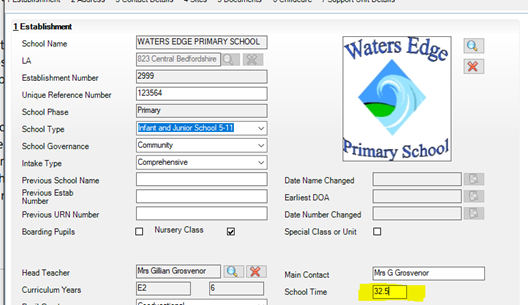
Schools should provide the total compulsory time pupils spend in school in a typical 5 day week. The number of hours must be recorded to 2 decimal places to the nearest 15 minutes (that is, where a school is open for 32 and a half hours, for example, this is recorded as 32.50, with 32 and three-quarter hours being 32.75).
This includes the total time each day from the official start of the compulsory school day (the start of morning registration) to the end of the compulsory school day (official home time).
This figure will be inclusive of breaks, as these form part of the total compulsory school day, but it will not include optional activities either before or after school. The data entered should be representative for pupils aged 5 to 16 in the school.
Secondary Schools
Panel 2 Select the Period on Census Day
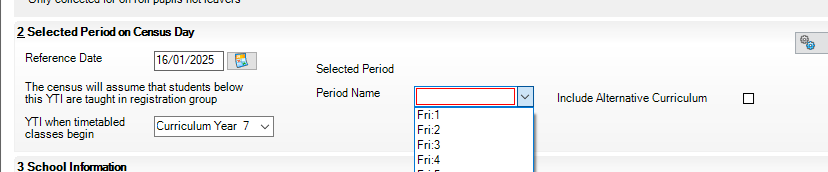
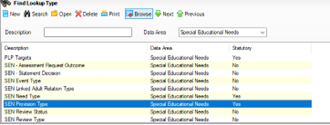
SEN
Pupil SEN Type code has been updated to include Down Syndrome.
This Census will also collect whether a pupil is a member of an SEN Unit or Resourced Provision:
Detailed guidance can be found https://www.gov.uk/guidance/complete-the-school-census/data-items#pupil-sen-provision
Schools and academies must only use this indicator where the resourced provision and SEN unit has been formally recognised as such by the local authority where the school is located. The school’s Get Information About Schools (GIAS) record should indicate if the school has resourced provision places.
Free School Meals Taken
The total number of children who are ‘free school meal eligible’ who actually had a meal on the day. Include both day and boarding pupils to reflect what happened on census day.
If the situation at lunchtime was in some way unusual on census day, use the figures for the next normal day. See the section on unusual circumstances for more information.
Pupils are free school meals eligible if they both:
- meet the eligibility criteria.
- make a claim.
Do not count:
- pupils who get a free lunch only due to the universal infant free school meal entitlement
- meals provided at the beginning or end of the day.
Requirements: You must be using SIMS.net version 7.220 Autumn upgrade with the latest fileset in the 2900 series. This must be fileset 2901 or higher. Without the latest fileset your Census will NOT be accurate. Please check our website for the latest news before starting your census. NOTE: The Fileset ID is displayed in the browser header when opening via Routines/Statutory Returns
School ICT Customers please click on the links below for further information and guides
Spring Census Campaign please click here
Please click here for latest Guidance relevant to you school phase
turn IT on Customers click
For Census Guidance please here and navigate to Files/MIS/Census
Need further help?
Our Helpdesks are open from 08:00 until 17:00 so please do not hesitate to give us a call or log a ticket and we will help with your query.
|
turn IT on
|
School ICT
|
Children Missing in Education
CML (Children Missing Education – Leavers) and revised Grounds for Removal
As you probably know, the DfE has recently provided a revised set of lookup codes for Grounds for Removal that are in line with the regulations changes that have applied since the 19th August 2024. We made this revised set of lookup codes for Grounds for Removal available to schools via CDPau1 (Consolidated Database Patch Autumn Release 2024 1). This means that where a pupil left the school between the start of the academic and the date the school applied CDPau1 it is possible for a Grounds for Removal that is not in line with current regulations to have been applied to the pupil and reported to the Local Authority via a CML file.
It is likely that most, if not all, local authorities will be well aware of the delay in implementing the revised regulations for Grounds for Removal and will deal with the issue internally. However, there could be some local authorities who ask for revised CML files to be provided. The following describes a procedure for achieving this.
- Ensure that the SIMS Autumn Release 2024 and CDPau1 have been applied.
- Open Focus | Pupil/Student | Pupil/Student Details and set the Status filter to Leavers.
- Use Search to select the leaver that needs their Grounds for Removal adjusted.
- Go to the School History panel, make a note of the student’s DOA and reset the Grounds for Removal as necessary.
- Save your changes.
- Open Routines | Data Out | CTF | Export CTF.
- Select Export Type ‘CME – Leavers’.
- Go to the Student Options panel, enter the DOA you noted in 4 above, and click on Refresh Students.
- Go to the Students panel and click on Export CTF.
Bulk Updates
It’s never too early to start checking your data! You can do this at any time in SIMS and one of the particularly useful areas for this is the Bulk Update option. This can be accessed via Routines | Pupil (or Student) | Bulk Update. Once in here, choose the Group Type first, e.g. Ethnicity:
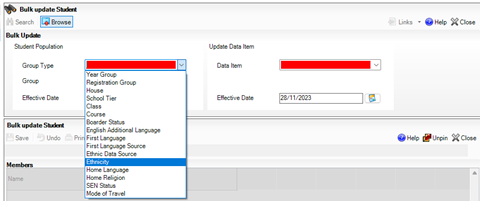
Then, select your Group and scroll all the way to the bottom of the list and select ‘<NONE>’ first, and then over to the Data Item and again select Ethnicity and Search. This will bring up a list of pupils with no Ethnicity. Simply tick the relevant box for the pupil concerned. To make the columns narrower, right click on the column header and select ‘Narrow Columns’:
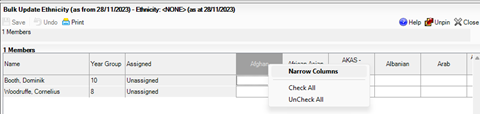
Once you’ve ticked the relevant items, click on Save. Now repeat this for the Group item ‘<INVALID>’ to check that there isn’t any out-of-date information in.
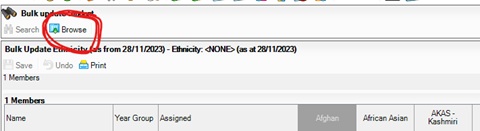
Once you’ve done this, click the Browse button:
Change your Group Type and Data Item to ‘First Language’ and repeat this exercise, again selecting the Group item as ‘<NONE>’ and then ‘<INVALID>’.
You can also use this area for bulk updating lots of other information too.
Options Online
We have a useful help sheet for creating accounts for parents or students to access Options Online. School ICT customers you can access it via this link here
For ESS Options Online User Guides please click here.
Snow Days
If your school needs to be closed due to adverse weather e.g. Snow you will need to create an Exceptional Circumstance
- Focus/Lesson Monitor or Attendance/Exceptional Circumstances/New
- Add the date
- Group Type – select which applies e.g. Whole school or year groups if only partially closed
- Chose the relevant code e.g. Y3 or Y4
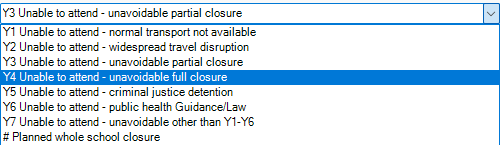
- Add a description e.g. Adverse weather – Snow
- Click apply
- Check the pop-up screen/Information before clicking ‘Yes’
- Click ‘Yes’ to apply the attendance code
Next Gen
Explore the benefits of this powerful new cloud-based interface!
Next Gen is a continuous multi-year programme of customer driven innovation, designed to add-value to your investment in SIMS.
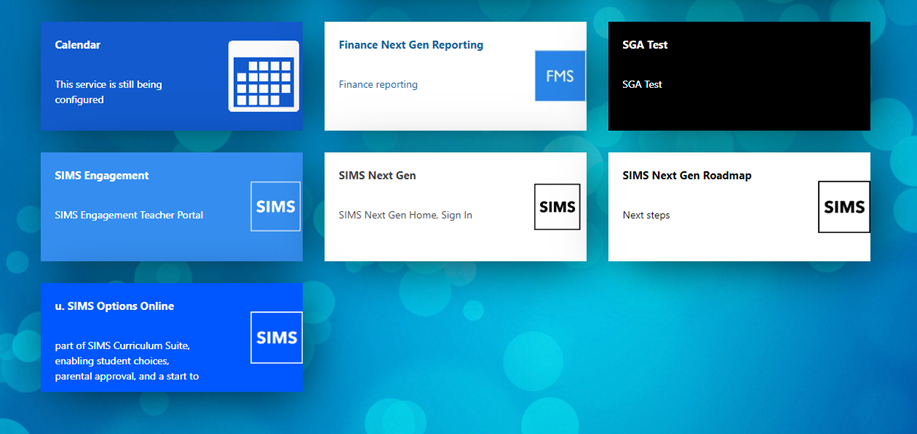
Why use SIMS Next Gen?
SIMS Next Gen is designed to make school management simpler and more accessible from any device. By synchronizing seamlessly with your existing SIMS database, it provides all the features you love in SIMS 7, along with added flexibility. Teachers can take registers remotely, access markbooks, and much more, all while maintaining the core functionality of SIMS 7. For answers to some frequently asked questions please click here: FAQ guide here.
Sign Up at No Additional Cost
Your current SIMS license includes SIMS Next Gen, so there’s no extra cost to get started! Simply log in with your SIMS ID for secure, single sign-on access, and you’re ready to go. If you’re interested in taking advantage of SIMS Next Gen, just respond to this email or reach out to us at helpdesk@schoolicts.co.uk.
Explore New Features and Roadmap Updates
SIMS Next Gen is continually evolving, with regular updates and new features designed to enhance school operations. Upcoming additions include Seating Plans, Fire Registers, and Teachers’ Homepages.
- Stay Updated with the SIMS Next Gen Roadmap: Check out our feature roadmap to see what’s coming next and keep up with our latest enhancements.
- Access Resources Anytime: For support materials, how-to guides, and more, visit our SIMS Next Gen Resource Hub.
Supporting schools with the successful adoption of SIMS Next Gen
In November, ESS added some brand new content into both the enablement and adoption programmes, plus they expanded the enablement stream to capture previously enabled schools who may not have received the adoption toolkit. The new content added are bonus adoption guides which shows teachers and office administrators how SIMS Next Gen can support their typical day, plus a newly added Class View launch email specifically for teachers in technically enabled schools.
And finally, ESS also expanded the adoption programme to include schools on SIMS Connected.
Please find below the links to these emails and content: –
Help your team get the most out of SIMS Next Gen
Introduce your team to SIMS Next Gen
Invite your team to SIMS Next Gen
Class View is now available to all schools
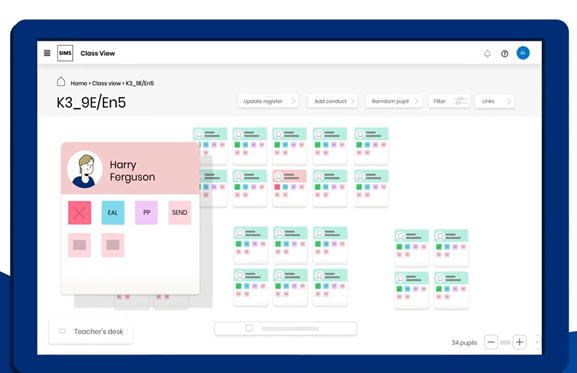
Expansion of adoption programme to include schools on SIMS Connected.