

To navigate to the most relevant section, please click the appropriate link below: -

National Schools Offer Days
Just a reminder as to when Secondary and Primary school offer places will be made:
- Secondary – Y7 offers day Monday 3rd March
- Primaries – Wednesday 16th April
Exam Reminder of Results Release Dates
- OCR CamTech’s is 12th March 2025
- Results for OCR CamNats and BTEC’s is 19th March 2025
Free School Meals Eligibility Update
Please note that the process of ending the protection of Free School Meals (FSM) eligibility from Universal Credit begins on the 01/04/2025.
Any pupil with a start date for FSM after 31/03/2025 will not be protected from Universal Credit and can be assigned an end date for FSM depending on their circumstances.
Any pupil with a start date for FSM between 01/04/2018 and 31/03/2025 (inclusive) will continue to be protected from Universal Credit until the end of their current phase of education, e.g. primary in year 6 or secondary in year 11, at which point they can be assigned an end date for FSM depending on their circumstances.
This means that the full impact on Deprivation Pupil Premium will be delayed until 2031 or beyond for many schools.
Exciting Opportunity to Join Our MIS Support Team!
Do you have experience working with SIMS FMS and or Arbor Finance? Are you looking for a new challenge where you can support schools and make a real impact?
School ICT is looking for an MIS Consultant (FMS-focused) to join our growing team! This hybrid role offers a competitive salary and the opportunity to work with schools nationwide, providing essential finance and MIS support.
If you have hands-on experience with SIMS FMS and or Arbor Finance, and enjoy problem-solving and helping schools get the best from their systems, we’d love to hear from you!
To find out more head to our website https://www.schoolicts.co.uk/vacancies/
Data Management Services
Our Data Management service offers an excellent, cost effective, responsive and efficient Data Management solution, delivered remotely by a team of highly experienced school data experts.
Our teams dependable advice and guidance empowers schools, academies, and MATs to maximise the investment in their management information system (MIS) team.
Whether it’s a long-term solution or short-term cover for sickness or maternity leave, please get in touch to discuss how our service could support your needs.
- Please click here for further information
*NEW* - Exam Service
Did you know School ICT offers a range of Exam consultancy and project services to match the unique requirements of our customers?
To discover how we can support you, click here for further information.
FREE 30 Minute Webinars
We are running a continued webinar series throughout the year. Please see below for upcoming webinars with links to book: –
| SIMS – Assessment Individual Reports | Mon 17/03/2025 2 pm – 2.30 pm | https://www.schoolicts.co.uk/events/sims-assessment-webinar/?occurrence=2025-03-17 |
| SIMS – Updating Payscales | Tues 22/04/2025 2 pm – 2.30 pm | https://www.schoolicts.co.uk/events/sims-updating-payscales-2/?occurrence=2025-04-22 |
| Arbor – Updating Payscales | Weds 23/04/2025 2 pm – 2.30 pm | https://www.schoolicts.co.uk/events/arbor-updating-payscales-webinar/?occurrence=2025-04-23 |
| Bromcom – Updating Payscales | Thurs 24/04/2025 10 am – 10.30 am | https://www.schoolicts.co.uk/events/bromcom-updating-payscales-webinar/?occurrence=2025-04-24 |
Customer Contact Details
School ICT Customers:
- Contact: 0345 222 6802 Option 1, helpdesk@schoolicts.co.uk
- Portal: https://my.www.schoolicts.co.uk/
turn IT on Customers:
- Contact: 01865 597620 Option 2, mis.support@turniton.co.uk
- Portal: https://portal.turniton.co.uk
Our Customer portals enable you to:-
- Easily log and track tickets
- Access recordings from our catalogue of Best Practice webinars
- Search our extensive Knowledge base for information to support you
- Keep updated with the latest MIS news and updates

New for 2025 - Bitesize Courses
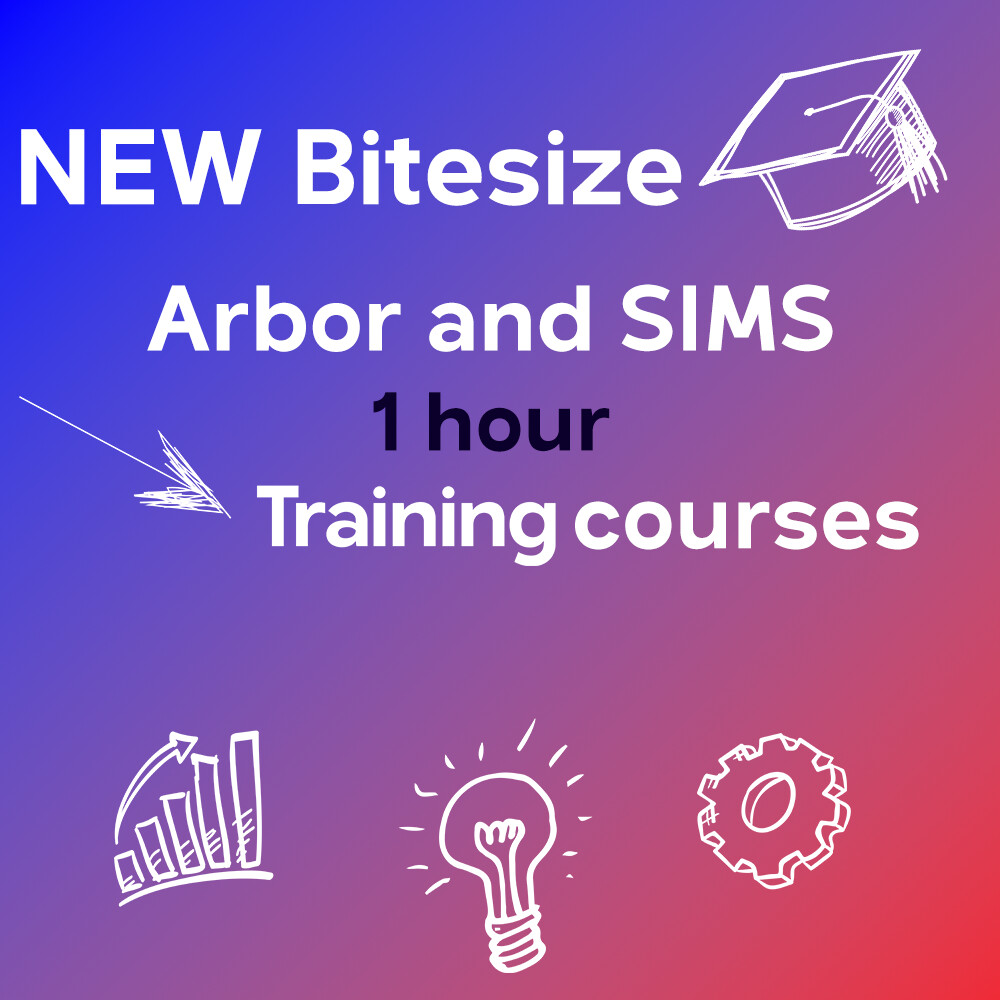
ARBOR and SIMS BITESIZE TRAINING.
Tailored training to suit your needs, designed to give you maximum impact in minimal time.
Check out our brochure for further information and call us on 0345 2226802 or e-mail: info@schoolicts.co.uk to find out more or book a place.
**LIMITED INTRODUCTORY OFFER** Buy 3 courses, get the 4th free!
Upcoming Online Training Courses
Training courses for the academic year 2024/2025 are now live! We have a comprehensive schedule of online ‘live’ SIMS training courses along with Distance Learning courses to help you develop your knowledge of SIMS and get the most out of your MIS (Management Information System).
Booking is now open please visit https://www.schoolicts.co.uk/online-training/
Data Health Check Services
An MIS health check ensures you’re getting the most out of the investment in your MIS. The benefits of one of our comprehensive health checks include: –
- Raise awareness of functionality and any issues
- Keep you up to date with the latest developments in your MIS
- Housekeeping and tidying exercises
- Report with recommendations to ensure you’re fully maximising your MIS along with any training recommendations
- For on premise MIS a server health check is also included
Our health check service usually takes around half a day. Please contact us to find out more on: helpdesk@schoolicts.co.uk to find out more.
FMS Updates: FMS 6 Spring 2025 Upgrade and FMS and CFR changes 2024/2025
FMS 6 Spring 2025 Upgrade
ESS have confirmed that, further to their usual release processes they have been able to bring forward the release of the Spring 2025 FMS, for the SIMS Connected platform, to the weekend of the 1st/2nd March.
On Premise Schools will be contacted regarding upgrades Week commencing 17th March 2025 – Keep your eyes peeled for our usual upgrade email.
FMS and CFR changes 2024/2025
The Department of Education (DfE) have provided additional information regarding the changes to Consistent Financial Reporting (CFR) 2024/2025. This article summarises the changes for:-
- Section 1 Removal of 2 Income CFR Headings.
- Section 2 Addition of 7 Expenditure Headings.
- Section 3 Addition of 5 Capital Expenditure Headings.
- Section 4 Upgrade to Spring 2025 and existing ledger code mappings.
- Section 5 Revised validation for E17 Rates.
Section 1 – Removal of 2 Income CFR Headings.
The following 2024/2025 CFR Income Headings have been removed.
I18A: Coronavirus Job Retention Scheme.
This heading was used for income from the COVID-19 Job Retention Scheme for staff who were furloughed by the school. This scheme no longer exists.
I18B: DfE grant scheme for exceptional costs due to COVID-19.
This heading was used income from any grants provided in relation to COVID-19. No such grants currently exist.
Section 2 – Addition of 7 NEW Expenditure CFR Headings.
E20 : ICT learning resources.
The CFR Heading E20: ICT learning resources has been removed and 7 NEW Headings introduced. ICT expenditure that is over the de minimis level and therefore capitalised should be shown in CE04: Information and communication technology. The new CFR Headings are:
E20A: Connectivity.
E20B: Onsite servers.
E20C: IT learning resources.
E20D: Administration software and systems.
E20E: Laptops, desktops and tablets.
E20F: Other hardware.
E20G: IT support.
Guidance on the ledger code mappings should be provided by your Local Authority based on the guidance provided within the DfE document.
Section 3 – Addition of 5 NEW Capital Expenditure CFR Headings.
CE04 : Information and communication technology.
The CFR Heading CE04: ICT learning resources has been removed and 5 NEW Headings introduced. The NEW Headings will collect additional information about ICT expenditure that has been capitalised. The NEW CFR Headings are:
CE04A: Connectivity.
CE04B: Onsite servers.
CE04C: Administration software and systems.
CE04D: Laptops, desktops, and tablets.
CE04E: Other hardware.
Guidance on the ledger code mappings should be provided by your Local Authority based on the guidance provided within the DfE document.
Section 4 – Spring 2025 upgrade and existing ledger mappings.
4.1 Mapped ledger code associated with 2024/2025 CFR Headings being removed.
During the Spring 2025 upgrade, all mapped ledger codes to the previous 2023/2024 CFR Headings I18a, I18b, E20 and CE04 will be unmapped and will appear on the Tools | General Ledger Setup | Tab 8. CFR Mappings | Validation Report – All Ledger Codes Not Mapped.
4.2 Mapping of ledger codes to NEW 2024/2205 CFR Headings.
Advice from your Local Authority should be used for the ledger codes mappings to the NEW CFR Headings detailed above for E20A, E20B, E20C, E20D, E20E, E20F, E20G, CE04A, CE04B, CE04C, CE04D and CE04E.
The ledger code mappings can be completed by:
Manually mapping the ledger codes via Tools | General Ledger Setup | Tab 8. CFR Mappings.
Import a CFR Mapping File via Tools | General Ledger Setup | Tab 8. CFR Mappings – Import.
Notes
The ledger code mappings can be viewed via Tools | General Ledger Setup | Tab 8. CFR Mappings – Validation Report.
The ledger code mappings for the 2023/2024 CFR Headings for I18a, I18b, E20 and CE04 will remain unchanged.
Section 5 – Revised validation rule for E17 Rates.
The validation rules have been revised for 2024/2025, where a zero value will now generate a Query requiring an explanation to be provided.
CFR changes will be included in the Spring 25 release, release notes below
Please click here for the FMS 6 Release Notes
helloData - Attendance Analysis and Reports
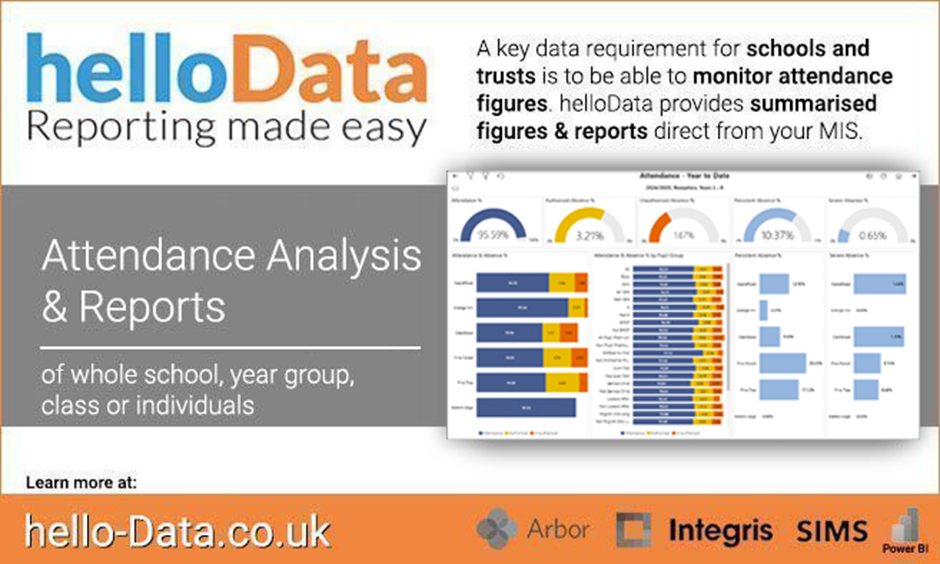
Attendance Analysis
A key data requirement for schools and trusts is to be able to monitor attendance figures. helloData provides summarised figures direct from the MIS.
Attendance Summary Report
- present, authorised and unauthorised absences
- persistent and severe absence
- year group breakdown
- class breakdown
- demographic group analysis
- one click to reveal individual pupil data
- whole school figures
- Trust wide figure and school by school comparison
- Choose whether to include Nursery pupils
All the visuals are interactive, and the usual group filters are available to drill into the data further.
Monitoring Attendance Bands
As part of the above report, a chart places individual pupils into attendance bands. This enables users to view, at a click on a button, the pupils of most concern, or those with high attendance. Also set your own school specific attendance band.
These attendance bands are also available as a filter on all the other dashboards so that users can view the impact of attendance on the assessment data.
Learn how we can help your school or trust create visual reports at the click of a button here.

Click for the latest Arbor updates
ArborFest 2025!
School ICT will have a stand at ArborFest which is taking place this year on Wednesday 21st May at the Repertory Theatre in Birmingham. This year’s ArborFest is going to be their biggest in-person customer conference to date and is focusing on “The future of work in schools.”
There are two types of tickets. In-Person Tickets and Live Stream Tickets:
In person tickets for School Staff: These tickets are for schools using Arbor as their MIS. SLT and Office Staff will get the most from the programme.
In-Person Tickets for MAT Central Teams: These tickets are for MAT Leaders. Arbor are inviting both MATs using Arbor, and those who aren’t, to join them at their special MAT Stage.
Live Stream Tickets: These tickets are for schools and MATs who can’t make the live event. These tickets will give you access to watch the live stream of Arbor’s Main Stage.
There are limited tickets available so get yours now to avoid missing out! https://www.arborfest.arbor-education.com/tickets
Don’t forget to come and visit our School ICT stand to say hello if you are attending!
In-app Messaging
Are you using in-app messages?
They are a great way to communicate with guardians for issues that are not critical or time sensitive as some guardians might not log in to the Parent Portal regularly to read the messages.
Many schools choose to use In-App messages because:
- They are free! – There is no fee for using In-app messages to communicate with guardians.
- Instant notifications and follow-ups – Guardians can be notified when they receive an In-app message via email or Push Notification and followed up with an SMS (Please be aware this uses SMS credits).
- Read status – Check whether the message has been read by each guardian.
- Response notifications – Choose which staff members are notified when guardians reply to In-app messages.
You can also see an overview of all school communications (including In-app messages) in school | communications | school mailbox.
If you have enabled guardians to initiate or reply to messages, you can see replies in School | Communications | School Mailbox | Inbound In-App Messages.
You can reply to In-app messages in a variety of ways:
- School | Communications | School mailbox – just select inbound In-app messages on the left-hand side
- Communications on the guardian’s profile
- Communications & Notes on the student profile that the guardian is linked to
Just click into the inbound In-app message you want to reply to. Click the Actions button and select In-app message reply.
Please note that In-app messages are included in the Comms and perform packages.
You will need to ensure you have switched on the Parent Portal and Parent App if you want to use them.
Behaviour in Arbor
Behaviour incidents
In Arbor, when recording behaviour incidents, you can include the behaviour type, locations and time, students and staff members’ involvement, any follow up needed to resolve the incident and any physical interventions.
Behaviour types
In Arbor, you have the flexibility to create custom behaviour types e.g. not completing homework, low level disruption etc and to add a severity ranking on a scale of +/-5. You can also archive any behaviour types you don’t want to use.
You can choose to notify a staff member of specific behaviour types instead of whole severities – click into any of the Behaviour Types you have set up and choose to notify a staff member by role or to notify specific members of staff.
When adding a behaviour type using Students | behaviour | setup, you must include a severity level. You can also add staff members who may need to be notified.
Removing behaviour types
There are 2 options when it comes to removing behaviour types from the list available to users when logging an incident. You can archive the behaviour type; this is then reversible if you want to use it again. You can also delete the behaviour type, however, once it has been deleted, you will have to set it back up if you want to use it again. Please note: When you delete a behaviour type, any past incidents recorded with this type will instead display the derived incident level but will not display the type.
Incident settings
You can toggle all these settings from the bottom of the Students | Behaviour | Setup | Incidents tab if you have the School: Behaviour: Administer permission.
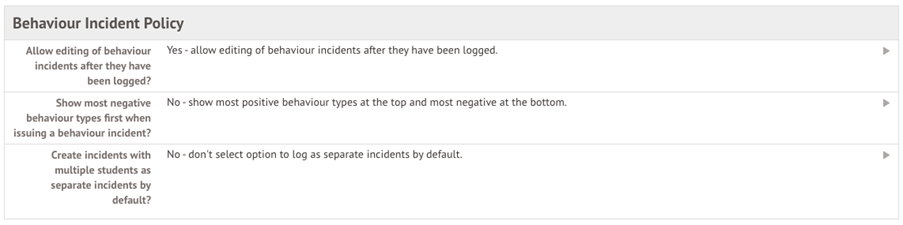
You can see here that settings can be changed so staff are not able to edit behaviour once it has been logged, decide if you would like to see positive or negative behaviour first as well as create separate incidents with multiple students by default.
Managing Behaviour Points
Behaviour Points are a great way to assign a value to positive and negative behaviour in your school. To setup behaviour points you must first create and define your scale.
Moving over your historic balances
Arbor don’t migrate behaviour points, so you may wish to set initial balances for student points, you have two options:
- Add a User Defined Field – this option is quicker, but you can only analyse using a Live Feed or custom formula in the Custom Report Writer.
- Log all points for each student – this option takes longer to set up but enables you to analyse your past behaviour anywhere in Arbor.
Top Tip for Year-End
Don’t worry, you won’t need to set everything up each year as most of your setup just rolls over! To prepare for September, you’ll just need to set up detentions and add your Internal exclusion types by following these instructions instead of the ones below: Copying Behaviour over to this next year
Creating Admission Groups
Before you can add applicants, you’ll need to do two things:
- Add the next academic year to your site, to allow students to be enrolled starting in September
- Create an intake season to add your applicants into. You need to set up a new intake season for each new cohort of students that apply to your school – this groups your applicants together and allows you to check everyone has been accepted and enrolled, rejected or withdrawn.
To create your new academic year go to:
- Click the green Add button
- School> School Structure> Academic Years
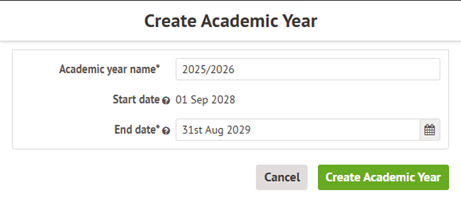
By default, the Academic year name and start date will be pre-filled.
If the start date is incorrect, please contact the service desk to have this changed.
Once you’ve created the academic year you’ll come to this page.
- Click the Green +Add button to add your terms – This is usually 3 long terms (Autumn/Spring/Summer)
- Once you’ve added these you can add the school holidays.
- Vacation for the End of term holidays (Christmas/Easter/Summer) and Half term for the shorter breaks mid term (October/February/May).
Creating an intake season
- Students> All Students> Applicants
- Click the green +Add button
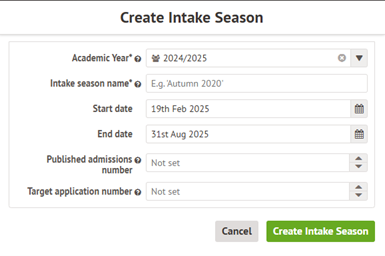
- Add a name for your intake season and the dates will be adding applicants
You should have a different intake season for each year group, so if you’re Primary one for Nursery and one for reception, and if you’re secondary, one for Year 7 and one for Year 12.
You can find further guidance on the Arbor help centre. Please find below some useful links.
Adding the next Academic Year to your Arbor site – Arbor Help Centre
Setting up the Intake Season to Accept Applicants – Arbor Help Centre
Managing Applicants and Admissions – Arbor Help Centre
If you get stuck, why not call or email us and we can support with your questions and problems.

Click for the latest Bromcom updates
Framework - Update to Staff Type Categories Based on SWAC Roles
For schools in Wales, this release introduces an important update to the logic for categorising Staff Type in the MIS. Staff will now be classified as Teacher, Support Staff, Supply Staff, or Other Staff based on their SWAC Roles (Staff > Staff Details > Contracts > SWAC Information > SWAC Roles). The MIS has been updated to ensure that the correct Staff Type values are accurately used and displayed for Welsh schools.
Example in Staff List:

The following rules apply for Staff Type categorisation:

Finance - National Insurance Thresholds Update 2025-2026
Modules > Finance > Configuration > NI Thresholds
The National Insurance (NI) thresholds for the 2025/2026 financial year has been updated in line with statutory requirements. These changes ensure that the correct NI rates and thresholds are applied from 6 April 2025.
Key Updates:
The NI Thresholds table has been updated with the latest values for Weekly, Monthly, and Yearly limits. The system now validates that LEL (Lower Earnings Limit) values are less than UEL (Upper Earnings Limit) values. Replacing the previous validation against ST (Secondary Threshold).
New NI Thresholds for 2025/26:
LEL (Lower Earnings Limit):
- Weekly: £125.00
- Monthly: £542.00
- Yearly: £6,500.00
ST (Secondary Threshold):
- Weekly: £96.00
- Monthly: £417.00
- Yearly: £5,000.00
UEL (Upper Earnings Limit):
- Weekly: £967.00
- Monthly: £4,189.00
- Yearly: £50,270.00
National Insurance Contribution Rates by Category:
- A, B, C, J: 15% across all earning bands.
F, I, L, S, N (Freeport/Investment Zone categories):
- 0% up to the Freeport/Investment Zone threshold. 15% beyond that threshold.
H, M, V, Z (Apprentices under 25, Under 21s, Veterans):
- 0% up to the Upper Earnings Limit. 15% above the Upper Earnings Limit.
D, E, K (Investment Zone categories):
- 0% up to the Freeport/Investment Zone threshold. 15% beyond that threshold.
These updates will take effect automatically, ensuring compliance with the latest National Insurance threshold regulations.
How to Favourite a Report
Users can favourite any quick reports so they can be more easily recalled
Reports > Quick reports > view quick reports
When viewing the list of reports, scroll to the right and there is a “favourite” column,
- Tick the star icon against a report to add it to the favourites list
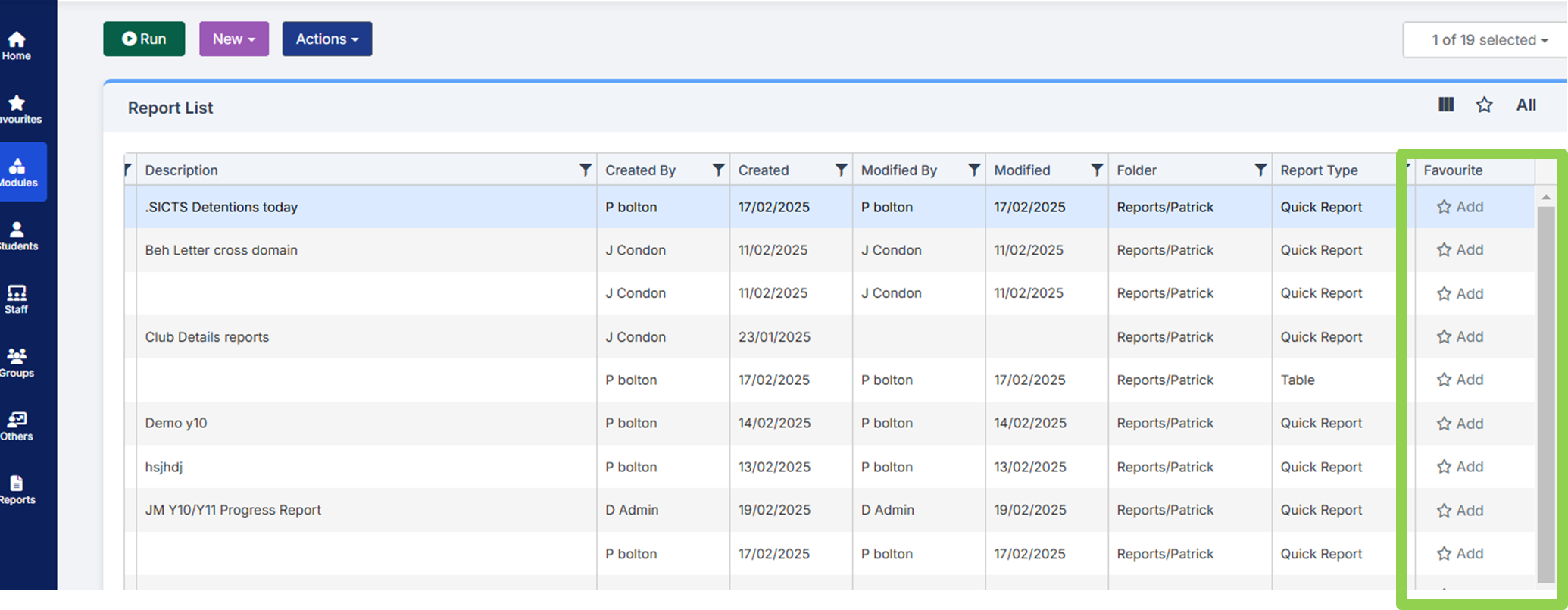
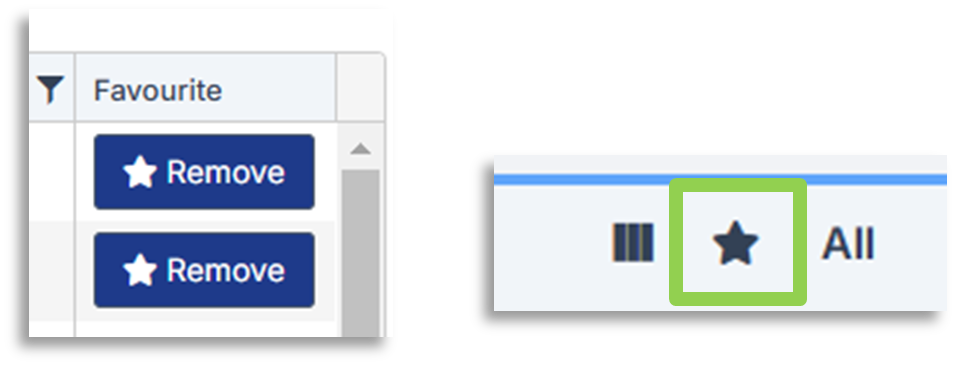
Use the same button to remove from the favourites list
To view your favourites, click on the star icon shown
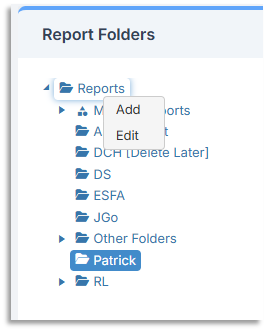
Please note – each folder has it’s own set of favourited reports, so you may wish to create your own folder.
- On the right hand side, right click on the reports folder > click Add to add a new folder
- Users can then select to save their own reports in here if desired
How to Record Behaviour
There are multiple ways to record behaviour in Bromcom. The most common method is likely to be via the teacher dashboard.
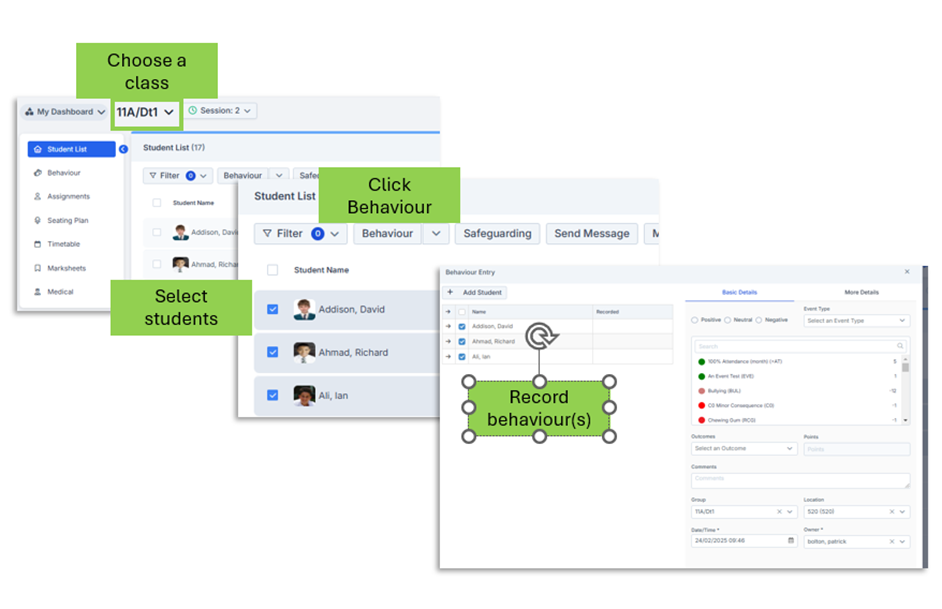
The process is similar from the actual register.
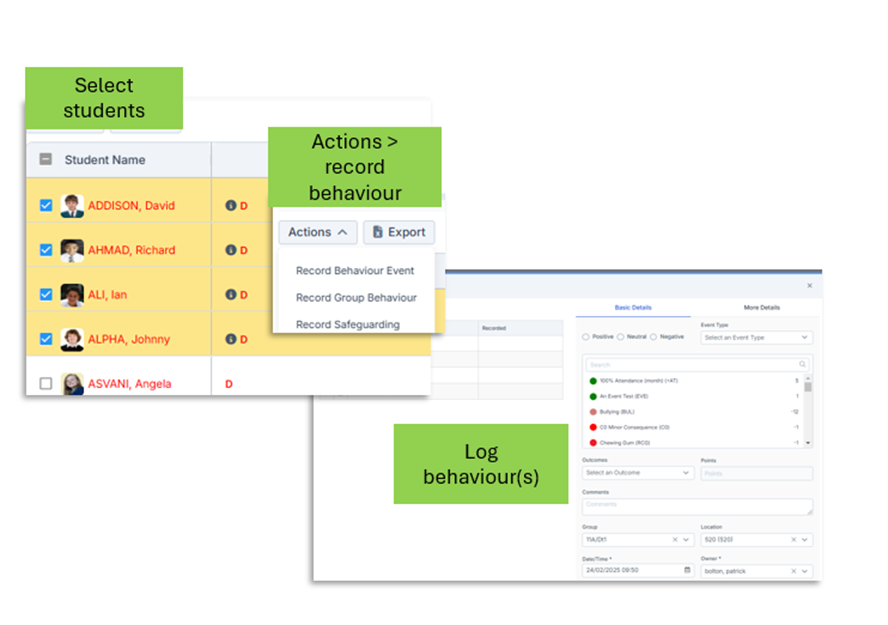
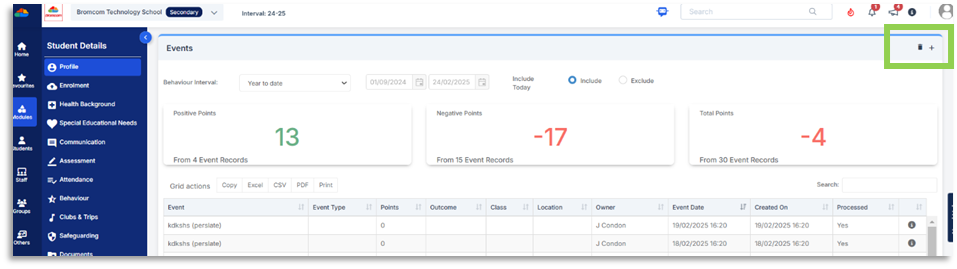
Behaviour can be viewed and added via the student record.
Student profile > behaviour tab
A list of logged events will be displayed,
- Use the + icon to add a new event
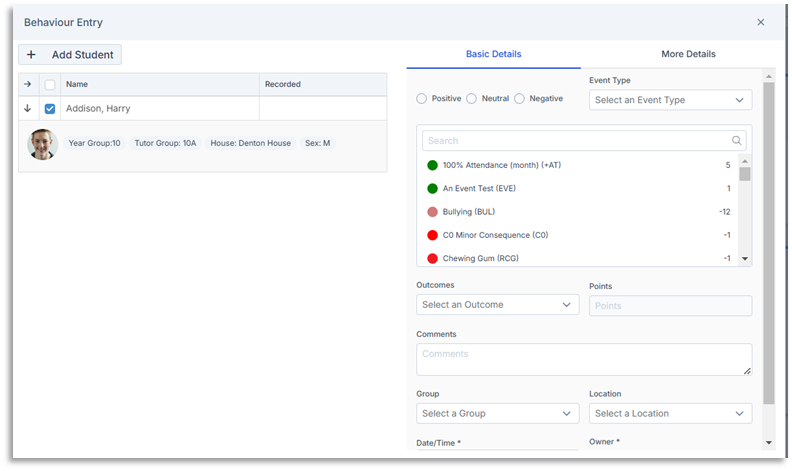
Quick 'How To'...
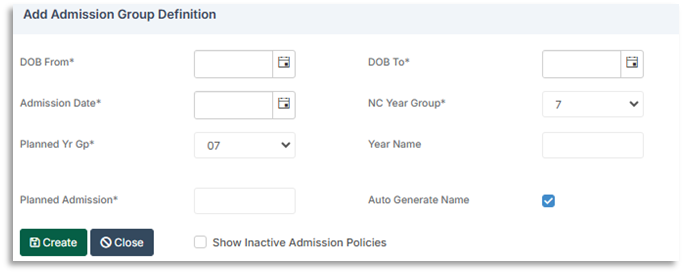
How to add create a pre- admission group
Modules > administration > Pre admission groups
Any existing groups will show.
- Click New to add a new one
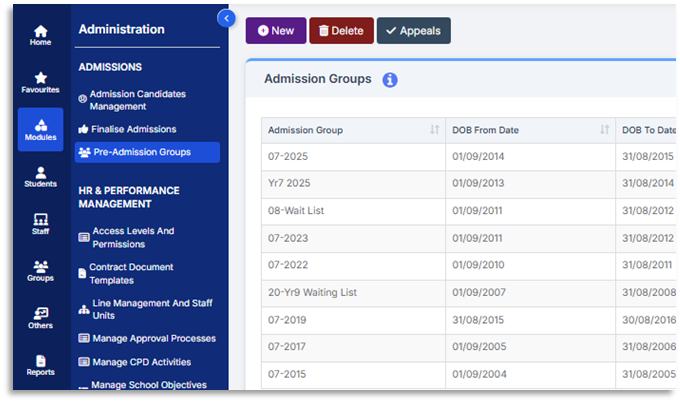
Any required fields are denoted with *
- Enter require fields
- Click Create
- The following Fields need to be completed
- DOB – This is the date of birth range for the required Year Group
- DOB To – This will automatically populate once the DOB From has been added
- Admission Date – The date students will be admitted
- Planned Year Group – This will be populated from the defined Date of Birth Range
- Year Name – This will auto generate based on the year group and year of admission if Auto Generate Name has been ticked. Untick this if you wish to edit this field.
- Planned Admission – Complete this with your PAN
- Click Create
Importing an ATF into Pre-Admissions
- From the left hand-side menu click on Students to open the student list page
- Go to – Actions>ATF Import
- Click on browse and navigate and select the ATF
- Click on the Pre-Admission Group you have created and click on Next
- A table will show a list of applicants to import and whether they have been matched to an existing student or not
- Once you have reviewed the information and are happy click Next
Importing a CTF
- From the left hand-side menu click on Students to open the student list page
- Go to Actions>CTF Import
- Click on Browse and select your CTF File
- By default, all information is selected to import however you can deselect any of the options prior to import
- You will need to change the option with If this file contains New Students, to ensure you are selecting the Pre-Admissions, you can then select your Pre-Admission Group
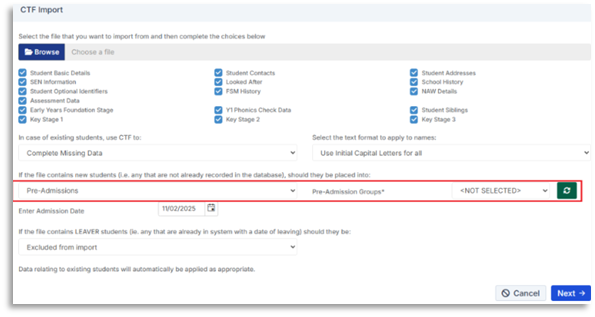
- Click Next
- A table will be displayed showing your applicants to import and whether they have been matched to existing students or not
- If there are any matches this will be reflected in the table
- Review the information and once happy click Next
Sibling Match Screen (New)
This is new for February 2025 to help streamline student import processes for both ATF’s and CTF’s. This will automatically link new students/Applicants to existing potential siblings.
After selecting Actions>ATF Import or CTF Import an initial popup will include a Student Sibling check box which is checked by default. When ticked any students that meet three of more of the following criteria will be automatically matched as a potential sibling to the new students, which you can decide whether to link at the import stage.
- Home phone number match
- Parental addresses match
- Parental email addresses match
- Parental names match
- Sibling match
- Click Next to see list of applicants in file
Bromcom Webinars and Training from School ICT
Upcoming Training Courses can be found here:
https://www.schoolicts.co.uk/online-training/
Each course has a book option and links are added to the below images: –
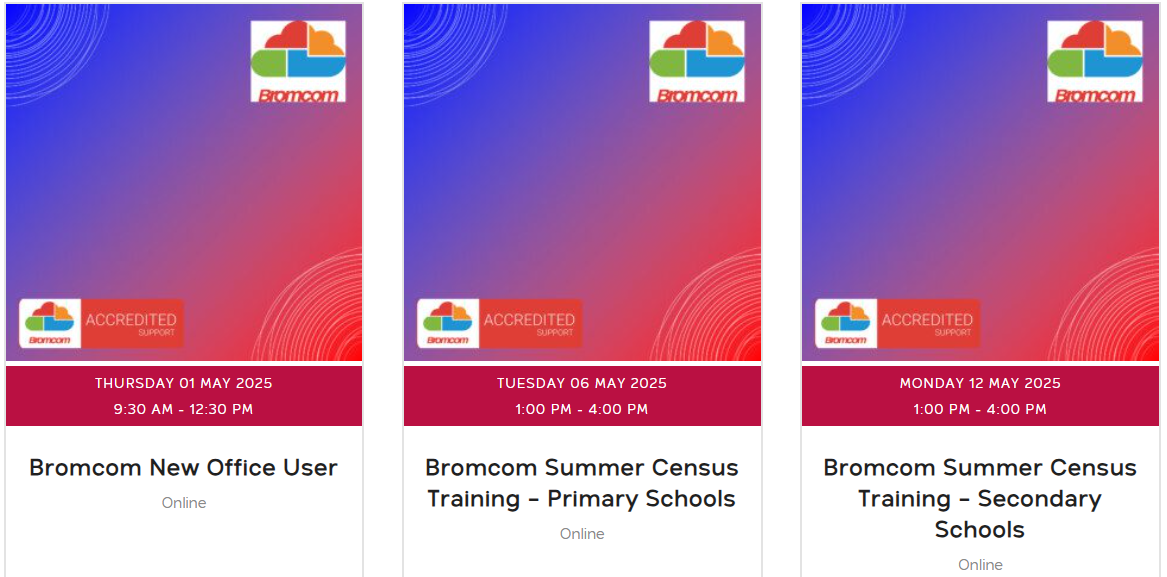
Upcoming webinars can be found here: –
MyChildAtSchool Parent App > My Child > Settings
The Zero Value product order will appear on the Order History screen, either individually or as part of a purchase that includes value products. Only zero value product orders will show as Paid- Zero mirrors web.

Click for the latest Integris updates
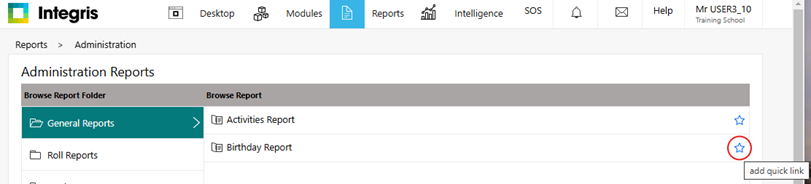
How to Favourite Your Reports
Navigate to the Reports Section:
- Go to the Reports section from the main menu
- Find the report you want to mark as a favourite from the list of available reports
- Click on the star icon and click on it to mark the report as a favourite
- Return to the homepage
- Click on the Integris link
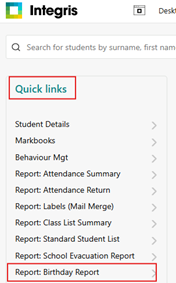
Go to the Quick Links panel and your favourite reports will show there
Arbor Announcement to Discontinue Integris and ScholarPack
Following Arbor’s recent announcement regarding the discontinuation of ScholarPack and Integris in February 2026, we wanted to offer you our full support in helping your school transition smoothly to your new chosen MIS with our Value-Added Migration and Data Support Service.
This service is provided by our highly experienced MIS Support team, who have supported over 500 schools in their MIS transitions and we would like to invite you to join our Value-Added Migration and Data Support Service webinar on Tuesday 18th March 10am-11am in which we’ll guide you through the process of a change of MIS, talk through how we can agnostically support you and answer any questions you may have at this stage.
With our vast experience of migrating over 500 schools and MATs to new MIS systems, we are well-equipped to guide you through every step of the process. We understand that transitioning to a new MIS can seem daunting, but we’re here to make it as seamless and stress-free as possible.
Here’s how we can help:
- Dedicated consultant who holds weekly meetings with your school and colleagues
- Data Cleansing advice, guidance and resources – Ensuring. where needed, you can get your current MIS in a really nice position for a clean move
- Change management guidance
- Conversation around the need for third parties and streamlining systems
- Best practice guidance and support through our helpdesks team of experienced consultants
- Ongoing Advisory Support: Beyond the migration, we’ll provide strategic advice on optimising your new MIS system, with regular check-ins and recommendations on leveraging new features
In addition, we also offer an implementation service focused on maximising your new MIS via our training and consultancy services, for guidance on moving MIS, please join this webinar for more information.
We understand you may have questions, and we’re here to provide clarity and support.
If you would like to join this event, please book via the below link: –
School ICT – Supporting Your Transition To A New MIS
Recording Behaviour Incidents for a Single Student
Go to
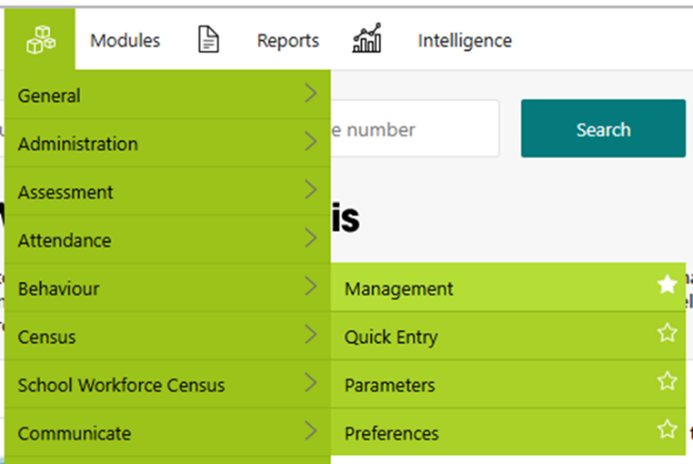
- Modules/Behaviour/Management
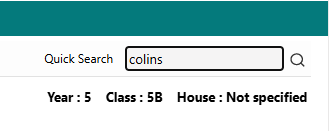
- In the Quick Search on the right-hand side add student name
- Click on the magnifying glass or click enter on your Keyboard
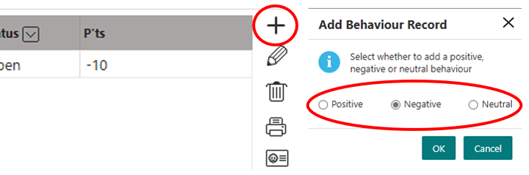
- Click on the + sign on the right-hand sign to add a behaviour
- In the pop up add whether this is Positive, Negative or Neutral
- Click Ok
- Add the Behaviour information – all fields marked with a * must be completed
- Add any Actions
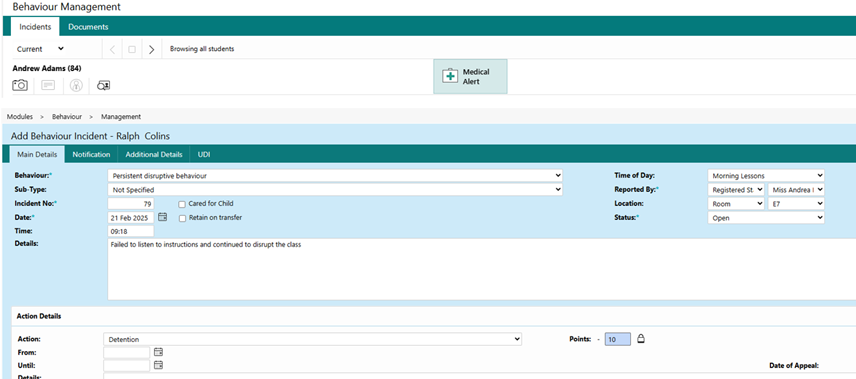
- This will display in the summary

Admissions
Processing Admissions
In Integris the Current roll includes only those students who are currently at your school. Before they join the school officially, you can reduce the workload at admissions time by entering information about the new intake of students in advance, on the Admissions roll.
It is possible to add an individual student to the admissions roll manually, via the Student Details screen (see To add a new student). However, it is more practical to process your admissions using ‘admissions batches’, or by importing student records from a CTF (Common Transfer File) or ATF (Admission Transfer File) file.
You can do this either during your standard intake time (e.g., in September and January) or when a student joins your school part-way through a school year (e.g., after a family move).
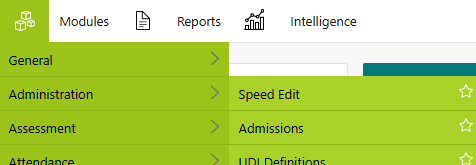
You can access the admissions area via
Modules>Administration>Admissions
Select the method in how you would like to manage your Student Admissions
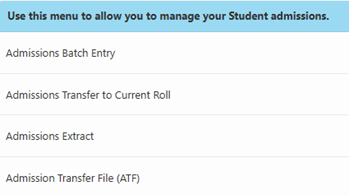
Using an admissions batch to add new students and process them
If there is no CTF or ATF file available, the best way to record details of the new students entering your school is to use admissions batches.
However, if you intend to import an ATF file from your Local Authority, you will probably not want to use admissions batches. Note that you won’t be able to use the ATF file to update any student records that you’ve already created.
To process admissions using an admissions batch:
- As early as practicable, set up an admissions batch containing students who are likely to be accepted into your school on a certain date. This inserts these students on the Admissions roll in Integris. See To create a new admissions batch for details.
- Check and update this batch of students to reflect the latest position on your new intake. See To edit an admissions batch for details.
- Prepare the admissions batch for transfer as follows: mark all the appropriate students as ‘accepted’; apply any required individual entry dates; set the current year and class; and set the attendance pattern for any part-time students. See To prepare admissions students for details.
Admit the students, transferring them from the Admissions roll to the Current roll. See To move admissions students onto the current roll for details.
You can carry out this procedure each time you have a new intake of students, once or several times a year.
Using an ATF import to add new students
You can create new student records on the Admissions roll by importing an ATF file provided by the Local Authority.
For instructions, see To import students using an ATF file.
Using a CTF import to add new students
You can create new student records on the Admissions roll by importing a CTF file. These files are generated by the feeder school and posted on the DfE S2S website.
For instructions, see To import students using a CTF file.
Using import files to update student data
You can also use a CTF import to update existing records. For example, you can use an admissions batch to create basic records for the students; later, when the CTF file becomes available, you can import further data from that to add to their records.
When using a CTF file to update a record, be careful not to create duplicates – note that you cannot delete students from the Current roll. During the import, Student records are matched using information in five fields: UPN, Surname, First name, Date of birth and Gender. If you are importing a CTF file to update any existing records, ensure in particular that their UPN values match – if they do not, the import creates a new student record (on the Admissions roll) without displaying any warning message.
For instructions, see To import students using a CTF file.
Requesting information from new Parents and Carers
You will probably request more information from your Parents and Carers, this can be done using the New Student Form under Reports > Administration > Student Reports or you can use our new Digital form information see Digital new student forms.

Click for the latest ScholarPack updates
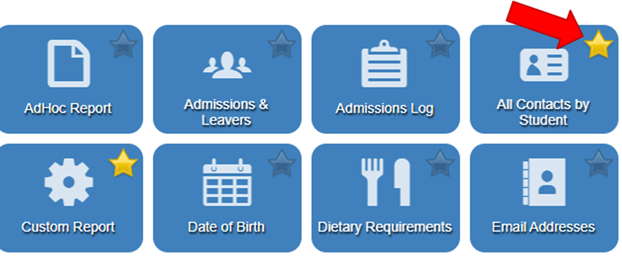
How to ‘Favourite’ a Report
If you go to the report via Reporting > Reports on the report you require you will see a small star in the top right-hand corner, simply click onto this to mark the report as a favourite a report:
Student's Aren't Showing on Reports
Students > Group Updater – changing the student attribute to hidden pupil. If any students say True, this will mean they will be hidden from reports and the census. You can amend this data in this area.
If you have checked this and it seems to be okay, check whether you are reporting on data for last year.
Data on ScholarPack is stored against the student, reflecting their current year and form, rather than the one they were in at that time.
In order to see data entered against a set of students from a previous year, make sure to select the year and/or form group they are in now – for example if a student was in year 6 last year when the data was entered, you would need to select year 7 in the selection as that is their current year group.
Arbor Announcement to Discontinue Integris and ScholarPack
Following Arbor’s recent announcement regarding the discontinuation of ScholarPack and Integris in February 2026, we wanted to offer you our full support in helping your school transition smoothly to your new chosen MIS with our Value-Added Migration and Data Support Service.
This service is provided by our highly experienced MIS Support team, who have supported over 500 schools in their MIS transitions and we would like to invite you to join our Value-Added Migration and Data Support Service webinar on Tuesday 18th March 10am-11am in which we’ll guide you through the process of a change of MIS, talk through how we can agnostically support you and answer any questions you may have at this stage.
With our vast experience of migrating over 500 schools and MATs to new MIS systems, we are well-equipped to guide you through every step of the process. We understand that transitioning to a new MIS can seem daunting, but we’re here to make it as seamless and stress-free as possible.
Here’s how we can help:
- Dedicated consultant who holds weekly meetings with your school and colleagues
- Data Cleansing advice, guidance and resources – Ensuring. where needed, you can get your current MIS in a really nice position for a clean move
- Change management guidance
- Conversation around the need for third parties and streamlining systems
- Best practice guidance and support through our helpdesks team of experienced consultants
- Ongoing Advisory Support: Beyond the migration, we’ll provide strategic advice on optimising your new MIS system, with regular check-ins and recommendations on leveraging new features
In addition, we also offer an implementation service focused on maximising your new MIS via our training and consultancy services, for guidance on moving MIS, please join this webinar for more information.
We understand you may have questions, and we’re here to provide clarity and support.
If you would like to join this event, please book via the below link: –
School ICT – Supporting Your Transition To A New MIS
Recording a Student Incident/Detention
You can record a student Behaviour incident via the student profile.
To record a student incident or detention in ScholarPack, follow these steps: –
Access the Student Profile:
- Use the search box at the top right to find the student and open their profile.
Navigate to the Conduct Tab:
- Click on the Conduct tab within the student’s profile.
Add a New Incident:
- Click on Add to record a new incident.
- Fill in the details, including the zone and incident type.
- If other students were involved, you can add them using the Add additional students button.
Save the Incident:
Once all details are entered, click Finish Incident to save it.
Please click here for further guidance.
Recording a Detention
Via the Student Profile:
- Search for the student and open their profile.
- Go to the Conduct tab and select Detentions.
- Enter the reason, date, and details, then click Add.
Via Classes:
- Go to My Subjects > Select the Class > Scroll down to Detentions.
- Click Add New to record a detention, including the reason and any work set
Please click here for further guidance.
Admission Groups
To create new admission groups please follow the steps below
Navigate to the Admin Section:
- Go to Admin > Config > Core Setup > Forms.
- Click on Add New Form Group.
- Enter an abbreviation and a description for the new form group.
- Click Save New Form Group to create the group
Assign Students to the New Form Group:
- Use the Group Updater to assign students to the new form group
- Go to Admin > Students > Group Updater
- Select the students you want to assign and update their form group
Adding students via ATF/CTF
- Go to Admin > Students > Full ATF/CTF Importer
Upload the ATF File:
- Click on Add/Merge Students from ATF/CTF.
- Click Choose File to browse and select the ATF file from your computer.
- Click Upload File
Review and Import Students:
- After uploading, you will see a list of students in the ATF.
- For each student, you can choose to Enrol (if they are new to the system) or Merge (if they already exist in the system, such as in a nursery provision).
- Click Import/Enrol next to each student to add them to the system
Finalize the Import:
- Once all students are imported, they will appear in the Admin > Students > Admissions area
- You can then assign them to the appropriate year/form group and set their entry dates.
For further guidance on the above please click here

Click for the latest SIMS updates
Spring Upgrade
SIMS Connected
There has been a change to the release date this has now moved forward to the first weekend of the 1st/2nd March for SIMS and FMS
SIMS Locally Hosted Schools
School ICT Customers – On Premise Schools will be contacted regarding upgrades Week commencing 17th March 2025 – Keep your eyes peeled for our usual upgrade email.
For turn IT on schools who have an upgrades and maintenance contract, we will email the school to arrange a date for the upgrade from Monday 17th March; the upgrade will be released from 4pm on your upgrade day.
Primary Upgrade New Features
- Unauthorised Absence Alerts Schools can now configure up to three alerts for unauthorised absences using different thresholds. This is to aid schools in monitoring attendance more proactively. A default setting has been introduced to inform reporting and Print Letter functionality. A default must always be set and a warning message will appear if no default is selected.
- Enhancements to My Reminders on Homepage
- Enhanced Attendance Reporting
- Statutory updates to Assessment resources including templates and wizards
- Bulk Deletion of Student Data
- School Summer Census Return (inc. amended reports) – 15/05/2025
Secondary Upgrade New Features
- Unauthorised Absence Alerts Schools can now configure up to three alerts for unauthorised absences using different thresholds. This is to aid schools in monitoring attendance more proactively. A default setting has been introduced to inform reporting and Print Letter functionality. A default must always be set and a warning message will appear if no default is selected.
- Enhancements to My Reminders on Homepage
- Enhanced Attendance Reporting
- Statutory updates to Assessment resources including templates and wizards
- Bulk Deletion of Student Data
- School Summer Census Return (inc. amended reports) – 15/05/2025
- Exam Access Arrangements added to Student General List Fields
For further information please check the Customer Portals
How to Add Reports to Your ‘Favourites’ Folder
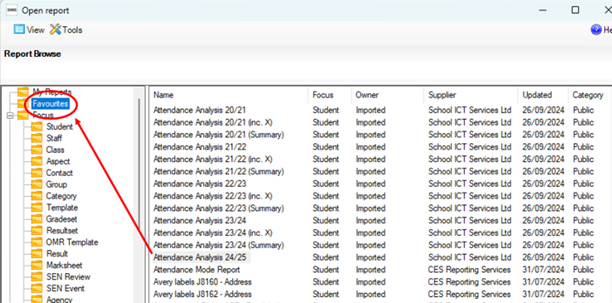
Go to
- Reports/Design Reports
- Click on Open an existing report
- Got to Focus/Student and locate the report
- Click on the report and drag and drop it into your Favourite folder
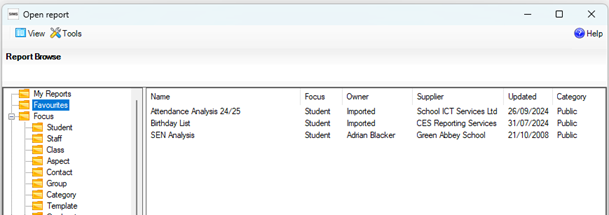
This report will now show in your favourites folder: –
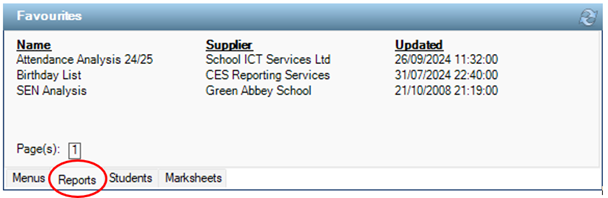
You can also see your favourite reports on your Home Page under the Favourites panel by clicking on the Reports tab: –
Using SIMS to Log Behaviour Incidents and Detentions
Did you know there are numerous ways of logging a behaviour incident in SIMS?
Below are some of the different Routes/Areas you can log Individual Behaviour Incidents
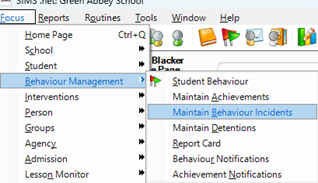
- Via Focus/Behaviour Management/Student Behaviour
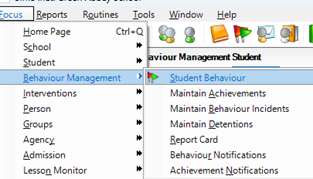
- Via Focus/Behaviour Management/Maintain Behaviour Incidents
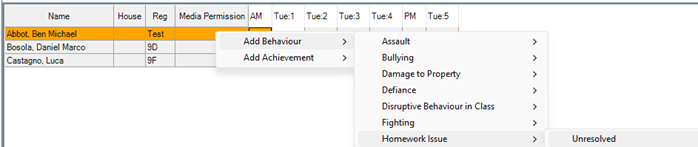
- Via the registers – Right click on the name of the student and select ‘Add behaviour’ where you can then select the appropriate behaviour
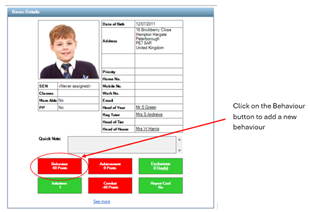
- Via the Teacher View
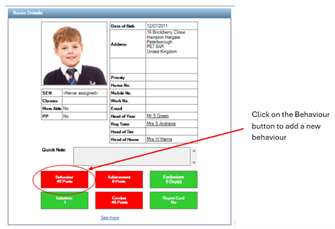
For more guidance on the above methods and for logging the same behaviour for multiple students please click on the links below
School ICT Customers please click here
TIO Customers please click here and navigate How do I/Enter Behaviour into SIMS
You can use the behaviour module to log the behaviour incident and add a detention. If you use Intouch you can then send out notification either via SMS or email to parents/guardians to inform them of the detention
Using the Teacher view to add a behaviour/detention and notifying parents.
This will take you the behaviour area in the student record where you can log a behaviour incident
- Click on New
- In the next pop-up window add in the details of the behaviour incident
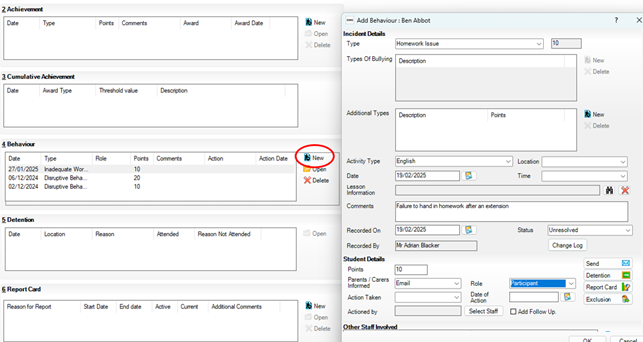
- Click on Detention
- On the pop-up click Yes
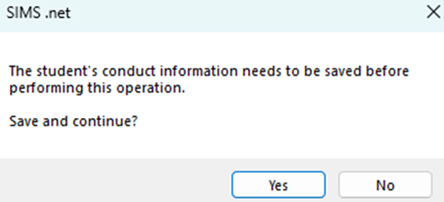
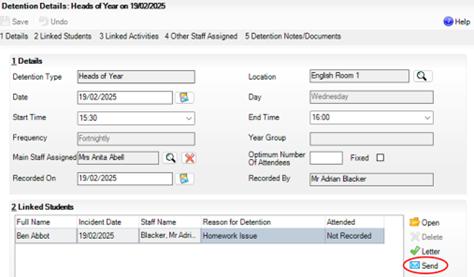
The system will save the behaviour incident on the student’s behaviour record, and you can now continue to add a detention

Add in the information into the detention screen and click on the Send button (Blue envelope)
- On the pop-up click Yes
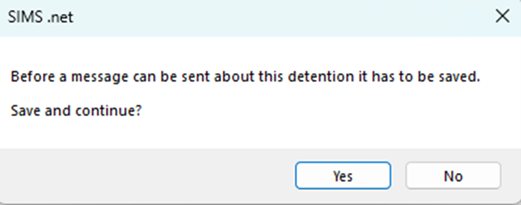
This will save the detention into the student record and will continue to launch InTouch

On the InTouch screen click on the Linked Adults filter and deselect those that you do not wish the message to be sent to
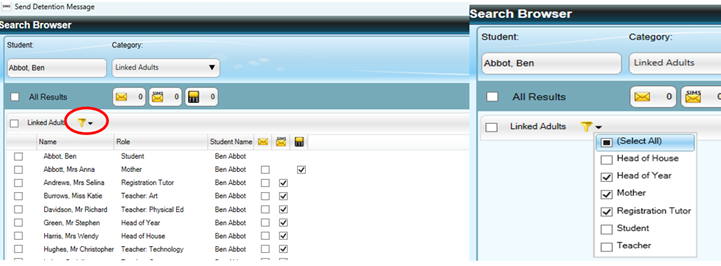
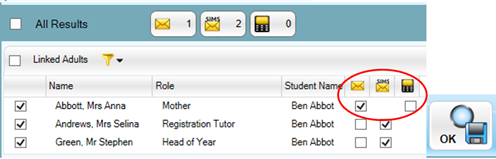
- On the left-hand side put the ticks in the boxes to ensure the message is sent to those linked adults – you can also change the method of communication eg from SMS to email by putting the tick in the preferred method of communication
- Click Ok (top right corner)
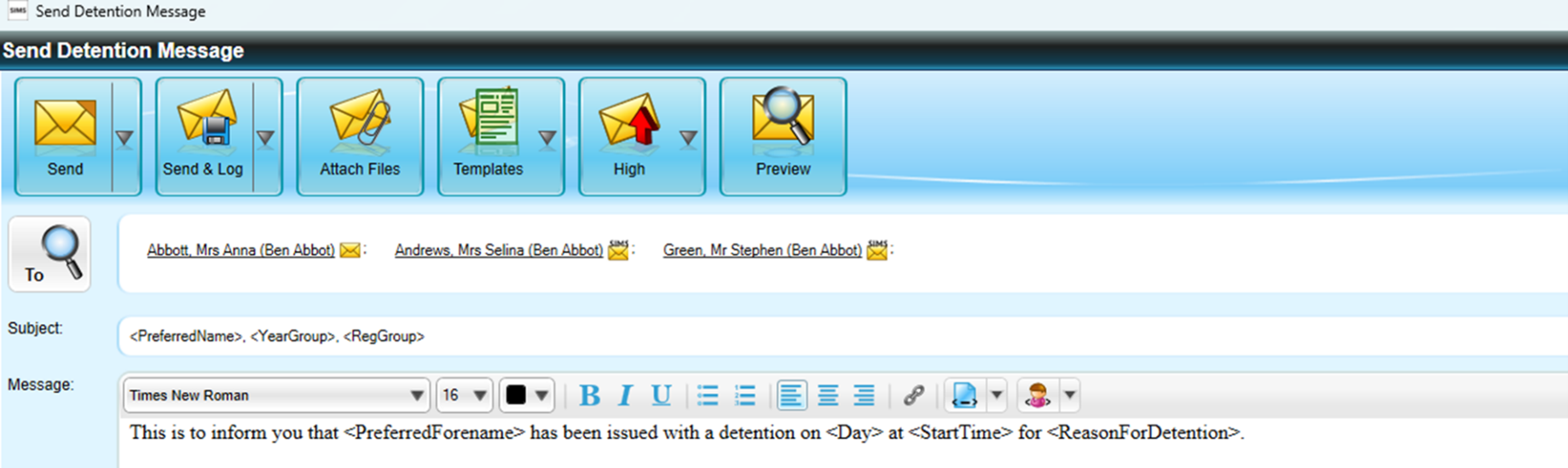
This launches the email template
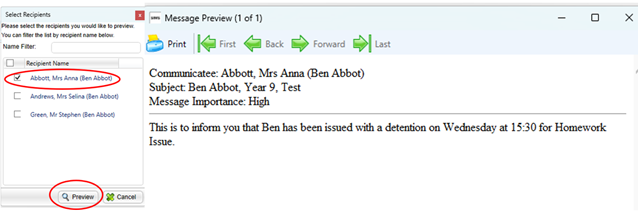
You can preview the message by clicking on the Preview Icon and selecting one of the recipients and click Preview to view message

When you are ready click Send or Send & Log (Send & Log will log the message in the communications area in the student record – you have a choice to Send Now or Send Later (sending later you can set a date and time and can retrieve the message to stop it being sent prior to the selected time if needed, please note if you click Send Now it is not possible to stop the message from being sent)

Please contact the helpdesk or log a ticket if you require any assistance with the behaviour module.
Creating Admission Groups
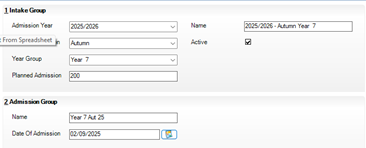
It’s that time of year to start thinking of creating your admission groups. Please follow the instructions below to create your new groups.
Go to
- Routines/Admissions/Admission Groups/Setup
- Click New
- Ensure the academic year is showing 25/26
- Admission Season select Autumn
- Year group select the relevant year group eg Yr R or Yr7
- Add your Planned admissions
- Click in the Name Box in the intake group panel – the system will generate the intake group name
- Panel 2 Add the admission group Name if you want to change it from the default
- Add the date of Admission
SIMS Next Gen
New features in SIMS Next Gen
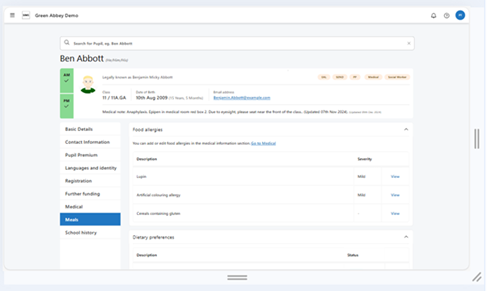
‘Meals’ section added to Pupil Profile
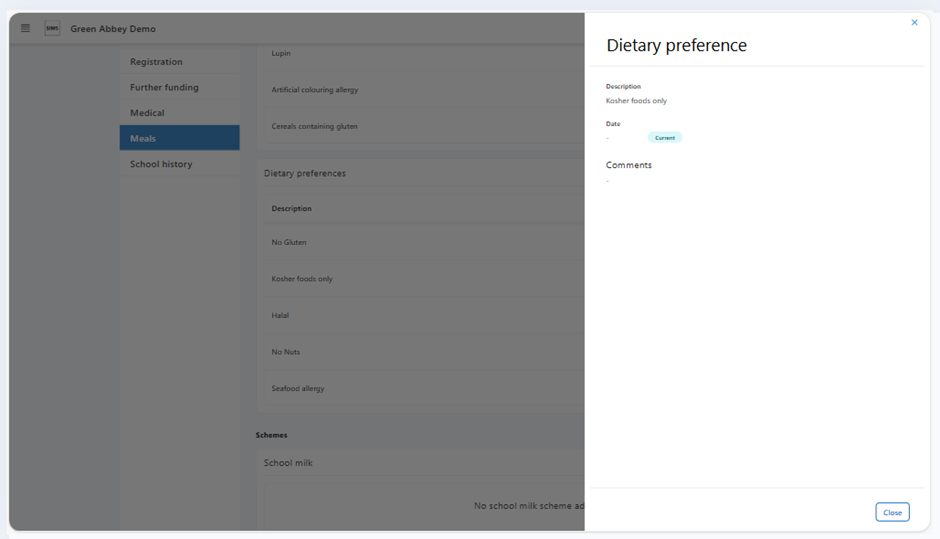
A new dedicated ‘Meals’ section has been added to the Pupil Profile, displaying allergies alongside an expanded meal preferences area to support pupil wellbeing. SNG will also allow you to record free school milk and free school meal initiatives which are new to SIMS Next Gen.
Food allergies – Quickly check allergies that could impact a pupil’s dietary options.
Dietary preferences – Record and view meal preferences so teachers can access them easily.
Free school milk eligibility – View which pupils are entitled to free school milk.
Universal Free School Meals (UFSM/UPFSM) – See eligibility criteria and log any exceptions.
Admins can track status and usage of dietary preferences in the Admin Console.
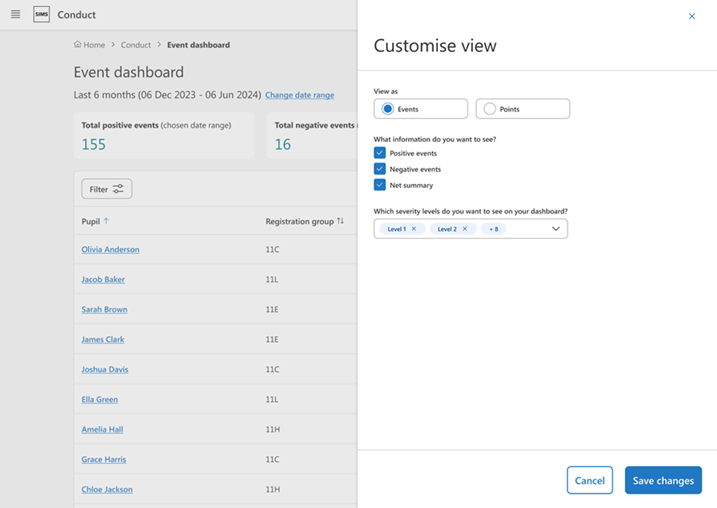
New features in Conduct Events
Two key improvements have been added to the conducts area in SNG to help you manage behaviour more effectively.
Export conduct events
You can now export conduct event data directly from the Conduct Event overview page.
- Download detailed reports for quick analysis and sharing
- Access additional data fields not visible in the dashboard
- Generate structured reports for leadership teams or safeguarding discussions
- Retrieve all key information in one file for offline review
Save class when creating or updating conduct events
When recording a conduct event, you can now save the associated class, helping you track patterns and improve intervention strategies.
- Understand behaviour trends at the class level
- Spot recurring issues and act early
- Ensures events are linked to the correct class automatically
- Helps teachers and leaders tailor classroom management strategies
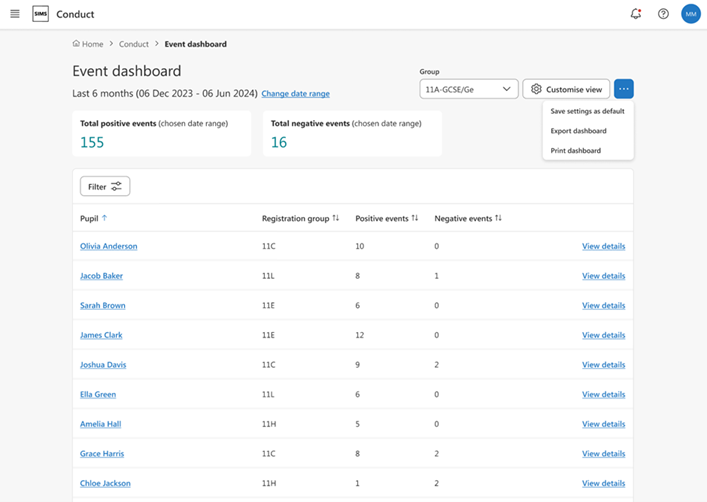
Conduct Dashboards
- All your behaviour data, all in one place – giving you instant visibility to track trends, spot issues, and take proactive action to support your students.
- See an overview of positive and negative behaviour across your school
- Drill down into behaviour by class, year group, or individual student
- Quickly generate reports for leadership discussions, safeguarding, or parent meetings
SIMS Next Gen - Wide Range of Features, Ready to Use Now!
These include: Class View, Seating Plans, Fire Registers, Attendance Registers, Conduct Management, My Markbook and Online Marksheets, Custom Groups, Staff Timetables Calendar and Pupil profiles.
If you are not yet using SIMS Next Gen, please get in contact and we will be happy to go through setting up your SIMS system if needed, help onboarding staff and discuss any of these features!
We are hosting a series of SIMS Next Gen webinars, please see below for details:-
SIMS Class View – 13th March 2025 10.30-11.00 book here
SIMS Class View centralises all key functionality in one holistic class overview to support teachers with efficient classroom management. Teachers can perform key classroom tasks instantly in one place.
- taking registers
- creating seating plans
- adding conduct
- viewing vital pupil information
Seating Plans – 20th March 2025 10.30-11.00 book here
SIMS Seating Plans transforms the effectiveness of your classrooms with fully adaptable and intuitive seating plans.
- Design flexible and informed room layouts no matter the size and shape of a classroom
- Optimise class attainment with insight from Next Gen pupil data on ability, conduct, indicators such as EAL or teacher notes
- Benefit from the intuitive interface which automatically removes sensitive pupil information when being presented in pupil view
- With just one click, AI will generate an optimised seating plan tailored to the unique needs of the classroom.
SIMS Conduct Events – 3rd April 2025 10.30-11.00 book here
SIMS Conduct Events allows you to configure how you want to record your positive and negative conduct events.
- Data managers can configure what fields are mandatory and hidden for different conduct types
- Guided data entry screens help to simplify data capture
- Powerful filtering and sorting tools allow users to review conduct events across year groups or classes
SIMS Reporting and Analytics – 1st May 2025 10.30-11.00 book here
SIMS Reporting and Analytics enables leaders to get a clear picture of attendance data to help drive improvement.
- Clear and easy to interpret data, with visualisations and key insights, enabling school leaders to identify at risk cohorts and individuals
Designed to equip you with up to date and relevant data, empowering you to make informed decisions regarding interventions that can enhance attendance and positively influence learning outcomes.
Currently Available to Early Adaptors of SNG - Attendance Analysis Reporting
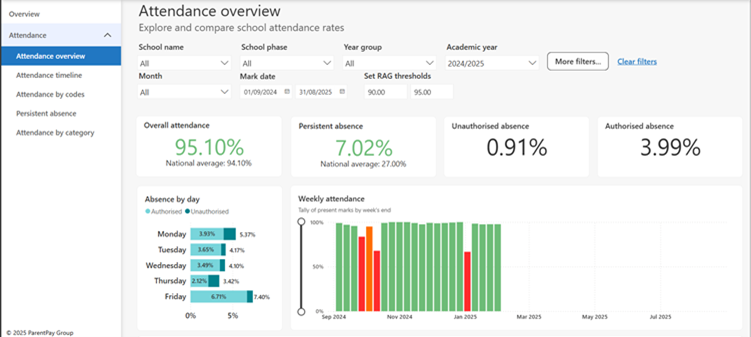
Attendance analysis reporting
Attendance overview – use the drop-down menus to select different year groups for example to drill down into different attendance information
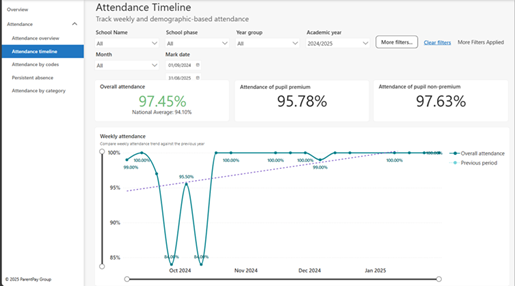
Attendance timeline: can look at attendance of different demographic information e.g. enrolment status, SEND, PP, ethnicity
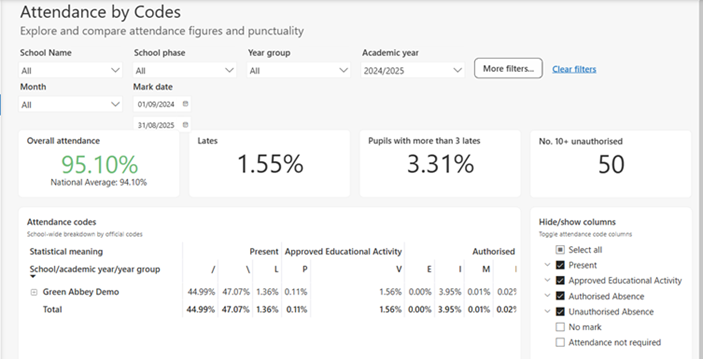
Attendance codes: filter attendance based on a variety of different attendance codes
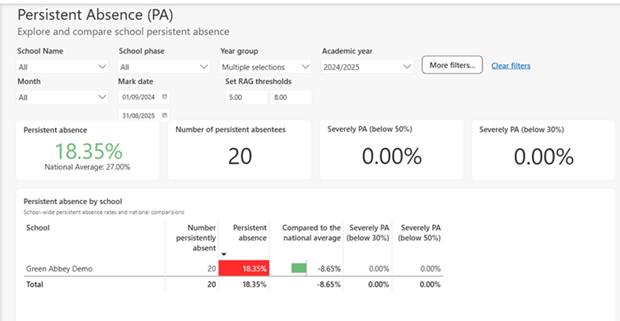
Persistent absence: drill down into different demographics to see persistent absentees within your school.
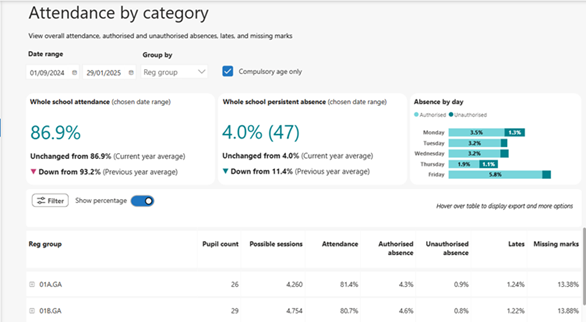
Attendance by category: view overall attendance, authorised and unauthorised attendance, late and missing marks.
If you are not yet using SIMS Next Gen, please get in contact and we will be happy to go through setting up your SIMS system if needed, help with onboarding staff and discuss any of these features!