

To navigate to the most relevant section, please click the appropriate link below: -

Welcome to our March Newsletter
As we head into the final weeks of the Spring term, here are a few reminders: –
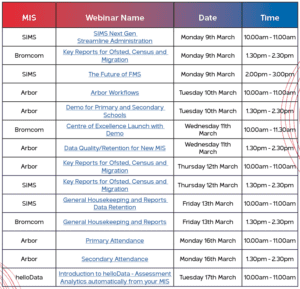
- Webinar Week! Our Spring Term best in class MIS webinar week starts next Monday! You can book places here
- Summer term training – Summer Term training dates are now available to book. You’ll find the course schedules in the training section below or visit our bookings page: Online Training
- Working over the Easter break? This could be the ideal time to start one of our Distance Learning Training courses – content is available for twelve months from sign up, giving you the time and flexibility to complete a course when it’s convenient for you.
- Feedback – We’d love to hear your feedback on our monthly Newsletter. To capture this we’ve put together a quick survey to find out what you think! It should only take a minute to complete, and hearing your views, thoughts and suggestions would be really valuable to us, so we can shape our content and frequency to what our customers want to see going forward: – Newsletter Feedback Survey – Fill in form
- We’re recruiting! We currently have a vacancy for a Senior MIS Consultant, specialising in Bromcom. If this may be of interest to yourself or anyone you know further information can be found here
Logging a support request - How to contact School ICT
We know everyone works differently, so we’ve made it easy for you to reach us in the way that suits you best. There are several flexible support options available, and you can simply choose the one that’s most convenient for you.
Customer contact options: –
Live chat @ https://my.schoolicts.co.uk/
Customer Portal @ https://my.schoolicts.co.uk/
Our customer portal allows you to: –
- Log and track tickets
- Watch webinars
- Search Knowledge base for information
- Latest news
Call: 0345 222 6802 Option 1 for MIS support *please leave voicemail where lines are busy during peak periods. This method will automatically generate a ticket and this means that the person who can help you best is the person who will call you back. If you do this, PLEASE leave your name, the name of the school, the best number to call back on and a brief description of why you’re ringing.
Exam Services
As we settle into March, spring is in the air (once it stops raining! 🌧️) and so is the steady progression towards the summer 2026 exam series. The Exams Team at School ICT Services have been quietly busy behind the scenes, and we’re pleased to share that all our exam managed schools’ entries have been submitted. Over recent weeks we’ve supported numerous new schools to complete their entries on time, avoiding late fees and financial penalties in the process, which has been a huge relief for the centres.
📅 Important JCQ and awarding-body reminders this month:
- Access Arrangements & Modified Papers – If you haven’t already finalised these, the JCQ deadline for applications (including access arrangements online and evidence) is 21 March 2026. This also includes the final date for ordering modified question papers for summer exams. Missing this cut-off can mean delays or additional costs, so now’s the time to double-check that all SENCO and AAO work is submitted and approved.
- January Series Results – January 2026 results for the January exam series will be issued to candidates on or around 19 March 2026.
- Mock Exams & Summer Prep – While we continue with final mocks for Year 11 and Year 13, now is also the time to engage with revision timetables, seating plans, rooming and contingency planning ahead of May’s exams. Each awarding body (including AQA, OCR, Pearson Edexcel and WJEC) all publish their timetables and key resources on their websites.
- NEA & Centre Declarations – Thinking ahead to non-exam assessment (NEA) work? March is also when internal deadlines and centre declarations for coursework and practical units become a focus. Ensuring these are ready and compliant supports a smooth moderation and marking process later in the year.
💡 You’re not alone – if any of the above feels overwhelming (especially access arrangements, modified papers or NEA preparations), please remember that the Exams Team at School ICT are here to help. Whether you need reassurance, support with paperwork, or an exam project module completed for you, we can partner with you to remove stress and keep your centre compliant.
📧 helpdesk@schoolicts.co.uk
📞 0345 222 6802
Here’s to a productive March! Steady progress now makes for peace of mind later.
✨ The Exams Team at School ICT Services ✨
Data Management Services
Our Data Management service offers an excellent, cost effective, responsive, and efficient Data Management solution delivered remotely by a team of highly experienced school data experts. Their dependable advice and guidance empower schools, academies, and MATs to maximise their investment in their management information system (MIS) team. Whether it’s a long-term solution or short term for sickness cover or maternity please reach out.
- Please click here for further information.
FREE Best Practice Webinars - Arbor, Bromcom and SIMS

Places can be booked by clicking the hyperlinks on the below pdf or by visiting: https://www.schoolicts.co.uk/events/
How Healthy is Your Data?
An MIS health check ensures you’re getting the most out of the investment in your MIS. The benefits of one of our comprehensive health checks include: –
- Raise awareness of functionality and any issues
- Keep you up to date with the latest developments in your MIS
- Housekeeping and tidying exercises
- Report with recommendations to ensure you’re fully maximising your MIS along with any training recommendations
- For on premise MIS a server health check is also included
Our health check service usually takes around half a day. Please contact us to find out more on: helpdesk@schoolicts.co.uk to find out more.
FMS Updates
FMS and CFR Reporting
The DfE regularly updates the Consistent Financial Reporting (CFR) framework, and any new or revised CFR categories will be built into the FMS Spring 2026 software release. You won’t need to make these changes yourself — they will be included automatically as part of the standard system upgrade. This ensures schools always remain compliant with the latest guidance without having to manually adjust codes or settings.
FMS6 and migrating to cloud based FMS
ParentPay Group (PPG) has announced the mandatory migration of all schools currently using FMS6 or FMS6 Connected to the new cloud‑based FMS. The transition will begin early this year, with full completion required by the end of 2026. Staying on FMS6 is not an option, as it will be fully sunset by that deadline.
Migration Process
- FMS6 Connected schools will follow a simplified process:
- Create an additional user
- Schedule the migration
- PPG completes the migration
- Schools map users afterwards and retain limited FMS6 access for reporting
- On‑premise FMS6 schools will:
- Complete pre‑migration documentation
- Create an additional user
- Book their migration slot
- Allow PPG to prepare and migrate their data
- Finalise user mapping and carry out post‑migration tasks with support from PPG and School ICT
Timeline & Restrictions
- Schools will receive instructions, required forms, and migration slot booking details.
- Migration takes place in a predefined window.
- If schools fail to complete actions (booking, creating required users, prereq forms):
- PPG will restrict access to FMS6, meaning staff will not be able to log in until actions are completed.
- Multiple reminders will be issued before restrictions are applied.
Why Mandatory Migration?
- PPG is consolidating to one modern finance system—maintaining two platforms long‑term is not feasible.
- The cloud version provides:
- Reduced workload for schools and support teams
- Better resilience, security, and compliance
- Supports PPG’s strategic and security requirements
- Communications to schools begin from February to ensure early preparation.
What’s New in Cloud FMS
- A modern, intuitive, like‑for‑like replacement for FMS6 with all core functions retained.
- Benefits include:
- Secure access from any location
- MIS integration
- Full historical data preserved
- Enhanced features for MATs and school groups
Core Modules at Launch
- Supplier management & payments
- Income handling
- Debtor management
- Budgeting
- Staffing/personnel links
- Chart of accounts
- Statutory reporting
- Permissions management
- Improved asset and equipment management
- Enhanced reporting and audit tools
Support
- PPG is developing comprehensive support resources:
- Presentations
- FAQs
- Timeline documentation
- School ICT (SICTS) will assist throughout the migration process.

Summer Term Online Training for Arbor, Bromcom and SIMS
Our training courses for the Summer Term are now live, to book places please click on the course schedules below: –
We also have courses running until the end of term: –

Click for the latest Arbor updates
ArborFest 2026 - Taking place in June!
This year’s Arbor Fest is taking place on the 30th June at the ACC in Liverpool.
- More information here: https://www.arborfest.arbor-education.com/
- Book your tickets here: https://thekeysupport.swoogo.com/ArborFest26
Further information to follow!
Introducing... The Ofsted Inspection Companion!
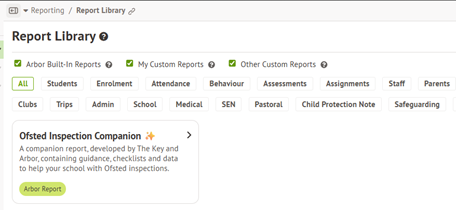
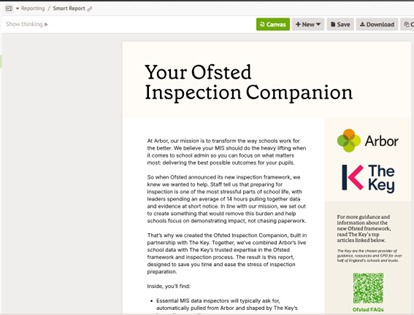
February saw the launch of the brand-new Arbor report that automatically pulls together the key data inspectors need to see, structures it in line with the new framework, and uses clear, guided prompts to help you generate a narrative that truly reflects your school. The result is a complete, up-to-date inspection pack that’s ready in minutes, so your team can walk in on inspection day feeling clear, confident and aligned.
Where to find it
You can see your report now by logging into Arbor, going to Reporting > Report Library and searching for “Ofsted”. It’s available for free to all Arbor schools, within your Arbor AI Monthly Free Allowance. If you get stuck or have any questions, there’s a step-by-step guide on our knowledge base.
In-app messages - Are you using them?
Are you using In-app messages?
They are a great way to communicate with guardians for issues that are not critical or time sensitive as some guardians might not log in to the Parent Portal regularly to read the messages.
Many schools choose to use In-App messages because:
- They are free! – There is no fee for using In-app messages to communicate with guardians.
- Instant notifications and follow-ups – Guardians can be notified when they receive an In-app message via email or Push Notification and followed up with an SMS (Please be aware this uses SMS credits).
- Read status – Check whether the message has been read by each guardian.
- Response notifications – Choose which staff members are notified when guardians reply to In-app messages.
You can also see an overview of all school communications (including In-app messages) in school | communications | school mailbox.
If you have enabled guardians to initiate or reply to messages, you can see replies in School | Communications | School Mailbox | Inbox | select In-app message to refine the search.
You can reply to In-app messages in a variety of ways:
- School | Communications | School mailbox – just select inbox on the left-hand side and refine your search to show in-app messages
- Communications on the guardian’s profile
- Communications & Notes on the student profile that the guardian is linked to
Just click into the inbound In-app message you want to reply to. Click the Actions button and select In-app message reply.
Please note that In-app messages are included in the Comms and perform packages. You will need to ensure you have switched on the Parent Portal and Parent App if you want to use them.
Behaviour in Arbor
Behaviour incidents
In Arbor, when recording behaviour incidents, you can include the behaviour type, locations and time, students and staff members’ involvement, any follow up needed to resolve the incident and add any physical interventions.
Behaviour types
In Arbor, you have the flexibility to create custom behaviour types e.g. not completing homework, low level disruption etc and to add a severity ranking on a scale of +/-5. You can also archive any behaviour types you don’t want to use.
You can choose to notify staff members based on specific behaviour types or whole severities – click into any of the Behaviour Types you have set up and choose to notify a staff member by role or individually.
Behaviour workflows
Behaviour Workflows in Arbor are a great way to streamline how your school manages behaviour incidents. They allow you to automate key follow‑up actions—such as notifying staff, informing guardians, or assigning detentions—as soon as an incident is logged. This helps ensure consistent responses, reduces admin time, and keeps everyone in the loop.
You can use Arbor’s built‑in workflows, which are organised by severity level, or create custom workflows tailored to your school’s behaviour policy.
Should you need help configuring your workflows or want advice on best practice, please feel free to contact the helpdesk.
Removing behaviour types
There are 2 options when it comes to removing behaviour types from the list available to users when logging an incident. You can archive the behaviour type; this is then reversible if you want to use it again. You can also delete the behaviour type, however, once it has been deleted, you will have to set it back up if you want to use it again. Please note: When you delete a behaviour type, any past incidents recorded with this type will instead display the derived incident level but will not display the type.
Incident settings
You can toggle all these settings from the bottom of the Students > Behaviour > Behaviour Setup > Incidents tab if you have the School: Behaviour: Administer permission.
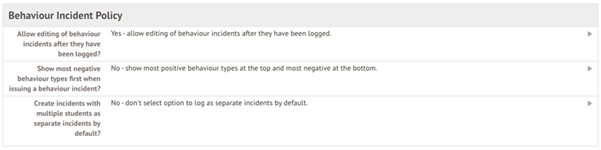
You can see here that settings can be changed so staff are not able to edit behaviour once it has been logged, decide if you would like to see positive or negative behaviour first as well as create separate incidents with multiple students by default.
Managing Behaviour Points
Behaviour Points are a great way to assign a value to positive and negative behaviour in your school. To setup behaviour points you must first create and define your scale.
Moving over your historic balances
Arbor don’t migrate behaviour points, so you may wish to set initial balances for student points, you have two options:
- Add a User Defined Field – this option is quicker, but you can only analyse using a Live Feed or custom formula in the Custom Report Writer.
- Log all points for each student – this option takes longer to set up but enables you to analyse your past behaviour anywhere in Arbor.
Top Tip for Year-End
Don’t worry, you won’t need to set everything up each year as most of your setup just rolls over! To prepare for September, you’ll just need to set up detentions and add your Internal exclusion types by following these instructions instead of the ones below:
Creating Admission Groups
Before you can add applicants, you’ll need to do two things:
- Add the next academic year to your site, to allow students to be enrolled starting in September
- Create an intake season to add your applicants into. You need to set up a new intake season for each new cohort of students that apply to your school – this groups your applicants together and allows you to check everyone has been accepted and enrolled, rejected or withdrawn.
To create your new academic year go to:
- School> School Structure> Academic Years
- Click the green Add button

By default, the Academic year name and start date will be pre-filled.
If the start date is incorrect, please contact the service desk to have this changed.
Once you’ve created the academic year you’ll come to this page
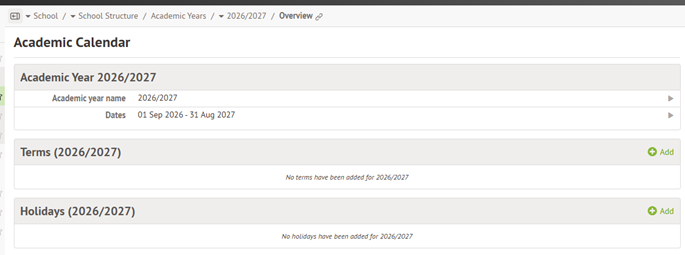
Click the Green +Add button to add your terms – This is usually 3 long terms (Autumn/Spring/Summer)
- Once you’ve added these you can add the school holidays.
- Vacation for the End of term holidays (Christmas/Easter/Summer) and Half term for the shorter breaks mid term (October/February/May).
Creating an intake season
- Students> All Students> Applicants
- Click the green +Add button
- Add a name for your intake season and the dates will be adding applicants
You should have a different intake season for each year group, if you’re Primary you will have one for Nursery and one for reception, and if you’re secondary, one for Year 7 and one for Year 12.
You can find further guidance on knowledge base. Please find below some useful links.
Adding the next Academic Year to your Arbor site
Setting up the Intake Season to Accept Applicants
If you get stuck, why not call or email us and we can support with your questions and problems.
Arbor Finance Updates
Arbor Finance Updates
Staff Import Budget and Analysis Code Linking:
When syncing with MIS, the handling of unlinked Staff Budget and Analysis Codes is now governed by your System Settings for ‘Link analysis and budget codes’:
If ‘Stop On Error’ is active, unlinked codes will be removed, and linked codes must be entered to proceed with the import.
If ‘Warn on Error’ is active, a warning will be displayed for unlinked codes.
LA Payment File: The associated report has been improved to display total credit notes and invoices, alongside Net, Gross, and VAT amounts. The export file remains unchanged.
Duplicate Transaction Detection To prevent accidental double-posting, the system now scans the previous seven days for matching entries. If a user enters a Purchase Order, Expenditure Order, or Staff Reimbursement with a duplicate value and budget/analysis code, a warning will appear. Users can then choose to edit the line or proceed with the post.
- Internal Charges Report Schools can now generate a summary report and export file for Internal Charges by Budget Code. To prevent double-counting, transactions are flagged once they have been included in a report and are excluded from future exports.
- Pre-payments Option When posting a Pre-payment, users can now choose to suppress the automatic reversal until the financial year-end. Previously, all journals reversed in the immediate subsequent period. Additionally, the Pre-payments screen has been updated to display all open accruals across all periods.
- VAT Submittal Preferences The system now automatically saves the last used settings in the VAT Submittal screen. These preferences are saved on a per-user basis.
- Block Batch Posting from Inactive Codes The system now prevents batches from being posted if they contain inactive Budget or Analysis codes. Any lines featuring inactive codes are highlighted and must be edited before the batch can be posted.
- Add Documents to Contacts Users can now upload and attach both Key and Non-Key files directly to Contact records.
Fixes
Rec File (Reconciliation File): An issue where the ‘reviewed’ flagging of payroll transactions failed, and where certain salary lines failed to post, has been resolved.
Rec File Line With No Reference: Additional validation has been added; Rec File lines must now contain a reference/narrative.
Sales Invoices: The bug where a single payment against a Sales Invoice with multiple lines was incorrectly posted as a single Income transaction instead of being split into multiple transactions has been corrected.
Assets Module: Pre-release fixes and general improvements have been applied.
LA Rec File & MIS Sync For schools using the MIS API connection, the MIS sync must be completed before processing an LA Rec File. The system now prevents a sync from being initiated once the LA Rec File process has started to ensure data Consistency.
Unreconciled Transactions Resolved a bug that caused a 500 Error to appear when viewing unreconciled transactions.
- FAO Field in PO Form Fixed an issue where the FAO field was missing from certain Purchase Order forms

Click for the latest Bromcom updates
Introduction
This month’s Bromcom update brings together the latest system improvements, community announcements, and key developments from the Bromcom Product Roadmap. Please review the updates below and share with relevant teams as needed.
New Clubs & Trips Module
Bromcom are introducing a redesigned Clubs & Trips module to make activity management simpler and more efficient.
Key improvements include:
- A clear, centralised overview of all clubs and trips across the school
- Easier management of memberships with multiple payment options
- Full visibility of payment history, outstanding balances, and order details
This update aims to streamline administration and improve the parent and student experience.
Google SSO – System Performance Update
Recent issues affecting Google Single Sign-On (SSO) caused intermittent performance problems for some users. Bromcom have now restored functionality and will continue to monitor performance to ensure ongoing stability.
Options - Timetable Patterns: Improvements to Auto-Allocate Process
Enhancements have been made to the AutoAllocate process in Modules > Options > Timetable Patterns to ensure fairer and more consistent student allocations.
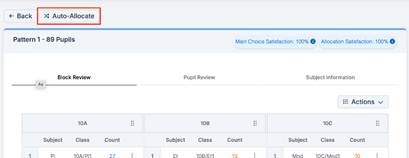
Auto-Allocate assigns students to subjects fairly and consistently, using these key factors as intended:
- Preference based allocation: Students are allocated to their first preference where possible. The system considers each student’s preferences in order, prioritising higher choices first. All students are processed simultaneously to ensure fairness.
- ‘Weighted Subjects’: Weighted subjects span multiple blocks, and when a student is assigned to one block, they are automatically enrolled in all blocks for that subject as a single package.
- Balancing students: When a subject has multiple classes, the system spreads students as evenly as possible across them, both within the same block and across different blocks.
- ‘Balance Gender Across Blocks’: When gender balancing is enabled, the system shall distribute students as evenly as possible by gender across identical classes of the same subject.
New Alert for “Reallocate all student choices”
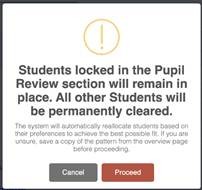
In this release, Bromcom have also updated the alert when using Reallocate all student choices.
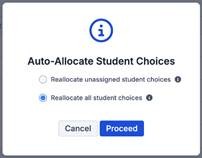
The alert reminds users that students locked in the Pupil Review tab will remain in place.
Census – PLASC Summary Report (v2626.2.3)
A new PLASC Summary Report is now available, reflecting statutory changes where SEN has been replaced with ALN terminology. All reports generated from 2026 onwards will use the updated ALN fields.
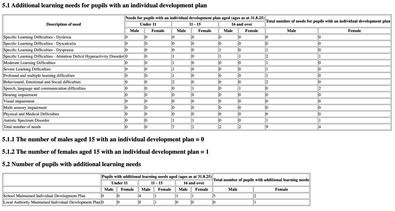
(sections 5.1-5.2)
Office 365 Email Integration – Important Improvements
Config > Setup > System Settings
For schools using Office 365 as their email provider, Bromcom have introduced improvements to the Office 365 email integration process to enhance reliability and reduce disruption caused by token expiry.
Please also refer to the guide on our knowledge base.
What’s Changing
- Grant Access – One-Time Authorisation
- The first time your school is prompted to Grant Access, you will complete a full Microsoft 365 authorisation.
- System configuration has been updated so that this authorisation is required only once.
- Any future prompts (for updates or revalidation) will require login only, rather than full re-authorisation.
- Resolution of 90-Day Token Expiry Loops
- When the 90-day token expires, users will no longer be caught in an authentication loop.
- If the account has already been authorised, users will simply be prompted to log in again.
- Repeated consent screens should no longer occur.
- Automatic Token Refresh
- Tokens will now automatically refresh after each successful email send.
- Each successful message resets the 90-day validity period.
- This reduces the likelihood of unexpected expiry and interruption to email services.
No action is required unless you are prompted to log in.
What’s New on the Bromcom Community Page
The Bromcom Community continues to publish helpful guidance and updates. Recent highlights include:
Admissions 2026 Guidance
Updated resources to support schools through the admissions cycle, including timelines and best practice recommendations.
School Closure Guidance
Clear steps for managing planned or unplanned closures, including communication workflows and attendance considerations.
Census Wales – January 2026 (PLASC)
Updated guidance for Welsh schools preparing for the January census, including ALN terminology changes.
These resources are available on the Community homepage and are updated regularly.
Bromcom Roadmap Highlights
Bromcom’s roadmap outlines several major developments planned for release over the coming year.
MCAS (MyChildAtSchool) Enhancements
- Full redesign of the Clubs & Trips interface
- New overview pages and improved membership/payment management
Student App – UI Revamp
- A refreshed, modern interface
- Improved navigation and more intuitive design
Finance – Open Banking Integration
- Integrated bank statement downloads
- Automated transaction matching to streamline reconciliation
Exams – Improved Marks & Grades Display
- More consistent display of marks within the MIS
- Marks added to additional reporting areas for easier analysis
Roadmap Vision
Bromcom emphasises that the roadmap is driven by customer feedback, with priorities reviewed regularly to ensure alignment with school and MAT needs.

Click for the latest SIMS updates
SIMS Options Online
For schools using SIMS Options Online, please remember that once your students have made their choices and you’ve created the new academic year, you can submit your completed options implementation directly into SIMS.
Submitting your Options Online data at this stage helps ensure everything feeds smoothly into your timetable setup. It’s best to do this before you import the timetable from Nova or any other timetable software.
When you submit the file:
- Submission will automatically create schemes and student class membership in Academic Management
- Student class memberships will be built for you in Academic Management
- These schemes can then be imported into the Nova Timetable Curriculum Plan if needed
This keeps the process clean and reduces the chance of timetable clashes later on.
SIMS Next Gen
The next census you complete will be in SIMS Next Gen.
If you haven’t already, please ensure you go through the onboarding process so that you can access SIMS Next Gen
- Create a SIMS ID Administrator account
In SIMS 7, select Tools | Setups | DeX Configuration to display the DeX Configuration screen.
The wizard displays your school, its DfE number and postcode. These are required to check that your school has a valid licence. If you do not have a postcode recorded, you will see an error message.
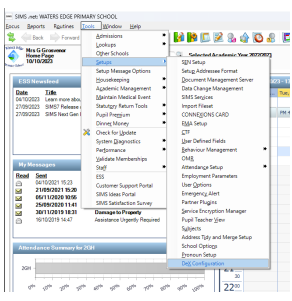
- Select the Register as Administrator [1] button
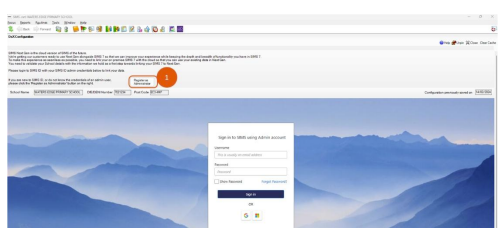
- The wizard additionally displays your name and email address as recorded in your staff record or user account. These will be used in conjunction with the school details to initiate the registration process and create a SIMS ID administrator account at the school. If your email address is not displaying, or is not correct, please go into your staff record and ensure your work email address is recorded and is set to main.
- Please check the details are correct and, if they are, click the Start Registration Process button.
- If you see this message, “Account Registration process has been initiated successfully”, a SIMS ID Administrator account has been created for you
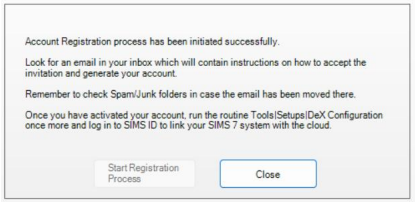
- If you see any other message, please contact us for support
- You will receive an email notifying you when your account has been created. Click the Set your password link on the email, then enter your new password and complete the process.
If you have any questions or would like any assistance, please give us a call!
SIMS Next Gen Product updates
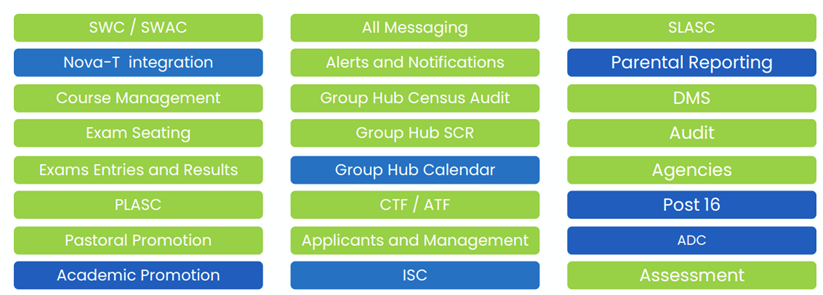
Did you know that all these features have been released over the last few months? : –
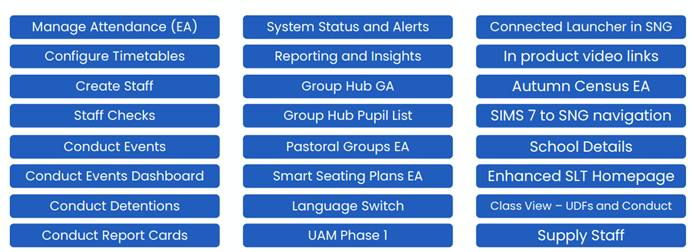
*EA – available to Early adopters
New features coming soon….
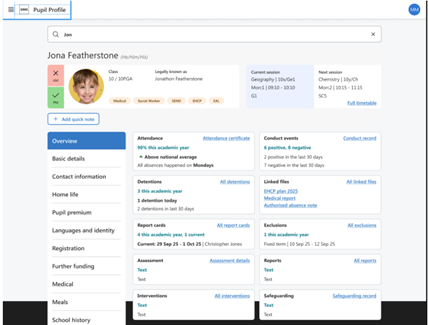
Pupil overview- Holistic overview of key areas that help school staff keep pupils on track including:
Attendance
Conduct
Assessments
Interventions
Safeguarding
Interventions
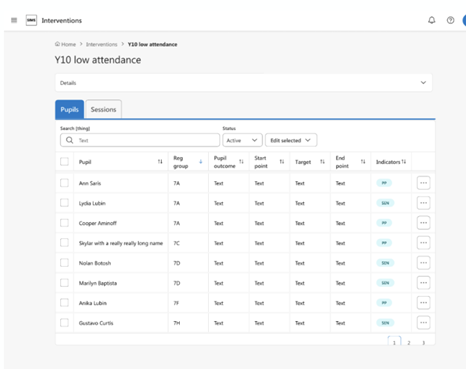
- Run Interventions:
Sets individual start points and targets
monitor and track attendance and participation
Evidence and maximize outcomes based on data
informed decision making.
Pupil Comms Log
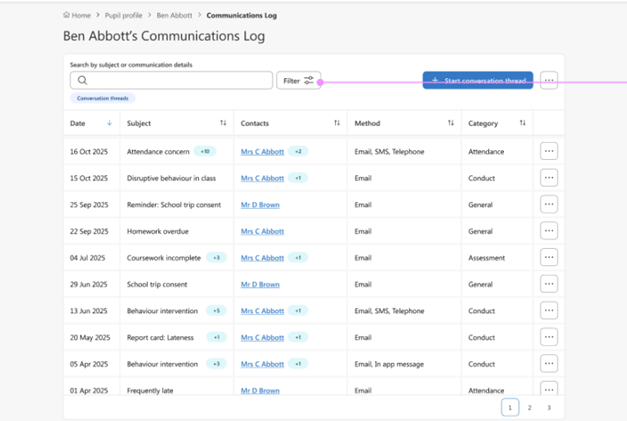
- See all pupil communication in one place
Integration with School comms for Engage customers (subsequent release)
Exam Seating
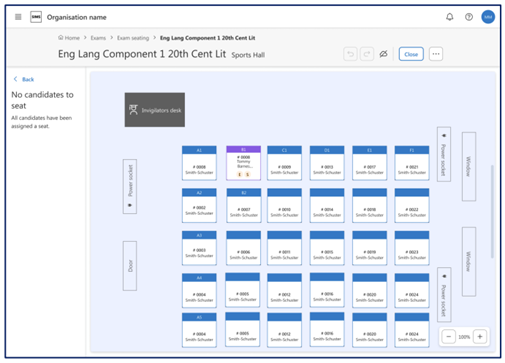
Key Features:
- Fixed (sticky seats)
- Copy seating plans
- Use of colour
- Writeback to SIMS
Even more to come in 2026
In development now…
SIMS Next Gen – SIMS Services Manager
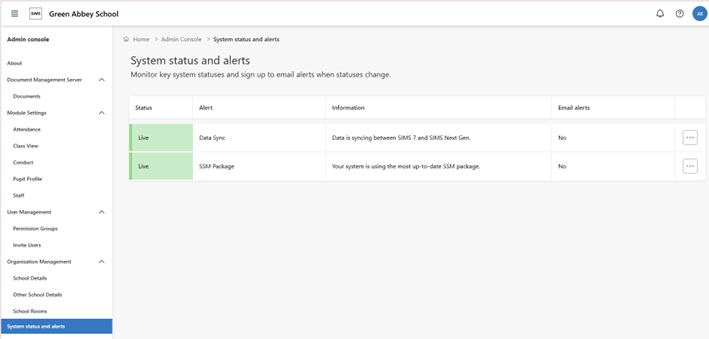
To ensure SIMS Next Gen is working as it should be, it is critical that SIMS services manager is running on your SIMS server so that data between SIMS and SIMS Next Gen is syncing as expected.
You can check the status within SIMS Next Gen admin console, however, please give us a call if you would like to us to guide you.