

Contents - to help you navigate to the most relevant section, please click the appropriate link below: -

Summer Census
The deadline for schools who upload their Census directly to COLLECT is Wednesday 12th June, but please check with your Local Authority as you may have an earlier submission deadline if they submit on your behalf.
New School Year set up
Whichever MIS system you are using in school the end of year procedures require completion before you return to school in September.
Resources to assist with this process are all available on the customer portal.
School ICTS Customer Portal: https://my.www.schoolicts.co.uk/
turn IT on Customer Portal:https://portal.turniton.co.uk
Online Training
We are running several courses on the End of Year procedures, the process is quite long and we would highly recommend attending to ensure that the new year is set up correctly. Further information on all upcoming courses can be found here: https://www.schoolicts.co.uk/online-training/
Let us do your end of year for you!
Let us ease the pressure on your workload by allowing us to complete the process for you. Available at a set cost to save you time.
If you are interested, please drop us an email via helpdesk@schoolicts.co.uk for School ICT Services customers or mis.support@turniton.co.uk for turn IT on customers.
Year 6 Leavers
For all Yr 6 2024 leavers, make sure that they all have ethnicity and first language info in their record before they leave, as this will save you a lot of extra work in October when you’re doing your Census!
Housekeeping
With the end of the year approaching, it’s a good time to be thinking about any housekeeping tasks required in your MIS, and planning them in, if you can’t do them now.
Lots of Checks, Returns and Deadlines this month for Primary Schools!
Phonics Screening checks take place Monday 10th – Friday 14th June.
MTC (Multiplication Tables Check) to be administered between Monday 3rd June and Friday 14th June.
MTC Deadline for schools to ensure pupils have completed the MTC or have been recorded as not taking the check – Friday 23rd June.
Key Stage Returns – Important dates (please check with your Local Authority as they may request earlier deadlines):
- Monday 24th June 2024 – Year 4 Multiplication check results download available on the MTC service
- Monday 24th June 2024 – Year 1 & 2 Phonics Threshold Mark published on GOV.UK
- Friday 28th June 2024 – Key stage 2 Teacher Assessment Data Deadline
- Friday 30th June 2024 – EYFS Submission deadline (submission to LA)
- Tuesday 9th July 2024 – Key stage 2 results and script images for KS2 schools and LAs available on PAG
- Wednesday 10th July 2024 – KS2 Test results available on the PAG for KS3 schools with a Y7 intake
Year 11 and Year 13 Leavers - DfE (Department for Education) Advice
The official school leaving date for Year 11s is the last Friday in June in the school year in which a student reaches age 16.
Where a Year 11 student has applied and been accepted into the school 6th form, they must remain on roll until the end of term. Code X can be used for the period after the last Friday in June to the end of term.
For Year 13s, there is no set leaving date. The normal recommendation is to put the leaving date as the last Friday in June or alternatively 1st July. This is because the funding year for P16 runs from 1st August to the 31st July and the ESFA expects students to be on a study programme on the last working day of June to be classed as retained in the funding formulae (this also applies to Year 12 students, who complete their programme or who leave after completing 1 year of study.)
Timetable Tips
May/June is really the time when you will have finalised all the planning and preparation for next year’s timetable and be looking forward to the completion of feasibility checks, scheduling and setting up the next academic year.
Options should be finalised, and blocks incorporated into the curriculum plan.
The cycle and curriculum plan confirmed.
Staffing should be finalised, other than any last-minute resignations.
Deployment proformas and combing of teams should have been completed.
Good luck! Fun times are ahead. Scheduling the timetable can be a solitary task, with many twists and turns before you place that final lesson. Don’t forget communication with colleagues is key, and always phone a friend or walk away and take a break when you hit a wall.
Please see the relevant MIS section for tips!
Reminder for Exams Officers
JCQ (Joint Council for Qualifications) Key Dates for Summer 2024 are available here.
Thinking of changing your MIS?
If you are interested in exploring alternative MIS solutions, our expert team can advise on the best solution for your school.
School ICT work closely with leading providers, namely Arbor, Bromcom, ScholarPack and SIMS. We can help guide you through the migration process and continue to provide ongoing support. There is a link below to our previously recorded webinar on moving MIS, along with a sheet to assist with assessing functionality and cost: –
https://my.www.schoolicts.co.uk/portal/kb?btn=46&text=moving%20MIS&entity=articles&id=338
If moving MIS is something your school is currently considering, please do not hesitate to contact us on 0345 2226802 or via our portal my.www.schoolicts.co.uk and we can arrange a call to discuss your requirements in more detail and explore your options with you.
School ICT and turn IT on Customer Contact Details
School ICT customers:
Contact: 0345 222 6802 Option 1, helpdesk@schoolicts.co.uk
Portal: https://my.www.schoolicts.co.uk/
turn IT on customers:
Contact: 01865 597620 Option 2, mis.support@turniton.co.uk
Portal: https://portal.turniton.co.uk
Our customer portals allow you to
- Log and track tickets
- Watch webinars
- Search Knowledge base for information
- Latest news
- Remote support

ESS Webinars - Futureproof your Investment in SIMS Next Gen
We would like to update you on a series of webinars ESS are running, in June and July, to help you to futureproof your investment in SIMS Next Gen.
Please find a list of webinars, with booking links below: –
June
Tuesday 4th June 2024 10:00 am
Primary Schools SIMS Next Gen discovery and Cloud Data Security.
Friday 14th June 2024 11:00 am
Secondary Schools SIMS Next Gen discovery and Cloud Data Security.
Tuesday 18th June 2024 10:00 am
MAT Leaders Group Analytics and Cloud Data Security.
Wednesday 19th June 2024 1:00 pm
Primary Schools SIMS Next Gen discovery and Cloud Data Security.
Monday 24th June 2024 11:00 am Secondary Schools
SIMS Next Gen discovery and Cloud Data Security.
July
Tuesday 2nd July 2024 11:00 am Primary Schools
SIMS Next Gen discovery and Cloud Data Security.
Wednesday 3rd July 2024 11:00 am MAT Leaders
Group Analytics and Cloud Data Security.
Friday 12th July 2024 1:00 pm Secondary Schools
SIMS Next Gen discovery and Cloud Data Security.
Monday 15th July 2024 10:00 am Primary Schools
SIMS Next Gen discovery and Cloud Data Security.
The full schedule can also be found below:
SIMS Next Gen Webinars – June and July
If you have any questions please do not hesitate to contact the helpdesk by calling: 0345 2226802 or e-mailing: helpdesk@schoolicts.co.uk.
SIMS Next Gen
SIMS Next Generation provides a collection of new browser-based modules that allow your staff to use SIMS on any capable device. Once your school is onboarded you can roll out each of the modules to your teams at your own pace, as well as review and adopt new modules as they are released.
ESS have put this guide together to help you through the initial setup (onboarding videos can also be found here) – it only needs to be completed once for the whole school and then you are ready to go!
The onboarding and data preparation tasks can be completed simultaneously and are managed by different audiences.
Our colleagues here at School ICT are working with schools to carryout onboarding and data preparation tasks, please get in touch via helpdesk@schoolicts.co.uk if you require support with this process.
2024 Leavers
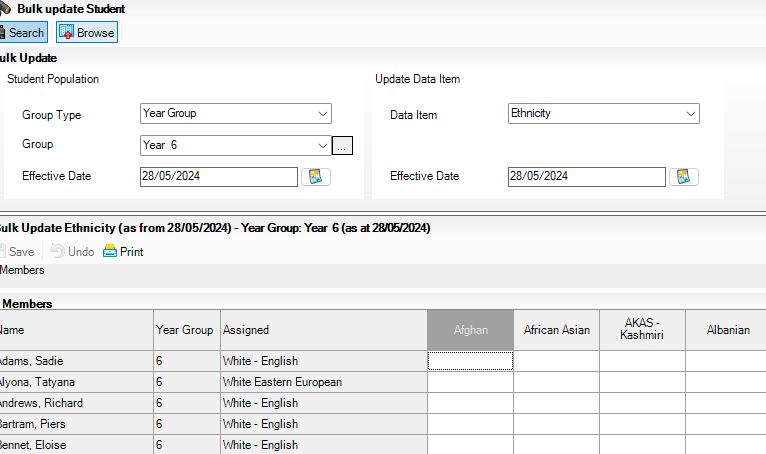
Y6/Yr11 Leavers – make sure they have ethnicity and first language info in their record before making them leave. Do this via Routines/Pupil/Student/bulk update.
Housekeeping
With the end of the year looming, it’s a good time to be planning your Housekeeping routines within SIMS to keep your system as tidy and uncluttered as possible.
We have a free Distance Learning course that covers this, and you can access the course via this link:
https://learning.www.schoolicts.co.uk/p/housekeeping-short-course
We also have a range of other Distance Learning courses available here: https://learning.www.schoolicts.co.uk/ and we’re adding to this all the time.
Simply click on the “Distance Learning Course Brochure” button to see them. They are all the same course content as our ‘live’ courses, and the price is the same too, but these courses give the flexibility to learn at your own pace, or can be useful for schools where freeing up a member of staff for the duration of a training course is difficult to do.
Intouch - Known issue when sending bulk emails with attachments
We are aware of an intermittent issue affecting emails with attachments sent in bulk via InTouch where some messages will fail to deliver, but show incorrectly within SIMS as being queued.
Affected messages will show as having sent successfully when viewing the Sent box in SIMS via Focus | InTouch | Show Messages, however when the message is opened to view more details it is found that a small number of the messages report as queued as in the screenshot below.
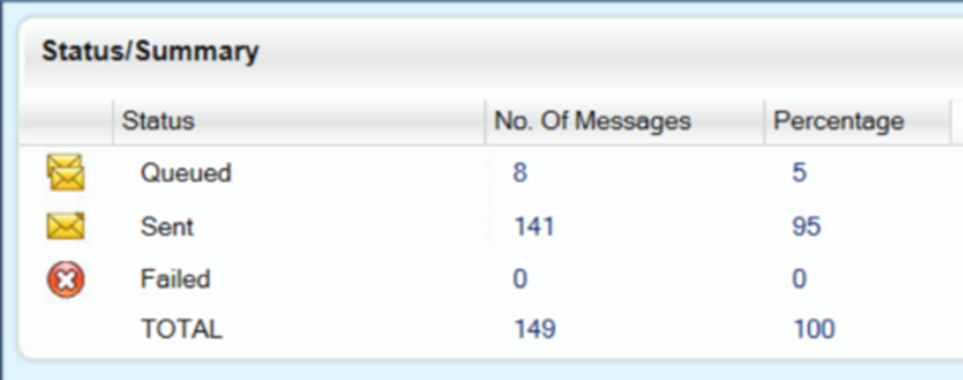
We have confirmed that this issue only affects message sent in bulk where an attachment has been included. Messages without attachments are
unaffected. This issue is also not affecting all InTouch messages, for example a school may send a message with attachment to 100 recipients but only 2 or 3 may report as queued. We have confirmed that, in this circumstance, the messages are in fact failing to send.
Workaround
This issue has been raised with ESS product team who are investigating, please follow this article to be informed of any changes to this behaviour. We have confirmed that a re-send of the message to the affected recipients will resolve the issue in the majority of cases, with messages sending as expected when processed in smaller numbers. We would advise affected customer to re-send the affected messages where applicable as a workaround whilst work remains on-going to resolve the underlying issue.
Sending a message to leavers via InTouch
The workaround is:
Go to Focus > Lesson Monitor > Take Register.
- Change date of register to a date when all the year group were on roll eg Year 11 28/06/2024

- Click on binoculars and set period type as a reg period e.g. Monday AM. Click Search.
Sort by class column. Find the Year 11 reg groups. Select the first Yr 11 reg group in the list. Select the first Yr 11 reg group in the list.
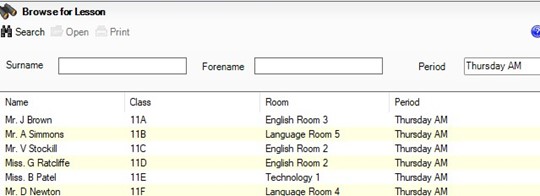
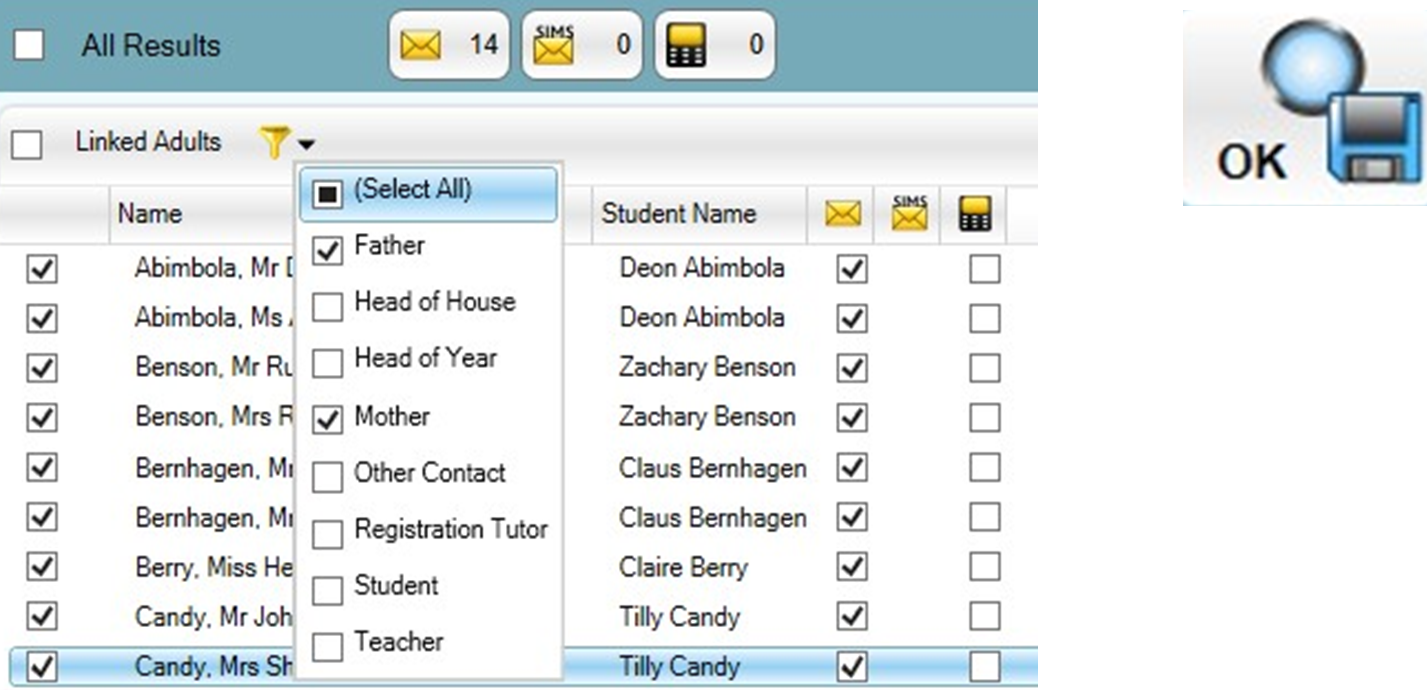
- Use CTRL to highlight a selection of pupils or use shift and select the first pupil and the last pupil in the list to select all students click ‘Send Message’ from the links button.

- Filter the Linked parents drop down to deselect Student and/or mother/father etc. Click the Ok button on right hand side.
The send message screen can now be used as normal including names, reg group, reg tutor, UDFs
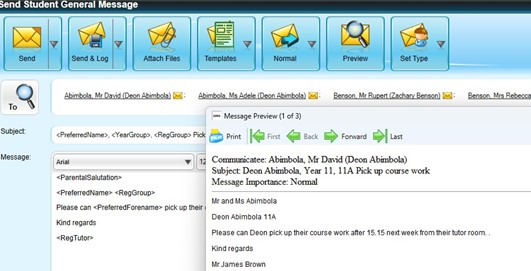
- Send messages to the first reg group. Repeat from Take Register screen selecting each of the Year 11 classes in turn.
- Please note: you cannot define priority status or any other criteria in this way.
- Note: The contact must be marked as an InTouch communicatee, have no court order, have an email address marked as Main and Primary and have parental responsibility.

Arbor Admin Access – School ICT and turn IT on can offer our schools additional support, at no extra cost and as part of your existing SLA
Arbor Admin Access.
What benefit does this functionality bring to you?
With your permission School ICT / turn IT on can carry out Arbor Admin functionality for your school on your Arbor MIS.
This would mean that we would be able to diagnose and resolve a selection of common issues and perform common data refreshes for example, refreshing course calendar entries, populating missing payment accounts and access audit logs.
This ability would negate the need to escalate these tasks to Arbor Support and result in quicker support resolutions.
If you haven’t had the email and feel you should have, please call School ICT on 0845 222 6802 or email helpdesk@schooolicts.co.uk for turn IT on customers call 01865 597620 (opt.2) or email mis.support@turniton.co.uk
Latest Arbor Updates
- Enhanced reporting for observations: expanded data fields added to the analysis page which now allows users to view additional details
- including lesson name, date/time of observation, and observer name. We’ve also added a new base report for observations into the Custom
- Report Writer module, allowing you to pull your observation data out of Arbor for further analysis.
- Set staff ID to be added to downloadable table live feeds, this means you no longer need to use Custom Report Writer for everything.
- New setting added to prevent students and guardians from seeing next year’s calendar. A new setting named “Show next academic year calendar” has been added under Parent Portal settings.
- Schools can now enable the Student Portal themselves, previously this could only be done by Arbor, you now can manage this at your school. Go to Students > Student Portal > Student Portal Settings.
Full details of the updates above and all other Abor updates can be view in the: Arbor Change Log
Did You Know....?
Arbor have added four new Custom Report Writer fields to help make this easier:
- Roll Call Attendance (Present) by Day of the Week
- Roll Call Attendance (Auth Absent) by Day of the Week
- Roll Call Attendance (Unauth Absent) by Day of the Week
- Roll Call Attendance (Absent) by Day of the Week
These fields will filter down students’ attendance to the day of the week, and as with other attendance fields can display the results as a percentage, numerator, or denominator.
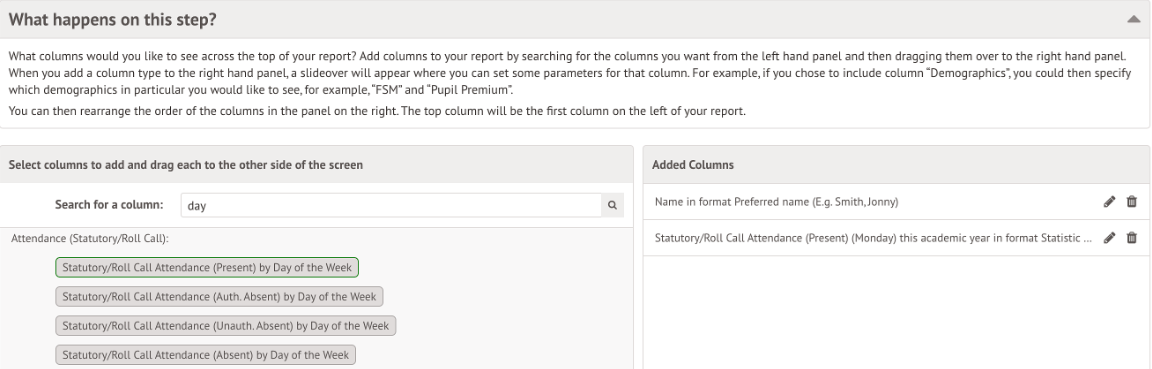
A member of our team has created a report that’s ready to download and import into your system. you can access it through the portal via this link: https://halo.transforming-learning.co.uk/portal/kb?id=802
Key Stage Returns
Important: DfE Statutory Assessment from 23/24 onwards
In line with DfE guidance, End of Key Stage 1 (KS1) Teacher Assessments are no longer required to be collected or reported.
There are no changes in the DfE Assessment area in Arbor. If you won’t be administering KS1 assessments, do not set them up.
All other assessments (KS2, Phonics, MTS and EYFSP) continue to be statutory and required.
Where are DfE assessments in Arbor?
Arbor have developed a specialised area where you can input and analyse your DfE Assessment data, which is a statutory requirement (excluding End of KS1 Assessment) for schools in England.
Setting up and adding marks
Set up all the relevant standardised assessments for your school. To see how to set up and mark different standardised assessments, follow these guides:
- End of Key Stage 1 or 2 standardised assessments
- Early Years Foundation Stage Profile (EYFSP)
- The Phonics Screening Check
If you want to print your marksheets to check your marks, follow these instructions: Can we download the DfE statutory assessment marksheet to check the data?
Please note that you do not set up the Multiplication Tables Check: How do we set up the Multiplication Tables Check (MTC) template?
Sending off your results to the DfE or the Primary Assessment Gateway
On or before the deadline, you’ll need to submit your teacher assessment data for KS2 to the Primary Assessment Gateway. To see how to generate your CTFs to submit, click here.
Remember when exporting your CTF, leave the Year group field blank if you want all the students that took the test are chosen. If you want to, for example, export your year 1 and year 2 Phonics Screening Check data separately, you will select Year 1 in this field.
Importing and analysing results
For all of the assessments, you can see the marks input by going to DfE Assessments > View Marks.
However, some analysis isn’t available in the Students > Assessments > DfE Assessments > Analysis pages until the results have been released by the DfE.
Take a look at how and where to analyse your assessments here: How can I analyse my DfE statutory assessments in Arbor?
Key dates
You can find other important dates and deadlines in the DfE’s guidance:
- 2024 optional key stage 1 tests guidance
- 2024 key stage 2: assessment and reporting arrangements (ARA)
- Multiplication tables check
- Key stage 1: phonics screening check administration guidance
- Early years foundation stage profile handbook
Wednesday 1st – Friday 31st May
If running these assessments (they are optional), this is the testing period for KS1 assessments.
There is no obligation to report these to your LA or the DfE.
Monday 13th – Thursday 16th May
This is the testing period for KS2 assessments.
Monday 3rd – Friday 14th June
This is the testing period for the KS2 Multiplication tables check.
Monday 10th – Friday 14th June
This is the testing period for the KS1 Phonics screening check.
Monday 24th June
The threshold mark for the Phonics Screening Check will be available from the DfE. In Arbor, student outcomes will automatically appear on the marksheet based on the raw scores you’ve already put in, and you’ll be able to analyse your data.
The Multiplication Tables Check (MTC) results become available from the Primary Assessment Gateway. To import your results into Arbor:
1. Generate a CTF file from the Primary Assessment Gateway to your computer
2. Import the file – click here to find out how
3. You’ll then be able to see MTC results on the analysis pages.
Friday 28th June
This is the deadline to submit KS2 results on the Primary Assessment Gateway.
Tuesday 9th July
The KS2 results become available from the Primary Assessment Gateway. To import your results into Arbor:
1. Generate a CTF file from the Primary Assessment Gateway to your computer
2. Import the file – click here to find out how
3. You’ll then be able to analyse your school results on the Analysis pages.
Sharing results
You can export your results as End of Year Reports or Report Cards if you need to send them parents or guardians. To see how, click here.
View this article in full online here.
Webinars
Upcoming Webinars:
- Report Cards – Monday 10th June –Click here to register
- New School Year Setup 1-5 – Monday 10th June – Click here to register
- New School Year Setup for Secondaries steps 6 – 9 – Friday 21st June – Click here to register
- New School Year Setup for Primaries steps 6 – 9 – Monday 24th June – Click here to register
- Exam Results – Tuesday 9th July – Click here to Register
Previous Webinars:
- DfE Assessments 2024 – Click Watch here.
New School Year Set up
You can now start working of your New School Year set up in Arbor. Guidance can be found here:
Staff Paying for items in Arbor
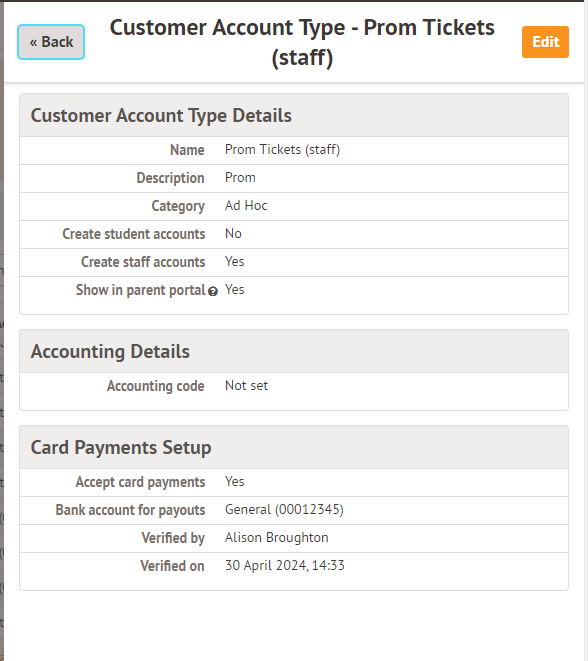
Whilst you can use school shop for students, staff can’t be linked to school shop items but you can still charge staff for items purchased by creating an ad hoc Customer Account Type.
You can create a customer account type and then raise an invoice to create a debt against the account (in this case for something like a ticket?).
Staff can pay by going to My Items | My Payments. They can pay by card for the tickets. (This method will work for other items as well). Please see the example below. Go to School > Payments > Setup > Customer Account Types.
Staff can then be issued an invoice.
This can be done from their profile. Go to payments and select the account to invoice
Select Invoices | + Add
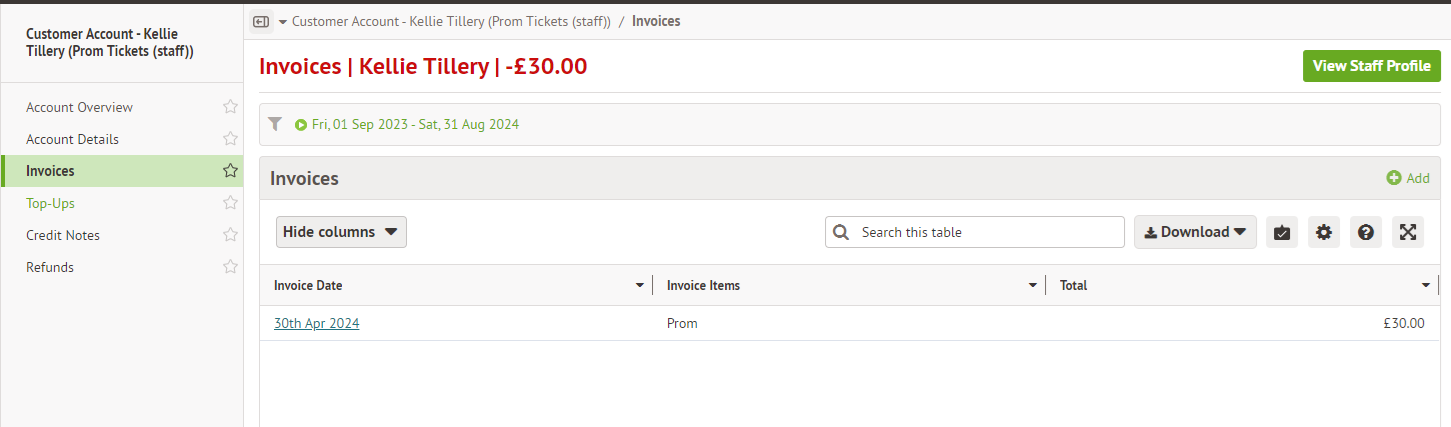
When staff log in they will be able to see the invoice and make payment via My Items| My payments
As an administrator you will be able to see the overview in School | Payment | Prom Tickets
or school | payments | Invoices.

Year End Process
Please see the link below for guidance on this – NB Please be aware you cannot complete the Year End process until the last day of the summer term and after the PM register, however there are aspects of the Year End that you can start before the last day of the summer term.
There are 6 essential steps (1-6 listed below), which will need to be completed and a 7th step (number 7 listed below) which is optional. The process is a linear function, and the elements should be carried out in the order indicated by the timeline. You cannot go back to a previous step once you have passed it.
To start your Year End procedures, you can use the icon via Admin > Year End.
We also offer consultancy support to work with you to complete the process on your behalf to save valuable time in school. Please drop us an email if you are interested via helpdesk@Schoolicts.co.uk for School ICTS customers or mis.support@turniton.co.uk for turn IT on customers.
Phonics Statutory Assessment Data
In order to enter phonics statutory assessment data please go to Admin > Students > Statutory Assessment > Phonics.
INFO
If you don’t have access to Admin and your school has it set up, please go via Workspace > Statutory Assessment instead. For guidance see: Update Settings so Teachers can enter Statutory Assessment Data
In this area a table will appear with all your Year 1 and Year 2 students. You will need to enter the marks for all students in Year 1.
It is only necessary to enter data here for those Year 2 students who are re-sitting the phonics test this academic year.
To enter the phonics mark click into the dropdown, select the mark you require (from 0-40) and you will see a green tick flash up to show that the mark is saved in the Saved column.
Please Note
The threshold mark will be made available to schools after the end of the test window on GOV.UK. Schools do not need to wait for the threshold mark to be published before submitting their data to the local authority.
Schools are only required to submit the mark (or outcome where the pupil has not taken the test) to local authorities, and local authorities will be required to submit this to the DfE.
The DfE will apply the threshold after the data has been submitted to local authorities.
The ‘Phonics Outcome’ field is to be populated with the following values only where a pupil has not taken the test:
A – Absent
Q – Maladministration
D – Disapplied
L – Left
Outcomes Wa and Wt are not required. However, if these are included in a file returned to the department the file will be accepted and the Phonics Outcome field removed.
If a pupil is absent during the check week, you can administer the check to them later. Any pupil who is absent from school for this entire period should be recorded as absent in the results data.
How to Enter the Key Stage 2 Teacher Assessment Data
In order to enter Key Stage 2 (KS2) teacher assessment data please go to Admin > Students > Statutory Assessment
INFO
If you don’t have access to Admin and your school has it set up, please go via Workspace > Statutory Assessment instead. For guidance see: Update Settings so Teachers can enter Statutory Assessment Data
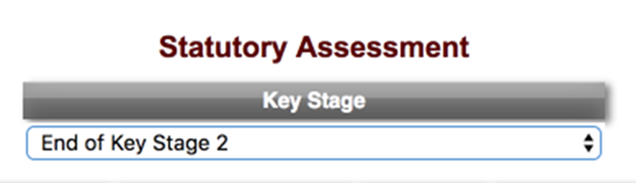
- Select End of Key Stage 2 from the Key Stage drop-down list.
Additional Guidance
- DfE Guidance: key stage 2 assessment and reporting arrangements (ARA)
- Multiplication Tables Check (MTC) for Year 4
- Enter Teacher Test Data
KS2 Teacher Assessments
In this area on the left hand side you have the option to select the components you wish to mark against.
Info
To select multiple components, hold down the CTRL key or CMD key if you are on a MAC, then click on the components
The components in orange are the Teacher Assessments.
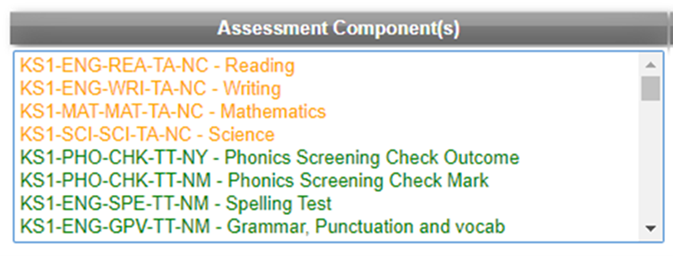
Once the components are selected you can enter the result date and year you wish the marks to be assigned against.
Please be advised the ‘Result Year’ is the year the students took the test not the academic year.
For guidance on entering historic data please refer to:
Enter Historic Key Stage Statutory Assessment Data
You then have some options for the Table Format you require. If you are entering data select ‘For data entry’ –
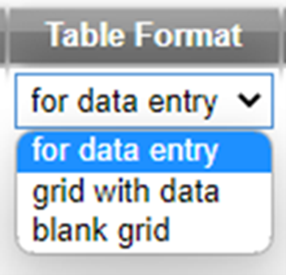
‘For data entry’ allows you to enter the data.
‘Grid with data’ shows the data entered already and you then have an option to print the results here if required.
‘Blank grid’ can be used if you wish to print off the table and enter the data manually before entering it on the system.
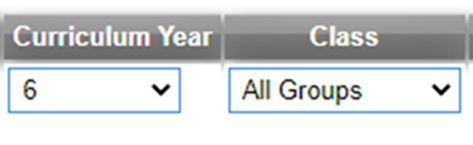
Enter the curriculum year that the students are in – in most cases this will be Year 6.
If you have more than one form per year you can also choose to view this by class to enter the data separately for each group, if you don’t select this it will show the whole year group.
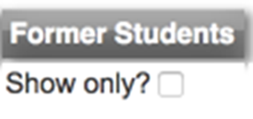
Click the tick box to show only former students if you have any off roll students you need to enter data for, this will only show off roll students so you will need to untick this box and then click choose for the on roll students.
Once you select “Choose” you will have a list of all students in the requested year group and you can start entering the data by clicking the drop down arrow and selecting a result (see below for the codes).
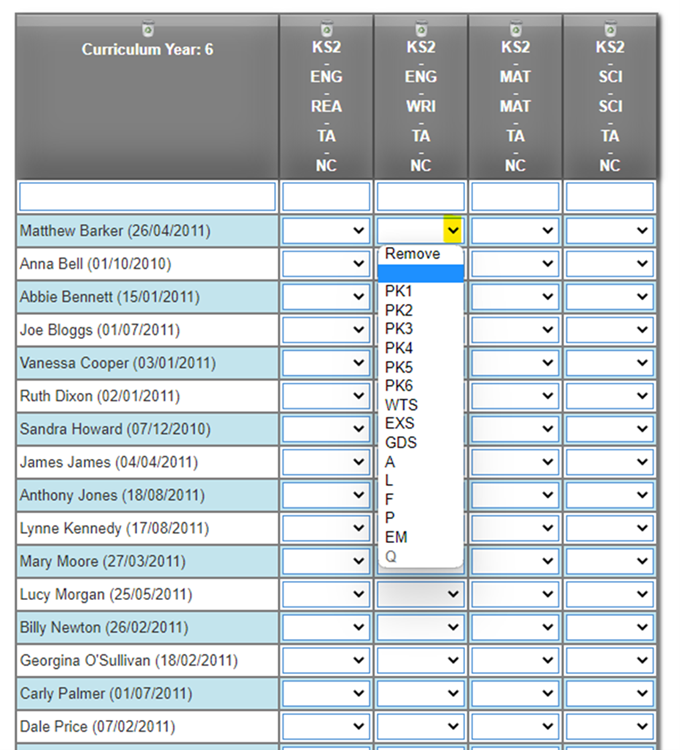
When the data has been entered please ensure to click “Save” at the bottom of the page before navigating away.

How to import the Multiplication Tables Check (MTC) into ScholarPack
MTC is an on-screen assessment developed to determine whether students are able to fluently recall their multiplication tables up to 12 through a set of timed questions. The check consists of 25 questions, and students have 6 seconds to answer each question with a 3 second pause between questions. There will be three practice questions before the check begins.
The MTC results (a total score for each student) is available in the ‘View Pupil Results’ section of the MTC Service
How to import the MTC results into ScholarPack
You will download a partial CTF with student MTC results from the DfE online portal.
In ScholarPack, go to Admin > Students > Partial CTF Importer and select Assessments.
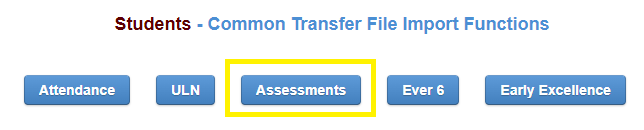
Click Choose File to locate the file in your computer, then click Upload

View the Imported Data
The data can be viewed on each Year 4 student profile by clicking on the Assessment tab.
Under Statutory Assessments and Simple Assessment.
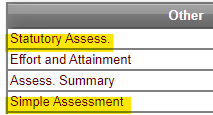
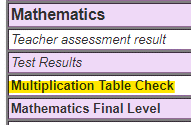
Within Statutory Assessments you can view the marks under Key Stage 2 Results, in the Mathematics area.
Report on the MTC Results
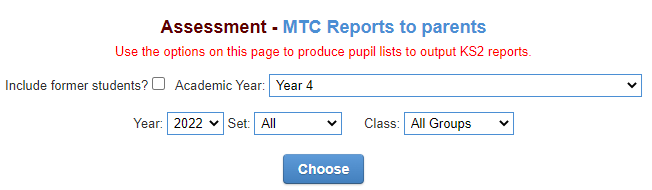
In Reporting > Assessment > Statutory Assessment you will find the School MTC Report and the MTC Reports to Parents.
- In the School MTC Report, select the student’s current year group and the year the test was taken, as well as a particular form or cohort if required. Then click Choose to run the report.
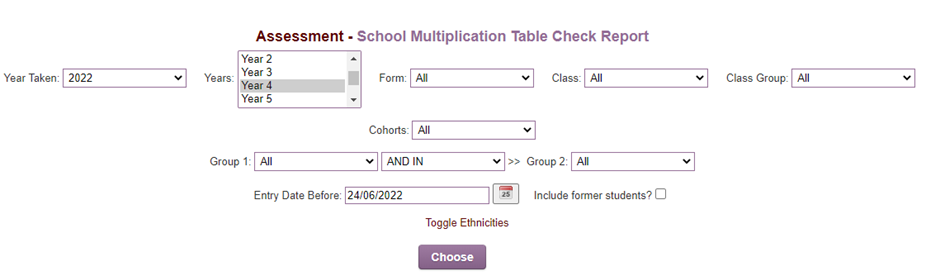

The report will display student names with the current year group, the year of result, the year group of outcome as well as the student’s outcome
- In the MTC Report to Parents, this report will download to produce one student entry per page, with the student name, their result and what a result means in cases where the student has not taken the test (see Mark Options below).

How to import the Multiplication Tables Check (MTC) into ScholarPack
The MTC is an on-screen assessment developed to determine whether students are able to fluently recall their multiplication tables up to 12 through a set of timed questions. The check consists of 25 questions, and students have 6 seconds to answer each question with a 3 second pause between questions. There will be three practice questions before the check begins.
The MTC results (a total score for each student) is available in the ‘View Pupil Results’ section of the MTC Service
How to import the MTC results into ScholarPack
You will download a partial CTF with student MTC results from the DfE online portal.
In ScholarPack, go to Admin > Students > Partial CTF Importer and select Assessments.
Click Choose File to locate the file in your computer, then click Upload
View the Imported Data
The data can be viewed on each Year 4 student profile by clicking on the Assessment tab.
Under Statutory Assessments and Simple Assessment.
Within Statutory Assessments you can view the marks under Key Stage 2 Results, in the Mathematics area.
Report on the MTC Results
In Reporting > Assessment > Statutory Assessment you will find the School MTC Report and the MTC Reports to Parents.
- In the School MTC Report, select the student’s current year group and the year the test was taken, as well as a particular form or cohort if required. Then click Choose to run the report.
The report will display student names with the current year group, the year of result, the year group of outcome as well as the student’s outcome
- In the MTC Report to Parents, this report will download to produce one student entry per page, with the student name, their result and what a result means in cases where the student has not taken the test (see Mark Options below).
Mark Options for MTC
Mark Options: A score of 0-25 (out of 25 questions), or:
- A = Absent
- B = Working below expectation
- J = Just arrived in the school
- L = Left
- Q = Annulled
- U = Unable to access test
- X = Not Received/missing data
- Z = Incorrect registration for the MTC assessment

BromCommunity SSO Now Live!
Bromcom are pleased to announce that you can now access the Bromcom Community directly from the MIS.
They have just released Single Sign On (SSO) in the MIS so you and your colleagues do not have to remember or manage another username and password combination.
- Clicking on Community Portal from the ‘i’ menu in the MIS will log you into the community using Single Sign On (SSO).
- Clicking on Development Ideas from the from the ‘i’ menu in the MIS will log you into the Bromcom Ideas Portal using SSO.
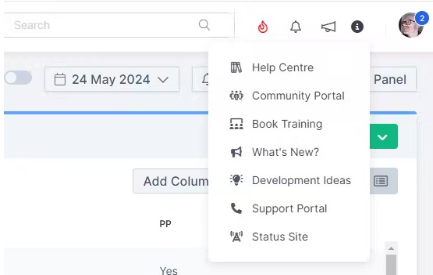
- The first time you use this link for Community Portal or Development Ideas, you will be sent a verification code to your registered email address, which you will need to enter as a one-time process.
- If you have an account and are already logged in, you will stay logged in.
- Your user profile name may change to your initial(s) followed by surname. eg. Harry Windsor will change to H Windsor.
- If you are logged out, you will be logged in by clicking on the SSO link.
- Users without an existing community account, the system will create a new account after they have verified their email address with the verification code.
- If you change your work email address in the MIS, clicking on the Community Portal link will generate a new community account. The old account and content (posts and replies) will still exist.
- If you already have an account, you do not have to use SSO and can carry on using a password login if you prefer.
- There are no permissions on the MIS side to switch off the ‘i’ menu in order to prevent users from accessing Community. If this is an issue, you may wish to investigate local filters for this purpose.
- There will be nothing to stop teachers from logging into the Community. It is not designed for teachers in particular, and we do not anticipate the current scope of the Community to have a wide appeal for teachers. However we will monitor the impact of SSO and add refinements, such as teacher focused spaces if that is needed.
If you or your colleagues have any issues, please get in touch at community@bromcom.com.
Web Wednesdays
Don’t forget to check out Web Wednesdays for top tips on a variety of topics.
Please go to the Bromcom Community website and sign in.
3rd Party users and Bromcom
Bromcom have become aware that some 3rd Party suppliers have advised schools to use a generic password when creating a 3rd Party User Account.
Please ensure that any passwords shared with 3rd Party Suppliers are not generic, e.g. not the name of the supplier, and that you have ticked the box User can Sign into the MIS option.
Please also check that any 3rd Party User Account are only assigned 3rd Party Roles & Permissions.
Primary Data Collections 2024
Live Primary Data Collections Webinar training sessions are now. To book or view guidance please click on the link below:

Early Years Foundation Stage (EYFS) Teacher Assessment
Note Section A must be completed before starting Section B.
Important Dates for the 2024 return:
- 1st June 2024 – Collection Opens
- 30th June 2024 – The EYFS profile must be completed for each child and submitted to the local authority no later than 30 June.
- 31st July 2024 – Deadline for local authorities to return data to DfE
Section A – Setting up Integris for the EYFS 2024 data
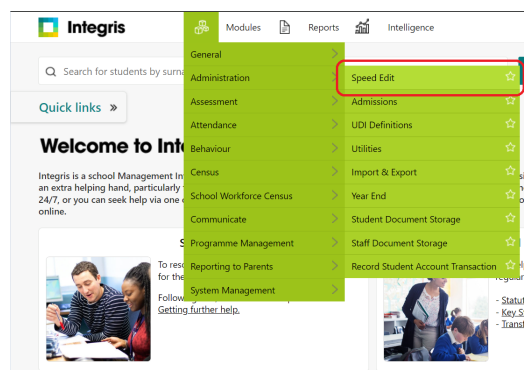
1. From the Modules menu choose Administration and then Speed Edit, to display the speed edit screen:
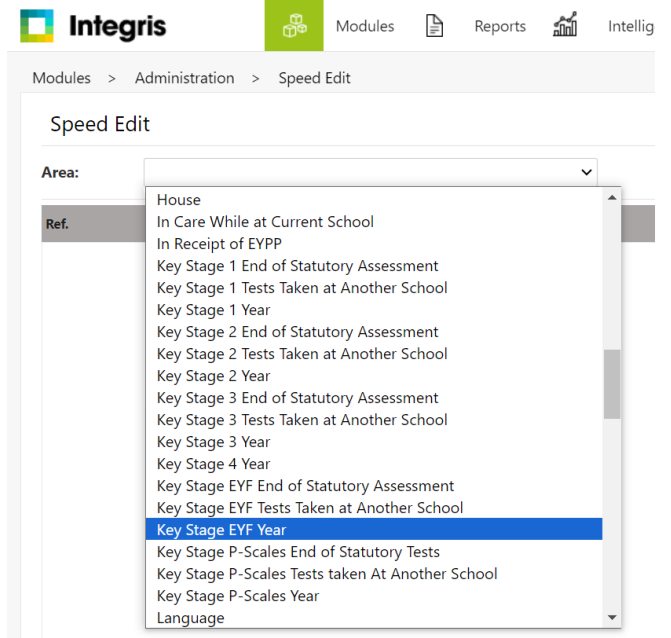
2. From the Area drop-down menu, select Key Stage EYF Year:
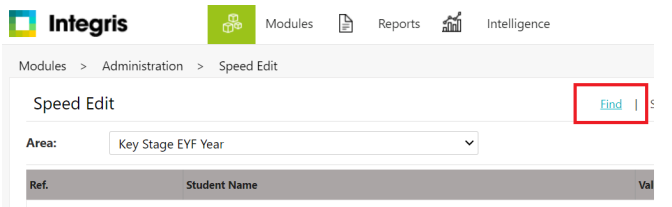
3. Select Find:
4. In the Year Group field, select the correct Year Group (normally Reception) from the dropdown menu.
5. Click Find and the pupils are displayed.
6. Click Select and then choose Yes.
7. From the New Value drop-down menu, select 2024.
8. Click Select All to highlight all students.
9. Click the Apply Changes button.
10. Click Save and click Yes to any warning messages.
11. From the Area drop-down menu, select Key Stage EYF End of Statutory Assessment.
12. Click Select All to highlight all students
13. Enter a tick in the New Value box.
14. Click Apply Changes – Yes will appear in the Value column.
15. Click Save and click Yes to any warning messages.
16. From the Area drop-down menu, select Key Stage EYF Tests Taken at Another School. In the New Value column, any pupils that have taken the test at another school should have a value of Yes against them.
17. Highlight the remaining pupils either by clicking Select All and deselecting the pupils with the Yes value or cherry picking (Ctrl + click to deselect).
18. Leave the New Value box blank
19. Click Apply Changes – No will appear in the Value column.
20. Click Save and click Yes to any warning messages.
Your records will now be updated. When the update is complete, the screen will change from blue to white. Click Exit to exit the Speed Edit window.
Section B – Entering the Key Stage assessment scores
There are currently two methods of inputting Key Stage data into Integris. The quickest way (method 1) is to input directly into the Key Stage template in Assessment and the other option (method 2) is to enter assessment scores directly into the Student Details area (Key Stage tab).
Notes: Information on 2024 EYFS assessment codes can be found on the Additional Information for Key Stage Assessments.
Method 1 – Input using Key Stage templates (information filters through to individual pupil records in Student Details). (click to show/hide details)
To copy the template, follow the steps below:
- In Modules, select Assessment, Assessment Planning. The Assessment Plans window opens.
- Expand the Templates folder by clicking the + symbol.
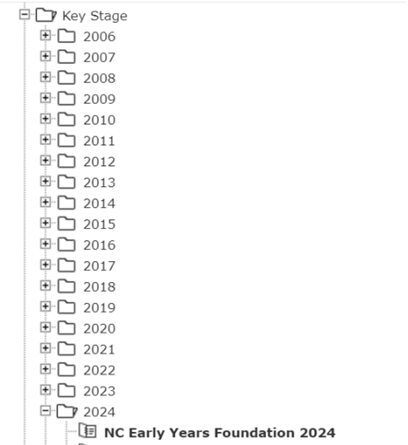
- Expand the Key Stage folder by clicking the + symbol.
- Expand the 2024 folder by clicking the symbol.
- Highlight the NC Early Years Foundation 2024 template
- On the right-hand side, click Deploy and then No to the ‘Do you wish to deploy more plans’ prompt which appears
- The plan will now be copied to your My Assessment folder under a Key Stage > 2024 folder
To assign groups and markbook users, follow the steps below:
- Expand My Assessment Plans > Key Stage > 2024 folder by clicking the + symbol.
- Highlight the NC NC Early Years Foundation 2024 plan and click the pencil icon to edit the plan.
3. Select the Enrolled Groups
4. Click the Add an Enrolled Group icon .
5. From the Enrolled Group Type drop-down menu, select Year Group.
6. Highlight your year group (normally Reception) and click the Add
7. Click Close.
8. Highlight the enrolled group and click the
9. Select a single user by clicking to highlight their name or select several users by holding the Ctrl key down and clicking with the mouse.
10. Click OK and then Save. The template is now ready to use.

To enter the assessment data into the markbook
There are two methods for entering the assessment data into the Markbook. You can use Method 1 to enter the results directly into the Markbook or use Method 2 to import the results into a CSV file and then import the file to the Markbook. Note that only the markbook owner can import or add data into the markbook.
Method 1 – Entering the results directly to the Markbook
- In Modules, select Assessment, Markbook. The Markbook window opens.
- Expand My Markbooks and highlight the NC Early Years Foundation 2024 : Year Reception markbook.
- Click the Open a Markbook icon.
- Expand the unit for Communication (as shown in the image below).
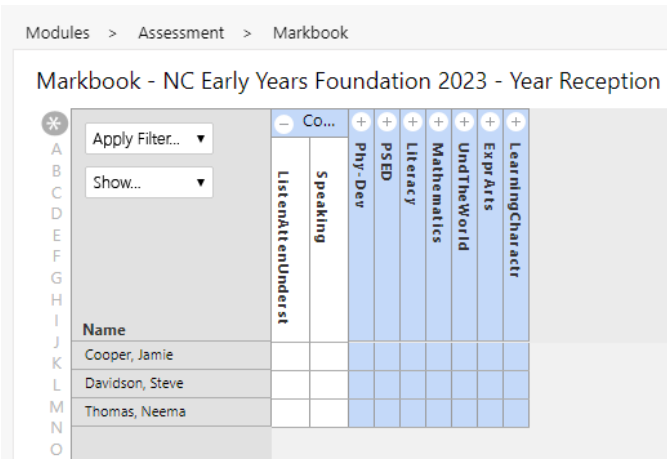
- Enter the assessment in the columns for all pupils listed and then click Save.
- Collapse the Communication unit.
- Click Save (we would advise clicking save on a regular basis and confirming you see the message appear before continuing).

- You will then need to expand each unit and enter the necessary data for all pupils.
- Click Save for the final time and then Back to exit. Your markbook is now complete.
Method 2 – Importing data to Markbook via CSV file:
- In Modules, select Assessment and then Markbook.
- Expand My Markbooks and highlight the NC Early Years Foundation 2024 : Year Reception markbook.
- Click the Open a Markbook icon.
- Click on the Tools menu at the top right-hand corner of the screen and select Export Assessment Data
- Press Next, Next and then Export. This creates an Excel spreadsheet which will be downloaded.
- Open and save the file, somewhere you have access to e.g. Your desktop or document folder.
- This file can be emailed to teachers so they can enter results or you can add the results yourself directly to the file.
For information on how to import the file to the markbook, please go to To import data into an open markbook. To import data into an open markbook. If you are an Assessment Co-ordinator or Administrator you can also import CSV data into the markbook via the Assessment Import utility under Assessment > Utilities. See Assessment utilities overview.
Method 2 – Input into individual pupil records in Student Details (scores entered directly into the Key Stage tab) (click to show/hide details)
- In Modules, select General and then Student Details.
- Click Find.
- In the Year Group field, select the year group (normally Reception) for the students from the drop-down menu.
- Click Find and the pupils are displayed.
- Click Select and then choose Yes to the warning message. You will have now selected a browse set of the students and the first student’s information will be displayed in the Student Details view.
- Click the Key Stage tab on the first student and click Edit.
- Ensure the Current Key Stage shows EYFS and if not, select the drop down and choose EYFS
- Ensure the Year of Assessment shows 2024 and if not, select the drop down and choose 2024.
- Tick the End of Statutory Assessment box.
- Leave Assessed at Another School blank (a tick should only appear if the pupil has been assessed at another school).
- Click Teacher Assessments and enter the assessment data as needed and click Save when all levels have been entered.
- You will now be back to the Student Details screen and you can move through the pupils by clicking on the Next (left-facing arrow) or Previous (right-facing arrow) arrows. Use Edit to open the Key Stage data tab for editing and save each record.
- Teacher assessment results need to be added for all eligible pupils entered for the end of Key Stage Early Years Foundation statutory assessments.
Section C – Creating the Key Stage assessment export file
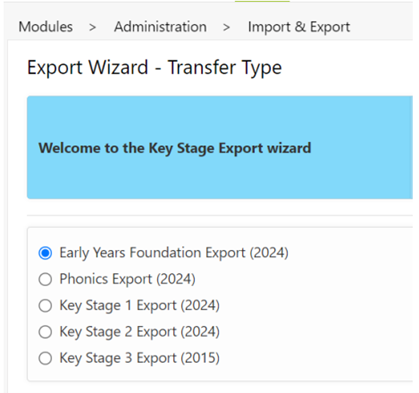
- In Modules, select Administration, Import & Export
- Select Key Stage Exports. 3. Click the Early Years Foundation Export (2024) radio button
- Click Next
4. Select the students you wish to include in this import by clicking on the plus icon and selecting the current roll with the correct year group (normally Reception).
5. All the EYF pupils will appear in the export window, click Next
6. In the Export Summary window scroll down to check there are no pupils with validation issues. These issues must be reviewed and corrected if necessary, before generating the file for submission.
7. If there are validation issues click Finish, click Yes to the warning message and click Close – you will need to return to Section B to look at individual pupil records and add any missing information. Once this is done continue with the instructions from Section C onwards.
If there are no validation issues, click the Download Now button.
8. In the File Download window click Save.
9. Navigate to your desktop or a folder you have created for the EYF return.
10. In the file name box the structure will read: ZZZXXXX_FSP_ZZZLLLL_001.ZIP (where ZZZ is your LA code and XXXX is your school code).
11. If you are required to change the file name please do so.
12. Click Save and Close.
13. Click Finish and Close.
14. Exit or minimise Integris

You will then need to send this file to the relevant parties.
Section D – Running EYFS Reports
Most Key Stage reports automatically include the appropriate students for a particular Key Stage in them, so the end user doesn’t have to use Student Find to select the cohort.
- In Reports, select Key Stage Reports, and select the folder with the type of report required. E.G Pupil Assessment Sheet
- Select EYFS.
- The relevant students will pre-populate. Make any adjustments to the report settings and click the refresh icon to update the student list automatically.
- Click Generate Report.
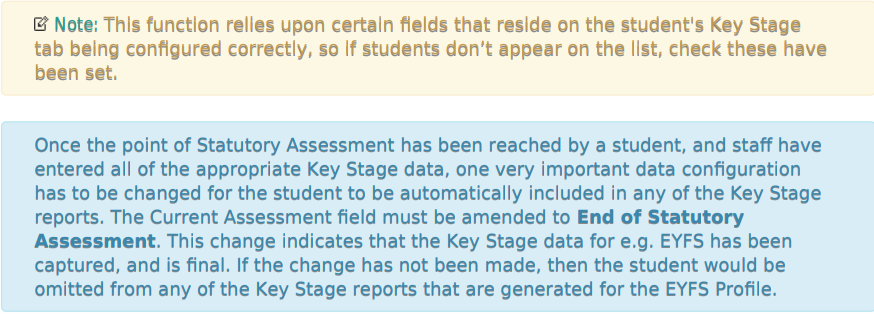
You can edit the End of Statutory Assessment field in the students record (Modules > General > Student Details > Key Stage) or via Modules > Administration > Speed Edit.
A quick way to check whether the users have configured the data correctly to ensure students are included in the Key Stage reports is through Student Find. Within Modules > General > Student Details, click Advanced Search. In the General Search window, set the following filters:
Year Group: Reception
Key Stage: EYFS
Year of Assessment: 2024
End of Statutory Assessment: Yes
Phonics Assessments
DfE Phonics testing should be completed in the week commencing 10th June 2024
The deadline for submitting Phonics Data to the DfE is Friday 19th July 2024
The 2024 phonics screening check threshold will be released Monday 24th June.
Section A must be completed before starting Section B (method 1 or 2)
Section A – Setting up Integris for the Phonics data:
- From the Modules menu choose Administration and then Speed Edit, to display the speed edit screen
- From the Area drop-down menu, select Phonics Check Year
- Select Find
- In the Year Group field, select 1 from the drop-down menu
- Click Find, and the pupils are displayed
- Click Select and then choose Yes
- Click Select All to highlight all students
- From the New Value drop-down menu, select 2024
- Click the Apply Changes button
- Click Save and click Yes to any warning messages
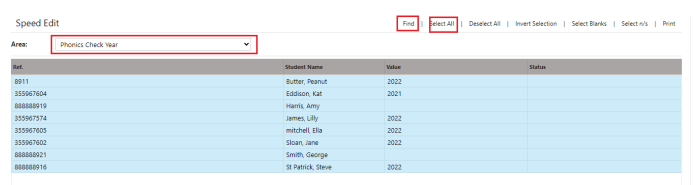

- From the Area drop-down menu, select Phonics Check Taken at Another School. In the New Value column, any pupils that have taken the test at another school should have a value of Yes against them.
- Highlight the remaining pupils either by clicking Select All and deselecting the pupils with the Yes value (Ctrl + click to deselect) or cherry picking.
- Leave the New Value box blank
- Click Apply Changes – No will appear in the Value column.
- Click Save and click Yes to any warning messages.
Notes: For any year 1 students who start at your school after the tests were taken but before the results are sent off should either be marked as ‘Assessed at another school’ on the KS1 Keystage tab in the Phonics area, if they were assessed before they came to your school, or they should be marked as A (absent) and tested in the following year when they are in year 2
Section B – Entering the Phonics test scores
There are currently two methods of inputting Phonics data into Integris. The quickest way (method 1) is to input directly into the Phonics template in Assessment and the other option (method 2) is to enter the test scores directly into the Student Details area (Key Stage tab, Phonics area).
Method 1 – Input using Phonics templates (information filters through to individual pupil records in Student Details). (click to show/hide details)
To copy the template, follow the steps below:
- In Modules, select Assessment, Assessment Planning. The Assessment Plans window opens.
- Expand the Templates folder by clicking the + symbol.
- Expand the Key Stage folder by clicking the + symbol.
- Expand the 2024 folder by clicking the + symbol.
- Highlight the NC Phonics Check 2024 template.
- On the right-hand side, click Deploy in the top right of screen and then No to the prompt which appears.
- The plan will now have been copied to your My Assessment Plans folder, and can be found under Key Stage > 2024 folder
To assign groups and markbook users, follow the steps below:
- Expand My Assessment Plans > Key Stage > 2024 by clicking the + symbol.
- Highlight the NC Phonics Check 2024 plan and click the icon.
- Select the Enrolled Groups tab.
- Click the Add an Enrolled Group icon.
- From the Enrolled Group Type drop-down menu, select Year Group.
- Highlight Year Group 1 and click the Add button.
- Click Close.
- Highlight the Year 1 enrolled group and click the icon as shown below.
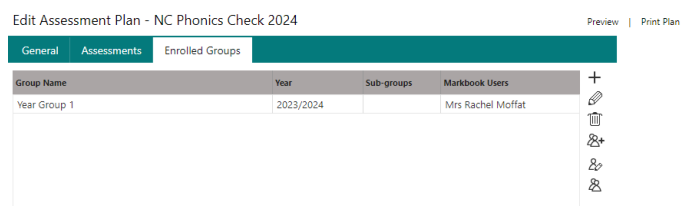
- Select a single user by clicking to highlight their name or select several users by holding the Ctrl key down and left-clicking with the mouse.
- Click OK
- Click Save. The template is now ready to use.
To enter the scores into the markbook
There are two options for entering the scores into the Markbook. You can use Option 1 to enter the results directly to the Markbook or use Option 2 to import the results into a CSV file and then import the file to the Markbook.
Option 1 – Entering the results directly to the Markbook
- In Modules, select Assessment, Markbook. The Markbook window opens.
- Expand My Markbooks and highlight the NC Phonics Check 2024 : Year 1 markbook.
- Click the Open a Markbook icon
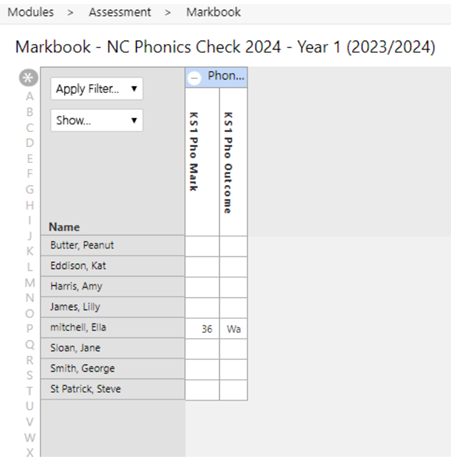
- Enter the scores in the KS1 Pho Mark column for all pupils listed and then click Save.
- Once the final student is complete, click Save and then Back to exit.
Option 2 – Importing data to Markbook:
- In Modules, select Assessment and then Markbook.
- Navigate to the Markbook and select the Open a Markbook button
- Click on the Tools menu at the top right hand corner of the screen and select Export Assessment Data
- Press Next, Next and then Export
- This file can be emailed to teachers so they can enter result or you can add the results yourself directly in the file. If you are an Assessment Coordinator or Administrator you can also import CSV data into the markbook via the Assessment Import utility under Assessment > Utilities.
Method 2 – Input into individual pupil records in Student Details (scores entered directly into the Key Stage tab) (click to show/hide details)
- In Modules, select General and then Student Details.
- Click Find.
- In the Year Group field, select 1 from the drop-down menu.
- Click Find and the pupils are displayed.
- Click Select and then choose Yes.
- Click the Key Stage tab.
- Click Edit. 8. For each eligible pupil, confirm the Current Key Stage shows Key Stage 1 and if not select Key Stage 1 from the drop-down menu.
- In the Phonics Screening Area, enter the Mark into the Mark field and click Save (you will not be able to complete the outcome field at this time). Before clicking save, ensure that the Year shows 2024.
- Click Save
- You will now be back on the Student screen and you can move through the year 1 pupils by clicking the Next or Previous arrows.
- Use Edit to open the Key Stage tab for editing and Save each record.
Section C – Creating the Phonics export file
- In Modules, select Administration, Import & Export
- Select Key Stage Exports.
- Click the Phonics Export (2024) radio button
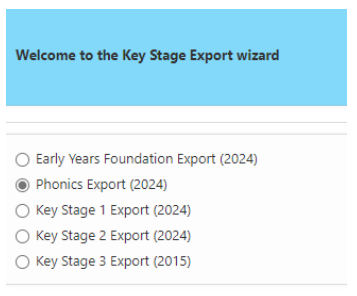
- Click Next (The report will automatically export the pupils to ZZZ/LLLL – Home LEA (where ZZZ is the local authority code)).
- Click the Add Students icon.
- In the Year Group field, select 1 from the drop-down menu.
- Click the Find button and the pupils are displayed.
- Click Select, Yes. All the year 1 pupils will appear in the Export window.
- Click Next
- In the Export Summary window, scroll down to check there are no pupils with validation issues. These issues must be reviewed and corrected if necessary, before generating the file for submission.
- If there are validation issues, click Finish, Yes to the warning message and Close. You will need to return to Section B to look at the individual pupil records and add any missing information. Once this is done, continue with the instructions from Section C.
- If there are no validation issues, click the Download Now button
- In the File Download window, click Save
- Navigate to your desktop or a folder you have created for the Phonics return. In the File Name box, the structure will read: ZZZXXXX_PHO_ZZZLLLL_001.ZIP (where ZZZ is the local authority code and XXXX is the school code).
- If required, please rename the file at this stage.
- Click Save and then Close.
- Click Finish and then Close.
- Exit or minimise Integris.
You will then need to send this file to the relevant parties.
You may be required to Extract the file from the zip folder before sending it to the Local Authority. To do this, right-click on the downloaded Export file and choose the ‘Extract All’ option, then complete the extraction wizard.
Section D – Running Phonics Key Stage Reports
The Key Stage reports can be found within Reports > Key Stage Reports (Phonics Certificates
Note Students with an Outcome of A – Absent, D – Disapplied or L – Left are not included in the Key Stage Phonics Student Assessment Sheet. This is expected behaviour and no return is required for these students. You can only run the Key Stage Phonics Student Assessment Sheet report for students with a Phonics mark and Outcome. If students don’t appear on the report, then please confirm an outcome has been entered for the student. To include students that were assessed at another school, you need to tick the ‘Include pupils assessed at another school’ on the Pupil Assessment Sheet report.
Instructions for Key Stage 2 (KS2) Teacher Assessments
Section A must be completed before starting Section B (method 1 or 2).
Important Dates
- Tests are timetabled for Monday 13th May to Thursday 16th May
- Multiplication tables check should be completed within the 2 week period starting Monday 3rd June
- Deadline for the return is Friday 21st June
A list of all test dates for Key Stage 2 2024 have been released by the DfE as follows:
Section A – Setting up Integris for the KS2 2024 data: –
- From the Modules menu choose Administration and then Speed Edit, to display the speed edit screen.
- From the Area drop-down menu, select Key Stage 2 Year.
- Select Find
- In the Year Group field, select 6 from the drop-down menu.
- Click Find, and the pupils are displayed.
- Click Select and then choose Yes.
- Click Select All to highlight all students.
- From the Area drop-down menu, select Key Stage 2 Year.
- Click Select All to highlight all students.
- From the New Value drop-down menu, select 2024.
- Click the Apply Changes button.
- Click Save and click Yes to any warning messages.
- From the Area drop-down menu, select Key Stage 2 End of Statutory Assessment.
- Click Select All to highlight all students
- Enter a tick in the New Value box.
- Click Apply Changes – Yes will appear in the Value column.
- Click Save and click Yes to any warning messages.
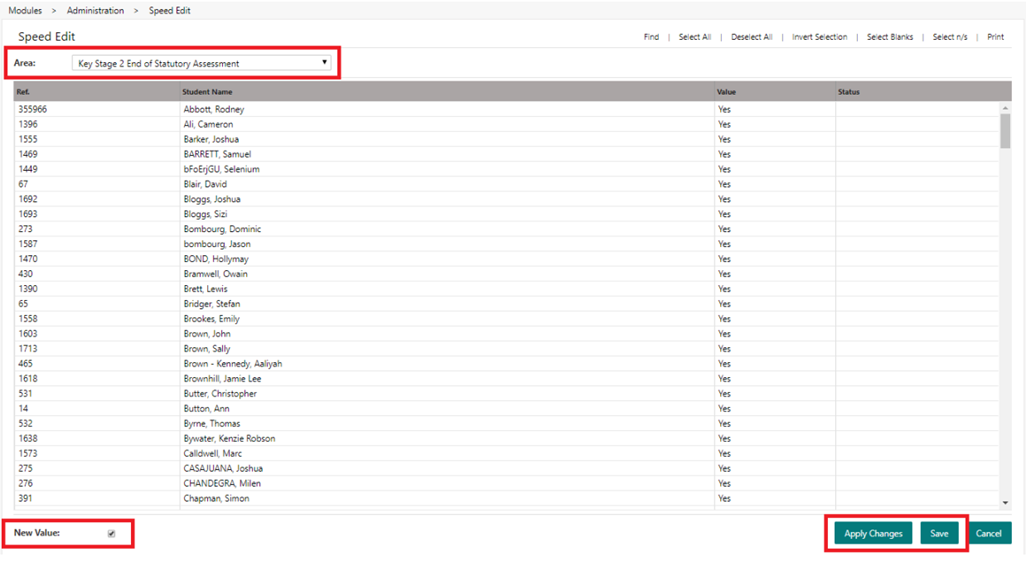
- From the Area drop-down menu, select Key Stage 2 Tests taken at Another School. In the New Value column, any pupils that have taken the test at another school should have a value of Yes against them.
- Highlight the remaining pupils either by clicking Select All and deselecting the pupils with the Yes value (Ctrl Key + left-click on the mouse to deselect) or highlight the students individually by using Ctrl Key + left-click on the mouse.
- Leave the New Value box blank
- Click Apply Changes – No will appear in the Value column.
- Click Save and click Yes to any warning messages.
Your records will now be updated. When the update is complete the screen will change from blue to white. Click Exit to exit the Speed Edit window.
Section B – Entering the Key Stage assessment scores
There are currently two methods of inputting Key Stage data into Integris. The quickest way (method 1) is to input directly into the Key Stage template in Assessment and the other option (method 2) is to enter assessment scores directly into the Student Details area (Key Stage tab).
Method 1 – Input using Key Stage templates (information filters through to individual pupil records in Student Details).
To copy the template, follow the steps below:
- In Modules, select Assessment, Assessment Planning. The Assessment Plans window opens.
- Expand the Templates folder by clicking the + symbol.
- Expand the Key Stage folder by clicking the + symbol.
- Expand the 2024 folder by clicking the symbol.
- Highlight the NC Key Stage 2 2024 template.
- At the right-hand side, click Deploy and then No to the prompt which appears. The plan will have been copied to your My Assessment folder under a KeyStage > 2024 folder.
To assign groups and markbook users, follow the steps below:
- Expand My Assessment Plans > Keystage > 2024 by clicking the + symbol.
- Highlight the NC Key Stage 2 2024 plan and click the icon.
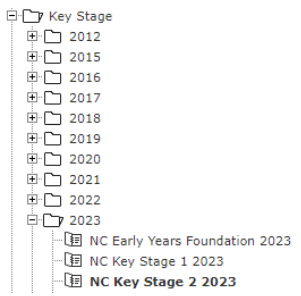
- Select the Enrolled Groups tab.
- Click the Add an Enrolled Group icon.
- From the Enrolled Group Type drop-down menu, select Year Group.
- Highlight Year Group 6 and click the Add button.

- Click Close.
- Highlight the enrolled group and click the Add Markbook User icon as seen above.
- Select a single user by clicking to highlight their name or select several users by holding down the Ctrl key on your keyboard and left–clicking with the mouse.
- Click OK and Save at the bottom-right of screen. The template is now ready to use.
To enter the scores into the markbook
There are two options for entering the scores into the Markbook. You can use Option 1 to enter the results directly to the Markbook or use Option 2 to import the results into a CSV file and then import the file to the Markbook.
Method 1 – Entering the results directly to the Markbook
- In Modules, select Assessment, Markbook. The Markbook window opens.
- Expand My Markbooks and highlight the NC Key Stage 2 2024 : Year 6 markbook.
- Click the Open a Markbook icon as seen below.
- Expand the unit for English (as shown in the image below) by clicking on the plus symbol (+).
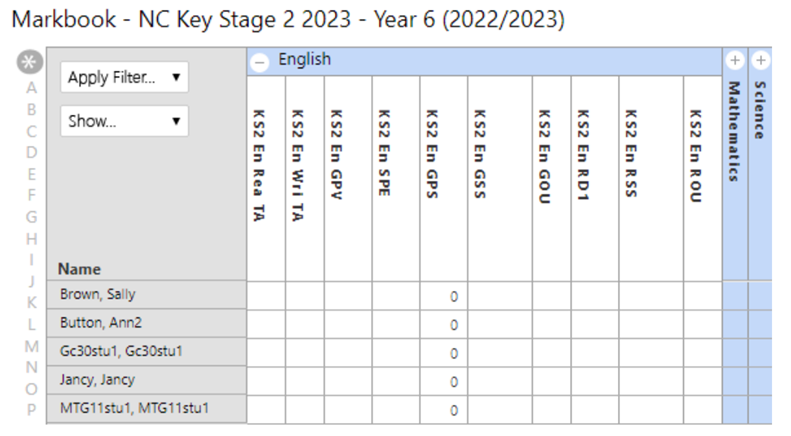
- Enter the scores in the columns for all pupils listed and then click Save.
- Collapse the English unit.
- Click Save (we would advise clicking save on a regular basis and confirming you see the message appear before continuing)
- Now expand the Mathematics unit and enter the overall score in the columns, for all pupils and click Save. Repeat with the Science Unit
Hint: – You can double-click on a cell to see the data format expected for each cell. Simply choose an option from the list, then click OK to enter the data.
- Click the Calculate button.
- Click Save and then Back to exit.
Option 2 – Importing data to Markbook:
- In Modules, select Assessment and then Markbook.
- Expand My Markbooks and highlight the NC Key Stage 2 2024 : Year 6 markbook.
- Click the Open a Markbook icon.
- Click on the Tools menu at the top right-hand corner of the screen and select Export Assessment Data
- Press Next, Next and then Export. This creates an Excel spreadsheet which will be downloaded.
- Open and save the file, somewhere you have access to e.g. Your desktop or document folder.
- This file can be emailed to teachers so they can enter assessment data or you can add the results yourself directly to the file.
Method 2 – Input into individual pupil records in Student Details (scores entered directly into the Key Stage tab)
- In Modules, select General and then Student Details.
- Click Find.
- In the Year Group field, select 6 from the drop-down menu.
- Click Find and the pupils are displayed.
- Click Select and then choose Yes.
- Click the Key Stage tab.
- Click Edit.
- For each eligible pupil, ensure the Current Key Stage shows Key Stage 2, the Year of Assessment shows 2024 and the End of Statutory Assessment box is ticked. If any field does not show the correct information then use the drop down to select the correct value.
- Leave Assessed at Another School blank (this should only be ticked if a pupil has been assessed at another school).
- Enter the teacher assessment levels as needed.
- Click Save when all levels have been entered.
- You will now be back on the Student screen and you can move through the pupils by clicking on the Next (left-facing arrow) or Previous (right-facing arrow) arrows. Use Edit to open the Key Stage data tab for editing and save each record.
Note : P Scale data is no longer required from 2021-2022. For students who are not achieving a KS2 level, the PK values should be used on the main screen. Teacher assessment results need to be added for all eligible pupils entered for the end of Key Stage 2 statutory assessments.
Section C – Creating the Key Stage assessment export file
- In Modules, select Administration, Import & Export
- Select Key Stage Exports.
- Click the Key Stage 2 Export (2024) radio button
- Click Next
- Clear the Include Key Stage 2 Task/Test Results box. The report will automatically select NAA/LLLL – STA Standards and Testing Agency as the destination.
- Click the Add Students icon.
- In the Year Group field, select 6 from the drop-down menu.
- Click the Find button and the pupils are displayed.
- Click Select, Yes. All KS2 pupils will appear in the Export window.
- Click Next
- In the Export Summary window, scroll down to check for validation issues. If there are validation issues, unlike in previous years, you will be shown the Download Now button as shown below.
As you are no longer required to return the Teacher’s Assessment for Maths or Reading, all students will show in the warning summary if you have chosen not to include this data. If you have used the markbook method for entering data it is easy to check the other columns for missing data. If you have used a manual entry method then you may need to check the data with a report
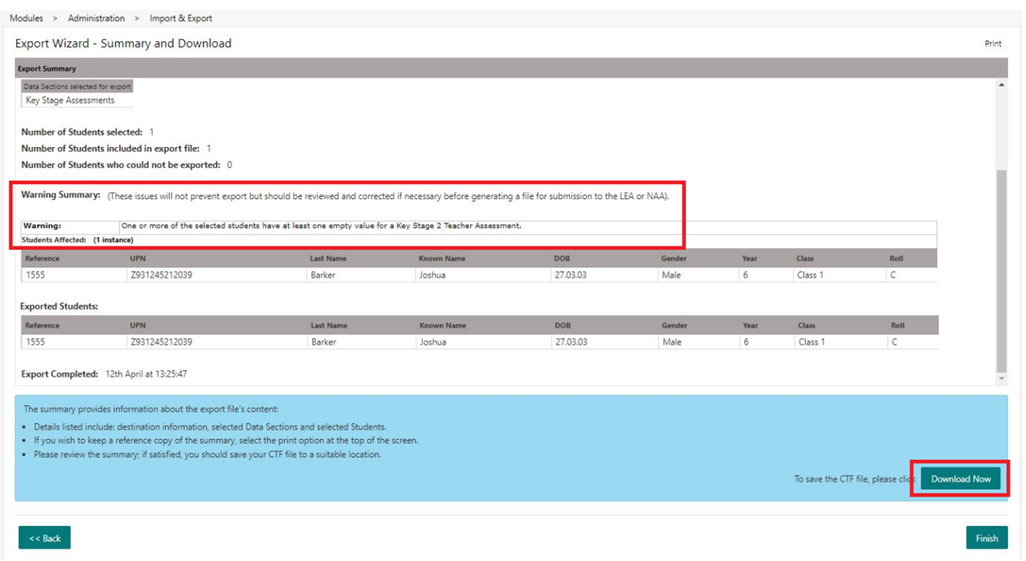
12. If there are no validation issues, click the Download Now button.
13. In the File Download window, click Save
14. Navigate to your desktop or a folder you have created for the KS2 return. In the File Name box, the structure will read: ZZZXXXX_KS2_NAALLLL_001.ZIP (where ZZZ is the local authority code and XXXX is the school code).
15. If required, please rename the file at this stage.
16. Click Save and then Close.
17. Click Finish and then Close.
18. Exit or minimise Integris.
You will then need to send this file to the relevant parties. You may be required to Extract the file from the zip folder before sending onto the Local Authority. To do this, right-click on the downloaded Export file and choose the ‘Extract All’ option, then complete the extraction wizard.
Section D – Running KS2 Reports
Most Key Stage reports automatically include the appropriate students for a particular Key Stage into them, so that you don’t have to use Student Find to select the right cohort.
- In Reports, select Key Stage Reports, and select the folder with the type of report required. E.g Pupil Assessment Sheet
- Select Key Stage 2.
- The relevant students will be pre-populate. Make any adjustments to the report settings and click the refresh icon to update the student list automatically.
- Click . Note: This function relies upon certain fields that reside on the student’s Key Stage tab being configured correctly, so if students don’t appear on the list, check these have been set.
A quick way to check whether the users have configured the data correctly to ensure students are included in the Key Stage reports is through Student Find. Within the General Menu, select Student Details and click Advanced Search. In the General Search window, set the following filters:
Year Group: 6
Key Stage: KS2
Year of Assessment: 2024
End of Statutory Assessment: Yes
Year End Process
Check/Resolve N and * Attendance codes
Make sure that attendance records for all Current roll students are complete, and all unmarked and unresolved absences have been resolved. Any missed sessions can be checked by following the steps below:
- Go to Reports > Attendance > Attendance Records> Unmarked Registers
- In the From and To boxes, enter the start and end date for your 2023-2024 academic year
- Tick the List Students and Include ‘N’ Code boxes
- Press the hand icon to select all classes
- Press Generate Report
This report will now show students who have * and N attendance codes. We strongly advise that these codes are updated to the correct code prior to running Year End. If you choose not to correct these, then you will see an error message related to missing attendance data and the students’ annual attendance figures will be incorrect.
More guidance can be found here:
Task 1 – Setup Student Groups and check Attendance
Create a new academic year
- From the Modules menu choose General and then School Diary. The School Diary screen is displayed.
More guidance can be found here:
Task-2- Create the New Academic Year
Setup required destinations/previous schools
Before setting up your leaver’s destinations and leave dates, you will need to confirm you have the relevant schools in your Other Schools List in Modules > General > Parameters > Other Schools. If you need to add a school, click the + icon to add.
See Other Schools parameter list for more details.
How to set Leave Date and Destination for school leavers
Before running the End of Year process, it is important that the Leave Date for leavers is set to the last day of the current school year and the Destination is set. Speed Edit is the most convenient way to do this.
- From the Modulesmenu chooseGeneral and then School Details.
- On theBasic Detailstab, the Leavers Year field on the right-hand side should contain the number of the top year in your school.
If this figure is not correct, click Edit details, select the correct top year number from the Leavers Year drop-down list, and click Save. - From the Modulesmenu chooseAdministration and then Speed Edit.
The Speed Edit screen is displayed. - From the Areadrop-down list, select Leave Date.
More guidance can be found here:
Task 3 – Set Leave Date and Destination
Setup required Classes
Before you assign classes, you may need to create new classes for your new academic year. If class names are changing either because you include staff names/initials in your class names and different teachers are managing different classes this year, or because you are changing your naming convention, then we would strongly advise NOT renaming the current classes. If you rename a class, the original named class is no longer available in the system for running reports against, and you will only find the new name available in historical reports.
If you are adding new classes for the new academic year, then these classes will show on the current class list on any screens where they are used, e.g. Daily Register or Week View/Group Week View. If you prefer these not to show, then you can make them inactive once you have completed the Proposed Class/Year group and done any reports for checking. But you will need to make them active again before you click the Process Year End button.
Task 4 – Setting Proposed Year and Class for Current students and Leavers
There are a number of reports users can print once they have entered all the proposed years and classes. The easiest one to employ is the report showing the current year/class and proposed year/class.
- From the Modulesmenu chooseAdministration, Year End.
- From the Year End menu, choose Reports Showing the Proposed Year/Class.
The ‘Year End – Reports Showing Proposed Year/Class’screen is displayed.
Task 5 – Produce reports showing Proposed Year/Class
This process automates the move to the next academic year, by assigning all current students their proposed year/class, moving all leavers onto the Former roll, and setting the new school year as the current year.
The earliest date you can run the End of Year process is the last day of the summer term / current academic year, after the last attendance session has been recorded.
The latest date you can run the End of Year process is the first day of the autumn term / new academic year, before the first attendance session has been recorded.
Before you proceed, check that you have completed Tasks 1-5.
The Year End process will carry out the data changes below:
- Move students from their current year and class into those proposed within the ‘Assign individuals to Year/Class’ window.
- Any students in the Leavers’ Year Group will automatically move onto the Former Roll.
- Select a new school year (that you will have created before running the Year End in the School Diary) that will be the new current school year.
More guidance can be found here:
Task 7 – Check Year End has completed
Start of Year Checklist
If you are completing this section immediately following Year End, please ensure you have logged out and back in, otherwise you may receive an error when you move your admissions to the current roll
More guidance can be found here:

Upcoming Training Courses
We have a comprehensive schedule of online ‘live’ SIMS training courses and Arbor courses, along with Distance Learning courses, to help you develop your knowledge of SIMS and Arbor, helping you to get the most out of your MIS (Management Information System).
Booking is now open. Please visit https://www.schoolicts.co.uk/course-list/ to see the full list of courses, or you can click on:
https://www.schoolicts.co.uk/online-training/ for the online (live) courses, or https://learning.www.schoolicts.co.uk/courses/ for the Distance Learning courses.
For our upcoming live online courses please see below:

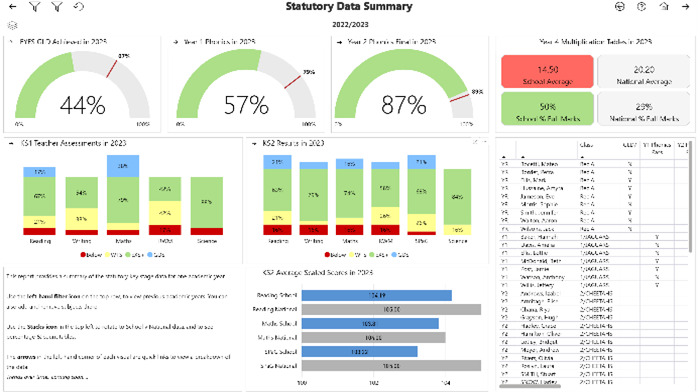
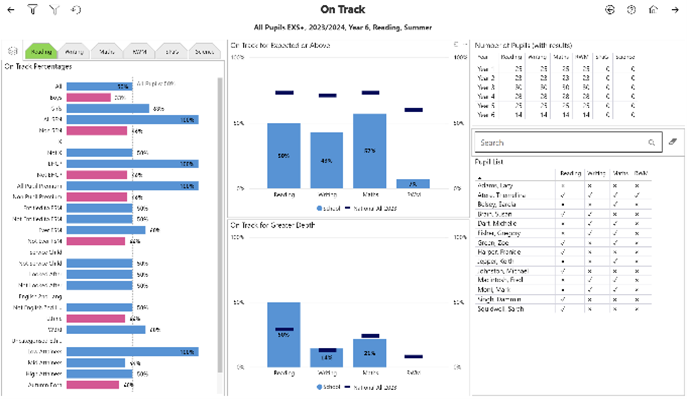
helloData

helloData uses the demographic, attendance and assessment data that has already been entered into your MIS to automatically produce a comprehensive set of Power BI reports to provide visually impactful insights into your data.
View attainment, progress and statutory data at trust level, by school, key groups and view individual pupil data on the same page.
Whether you’re new to using your MIS to record assessment data or have been using it for a while, we recognise that the way in which schools and Trusts track and analyse pupil outcomes is unique, we begin the setup process by understanding your specific setup requirements and build a plan with you.

Visit www.hello-data.co.uk for more information or contact us to arrange a personalised demonstration by emailing enquiries@hello-data.co.uk.

Are you in need of Admin, Office or other non-teaching staff?
Working alongside School ICT, School ICT Resourcing place both permanent and temporary specialist support staff into schools.
Candidates are available from a days placement through to a whole school year. All candidates have completed the safer school recruitment process, and have enhanced DBS clearance.
For further information please call: 0113 372 0039 or visit: www.schoolictresourcing.co.uk
With the end of the academic year approaching – are you due to retire? If yourself or any colleagues are retiring soon, and would consider working on a temporary or ad-hoc basis, please contact Helen who would love the opportunity to speak with you about the potential of adding you to our candidate list.
Customer Testimonial - Virtual Data Management Service
Data Services from School ICT
We received a fabulous testimonial from one of our Virtual Data Management customers recently, here’s what they had to say about this service: –
“We’ve been working with School ICT since January 2024, and they have been a revelation. The professionalism, quality and overall seamless communication has been there from the start. Andy, our Virtual Data Manager, is always on hand to support with all our data needs. From assessment point reports, target setting and the Census, this is just the tip of the iceberg, they can do everything. It’s like having someone in school as he responds so quickly and always finds solutions to what we need. The “Helpdesk Ticket System” creates a clear transparent pathway from the start of a request to the end and keep us informed of the progress of each request. Highly recommend School ICT.”
Paul Delaney – Assistant Headteacher, Deyes High School.
For further information on our Data Management services, or to discuss your requirements, please give us a call on: 0345 222 6802 – option 3 or e-mail: enquiries@schoolicts.co.uk.