

To navigate to the most relevant section, please click the appropriate link below: -

Welcome to our April Newsletter
We understand everyone works differently, so we’ve made it easy for you to reach us in the way that suits you best. There are several flexible support options available, and you can simply choose the one that’s most convenient for you.
Customer contact options: –
- Live chat @ https://my.schoolicts.co.uk/
- Customer Portal @ https://my.schoolicts.co.uk/
Our customer portals allow you to: –
- Log and track tickets
- Watch recorded webinars
- Search Knowledge base for useful information and guidance
- Latest news, tips and reminders
Call: 0345 222 6802 Option 1 for MIS support (*please leave a voicemail if lines are busy during peak periods)
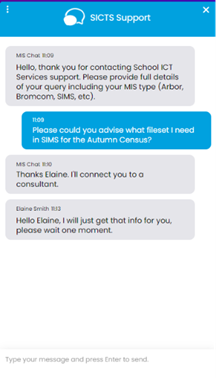
Please remember that you can request support in various different ways, by requesting support via Live chat:
Key Benefits of Our Live Chat:
- Instant Support: Get your questions answered in real-time by our knowledgeable support consultants.
- Expert Assistance: Our live chat is staffed by real people, ready to provide you with personalised support.
- Convenience: Access live assistance directly from our website, without the need for phone calls or emails.
- Efficiency: Resolve issues faster with immediate responses and quick solutions.
To start using Live Chat, simply visit our customer portal, log in and click on the chat icon at the bottom right corner. Our team is ready and eager to assist you with any enquiries or support you may need.
Customers can also log tickets via the customer portal at our customer portal:
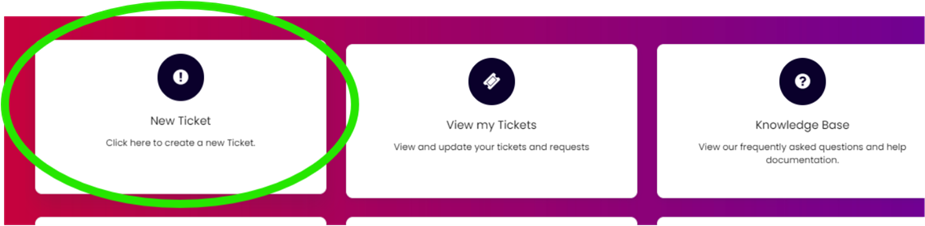
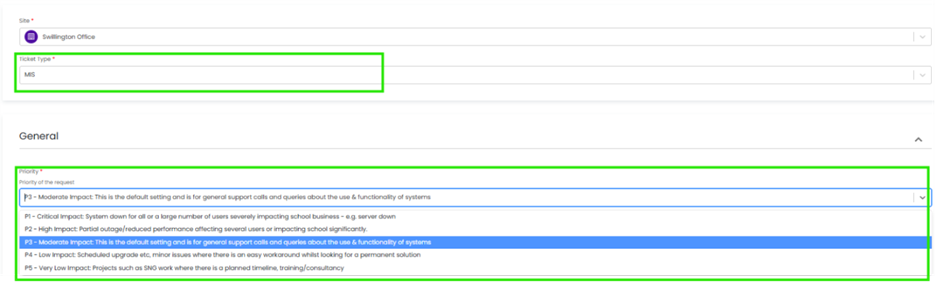
When you log a ticket via the customer portal, select the Ticket type either MIS or Technical to ensure it gets to the right team. The Priority, if you have an urgent ticket, MIS down for example please select either P1/P2 all other tickets default to P3 or even P4 if not urgent.
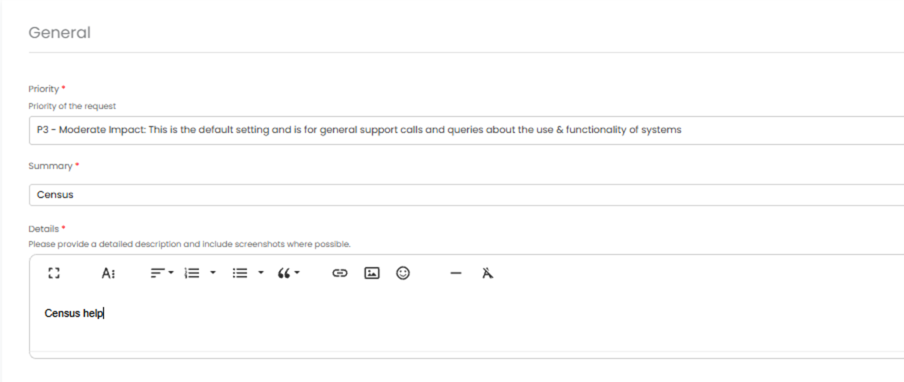
Once you enter the Subject and Details box, you will see a pop up box with suggested articles in the top right hand corner:
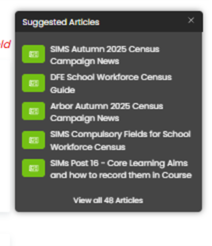
Clicking on the links in this pop-up may help you to resolve your issue without our input, so please also make use of this.
Remember to tell us which MIS and Module but also really importantly if OFSTED are onsite as this helps us prioritise your call through our OFSTED Watch service and also your preferred contact method as we know sometimes an email reply is what you need during your busy period.
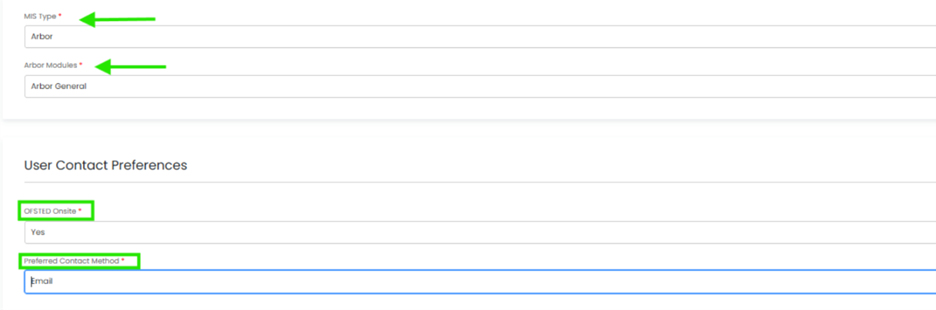
We know you like to speak to us (and we like to speak to you!) but in order to offer the best service to our customers, this is often the quickest way to log a support request at busy times.
And lastly, as always, our experienced team are on hand to take your calls, so please reach out via 0345 222 6802 if the lines are busy and to save your precious time waiting you can leave a voicemail. This method will automatically generate a ticket and this means that the person who can help you best is the person who will call you back. If you do this, PLEASE leave your name, the name of the school, the best number to call back on and a brief description of why you’re ringing, as this means that the best person to help you is the one that will call back.
School Summer Census
The school Summer Census is on Thursday 21st May 2026. There is a wealth of resources to help support you when completing the census.
The following dates apply for the collection in this return:
Census date – Thursday 21st May 2026
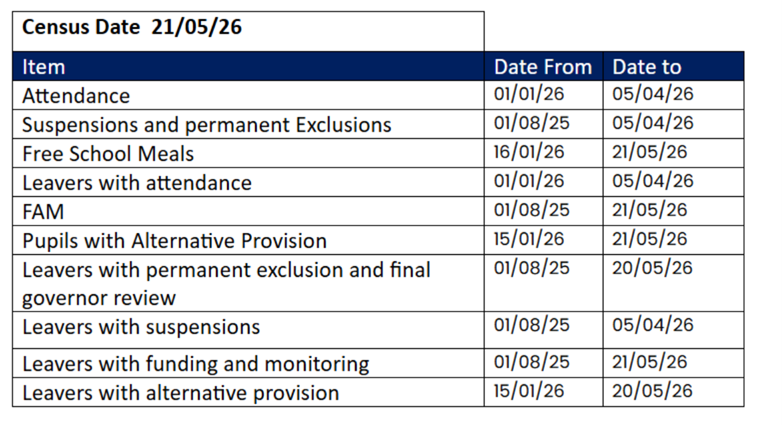
This is a reminder that the deadline to return the data to the Department for Education (DfE) is Wednesday 17th June. Please check with your Local Authority as you may be required to submit the data earlier.
Overview of the multiplication tables check (MTC)
The multiplication tables check (MTC) is statutory for all year 4 pupils registered at state-funded maintained schools, special schools or academies, including free schools, in England.
The purpose of the MTC is to determine whether pupils can recall their times tables fluently up to 12, through a set of 25 timed questions. This skill is essential for future success in mathematics, and the check will help schools identify pupils who have not yet mastered this and provide additional support.
In 2026, schools must administer the MTC in the 2-week period between Monday 1 June and Friday 12 June. Schools can use the following week, from Monday 15 June to Friday 19 June, to administer it to any pupils who were absent during the first 2 weeks or in case of any check administration delays due to technical difficulties.
Schools must provide a reason for any pupils who do not participate in the check, and submit a headteacher’s declaration form, within the MTC service.
Schools can access their pupils’ results on the MTC service from Monday 22 June. In November, the Department for Education also publishes a statistical release covering national MTC attainment.
MTC service and pupil application
Schools can access the MTC service, to prepare for the 2026 check, using DfE Sign-in from Monday 27 April.
Schools must generate a school password and individual pupil PINs within the MTC service before pupils are able to sign in to access the check using the pupil application:
Exam Services
April Exams Update – Final Countdown to Summer
As we move into April, the summer exam series is now firmly on the horizon. This is a critical period where the focus shifts from planning to final checks, ensuring everything is in place for a smooth and compliant exam season.
With just weeks to go, attention to detail now will prevent issues later.
Common Risks We See in April: –
- Last-minute entry errors leading to late fees
- Incomplete access arrangements
- Invigilation gaps or incorrect ratios
- Lack of contingency planning
These are the areas that can cost schools thousands of £’s or lead to compliance issues if not managed carefully.
How We’re Supporting Schools
Across our partner schools, we are: –
- Completing final entry audits
- Building and checking seating plans
- Managing invigilation rotas and ratios
- Ensuring full JCQ compliance ahead of the series
Our model removes the pressure from already stretched school teams, providing a consistent and reliable approach.
As many schools tell us, reducing workload, improving retention, and cutting operational costs are key priorities. Centralised services like ours, are designed to support exactly that.
Why Schools Are Moving to a Managed Model
More schools are now moving away from relying on a single in-house Exams Officer due to: –
- Risk of absence or turnover
- Increasing complexity of the role
- Budget pressures
A managed service provides:
- Built-in resilience and backup
- Consistent expertise and compliance
- One, predictable, annual cost
Helping schools stay compliant while reducing pressure on internal staff.
Looking Ahead
May will bring the start of the main exam series, so April is your final opportunity to: –
- Tighten processes
- Confirm staffing
- Eliminate risk
If you need support, whether that’s a final check, compliance audit, or full management, we’re happy to help!
Get in Touch
If you’d like support this exam season or want to explore how our service could work for your school or Trust, we’d love to hear from you. Please give us a call for an informal chat on: 0345 222 6802 or request a call back here.
Data Management
Our Data Management service offers an excellent, cost effective, responsive, and efficient Data Management solution delivered remotely by a team of highly experienced school data experts. Their dependable advice and guidance empower schools, academies, and MATs to maximise their investment in their management information system (MIS) team. Whether it’s a long-term solution required or something short term to cover sickness or maternity leave please reach out.
Please click here for further information.
Data Health Checks - Do you know how accurate your data is?
An MIS health check ensures you’re getting the most out of the investment in your MIS. The benefits of one of our comprehensive health checks include: –
- Raising awareness of functionality and identification of any issues
- Keeping you up to date with the latest developments and updates in your MIS
- Housekeeping best practice and tidying exercises
- Follow up report provided with recommendations to ensure you’re fully maximising your MIS, along with any training recommendations
- For on premise MIS, a server health check is also included
Our health check service usually takes around half a day. Please contact us to find out more: helpdesk@schoolicts.co.uk
FMS Updates
- FMS6 SIMS Connected platform – Issues relating to creating the new financial year
We have had reports of some users experiencing issues with FMS hanging upon creating the new financial year. PPG are currently investigating and suggest the following advice:
We are aware of and are investigating an issue with FMS Connected customers where opening the new financial year is taking longer than expected. While it looks as though it is stuck on updating next year’s structures, it is carrying out the process. We do not have a resolution at the moment, but as a work around please run the process at a quiet time or at the end of the day before leaving for the day. Please do not minimise or lock the screen and it will complete the process eventually.
- Consistent Financial Reporting (CFR) changes for 2025/2026
The release introduces the changes to the Consistent Financial Reporting (CFR) structure for the 2025/2026 financial year. These updates align with the DfE Specification 1.1 and impact all phases of maintained schools in England.
Removal of Obsolete CFR Rows
Income Rows that have been removed:
- I18C: Other COVID-19 related grants
- I18D: Additional grants for schools.
NOTE all ledger codes mapped into I18C and I18D will be automatically remapped during the upgrade to Spring 2026 to I06: Other government grants, following guidance from the Department for Education. If the ledger codes that have been remapped needs to be mapped to other CFR Headings, this can be achieved in the normal manner.
Reporting Enhancements because of the CFR 2025/2026 changes
All CFR related reports and outputs have been updated as detailed below:
- Preliminary and Final XML Files.
- Reports | CFR | IE Report.
- Reports | CFR | IE Source Analysis Report.
- Reports | General Ledger | CFR Mapping – Validation Reports
- Financial Reporting Suite (FRS) Reports.
CFR | Print Table | CFR Table Detail Report
This has been updated to include manually entered values that have been entered into the CFR Tables in the Additional column. This report is now consistent with the CFR | Print Table | CFR Table Summary Report.
Moving to Arbor? helloData assessment migration service
Moving to Arbor? – helloData assessment migration service
If you decide to move to Arbor and are a helloData customer, we can set up your assessments in your new MIS, migrate your data and provide training, all for £95.
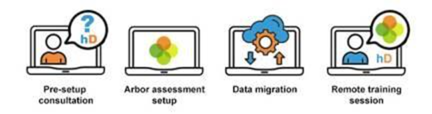
We’ve already helped a large number of schools switch to Arbor this term. The demand for this service is proving to be incredibly high so please let us know when you are moving as soon as possible by emailing admin@hello-data.co.uk.
Note: The new MIS will not setup your assessments or migrate your internal assessment data, only the statutory data is transferred.
If you are not yet using helloData, we can also support you with setting up the assessments in Arbor and assist with the data migration, email admin@hello-data.co.uk to find out more. Visit www.hello-data.co.uk to discover how our reporting tool connects with Arbor so that you can benefit for in depth assessment analysis at a click of a button.

Summer Term Online Training for Arbor, Bromcom and SIMS
Our training courses for the Summer Term are now live, to book places please click on the course schedules below: –
We also have courses running until the end of term: –
To book places please visit https://www.schoolicts.co.uk/online-training/

Click for the latest Arbor updates
ArborFest 2026 - Taking place in June!
This year’s Arbor Fest is taking place on the 30th June at the Liverpool Experience Campus.
- More information here: https://www.arborfest.arbor-education.com/
- Book your tickets here: https://thekeysupport.swoogo.com/ArborFest26
Further information to follow!
Exams – Withdrawals and Changes of Tier
In April you can normally withdraw student entries and make tier changes and receive a credit note from exam boards. For deadlines, please check with the relevant exam board – main ones below: –
| AQA | Pearson/Edexcel | Cambridge OCR | WJEC/Eduqas |
To action a withdrawal in Arbor, the easiest way is Students/Examinations/Entries/Entries by Student Group, change the filter to the correct group then withdraw students from the qualification using Bulk Action à Withdraw Candidates.
Please ensure you withdraw from the Award AND the Learning Unit.
If you need to make tier changes (for example Maths Foundation to Maths Higher), please carry out the above to withdraw from a tier then select the same student(s) and use Bulk Action à Enter Candidates to add to the new tier.
Once you have carried out these processes, you will need to go to Students/Examinations/EDI Exports/Entries, confirm any pending files, download and send to the boards via A2C.
If this withdrawal/change of tier is actioned after the exam has been seated, the student will automatically be removed from the room/seat.
Arbor Admin Access
Did you know that we can provide additional Arbor support at no extra cost, as part of your existing MIS SLA?
What benefit does Arbor Admin functionality bring to you?
With your permission, School ICT can be granted Admin functionality on your Arbor MIS site. This access allows our experienced support team to quickly diagnose and resolve common issues including refreshing invoices, populating missing payment accounts and accessing audit logs for troubleshooting.
By enabling this functionality, you’ll benefit from faster resolutions without needing to escalate these tasks to Arbor Support—saving your team valuable time and ensuring smoother day-to-day operations.
If you haven’t had the email and feel you should have, please call School ICT on 0345 222 6802 or email helpdesk@schooolicts.co.uk.
School Summer Census
The school Summer Census is on Thursday 21st May 2026. There is a wealth of resources to help support you when completing the census.
Written Guidance:
SICTS guidance and the latest census campaign information can be found here
- Preparing for the school census – Click here.
- School Census Preparation Checklist – Click here.
- School Census Guide – Click here
Changes to the School Census
- For full guidance from the DfE on changes to the census, click here.
- For further information detailing what data your school must return in the Autumn, Spring or Summer census, click here.
Useful Links for further DfE guidance
What's New in Arbor
Arbor workflows
Turn everyday, manual processes into automatic actions that Arbor runs for you. Let Arbor run the right tasks at the right time, every time!
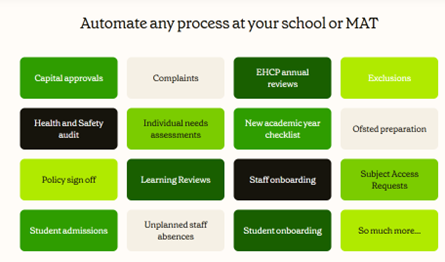
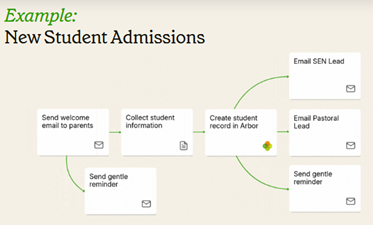
Workflows allow you to perform the right process, every time! It will allow you to end the era of unnecessary paper forms and repetitive data entry, it also allows clear audit trails of every action so you can see where the process is up to and who is responsible for each action!
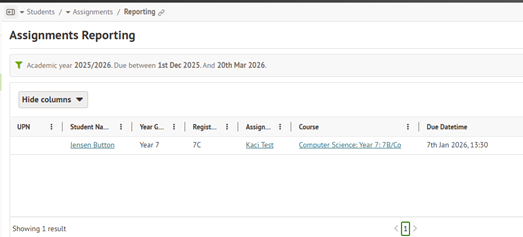
Assignments Reporting
The new page gives you a comprehensive table view of all student assignments. It includes customisable columns, advanced filtering, and the ability to group data by course, student, staff, or assignment.
New Data Retention page
You can now bulk manage the deletion of student data in Arbor, according to rules you set for student groups and for individual data areas, or entire student records. Plus, no need to manually add data retention rules – simply tell Arbor the rule you want to create, and it will help create it for you.
Student Summary improvements
If you’re using Arbor’s AI-powered Student Summary feature, you now have more control over which data to include in the summary. You can also tailor the summary for specific audiences like parents/guardians, school staff, or students. Plus, translate it into multiple languages in one click.
MAT MIS
Search for school staff
In addition to pages, favourites, Help Centre articles, and MAT staff – you can now search for school staff using the search bar in MAT MIS.

Click for the latest Bromcom updates
Bromcom at the Shard
This year’s annual flagship event will be taking place at The Shard on Wednesday 17th June.
Join us at one of London’s most iconic landmarks and help celebrate Bromcom’s 40 years of innovation in education!
You can register your interest here- Register today
More information coming soon!
What's New in Bromcom?
Seating Plan: User Defined Flags Filter in Toolbar
My Dashboard > Seating Plan
A new UDF Filters icon has been added to the Seating Plan toolbar to allow users to find or select students based on User Defined Flag (UDF) data.
What’s New
The UDF Filter is located between Add/Remove Students and Edit Room Layout in the toolbar. The number shown reflects the number of filters currently selected.

Clicking it will open a dropdown with your school’s UDFs.
The search box allows users to find a flag quickly.
And shows students who have all the selected flags.
Or shows students who have any of the selected flags.
Toggles indicate active filters and multiple filters can be active at once.
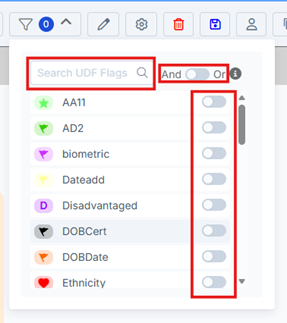
When a UDF is toggled on, the relevant student tiles remain white while those students who do not have that UDF are dimmed. The number in the toolbar will update to show many toggles are selected.
Seating Plan – Export Enhancement
Groups > Tutor Groups
Teachers can now export all seating plans within a tutor group as PDFs.
What’s New
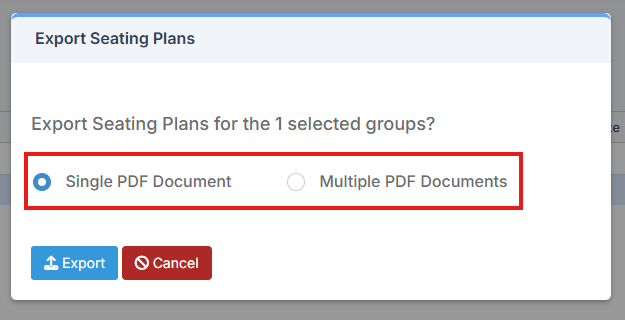
Select a Tutor Group and click Actions, allowing you to choose Export Seating Plans from the drop down.

The Export Seating Plans pop up allows you to choose from a Single PDF Document (which puts all seating plans in one file) or Multiple PDF Documents (which creates a zip file with each seating plan on a separate PDF).
Exams – Exam Seating Plans Report to display Colour-Coded Special Candidate Requirements
Reports > Examination > Organisation > Exam Seating Plans
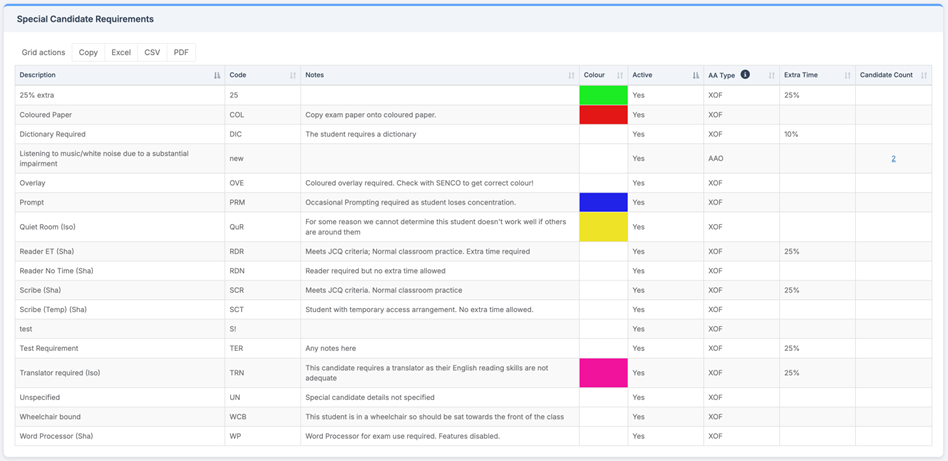
This release extends that functionality to the Exam Seating Plans report, allowing colour‑coded Special Candidate Requirements to be displayed directly within exported seating plans for improved visibility and planning.
What’s New
- When a Special Candidate Requirement is assigned to a student (via Modules > Examination > Manage Candidates), it already appears in the Exam Seating Plans report when the relevant Special Candidate checkboxes are selected. (Existing functionality)
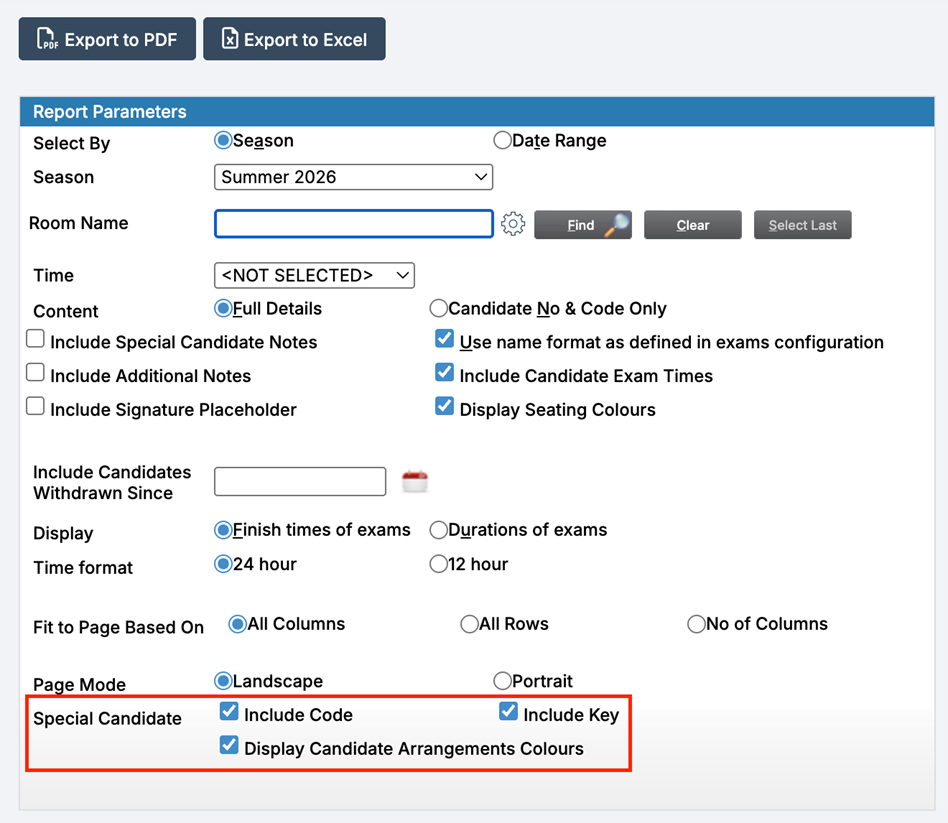
- This release adds the ability to display these requirements in their assigned colours. Simply tick the new Display Candidate Arrangement Colours checkbox before exporting the report to PDF and Excel.
- This new checkbox sits alongside the existing Special Candidate options:
- Include Code – Displays the Special Candidate Requirement codes next to each student in the report.
- Include Key – Adds a key at the bottom of the report explaining each code.
Exports to PDF and Excel will display the requirements in their assigned colours.
Bromcom Housekeeping Top Tips
Student Data Quality Dashboard
To help you identify, manage, and resolve data issues across student records.
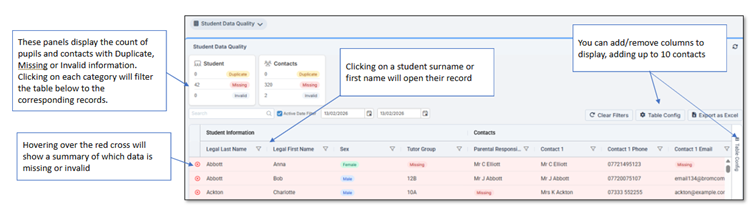
The Student Data Quality dashboard highlights missing, invalid, or duplicate information so you can correct it quickly.
Access Requirements
To open the dashboard, users need the correct permissions assigned within:
- Config > Setup > Roles and Permissions
- Permissions are found under the Profile Module
If permissions are missing, the dashboard will not appear.
How to Access the Student Data Quality Dashboard
You can reach the dashboard from two places depending on your role:
- Teachers:
Go to the Teacher Dashboard, then use the My Dashboard dropdown and select Student Data Quality.
- Non‑teaching staff / users without classes:
Use the Overview dropdown and select Student Data Quality.
What You’ll See on the Dashboard
The dashboard displays panels showing counts of:
- Duplicate student or contact records
- Missing information
- Invalid information
These panels help you quickly spot where data needs correcting.
Fixing Data Issues
Once you identify an issue:
- Click into the relevant panel (e.g., Missing Data)
- Bromcom will show the affected students or contacts
- Open each record to correct the data directly in the student profile
You can also use related tools in the Students module, such as Quick Edit, User Defined Fields, or Lookup Tables, if the issue relates to configuration.
For further guidance please see the link below .
May Census
We would like to draw your attention to the following important school census information which is informed by current guidance from the DfE.
Any further updates will be shared via email. School ICT customers can also check the news section at https://www.schoolicts.co.uk/latest-news/ .
Customer support
Our help desk will be here to support you throughout the collection period. You can call us directly if you need immediate assistance or log a ticket via the customer portal with details of your query. To help us resolve your issue quickly, please include any relevant query or error numbers when submitting your request.
The deadline to return the data to the Department for Education (DfE) is Wednesday 17th June. Please check with your Local Authority as you may be required to submit the data earlier.
Accessing the Return
Modules > Census > School
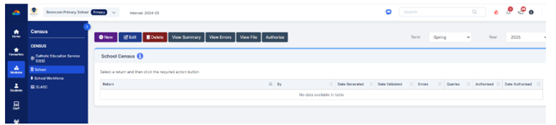
Further guidance can be accessed via the latest Bromcom School census campaign on the customer portal: Bromcom latest Campaign News
Exams – Withdrawals and Changes of Tier
In April you can normally withdraw student entries and make tier changes and receive a credit note from exam boards. For deadlines, please check with the relevant exam board – main ones below:
| AQA | Pearson/Edexcel | Cambridge OCR | WJEC/Eduqas |
To action a withdrawal in Bromcom, the easiest way is via Modules > Examination > Manage Entries. Select the candidate(s) you need to withdraw then click on Manage. In the Exam Option Selector, choose one or more qualifications then click on Done. On the following screen, select the candidate(s), choose W from the Entry/Grade dropdown, then click on Apply.
If you need to make tier changes (for example Maths Foundation to Maths Higher), please carry out the above to withdraw from one tier then add an entry for the other tier.
Once you have carried out these processes, you will need to go to Modules > Examination > Manage Submissions and create an amendment file for each exam board from the Outstanding Submission panel. You will then need to send the file(s) to the exam boards via integrated A2C or the A2C Transport app.
If this withdrawal/change of tier is actioned after the exam has been seated, you will need to adjust the seating via Modules > Examination > Seating Organisation.

Click for the latest SIMS updates
PPG special SIMS Summer Centres webinars
School Summer Census
We would like to draw your attention to the following important school census information which is informed by current guidance from the DfE.
Any further updates will be shared via email. School ICT customers can also check the news section at https://www.schoolicts.co.uk/latest-news/.
Please note this return will now be available in SIMS 7 & SIMS Next Gen. We are recommending you look at both versions to familiarise yourself in this return. Parent Pay Group (PPG) have advised that to minimise data inconsistencies between SIMS7 & SNG that schools keep the SSM (SIMS Service Manager) running over the Easter period.
Customer Support
Our help desk will be here to support you throughout the collection period. You can call us directly if you need immediate assistance or log a ticket via the customer portal with details of your query. To help us resolve your issue quickly, please include any relevant query or error numbers when submitting your request.
The deadline to return the data to the Department for Education (DfE) is Wednesday 17th June 2026. Please check with your Local Authority as you may be required to submit the data earlier.
Consultancy Services – Census Support
Flexible, expert-led support for statutory returns – our Data Services package is a flexible, remote solution designed to support schools through key statutory returns and annual MIS procedures. Whether you need help with one return or all of them, we work alongside your team to ensure data is clean, complete, and submitted correctly saving valuable staff time and ensuring compliance.
Pupil Census (Autumn, Spring, Summer). All support is delivered remotely by a trained MIS expert.
- Preparation and validation
- On-hand support during census week
- Error resolution and validation support
- Guidance on funding, attendance, and enrolment data
- Collect upload and notes
Training
In addition to our consultancy services, we are offering scheduled census training sessions on the dates listed below. Please use the links provided to reserve your place. If a session is fully booked, you are welcome to contact us to be added to the waiting list. Additional training dates will be scheduled where there is sufficient demand. please use https://www.schoolicts.co.uk/online-training/ to check availability and book. Please note these training sessions will cover completing the return using both SIMS7 and SNG.
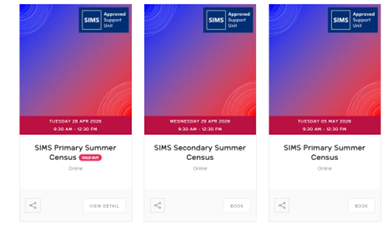
Webinars
Book your free Webinars here: PPG -Summer Census Webinars
Known Issues – there are no known issues at present
How has the School Census Return Changed since last year?
No changes this term other than Key Dates. You can now access the return in SNG
Requirements: You must be using SIMS.net version 7.228 Spring upgrade with the latest fileset in the 3300 series. This must be fileset 3301 or higher. Without the latest fileset your Census will NOT be accurate. Please check our website for the latest news before starting your census -. SIMS latest Census Guidance.
NOTE: The Fileset ID is displayed in the browser header when opening via Routines/Statutory Returns.

Full guidance can be located via the customer portal including step by step instructions on using SNG. SIMS latest Census Guidance
What's New in SIMS Next Gen?
Group Hub | Census overview (Spring Census)
Stay on top of Census progress across your trust with Group Hub.
Monitor every school’s status, resolve issues quickly, and keep your audits on track with streamlined access to historical Census data.
Key features:
- View upcoming and past returns
- Track Census progress and spot errors or queries
- Drill into detailed error summaries for each school
- Download Census files
- Add notes to historic returns (e.g., DfE approval dates)
- Jump straight to school MIS for deeper insights
Create rooms
Room Details provides Admins with the ability to create a new room or edit an existing room. The rooms can be used for classes or other purposes. The room details can include additional information on capacity and equipment and the purpose of the room.
Once created, classes can be assigned to the room via the Seating Plans component.
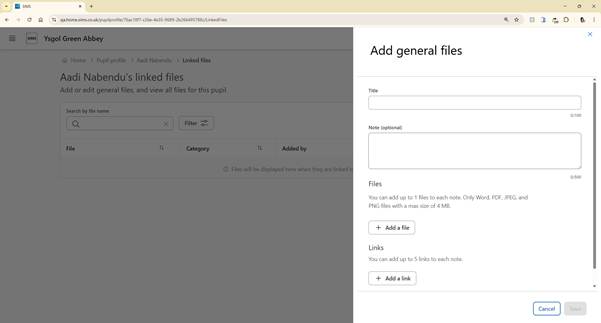
Pupil Documents
Bringing together a child’s documents from across Next Gen this will allow you to see all the documents you have permission to see against that child in one place. You can also add additional documents to this area which do not have sit elsewhere in Next Gen. Schools will be able to navigate here from the new Pupil Overview
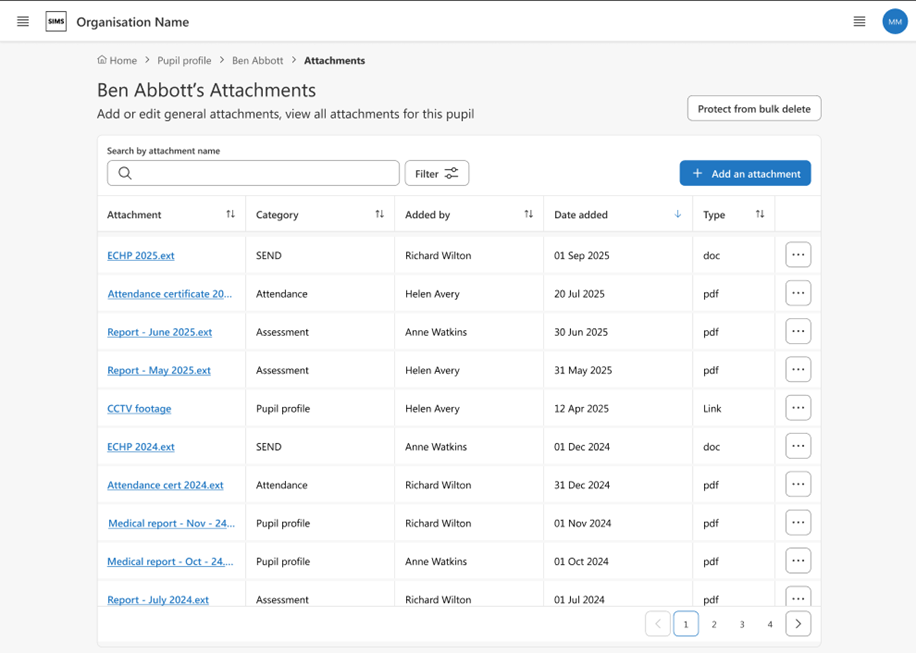
You can also upload additional documents that do not belong elsewhere in SIMS Next Gen.
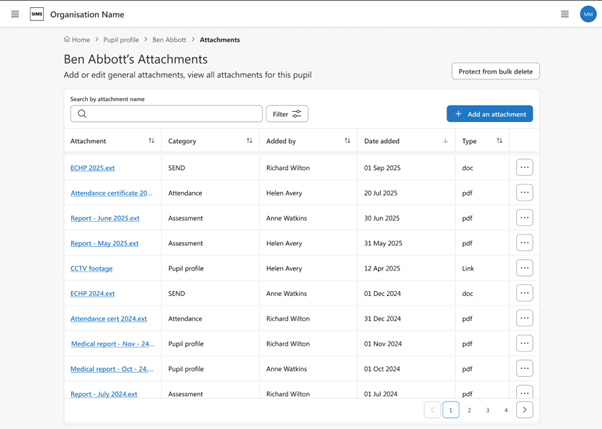
Documents can be uploaded, or added as a link.
Pupil Overview
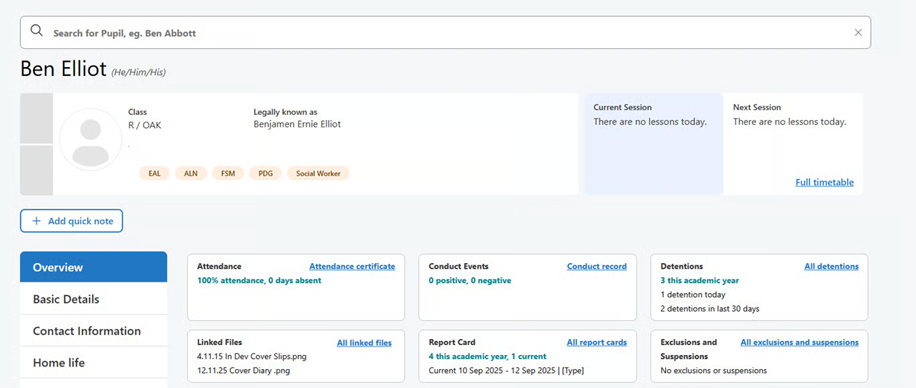
The Pupil Overview brings information about a child together from across NG providing a holistic view of a child’s data. The first version of this which will be available to schools includes Attendance and Conduct Data as well as a visual of a pupils timetable. The links within the overview will take you through to that child’s information within the other areas of Next Gen. Additional areas will be added over time.
Important Summer Census Update
Following feedback from schools after the Spring Census, PPG has confirmed that the Summer Census will be available in both SIMS 7 and SIMS Next Gen. This decision has been made to ensure you have a smooth and reliable experience.
Although many schools found the census process in SIMS Next Gen positive, the Spring Census highlighted some differences in data and validation between the two systems. PPG has been working on these issues and continues to release improvements ahead of the Summer Census.
This is a conscious step towards ensuring both SIMS 7 and SIMS Next Gen produce consistent, accurate, and trusted results.
By keeping both options available, schools can continue using the system they are most comfortable with, while also becoming more familiar with SIMS Next Gen. The census menus will remain accessible in both products.
Where possible, running the census in both SIMS 7 and SIMS Next Gen is encouraged, as it helps validate data and supports ongoing development work.
PPG has stated they will only move to a SIMS Next Gen–only census when schools have full confidence in its accuracy and reliability, matching the level currently trusted in SIMS 7.
Exams – Withdrawals and Changes of Tier
In April you can normally withdraw student entries and make tier changes and receive a credit note from exam boards. For deadlines, please check with the relevant exam board – main ones below:
| AQA | Pearson/Edexcel | Cambridge OCR | WJEC/Eduqas |
To action a withdrawal in SIMS, the easiest way is via Focus > Marksheet – Data Entry. Select the relevant marksheet then change the current entry to N (No Entry), then click on the blue tick to save.
If you need to make tier changes (for example Maths Foundation to Maths Higher), please carry out the above to withdraw from one tier then add an entry for the other tier.
Once you have carried out these processes, you will need to go to Focus > Submissions, create an amendment file for each exam board, then send to them via A2C.
If this withdrawal/change of tier is actioned after the exam has been seated, you will need to adjust the seating via Focus > Seating Organiser.